
To bulk import SureCart customers using WP Ultimate CSV Importer is done via a CSV, XML, or Excel file. This is useful when migrating customer data from another platform, restoring backups, or synchronizing customer records in bulk. Here, you know how to import SureCart customers and how to safely update existing records.
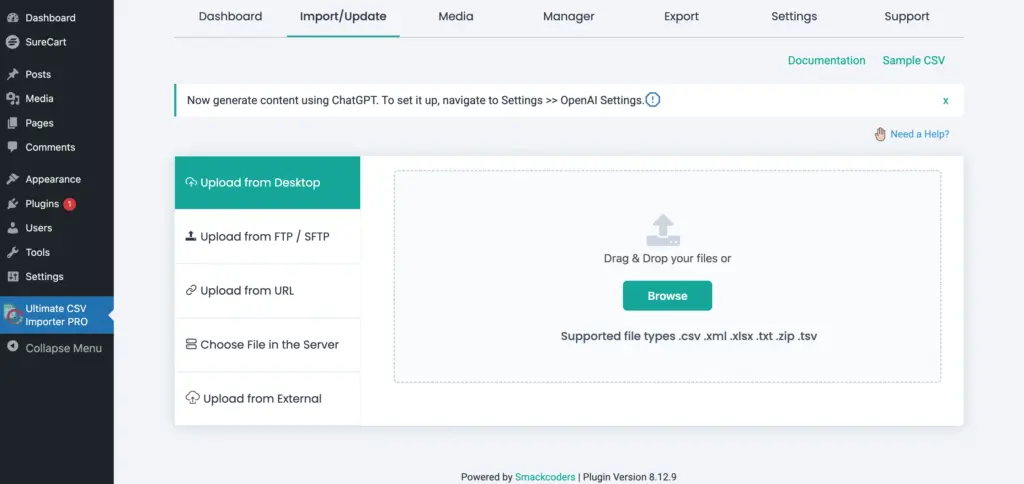
Step 1: Upload Your CSV File #
Go to Ultimate CSV Importer PRO → Import/Update. Upload your file from your local system, remote URL, or your preferred location.
Step 2: Select SureCart Customers #
Once the file is uploaded, you will be prompted to choose the module.
Select SureCart Customers.
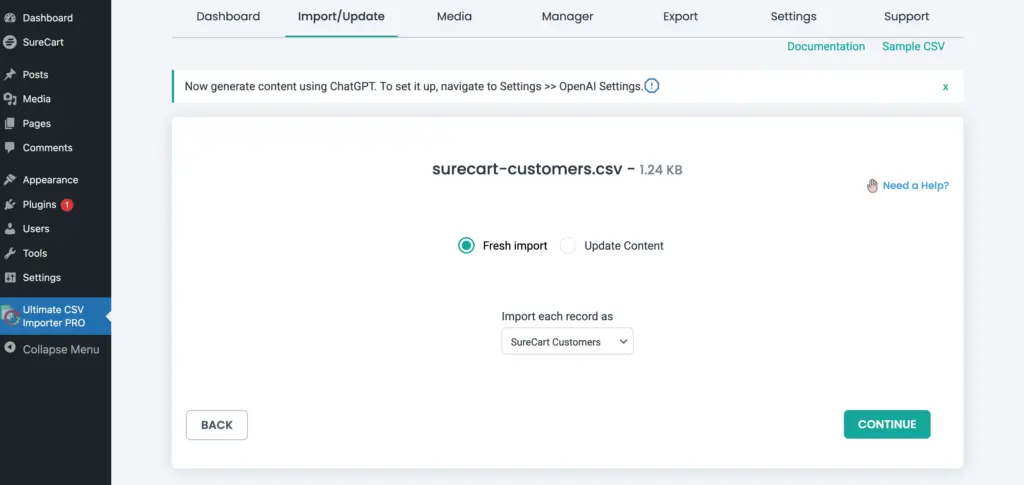
Click Continue to proceed to the mapping screen. The importer will now load all SureCart customer-related fields.
Step 3: Map the Fields #
In Advanced Mode, you will see sections such as:
- SureCart Customers Fields
- Create WP Custom Fields
- Manage Filtering Options
The same widgets are available in drag-and-drop mode. Switch to it for easier mapping.
Start by mapping the essential customer fields, such as:
- Customer Email
- Customer Name or First and Last Name
- Customer ID (if updating)
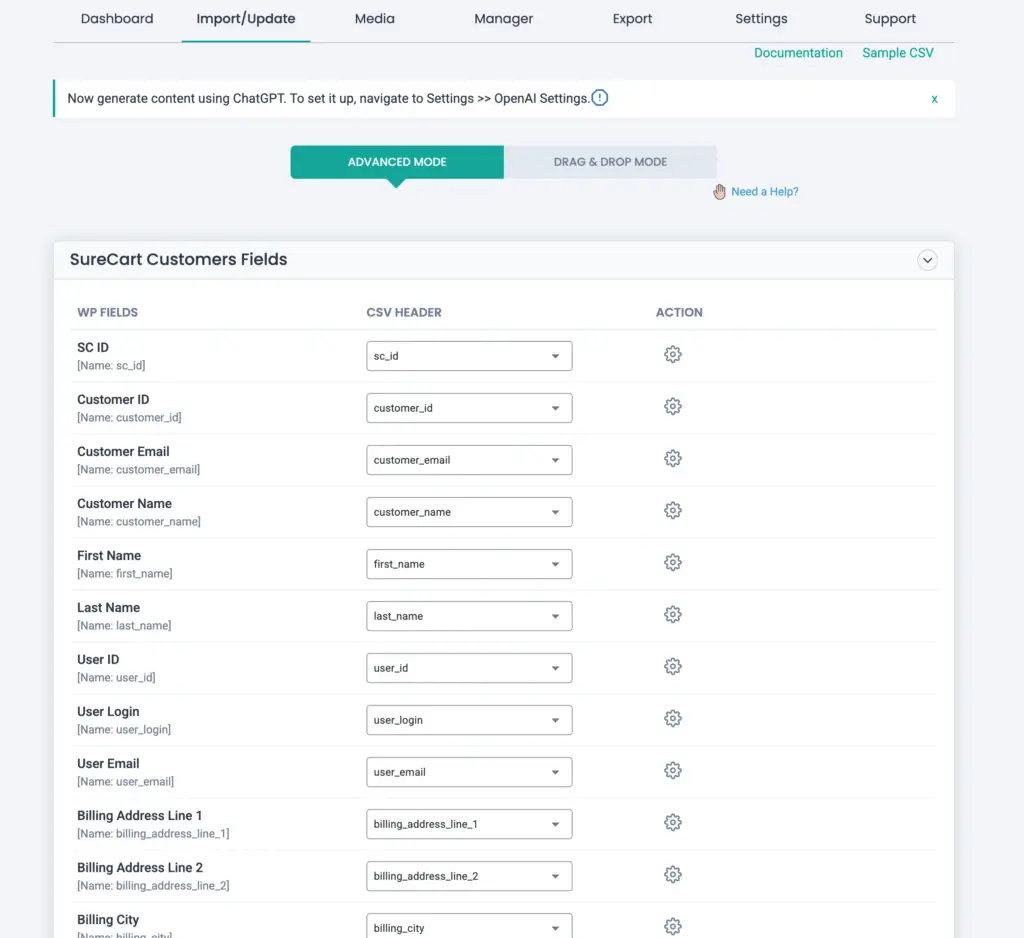
If your CSV contains billing address details, you can map fields like billing address line, city, state, postal code, and country.
If your file includes additional customer-related metadata that does not directly match the available fields, you may use the Create WP Custom Fields section to map them.
If required, you can apply filtering rules to import only specific customers from your file.
Once mapping is completed, you may save the configuration as a reusable template at the end. Then click Continue.
Step 4: Configure Import Settings #
In this step, choose how the importer should handle the records. If updating customers, select the appropriate identifier, such as Customer Email or Customer ID.
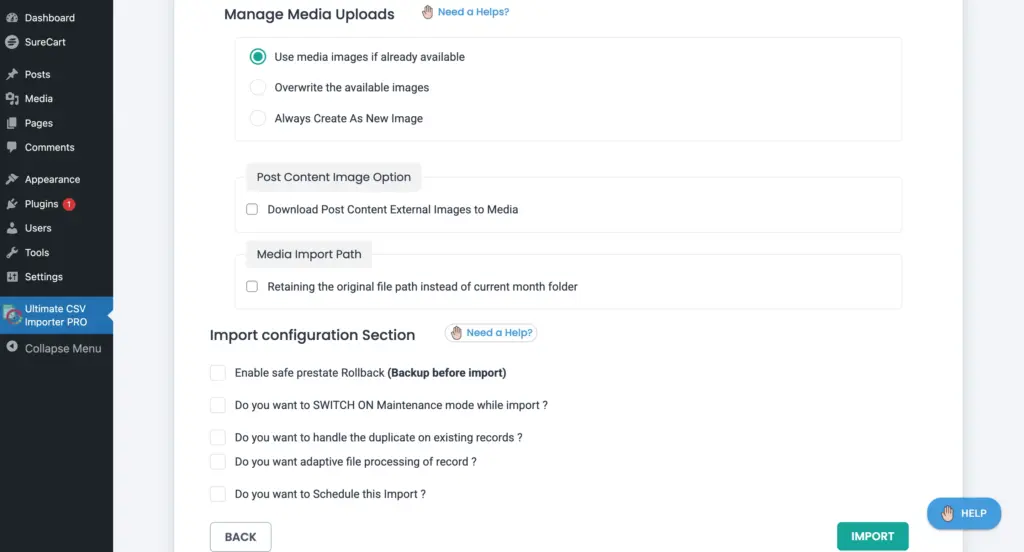
After configuring the settings, click Import to begin processing.
Step 5: Run the Import #
The importer processes customer records and imports them into SureCart Customers. If any records fail, review the logs to identify the reason.
Step 6: Verify Imported Customers #
After completion, navigate to SureCart → Customers
Review several records to confirm:
- Customer name
- Email address
- Billing details
- Associated user information (if applicable)
If you performed an update, verify that the intended fields have been modified correctly.
Frequently Asked Questions #
1. Is customer email mandatory for import?
Email is strongly recommended and typically required for identifying customer records, especially during updates.
2. Can I update existing customers using email?
Yes. Select the update option and choose email as the identifier.
3. Will importing customers create WordPress user accounts?
This depends on your SureCart configuration. If user-related fields are mapped and your setup supports it, user associations may be created or updated.
4. Will unmapped customer fields be overwritten during update?
No. Only the mapped fields are processed and updated.