
Export SureCart products data into your preferred file for migration, reporting, backup, or bulk editing purposes. The export process gives you control over file format, record splitting, filtering rules, and scheduling options. Visit the export tab, select SureCart Products, configure export settings, and run the export. This guide explains how to export SureCart products step by step using the correct export flow.
Step 1: Navigate to the Export Section #
To begin, log in to your WordPress dashboard and navigate to Ultimate CSV Importer PRO → Export.
This will open the Export screen, where you can choose the module you want to export data from.
The exporter supports multiple post types and modules. Since SureCart products are stored under Custom Posts, you will select the appropriate module in the next step.
Step 2: Select Custom Posts → SureCart Products #
On the module selection screen, choose Custom Posts. Then select SureCart Products.
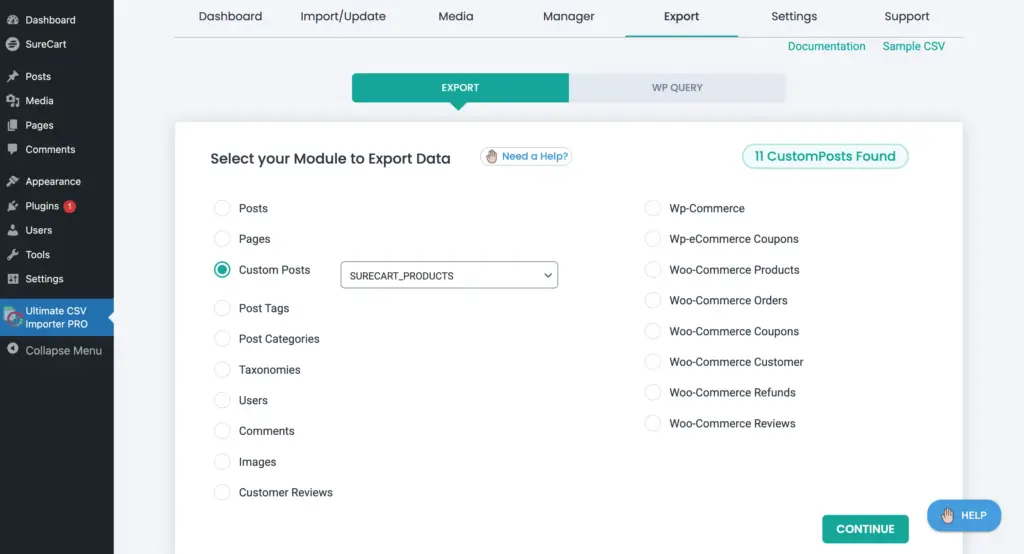
Click Continue to proceed. This tells the exporter that you want to generate a file containing SureCart product records.
Step 3: Configure Export File Settings #
In this section, you will configure how the export file should be generated.
You can define:
- File Name – Enter a meaningful name for the export file.
- File Type – Choose the required format, such as CSV or Excel (XLSX).
- Split Records – If you have a large number of product records, you can split them into multiple files to improve manageability. Enable the option and provide a number to split records based on it.
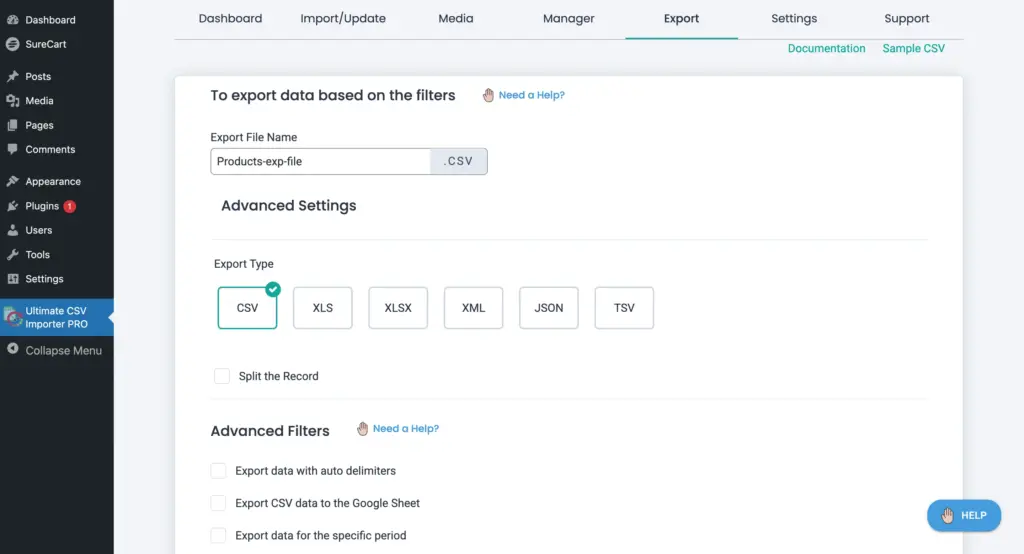
Splitting records is especially helpful when exporting thousands of products, as it prevents overly large files and ensures smoother downloads.
Step 4: Configure Export Filters and Schedule Settings #
This section allows you to control which product records should be included in the export and how the export should be delivered.
Export Filters
You can apply filtering conditions to export only specific products. For example:
- Export only published products
- Export products within a specific date range
- Export products matching certain field values
If no filters are applied, all SureCart products will be exported.
Google Sheets Option
If enabled, you can configure the export to be sent directly to Google Sheets. This is useful when you need real-time product data access without manually downloading files. Make sure you have configured your Google account inside Settings.
Schedule Export
You can schedule exports to run automatically at defined intervals. Select the checkbox ‘Do you want to Schedule this Export’ and add schedule date, frequency (hourly, weekly, or other), timezone, and time. Also, if you want to store the exported file in your FTP/SFTP profile, you can configure the host location with details like host name, port, username, password, host path, and connection type. Otherwise, you can enable google sheet option to save your files there.
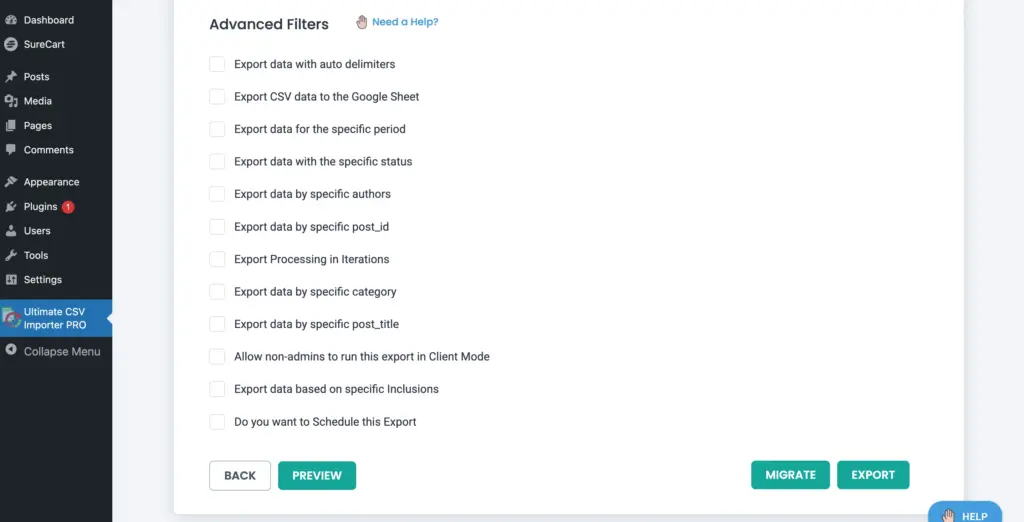
Once you have configured the filters and optional settings, proceed to the final step.
Step 5: Run the Export and Download the File #
After reviewing all configurations, click Export.
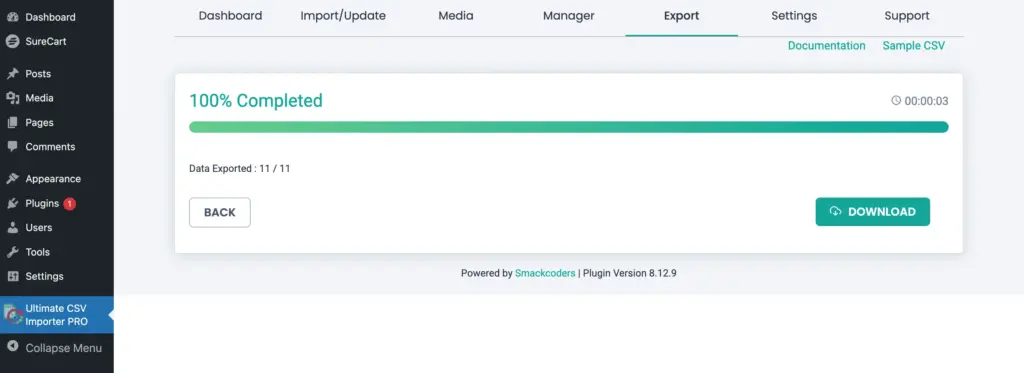
The system will process the SureCart product records based on your settings and generate the file.
Once the export is complete, click Download to save the file to your system. If you’ve configured Google Sheets, click the Export to Google Sheets button. This will export SureCart Products data to your Google Spreadsheet.
Frequently Asked Questions #
1. Can I export only specific SureCart products?
Yes. You can apply export filters to narrow down the records before running the export. For example, you can filter products by status, category, or other criteria. Only the filtered results will be included in the final export file. More filter options will be available soon.
2. Can I automate SureCart product exports?
Yes. You can configure scheduled exports to run automatically at defined intervals. Simply enable the scheduling option and set the preferred date, time, frequency, and timezone. Then configure the host location or Google Sheet to store the files. This is useful for recurring backups, reporting, or syncing data with external systems.
3. Can I send the export directly to Google Sheets?
Yes. If Google Sheets integration is configured, you can export SureCart product data directly to a connected sheet. This allows you to maintain live product data for reporting, collaboration, or external processing without manually downloading files.
4. Can I re-import the exported file later?
Absolutely. Files generated through the export module are fully compatible with the import module. You can modify the exported file and re-import it to update existing products or create new ones, depending on your import configuration.