
WP Ultimate CSV Importer allows you to export SureCart customer records into a structured file format for backup, migration, reporting, or external analysis. The export feature gives you flexibility to control the file format, split large datasets, apply filters, and even schedule exports automatically. To export SureCart customers, navigate to export, choose Custom Posts and SureCart Customers, configure export settings, and finally run the export.
Step 1: Navigate to the Export Section #
Log in to your WordPress dashboard and go to Ultimate CSV Importer PRO → Export.
This will open the export configuration screen where you can choose the module you want to export.
Step 2: Select Custom Posts → SureCart Customers #
On the module selection screen, choose Custom Posts. Then select SureCart Customers.
The plugin will fetch the total record count and display it in the top-right corner.
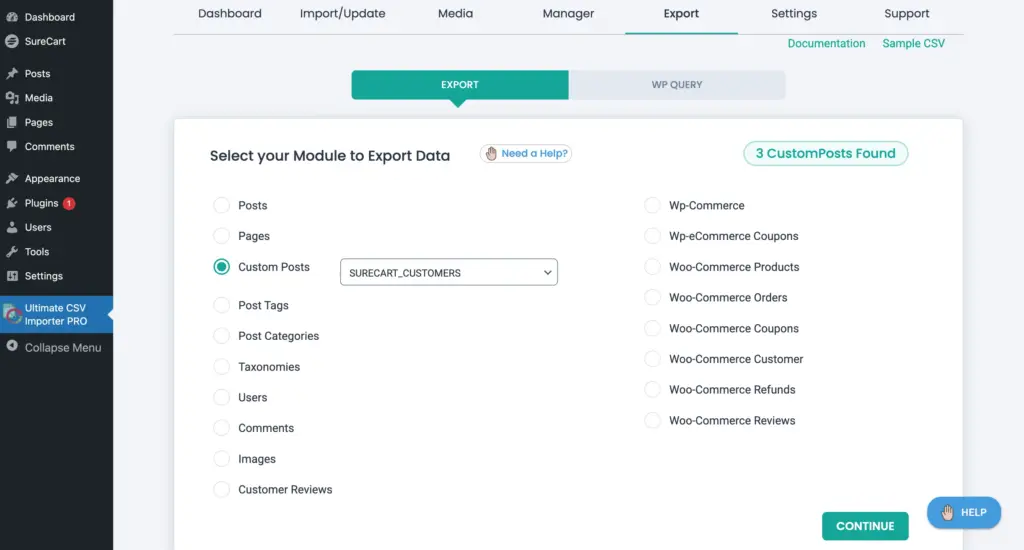
Click Continue to proceed.
Step 3: Configure Export File Settings #
In this section, you define how the export file should be generated.
You can configure:
- File Name – Provide a meaningful name for the customer export file.
- File Type – Choose the required file format, such as CSV, or below in the advanced filter, you can configure the export to Google Sheet option.
- Split Records – If you have a large customer database, enable record splitting to generate multiple manageable files.
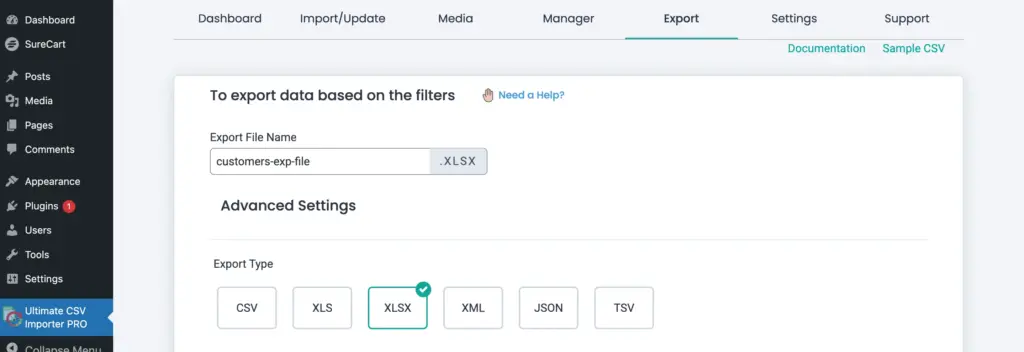
After setting up the file options, continue to the next section on the same page.
Step 4: Configure Export Filters and Additional Options #
This section allows you to refine which customer records should be included in the export.
Export Filters
You may apply filters based on criteria such as:
- Registration date
- Id
- Specific field values
- Other customer-related conditions
If no filters are applied, all SureCart customers will be exported.
Google Sheets Integration
If required, you can configure the export to send customer data directly to Google Sheets. This is useful when customer data needs to be shared or reviewed regularly without manual file downloads.
Schedule Export
Scheduled export allows you to automatically generate customer export files at defined intervals. Configure the ‘Do you want to schedule this export’ and provide details like schedule date, time, frequency, and timezone.
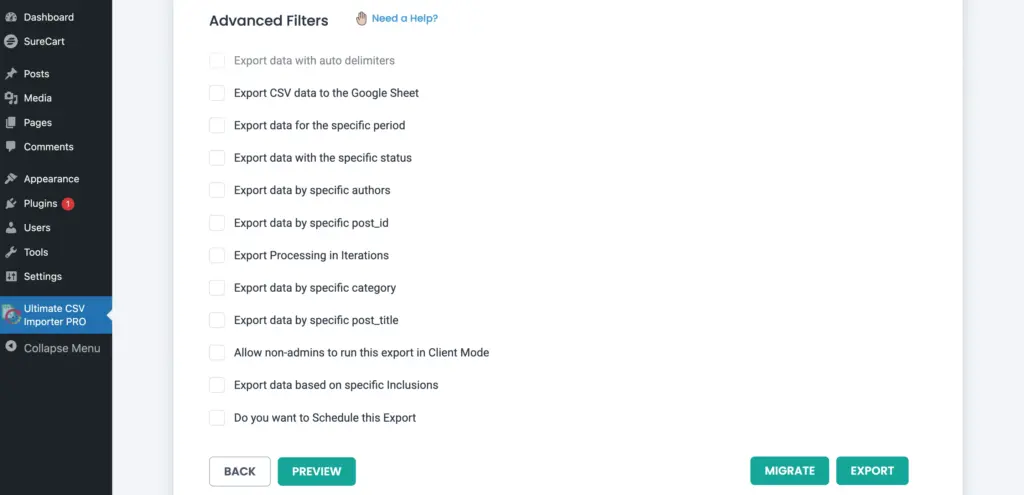
After configuring filters and optional settings, proceed to run the export.
Step 5: Run the Export and Download the File #
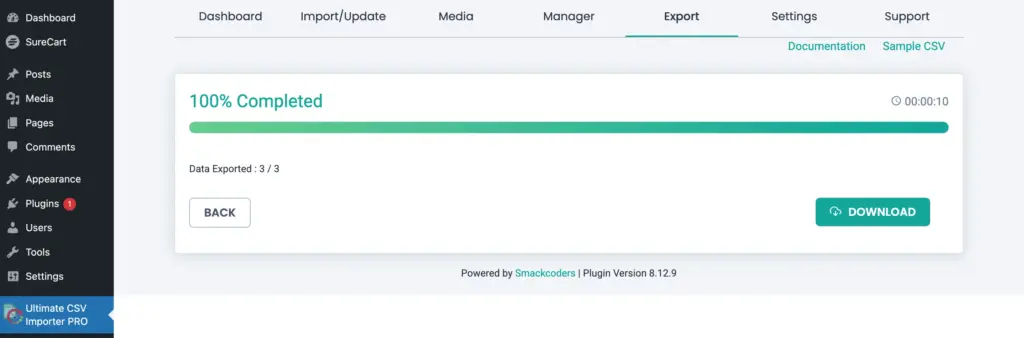
Click Export to start the process. The system will generate the export file based on your selected configuration. Once completed, click Download to save the file to your system.
Frequently Asked Questions #
1. Can I export customers created within a specific date range?
Yes, you can apply export filters to retrieve customers based on a defined date range. Simply configure the date filter option “Export data for the specific period” before running the export. Only customers matching the selected timeframe will be included in the exported file.
2. Can I split large customer exports into multiple files?
Yes. If you are exporting a large dataset, you can enable the Split Records option in the file settings. This allows the exporter to divide the data into multiple smaller files, helping prevent server timeouts and making the files easier to manage and download.
3. How do I automate customer exports?
You can schedule exports to run automatically at your preferred time and frequency. Enable the scheduling option, configure the date, time, recurrence, and timezone, and the system will generate exports without manual intervention.