
This guide explains how to import and export discounts created in the Easy Digital Downloads (EDD) plugin using WP Ultimate CSV Importer. It helps you transfer, manage, and back up EDD discount rules in bulk. You’ll learn how to prepare a discount file, map discount fields, run imports, and export EDD Discounts by configuring the file name and format through the exporter.
How to Import EDD Discounts #
Step 1: Prepare the CSV File
Include fields like
- Discount Code
- Discount Type (percentage / flat)
- Discount Amount
- Status
- Usage Limit
- Usage Limit Per User
- Start Date
- End Date
- Minimum and Maximum Amount
- Included / Excluded Products
- Included / Excluded Categories
Step 2: Create a New Import
Upload the discount import file using any preferred file upload location. Select EDD Discounts from the post type dropdown.
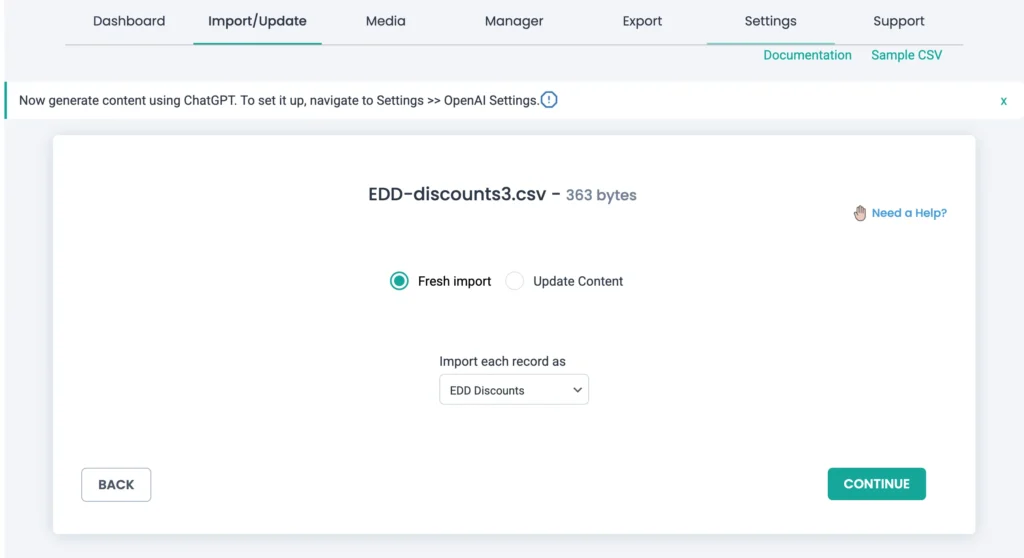
Click Continue.
Step 3: Map Discount Fields
Map all discounts fields you’ve added inside your import file with EDD Discounts fields. Use the dropdown mapping mode or drag and drop mode according to your preference. Once mapped, save it with a name at the end and click Continue.
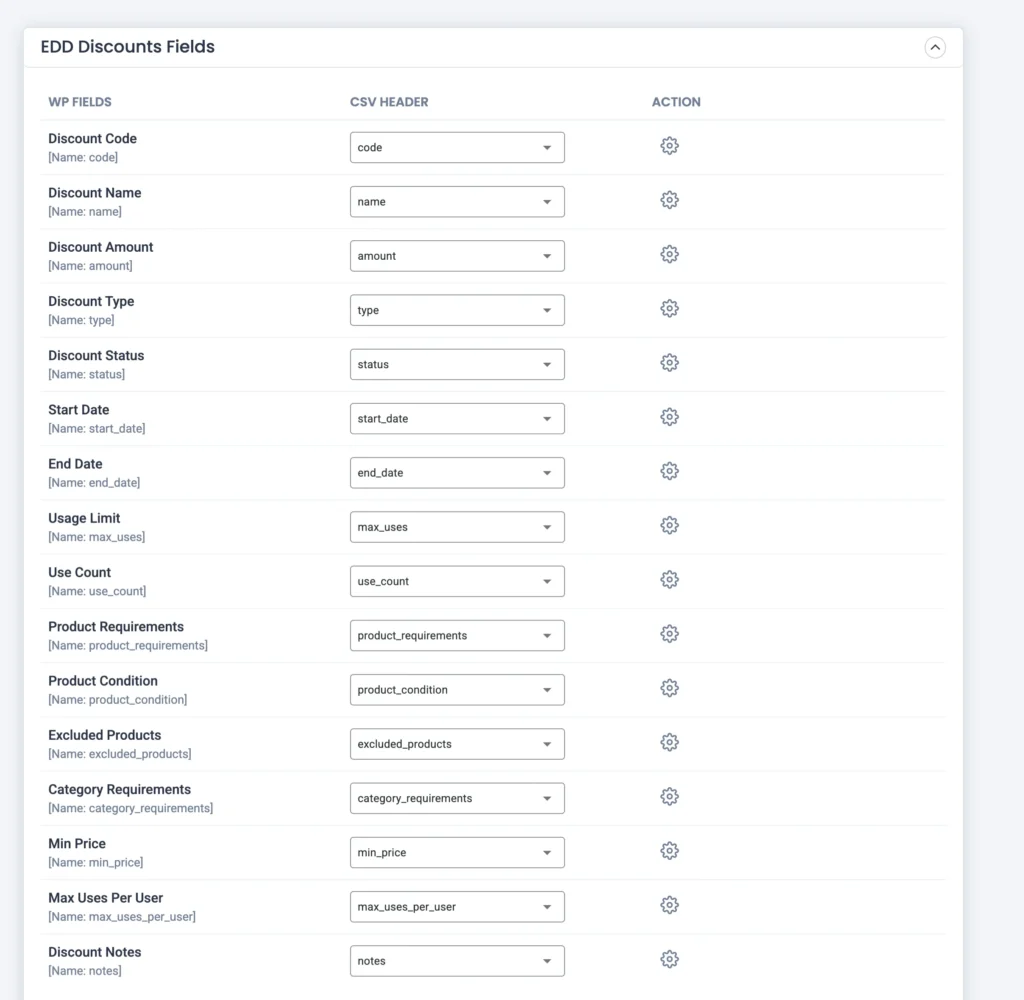
Step 4: Run Import
Start the import immediately by clicking the Import button. The import will start, and you can monitor every record import status in the log screen.
Once imported, verify discounts under Downloads → Discounts.
How to Export EDD Discounts #
The EDD Discounts export contains all discount configuration details, including:
- Discount code
- Discount type (percentage or flat)
- Discount amount
- Status (active or inactive)
- Usage limits and usage counts
- Usage limit per user
- Start and end dates
- Minimum and maximum cart amounts
- Included and excluded products
- Included and excluded categories
Step 1: Open the Discounts Export
Navigate to the Export tab. Select Custom Posts → EDD Discounts.
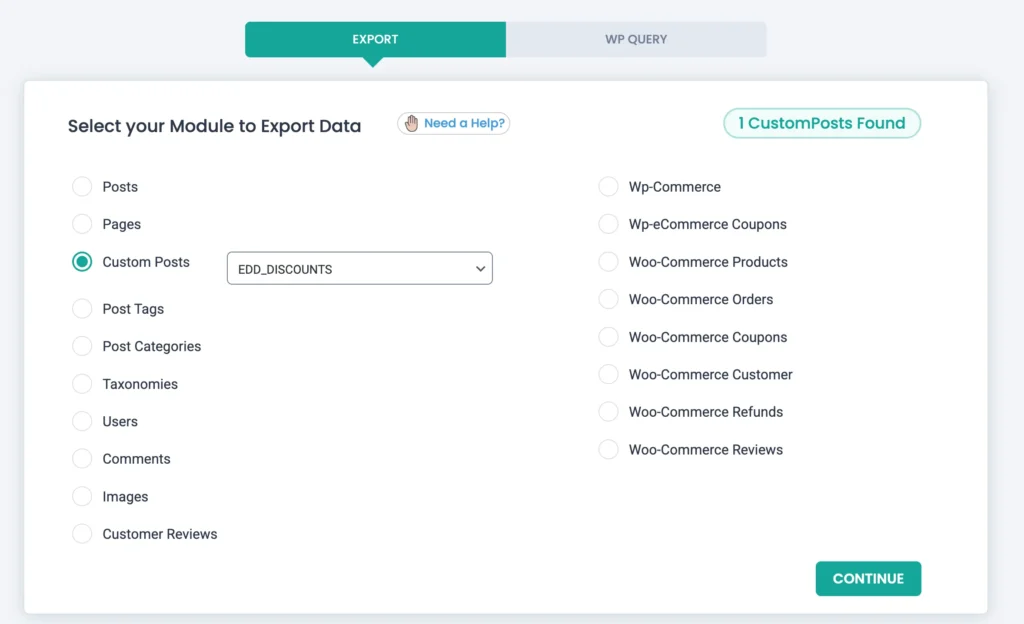
Click Continue.
Step 2: Configure Export Options
Add a file name for the discounts export and select a file type from many choices.
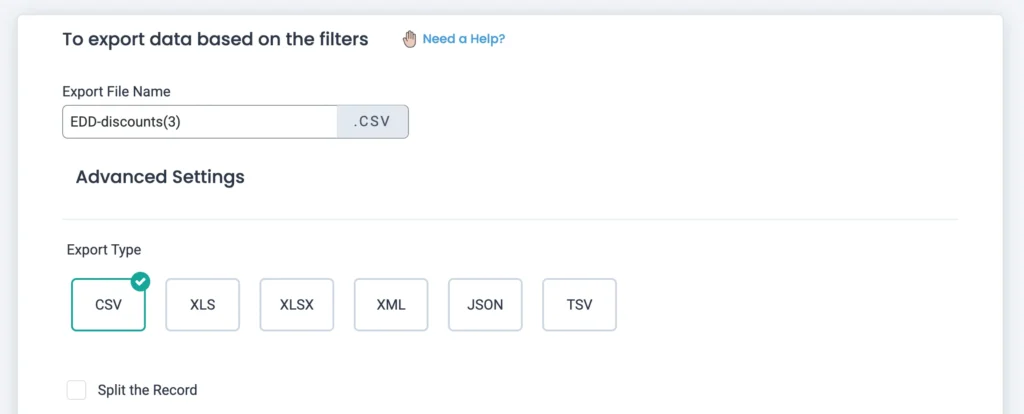
Step 3: Export the File
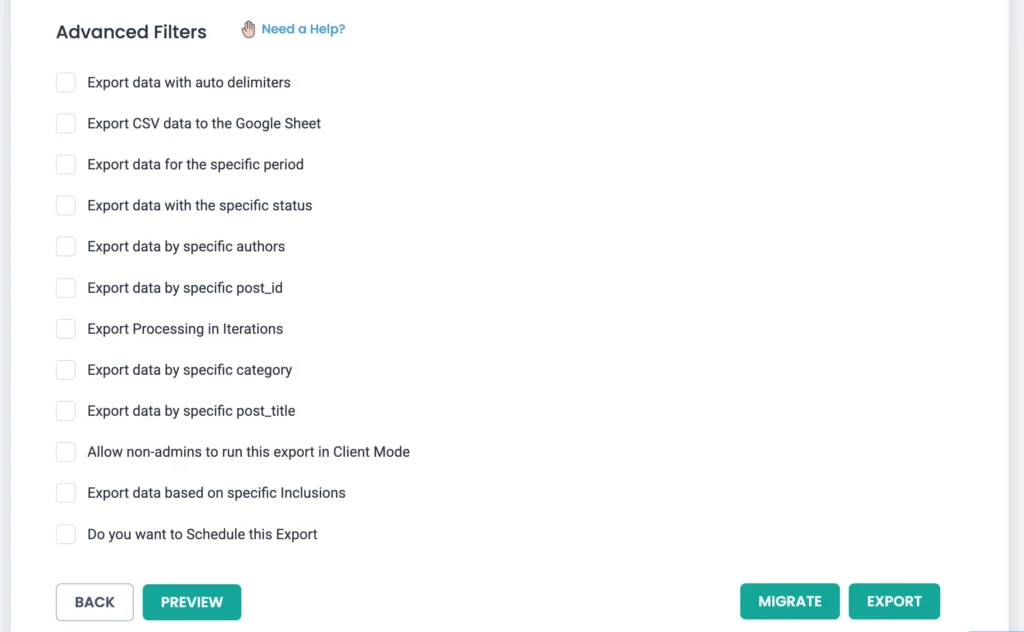
Click Export. The export will start to run, and you can download the file to your local device. If you have enabled Google Sheet export, you can send the exported file to your connected Google Account.
This exported file can be reused for re-importing discounts or maintaining backups.