
WP Ultimate CSV Importer Pro adds four AI-powered capabilities to the import workflow you already know: Natural Language Import, AI Auto Mapping, AI Duplicate Detection, and AI Error Detection. This guide explains how to use the AI CSV importer for WordPress to run faster, and each feature with the exact screens, settings, and prompts you will see in the plugin, plus the troubleshooting steps, best practices, and cost guidance you need to run clean imports at any scale.
| What is new in the Pro release: Describe an import in AI natural English, and the plugin runs it. Get header-to-field mapping suggestions with a confidence score. Detect duplicates by meaning, not just by text match. Catch broken links, invalid dates, empty rows, and duplicate mappings before the import starts. Full WordPress 7.0 compatibility, and all AI features reuse the native WordPress AI settings. |
Before You Start
Requirements
• WordPress 6.5 or newer (WordPress 7.0 recommended).
• PHP 7.4 or higher, with allow_url_fopen enabled if you import remote images.
• WP Ultimate CSV Importer Pro installed and activated.
• WordPress AI Settings configured with a valid OpenAI or Google API key (needed for Natural Language Import, AI Auto Mapping in low-confidence cases, Vector Hashing duplicate detection, and AI Error Detection).
• A UTF-8 encoded CSV, XML, JSON, or Excel file, up to 50 MB for uploads from disk, larger for FTP or URL imports.
Where AI settings live
The AI CSV importer for WordPress reads directly from WordPress → Settings → AI Settings. You do not configure an API key inside the plugin. If AI calls fail, verify your key in that panel first.
| Backup firstAlways take a database backup before a large Update or replace job. AI features reduce mistakes, but cannot undo bad data that was already saved. |
1. AI Natural Language Import
Natural Language Import is the headline feature of the AI CSV importer for WordPress; it lets you describe the job in one prompt.t. The plugin reads your CSV and your prompt together, decides the mode, the import type, the field mapping, and the filters, and starts the import, with no manual dropdowns.
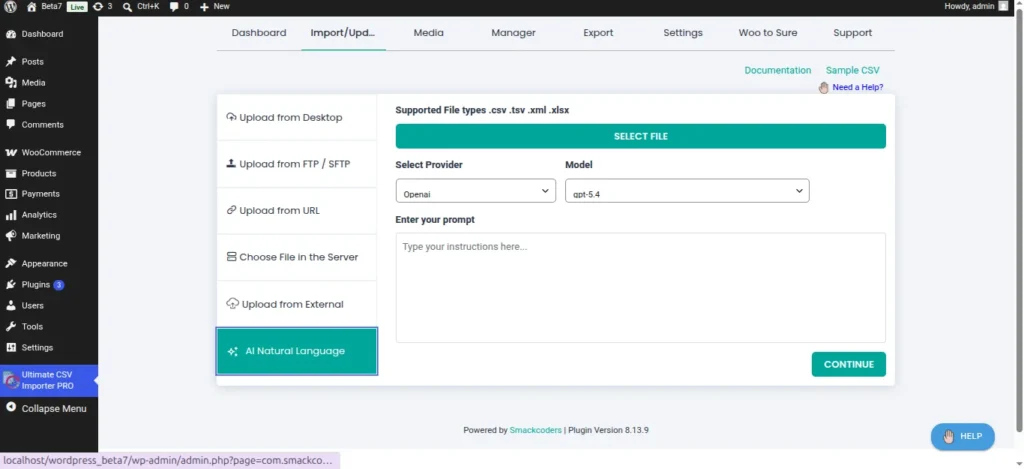
Step-by-step
- Open WP Ultimate CSV Importer Pro → New Upload.
- Upload your CSV, XML, JSON, or Excel file.
- On the AI Natural Language Import screen, type your instructions into the prompt field labeled “Type your instructions here…”.
- Click Run. The plugin parses the prompt, builds the configuration, and starts the import.
- Review the Import Summary for inserted, updated, skipped, and error counts.
- AI Natural Language Import screen with the prompt field and Run button.
Prompt Library (copy, paste, edit)
Insert new WooCommerce products
“Insert this CSV as new WooCommerce products. Map SKU to SKU, Title to product name, Price to regular_price, Stock to stock_quantity. Publish all rows.”
Update WooCommerce prices only
“Update existing WooCommerce products in the Outdoor category using this CSV. Match on SKU. Only update regular_price and sale_price. Skip rows without a SKU.”
Publish a batch of blog posts
“Insert these rows as new posts. Map Title to post_title, Body to post_content, Author to post_author by user login, Category to post_category. Set status to draft.”
Fresh page import
“Create WordPress pages from this file. Map URL slug to post_name, Title to post_title, Content to post_content. Publish all pages.”
Bulk user onboarding
“Import these rows as new WordPress users. Role is subscriber. Send new-user notifications. Skip any row where the email is blank.”
Taxonomy import
“Create new product categories from this CSV. Map Name to term name, Slug to term slug, Parent to parent term. Skip duplicates.”
Custom post type
“Insert this file as new entries of the custom post type ‘case_study’. Map Title to post_title, Summary to excerpt, Body to post_content, Industry to custom taxonomy ‘industry’.”
Scheduled future publish
“Insert these rows as new posts with post_status = future. Read the publish date from the column ‘go_live_at’. Send to the Blog category.”
| Prompt writing tipsBe explicit about the mode (insert or update), the match field (SKU, slug, ID, email), and the status (publish, draft, future). Name every destination field you care about. Keep one prompt per job; two jobs in one prompt confuses the model. |
2. AI Auto Mapping
If you prefer the manual Advanced Mapping workflow, the Pro release adds AI assistance to every mapping dropdown. When an exact header match is not available, the plugin measures similarity between your CSV headers and the available WordPress or WooCommerce fields, and proposes the closest match with a confidence percentage.
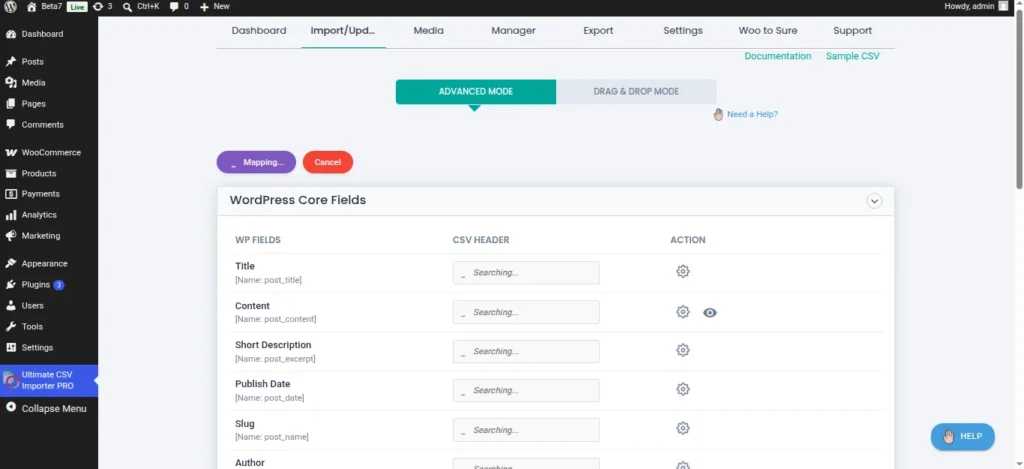
How confidence scoring works
- Exact match (Product_Title → post_title) is assigned 100%.
- High-confidence matches (≥80%) are auto-applied and shown in green.
- Medium-confidence matches (60–79%) are suggested but flagged for Manual Review.
- Low-confidence matches (<60%) are left unmapped, so you can choose.
Advanced Mapping screen with AI match percentages next to each header.
Manual Review Workflow
- On the Advanced Mapping screen, look for headers with a yellow “Manual review required” flag.
- Click the dropdown for that header. The top suggestion is highlighted with its confidence score (for example, “82% AI match”).
- Pick the correct target field. If the AI’s guess is right, accept it. If not, search the dropdown supports type-ahead search.
- If a CSV column should be ignored, set it to “Do not map.”
- Click SAVE AS to store this mapping as a reusable template for next time.
| Save mapping templatesTemplates remove almost all manual work on recurring imports. The first import of a new file format takes time; the tenth takes seconds. |
3. AI Duplicate Detection
Duplicate records are the single most common bulk-import problem. The Pro release adds two detection modes: Vector Hashing (meaning-based) and Semantic Similarity (threshold-based text comparison).
Turn it on
On the Import Configuration screen, enable AI Duplicate Detection, pick a mode, and if you want the plugin to take action on matches, enable “Do you want to handle the duplicate on existing records?”
Import Configuration section with the AI Duplicate Detection checkbox.
Vector Hashing (AI Mode meaning-based)
The plugin pre-filters the database to pull the current record and the top five most likely matches. It generates numerical embeddings of the content using text-embedding-3-small from OpenAI and text-embedding-004 from Google. These embeddings are converted into a vector hash and stored in WordPress options for the session. If a new record’s vector hash is similar enough to a stored hash, it is flagged as a duplicate and skipped. Temporary hashes are cleaned up automatically once all batches are complete.
Semantic Similarity (threshold-based)
A lighter option that skips embeddings. It compares fields directly, title to title, description to description, using string-similarity scoring, and applies a threshold (for example, 0.80). It makes no AI calls, so it is faster and cheaper for clean, well-structured data.
Which mode should you use?
- Choose Vector Hashing when record wording varies (different phrasings, word-order changes, paraphrased titles), for example, catalog feeds from multiple vendors.
- Choose Semantic Similarity when your titles and descriptions are consistent, for example, exports from a single source system.
- If you are unsure, start with Semantic Similarity at threshold 0.80. If real duplicates still slip through, switch to Vector Hashing.
Changing the comparison fields
The default comparison is on post_title and post_content. To compare on different fields (for example, SKU for products), change the configuration in the duplicate detection settings before you click IMPORT. For WooCommerce imports, SKU is usually the single most reliable comparison field.
Reading the duplicate result
After import, the Import Summary shows skipped records with a message such as:
“Skipped by AI Duplicate Check. Matched on post_title: CSV:‘How to Plan a Good Sleep Routine’ to post 14623 DB:‘How to Build a Good Sleep Routine’.”
Duplicate detection results in the Import Summary with Skipped status and matched record ID.
The status column shows Skipped with a yellow alert icon. The message tells you which CSV row was evaluated, what field matched, the existing post ID it collided with, and the database value it matched against. Click View or Edit to open the existing record.
Cost expectations
Vector Hashing makes one embedding call per candidate record (plus one per existing record in the top-five pre-filter). A 1,000-row import with no matches typically triggers around 1,000 embedding calls. Embeddings are much cheaper than GPT calls, but the cost adds up on very large jobs. Check your provider’s pricing. Semantic Similarity has zero per-record AI cost.
4. AI Error Detection
AI Error Detection runs after you finish mapping and before the final import, so you can fix problems while they are still cheap to fix.
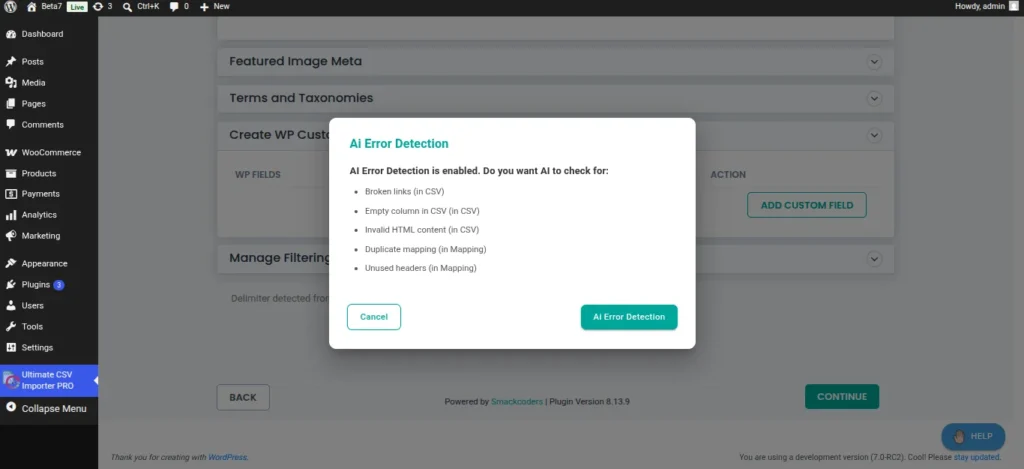
Enable the check
When you click CONTINUE from the Advanced Mapping screen, a modal titled “Ai Error Detection” appears with:
“AI Error Detection is enabled. Do you want AI to check for:”
• Broken links (in CSV)
• Empty column in CSV
• Invalid HTML content (in CSV)
• Invalid data (in CSV)
• Empty rows (in CSV)
• Unused headers (in CSV)
• Duplicate mapping
AI Error Detection modal listing every check the plugin can run.
Reading the report
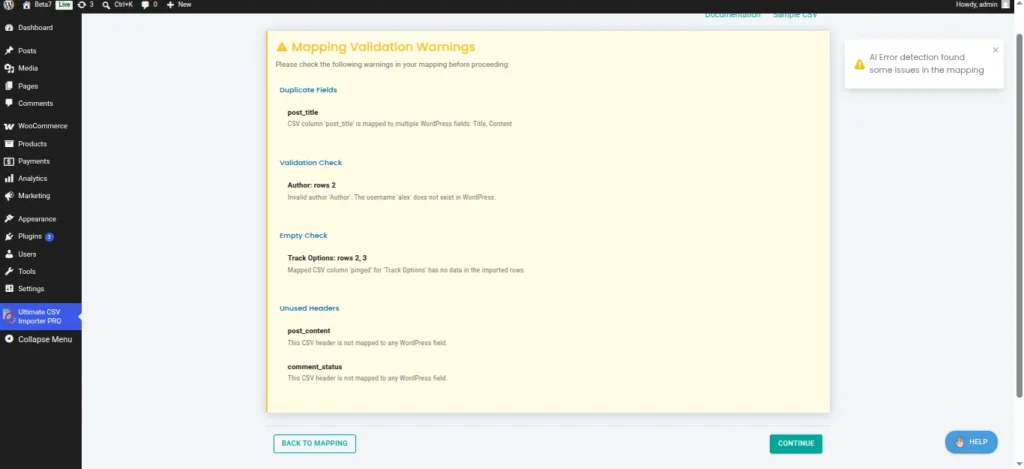
Each issue includes the type, the affected field, and the row numbers so you can jump straight to the problem. You can still proceed with the import even if issues are found, but at least you know what is coming.
AI Error Detection report listing issues by field and row.
| Where this saves timeDate format mismatches, unregistered authors, and broken image URLs are the three issues that most often force a full rollback. Error Detection catches them before a single row is written. |
Safety Nets
Rollback
Every import is logged. From the Log screen, you can roll back an entire job in one click. The plugin removes every post, product, or user it created in that run. Updates are reverted to the pre-import values where possible.
Maintenance Mode
Toggle Maintenance Mode during large imports to prevent visitors from seeing half-published content. Admins keep full access.
Scheduled Import
For recurring jobs, use Scheduled Import to pull a remote CSV on a schedule (hourly, daily, weekly). Combine with Update Content and AI Duplicate Detection to keep a catalog in sync automatically.
Best Practices
Follow these best practices to get the most out of the AI CSV importer for WordPress:
- Start small. Run a 10-row test file before a 10,000-row run. The 10-row run is where you fix mapping, thresholds, and field choices.
- Match on the most unique field. SKU for products. Email for users. Slug or ID for posts.
- Use UTF-8 encoding. Export from Excel as “CSV UTF-8 (Comma delimited)” to avoid curly quotes and smart dashes breaking content.
- Save mapping templates. Reusable templates turn a 20-minute mapping session into a 10-second one.
- Verify after import. Spot-check 5–10 random rows in WordPress for each large run.
- Schedule heavy imports off-peak. Use Scheduled Import at night for stores with live traffic.
Troubleshooting
“AI calls failing” or blank AI responses
Confirm your API key at WordPress Settings, then click Connectors. Check your provider dashboard for quota or billing issues. Try a smaller sample (the request may be timing out on very large rows).
Natural Language Import runs in the wrong mode
Rewrite the prompt with the mode word first: “Update existing…” or “Insert new…”. Name the match field explicitly.
Mapping shows 0% for every column
The CSV headers likely contain unexpected characters (tabs inside headers, leading spaces). Re-export the file with clean headers.
Duplicate detection is flagging too many rows
Lower the similarity threshold (0.80 → 0.72). For Vector Hashing, review the matched-field configuration, matching on post_content is aggressive because long text often overlaps.
Duplicate detection is missing real duplicates
Raise the threshold slightly, switch from Semantic Similarity to Vector Hashing, or add more comparison fields.
Error Detection reports broken links that work in the browser
Your server may be blocking outbound HEAD requests. Either whitelist the target domains or temporarily turn off the Broken Links check.
Frequently Asked Questions
Does AI Natural Language Import replace the old workflow?
No. Both are available. Advanced Mapping is still there for full manual control.
Which import types are supported?
Yes, all post types are supported, such as WooCommerce products, WooCommerce orders, posts, pages, custom post types, taxonomies, users, comments, etc.
Does duplicate detection require an OpenAI or Google account?
Vector Hashing does. Semantic Similarity does not. Both use the key configured in WordPress AI Settings; the plugin does not ask for a second key.
Is the AI CSV importer for WordPress compatible with WordPress 7.0?
Yes, the AI CSV importer for WordPress is fully tested with WordPress 7.0.
Related Documentation
Learn more about the AI CSV importer for WordPress plugin : https://www.smackcoders.com/wp-ultimate-csv-importer-pro.html