
With WP Ultimate CSV Importer, you can bulk create and update SureCart coupons. This feature is ideal for launching promotional campaigns, migrating discount rules from another platform, or managing seasonal offers without manually creating coupons one by one. Start by preparing your file, uploading it to the importer, choosing SureCart Coupons, mapping fields, and importing coupons.
Step 1: Upload Your Import File #
Go to Ultimate CSV Importer PRO → Import/Update. You can upload your file from:
- Local system (desktop)
- FTP/SFTP
- Remote URL
- Server
- External Source (Google Sheets/Dropbox)
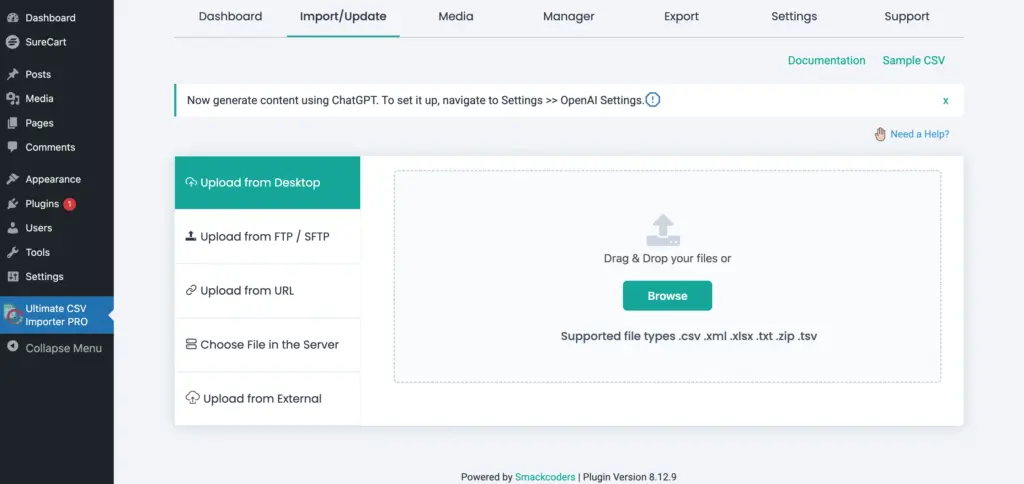
Supported formats include:
- CSV
- XML
- Excel (XLS / XLSX)
- TSV
- Google Sheets
Step 2: Select SureCart Coupons #
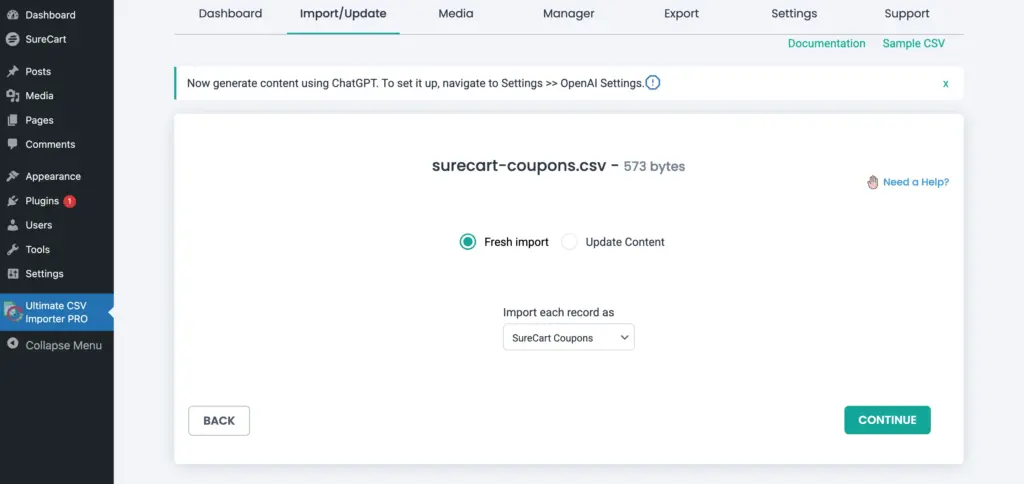
Once the file is uploaded, choose the module you want to import into.
Here, choose the import type “Update Content” if you are updating existing coupons.
Select SureCart Coupons from the dropdown and click Continue to proceed. The importer will now load all SureCart coupon-related fields for mapping.
Step 3: Map Coupon Fields #
By default, the importer opens in Advanced Mode, where you manually map file columns to SureCart coupon fields using a dropdown. However, you can switch to Drag and Drop Mode if you prefer a more visual mapping interface.
Start by mapping the core coupon details like Coupon Code, Discount Type, Discount Amount, and Status.
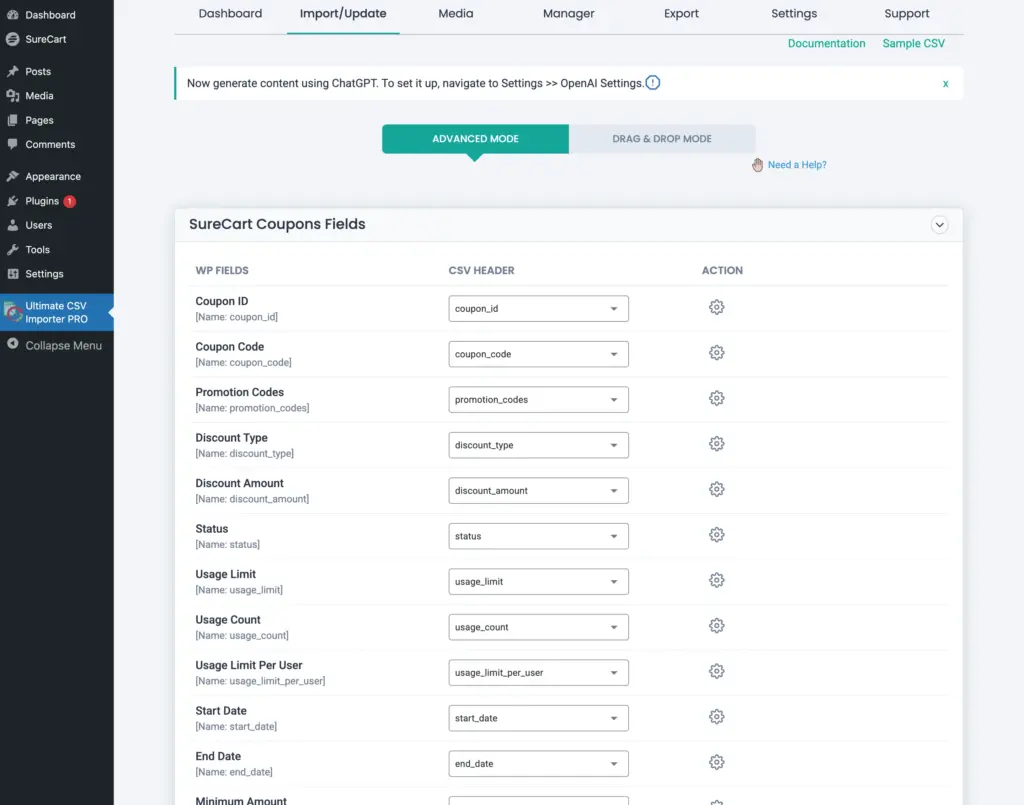
If your import file includes additional data, you may also map Expiry Date, Usage Limit, Minimum Order Amount, Maximum Order Amount, and Product or category restrictions. You are not required to map every available field. Only map the fields that exist in your file and are relevant to your import. Unmapped fields will retain default values or remain unchanged during updates.
If your file contains additional coupon-related metadata that does not match the available fields, use the Create WP Custom Fields section to store that information.
You may also apply filtering rules to import only selected records from your dataset (for example, coupons above a certain discount value).
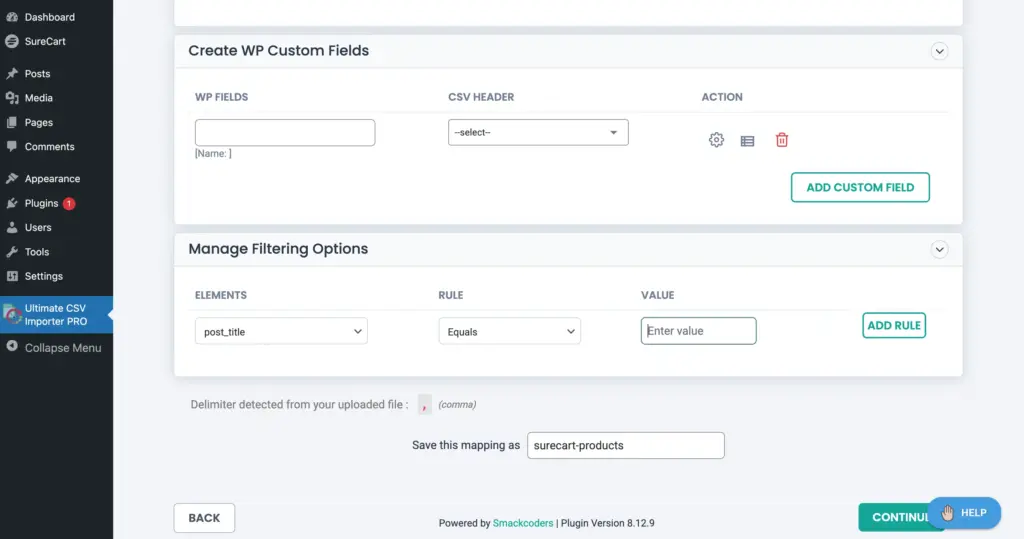
Once mapping is complete, you can save the configuration as a reusable template for future imports. Then click Continue.
Step 4: Configure Import Settings #
In this step, you can configure the importer settings like
- Enable safe pre-state Rollback (Backup before import) – Rollback for backup and safely revert the site to the previous state after import
- Do you want to handle the duplicate on existing records? – Duplicate handling to prevent duplicate coupons insertion
- Do you want adaptive file processing of the record? – Iterations to import records in batches
If updating coupons, select the correct identifier (typically Coupon Code). This ensures that existing coupons are matched correctly and updated instead of duplicated.
To schedule the import, enable ‘Do you want to Schedule this Import?’ and configure schedule settings like date, time, frequency, and timezone. Then click Schedule.
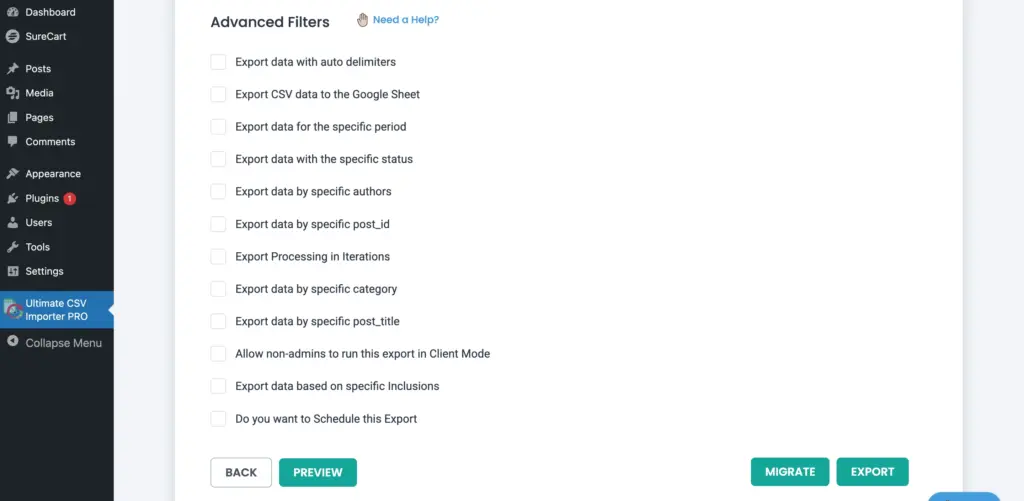
Otherwise, carefully review your configuration before proceeding. Click Import to begin the process.
Step 5: Verify the Import #
Coupons are processed in controlled batches to maintain performance (if you enable iterations) and prevent server overload.
During the import, you will see:
- Total records processed
- Successfully imported coupon
- Failed records (if any)
If any records fail, review the import log for error information.
After the import completes, navigate to SureCart → Coupons. Review a few coupons to confirm coupon code, discount type, and value, expiry date, usage limits, and status. If updates were performed, confirm that only the intended fields were modified.
Updating Existing Coupons in Bulk #
To update coupons safely:
- Upload the updated coupons file. Ensure your file includes accurate Coupon Codes.
- Select Update Content. Then SureCart Coupons from the post type selection dropdown.
- Click Continue.
- Match fields in your file with SureCart Coupons fields. At the end of the page, add a unique name to save the mapping template.
- Click Continue.
- Scroll down and in the import configuration section, enable “Do you want to handle the duplicate on existing records?” and choose an identifier to update matched records.
- Select “Skip update, If any extra records found” to skip new record insertion and update only matching records.
- Click Update to start the Coupons update.
- All your coupons will be updated. Verify the updated coupons by checking the provided logs or visiting SureCart → Coupons directly.
Only mapped fields will be updated. Unmapped fields remain unchanged.
Frequently Asked Questions #
1. Can I update existing SureCart coupons instead of creating new ones?
Yes. During the import process, select the Update Content option. Ensure your import file includes a unique identifier, like a coupon code, and map it correctly. At the end of the step, select this identifier to check for any duplicates and merge. The importer will match existing coupons using this identifier and update only the mapped fields.
2. What happens if a Coupon Code already exists but I select “Fresh Import”?
If you select Fresh Import and a Coupon Code already exists, the importer will create it as a new record. This results in duplicate coupons creation or errors if duplicate codes are not allowed. To avoid unintended duplicates, always use the Update Content option when modifying existing coupons.
3. Is Coupon Code mandatory for import?
Yes. Coupon Code is required when creating new coupons because it uniquely identifies each coupon in SureCart. When updating coupons, it is strongly recommended to include Coupon Code in your file to ensure proper matching and prevent duplicate entries.
4. Can I create multiple promotional coupons in a single import?
Yes. You can bulk import multiple coupon records in a single file, whether using CSV, XML, Excel, TSV, or Google Sheets. This makes it easy to launch seasonal promotions, generate campaign-based discount codes, or migrate coupon data from another system.
5. Will unmapped coupon settings be overwritten during updates?
No. Only the fields you explicitly map during the import process will be created or updated. Any unmapped coupon settings will remain unchanged. This ensures safe bulk updates without affecting existing configurations.
6. What if some coupon records fail during import?
If certain records fail, review the import log for detailed error messages. Common causes include invalid discount type values, incorrect date formats, missing required fields such as coupon code, and numeric values formatted incorrectly. Correct the issue in your file and re-run the import for the failed records.