
To import SureCart orders using a CSV, XML, or Excel file, visit the WP Ultimate CSV Importer Pro plugin, upload the file, map fields, and click Import. Once imported, review the logs for successful orders import.
Orders are typically connected to a customer, one or more products, and order status and totals. For a smooth import process, make sure the referenced customers and products already exist in SureCart. If they do not exist, create or import them first before importing orders.
Step 1: Upload Your Orders File #
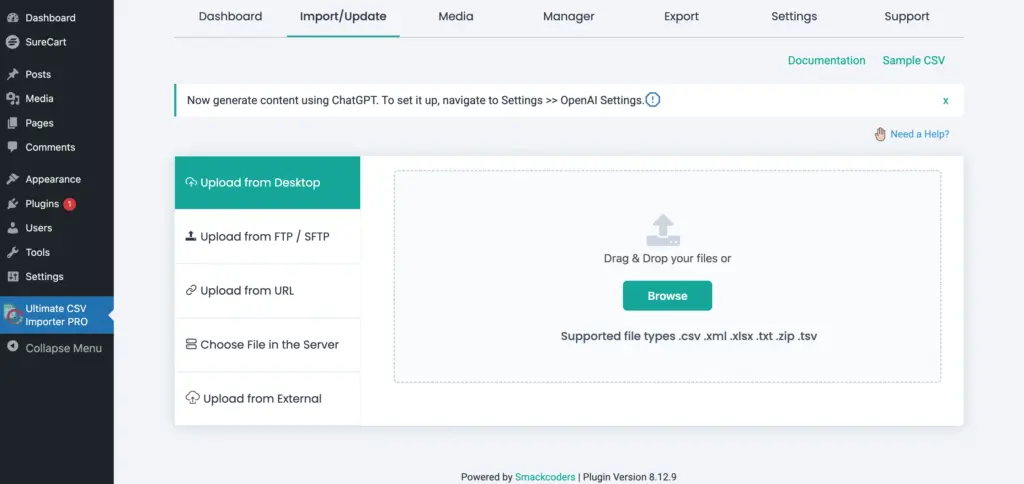
Visit the Import/Update tab. Upload your Orders file in formats like CSV, XML, Excel, or Google Sheet from your computer, FTP/SFTP, server, external source, or via URL.
Step 2: Select SureCart Orders #
After uploading the file, select the appropriate module. Choose SureCart Orders from the post type dropdown.
Above that, you can configure import mode like Fresh Import or Update Content (for data update).
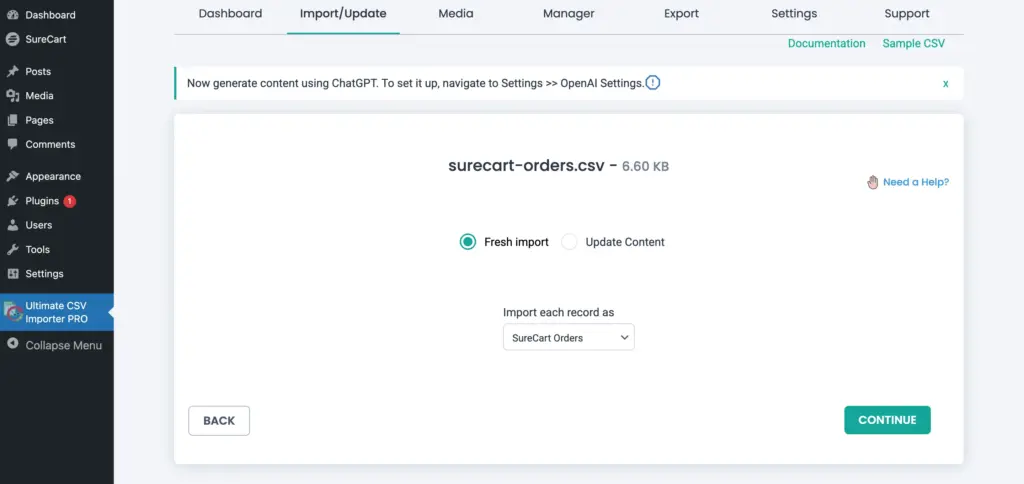
Click Continue.
The importer will now load all SureCart order-related fields for mapping.
Step 3: Map the SureCart Orders Fields #
In the mapping screen, you will see the SureCart Orders Fields section.
Begin by mapping the core order details such as:
- Order ID or Order Number
- Order Date
- Order Status
- Customer Email or Customer ID
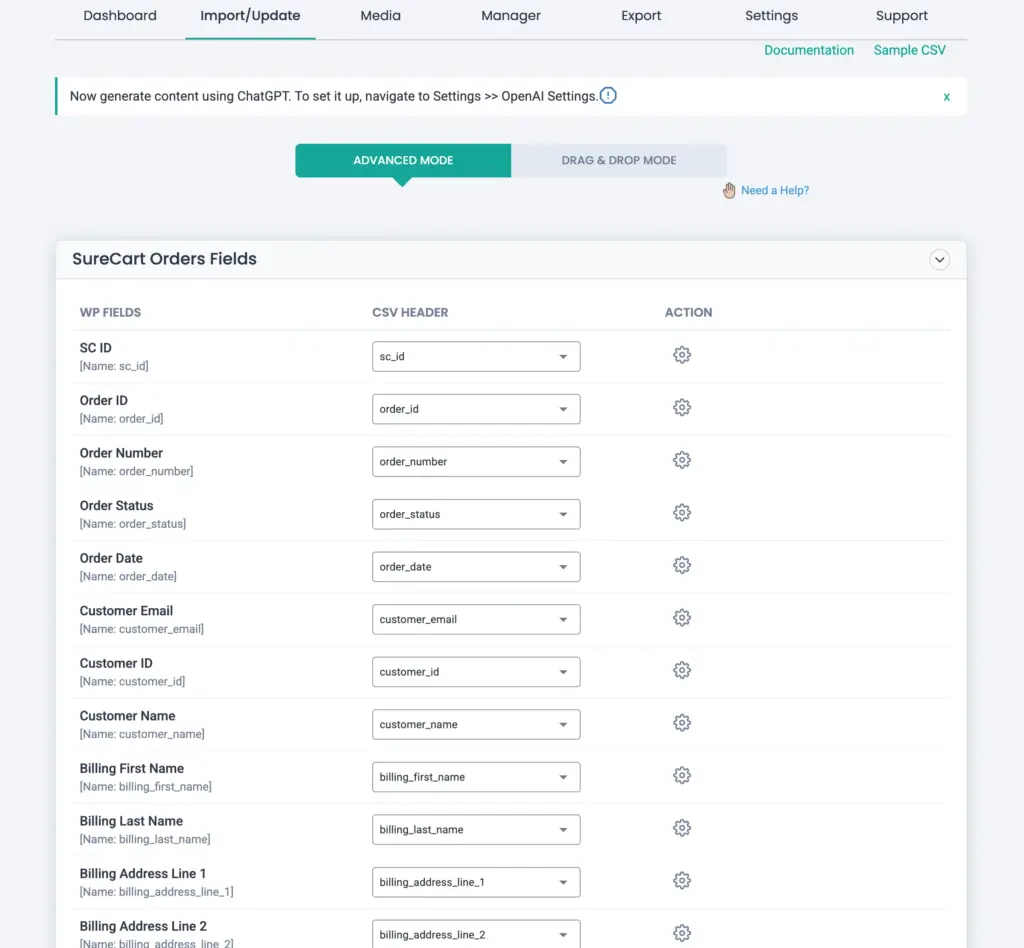
If your file includes billing information, map the billing-related fields such as billing first name, last name, and address fields.
If additional order metadata is present in your file, you may use the Create WP Custom Fields section to store that information.
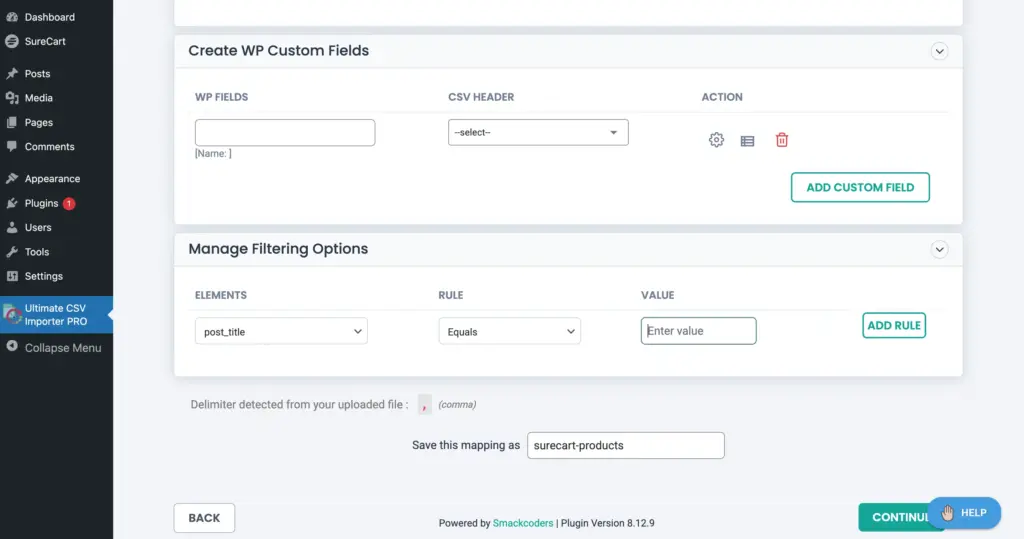
Filtering options are also available if you want to import only specific orders based on certain criteria.
After completing the mapping, you can save the configuration with a name at the end as a template for reuse. Then click Continue.
Step 4: Configure Import Settings #
If you are updating orders, select the correct identifier, such as ID.
Selecting the correct identifier ensures that the importer matches existing orders properly.
Review the settings carefully before starting the import.
Enable “Do you want adaptive file processing of record?” and add a number for iteration import.
Check “Enable safe prestate Rollback (Backup before import)” to backup before import and revert to the previous state if any problem is found in the import.
Now, click Import to begin processing.
To schedule the Orders import:
Enable the “Do you want to schedule this import?” option and fill out the date, time, frequency, and timezone. To perform a schedule, you need to add a cron entry in WordPress. These imports can run froma Google Sheet URL, or FTP/SFTP profiles.
Step 5: Run the Import #
Orders will be processed in iterations to prevent server overload.
During the import, you will see the logs screen that displays:
- Total records processed
- Successfully imported orders
- Failed records (if any)
If errors occur, review the log to identify issues such as missing customer references or invalid data.
Step 6: Verify Imported Orders #
After the import completes, you can download the order summary.
Otherwise, navigate to SureCart → Orders.
Review a few orders to confirm:
- Order status
- Customer association
- Billing details
- Order date
- Linked products
If the import included updates, verify that the modified fields reflect the intended changes.
Updating Existing Orders #
To update orders in bulk:
- Select “Update Content” in the post type configuration area, which comes after file upload.
- Ensure your CSV contains a valid identifier, such as Order ID.
- Map the identifier correctly during final import configuration settings. You have two options to process the update. Choose any one like:
- Do you want to handle the duplicate on existing records? – to update the matched records and import new records.
- Skip update, If any extra records found – to update only the matched records and skip new records.
Only the fields mapped during import will be updated. Other order details will remain unchanged.
Frequently Asked Questions #
1. Can I update existing orders?
Yes. To update existing orders, select the update option during import configuration and use Order ID as the unique identifier. This ensures the importer correctly matches and updates the intended orders.
2. Will importing orders trigger customer emails?
No. Importing or updating orders using the importer does not trigger transactional or notification emails to customers.
3. Do customers need to exist before importing orders?
It is strongly recommended that customer records already exist before importing orders. This helps ensure proper customer–order association and prevents orphaned order records.
4. Will unmapped order fields be overwritten during updates?
No. Only the fields you explicitly map during the import process will be updated. Any unmapped fields will remain unchanged.