
WP Ultimate CSV Importer allows you to bulk import SureCart products using a CSV, XML, Excel, or Google Sheet file. Whether you are migrating products from another platform, updating pricing in bulk, or creating subscription products at scale, this feature helps you complete the process in a structured and reliable way.
This guide walks you through the complete process of importing SureCart products, from uploading a file, choosing SureCart Products as a post type, to mapping fields, and running the import.
It is always recommended to keep a backup before performing bulk imports.
Step 1: Upload Your Import File #
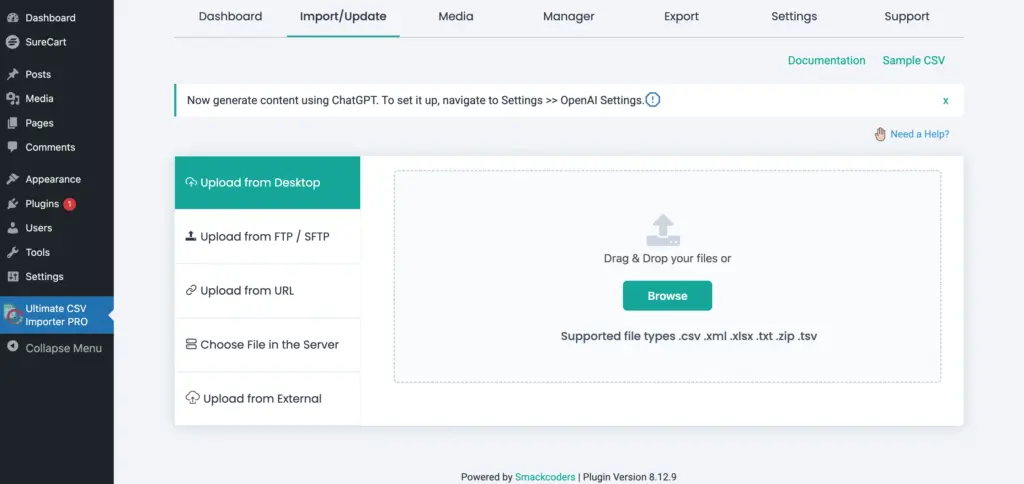
Navigate to WP Admin → Ultimate CSV Importer PRO → Import/Update. Upload your import file from your local system, FTP/SFTP, external source, server, or via URL.
The plugin supports many file formats like CSV, Excel, TSV, Google Sheets, and XML.
Once the file is uploaded successfully, click Continue to proceed to module selection.
Step 2: Select SureCart Products #
After uploading the file, you will be prompted to choose the module you want to import into.
Select the SureCart Products module from the post type dropdown. Above that, choose ‘Update Content’ for updating existing products. Otherwise, leave it as ‘Fresh Import’.
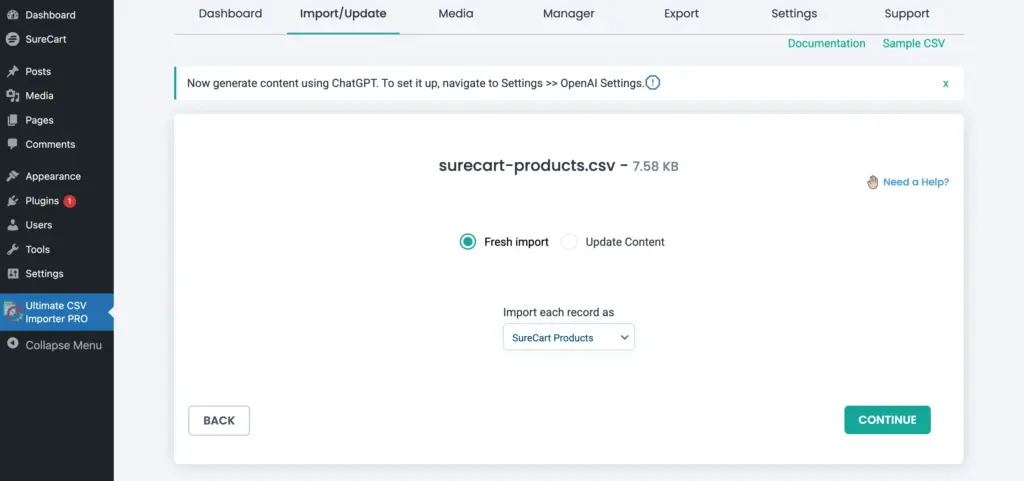
Click Continue.
This ensures that the importer loads all SureCart product-specific fields for mapping.
Step 3: Map the SureCart Product Fields #
By default, the importer opens in Advanced Mode, where you manually map CSV (import file) columns to WordPress and SureCart fields. You can switch to ‘Drag n Drop’ mode for easier drag and drop field mapping.
You will see multiple sections, including:
- WordPress Core Fields
- SureCart Products Fields
- Create WP Custom Fields
- Manage Filtering Options
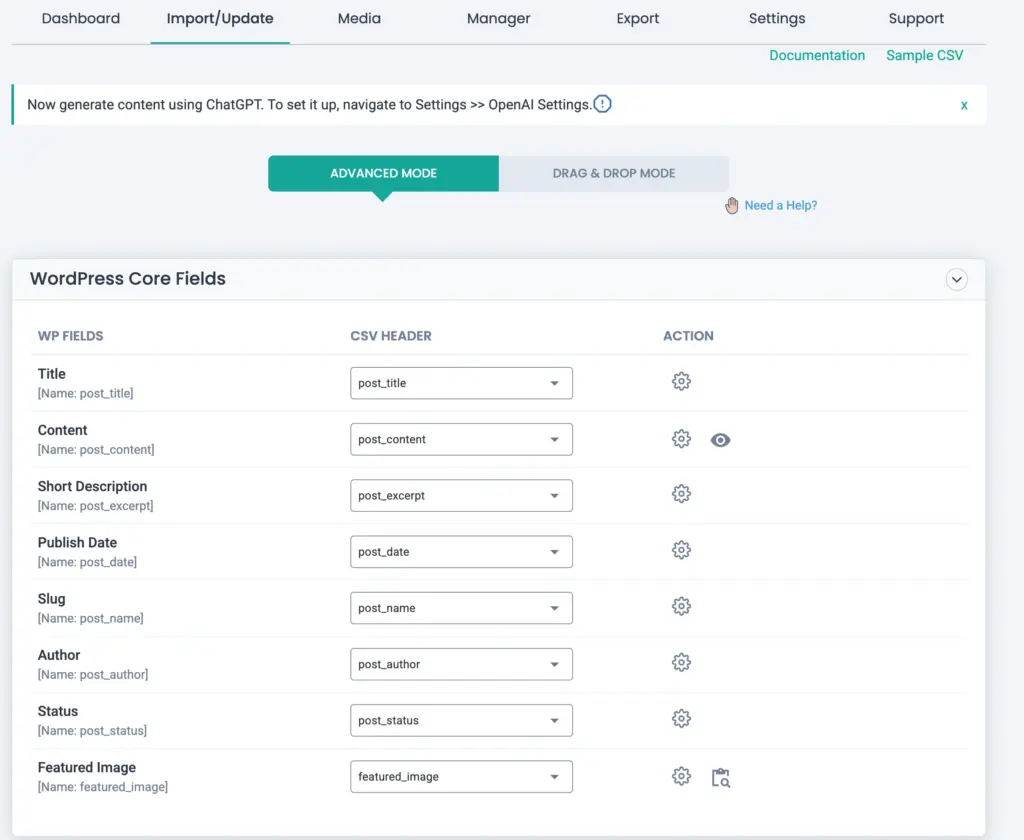
Start by mapping the basic product information, such as title, description, status, SKU, and featured image, under WordPress Core Fields.
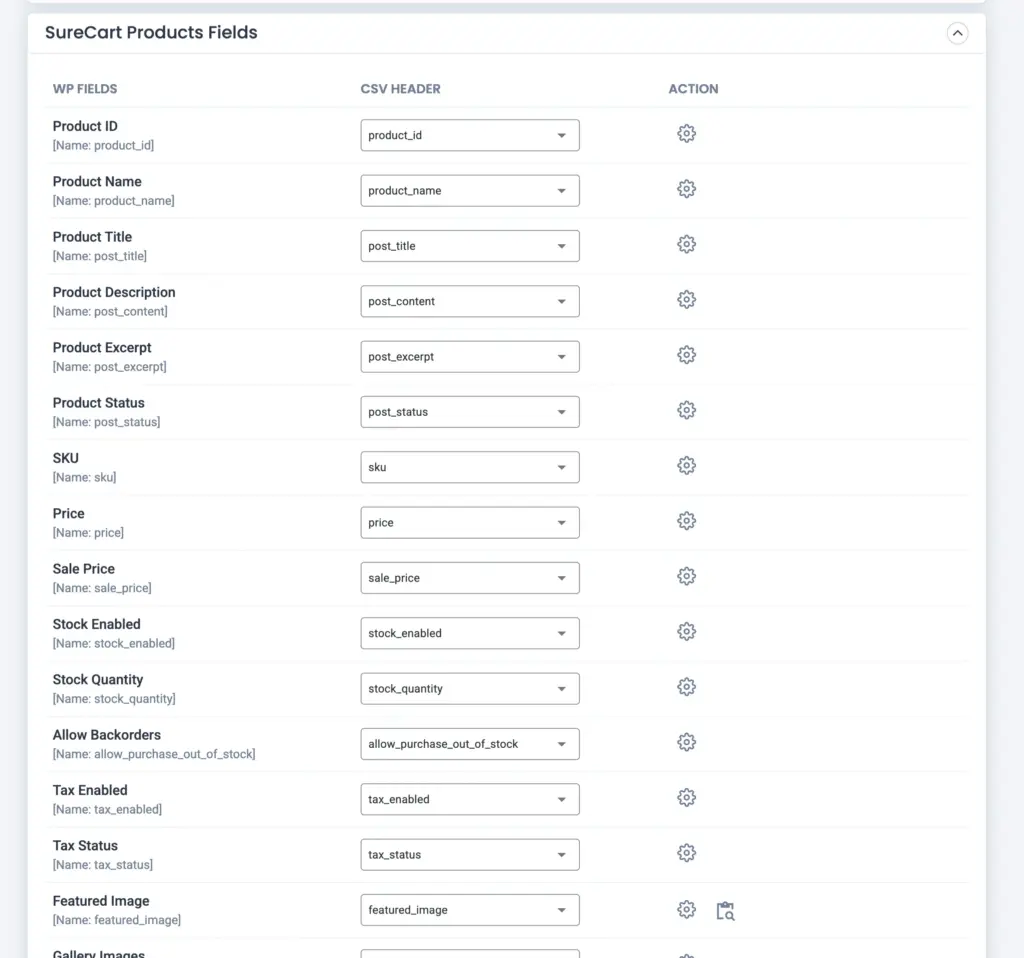
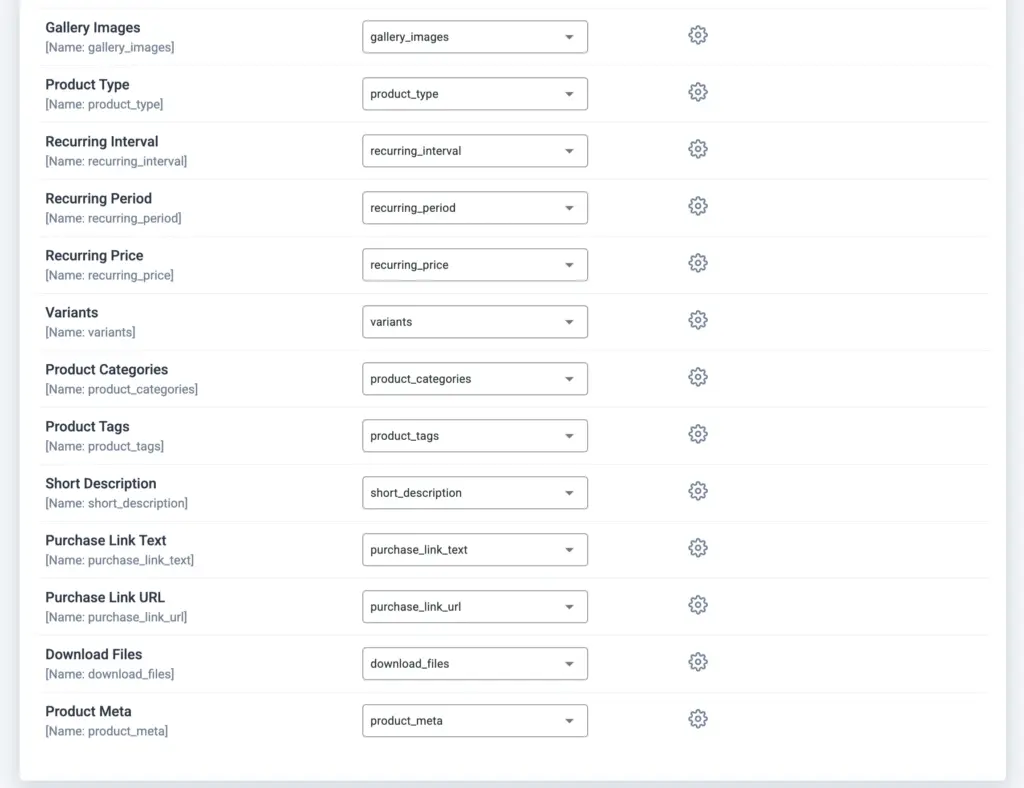
Next, map the relevant SureCart fields such as pricing details, stock configuration, and product type.
You do not need to map every field. Only map the fields that exist in your import file and are required for your import purpose.
If you are importing subscription products, make sure to map the recurring-related fields correctly.
If your file contains additional product-related metadata that does not match the default fields, you can use the Create WP Custom Fields section to add and map custom keys.
If required, you can also apply filtering rules to import only specific records from the import file. For example, filter to import records meeting a certain price or stock value.
Once mapping is complete, you may save the configuration as a template for future use. Then click Continue.
Step 4: Configure Import Settings #
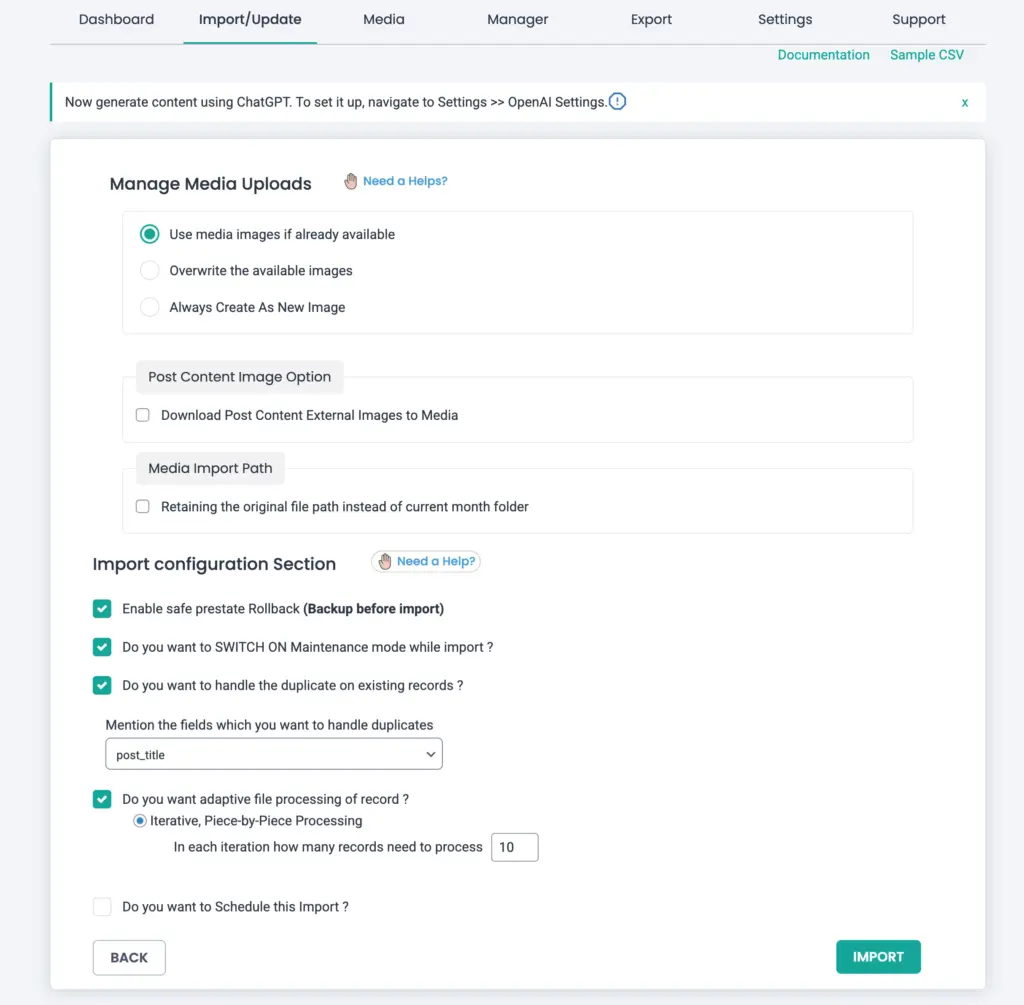
In this step, you will configure how the importer should process the media data and other essential import settings.
If you are updating products, select the appropriate identifier (such as SKU or Product ID). This ensures the importer matches existing records correctly.
Additional options like scheduling and rollback may also be configured based on your needs.
Step 5: Run the Import #
After reviewing the settings, click Import to begin the process.
If you configure the batch-by-batch processing, the importer processes records in iterations to maintain performance and avoid server overload.
You will see a progress screen displaying each record’s statuses with edit and front view options.
Step 6: Verify Imported Products #
Once the import is complete, navigate to SureCart → Products. Review a few products to confirm:
- Product title and description
- Pricing and sale price
- Stock configuration
- Product type
- Images
- Categories and tags
If updates were performed, confirm that the intended changes are reflected correctly.
Updating Existing Products #
To update products in bulk:
- Choose “Update Content” during post type selection.
- Ensure your CSV (or other file) contains a unique identifier such as SKU.
- Map the identifier correctly during field mapping.
Only the mapped fields will be updated. Unmapped fields remain unchanged.
Importing Subscription Products #
If you are importing subscription-based products, ensure:
- Product type is set appropriately.
- Recurring interval and period are mapped.
- Recurring price is included in your CSV.
Without these values, the product may not function as a subscription product inside SureCart.
Importing Images #
You can import:
- Featured image
- Gallery images
Make sure image URLs are publicly accessible. If multiple gallery images are provided, ensure they are properly separated in the CSV.
Frequently Asked Questions #
1. Can I update existing SureCart products using this importer?
Yes. Select the update option and use SKU or Product ID as the identifier to check for a match and merge.
2. Can I import both simple and subscription products?
Yes. Ensure the correct product type and recurring details are mapped.
3. Will unmapped fields be overwritten during update?
No. Only mapped fields are processed.
4. Can I reuse the mapping configuration later?
Yes. Save the mapping template before proceeding with the import.