
Table of Contents
Imagine your WooCommerce store as a hotel. A small hotel can handle a few guests efficiently, but when 100 people show up, the kitchen becomes chaotic, orders get delayed, and service quality drops.
Now imagine a large hotel with a spacious kitchen, trained staff, and enough resources. Even if a thousand guests arrive at once, everything runs smoothly.
Your WooCommerce store operates the same way. When only a few visitors browse, performance is fine. But when hundreds or thousands of users visit simultaneously, especially during a flash sale or festive campaign, your store’s server, database, and bandwidth are put to the test.
High traffic is a good thing. It means your marketing and SEO efforts are paying off. But if your store isn’t built to handle it, you risk slow loading speeds, cart failures, or even a complete crash, costing you sales and trust.
This guide will help you prepare WooCommerce for high traffic efficiently and securely, ensuring every visitor gets a smooth, lightning-fast shopping experience
Conditions Your WooCommerce Store Must Meet to Handle High Traffic
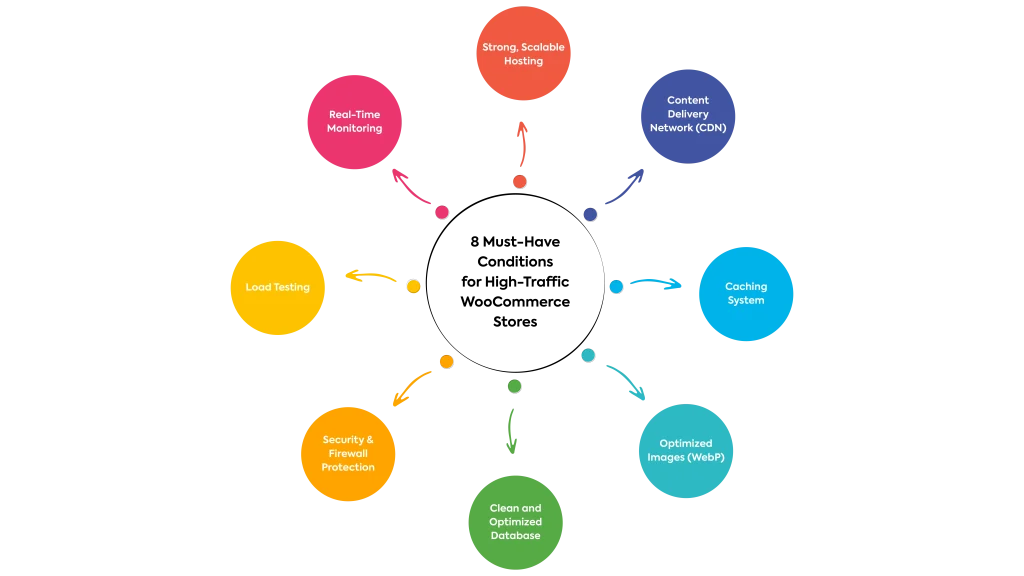
1. Use Strong, Scalable Hosting
Your hosting is the backbone of your WooCommerce store. Think of it like your store’s engine: the stronger it is, the more smoothly it can run under pressure. A weak or shared hosting plan is like running a hotel where ten chefs share a single kitchen. When traffic increases, everyone slows down, and chaos begins.
To handle high traffic efficiently, your WooCommerce store needs a powerful and scalable hosting setup. Managed or cloud hosting platforms like Kinsta, WP Engine, or Cloudways offer dedicated resources, faster response times, and automatic scaling options. These plans adjust your server capacity when traffic spikes, keeping your site stable even during peak shopping seasons.
Good hosting not only boosts speed but also strengthens your store’s reliability and security. When your website performs well, visitors stay longer, explore more products, and complete more purchases, the perfect combination for growth.
Kinsta is one of the top choices for high-performance WooCommerce stores. It’s built on Google Cloud Platform’s premium tier network, which ensures fast, secure, and scalable hosting. With features like auto-scaling, server-level caching, and dedicated resources, your store stays responsive even during flash sales or festive rushes.
Use WP Engine’s Performance Insights tool to analyze server response times and identify areas for improvement. It helps maintain consistency in speed, no matter how high your traffic goes.
Activate Cloudways’ Breeze plugin for built-in caching and combine it with Cloudflare Enterprise CDN to deliver blazing-fast performance globally.
2. Use a Content Delivery Network (CDN)
A Content Delivery Network, or CDN, acts like a team of mini-servers spread across the globe. Instead of loading your WooCommerce store from one main server, a CDN stores copies of your website on multiple servers worldwide. When a visitor opens your site, it loads from the nearest server location, making the experience faster and smoother.
Without a CDN, all your traffic hits a single server, causing delays, especially for international visitors. During heavy traffic, this can slow down checkout pages and product loading times. By using a CDN, you balance the load and keep your site quick even when hundreds of users browse at once.
Popular options like Cloudflare, BunnyCDN, or Jetpack CDN integrate easily with WooCommerce. They improve performance, reduce bandwidth usage, and even add an extra layer of security.
Enable Cloudflare APO (Automatic Platform Optimization) for WordPress; it caches both static and dynamic pages, giving WooCommerce stores a powerful performance boost even under heavy load.
BunnyCDN is known for its speed and affordability, perfect for small to mid-size stores that need a performance boost without high costs. It lets you optimize images and videos on the fly, ensuring smoother product pages and faster checkout.
Jetpack CDN (from WordPress.com) is beginner-friendly and integrates directly with WordPress to automatically serve your images and static files from their global network, no setup stress needed.
3. Enable Caching Plugins
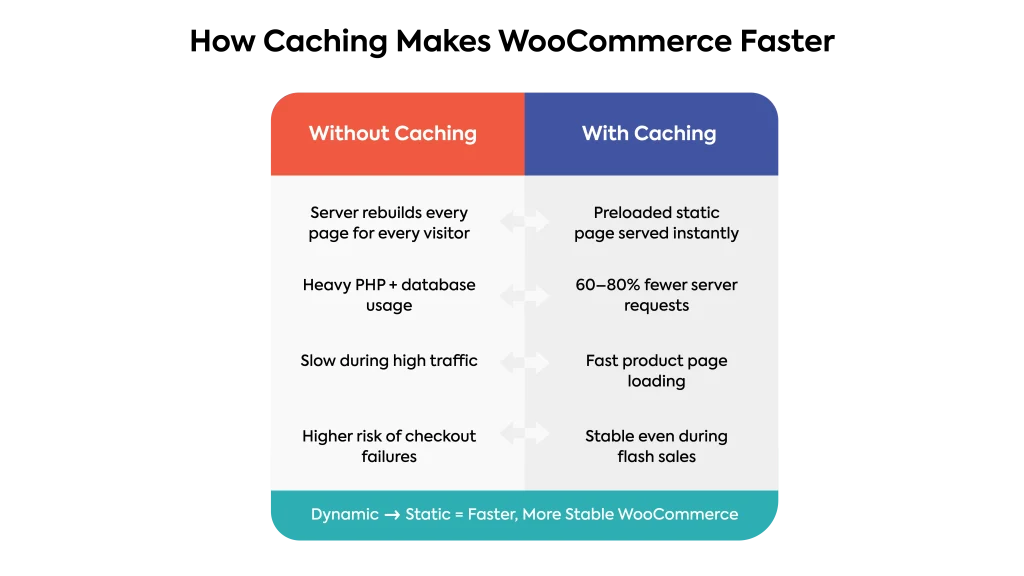
Caching is like keeping a ready-to-serve version of your WooCommerce store. Instead of making your server rebuild every page each time a visitor arrives, caching stores preloaded copies, allowing your pages to load instantly.
During high traffic, this simple setup makes a big difference. Without caching, your server works overtime, rebuilding every image and product page repeatedly, which leads to slower load times and even timeouts. With caching, your store handles hundreds of visitors smoothly, using fewer resources.
Plugins like WP Rocket, LiteSpeed Cache, or W3 Total Cache are reliable choices for WooCommerce stores. They automatically store static versions of your site and clear them when updates occur. This ensures your customers always see the latest version of your store without delays.
WP Rocket is a premium plugin that simplifies caching with just a few clicks. It automatically enables page caching, browser caching, and database optimization. Its “Delay JavaScript Execution” and “Preload Cache” features dramatically improve page speed scores, perfect for WooCommerce sites handling thousands of products.
LiteSpeed Cache is your perfect match if your hosting provider supports LiteSpeed servers. It delivers full-page caching, image optimization, and QUIC. cloud CDN integration for top-tier performance; all for free.
W3 Total Cache is a robust, developer-friendly option that offers advanced control over page, object, and database caching. It’s ideal if you want fine-tuned performance settings for large-scale stores.
4. Compress and Optimize Images
Images play a big role in attracting customers, but they can also slow your WooCommerce store if not optimized. Large image files increase loading time, especially during heavy traffic, causing delays at product pages and checkouts.
To keep your store fast, compress images without losing quality. Tools like ShortPixel, Smush, or Imagify automatically reduce image size and convert them into modern formats like WebP, which load much faster. Optimized images not only speed up your site but also improve user experience and SEO rankings.
Think of it this way: smaller, optimized images are like light luggage for your website. They make it easier to move quickly, even when many visitors browse at once.
ShortPixel automatically compresses new and existing images as soon as you upload them. It supports modern formats like WebP and even converts old files to reduce storage usage.
Smush is a WordPress favorite; it bulk-optimizes images, removes unnecessary metadata, and lazy-loads visuals, so they only load when users scroll to them. This saves both bandwidth and time.
Imagify, developed by the creators of WP Rocket, offers intelligent compression levels (Normal, Aggressive, and Ultra) and converts images to WebP format with a single click.
5. Optimize Store Products and Database
As your WooCommerce store grows, so does the amount of data on product listings, customer orders, reviews, and revisions. Over time, this buildup can slow down your database and affect performance, especially during high-traffic periods.
Regular optimization keeps your store running smoothly. You can use tools like WP-Optimize or Advanced Database Cleaner to remove old orders, transients, and unnecessary revisions. This helps your site respond faster to customer actions like searching products, adding to the cart, or checking out.
Also, review your product pages, compress product images, organize categories, and simplify filters. A clean and optimized store not only loads faster but also gives customers a seamless shopping experience.
WP-Optimize is an all-in-one solution that cleans up post revisions, spam comments, and transients with a single click. It also compresses images and caches pages, making it a powerful tool for improving both speed and stability.
Advanced Database Cleaner goes even deeper, allowing you to schedule automatic cleanups and remove unused tables or orphaned data left by deactivated plugins. This ensures your WooCommerce database remains clutter-free and optimized for fast queries.
6. Implement Security and Firewall Protection
When your WooCommerce store starts attracting high traffic, it also attracts unwanted attention from bots, hackers, and DDoS attacks. A sudden traffic spike isn’t always from real customers; sometimes, it’s automated requests trying to overload your server or steal data.
That’s why security is just as important as speed. Use trusted tools like Cloudflare Firewall, Wordfence, or Sucuri to block malicious traffic before it reaches your site. These firewalls filter harmful requests, protect your login pages, and keep your store safe even during heavy visitor activity.
Adding extra layers of protection, such as Two-Factor Authentication (2FA) and limited login attempts, strengthens your site further. A secure store doesn’t just handle high traffic; it protects your customers’ trust and keeps your business reputation intact.
Cloudflare Firewall acts as your first line of defense. It blocks malicious requests before they even reach your server, filtering bad bots and mitigating DDoS attacks in real time. Its analytics dashboard also gives you insights into threat patterns and suspicious activity.
Wordfence is a powerful WordPress-specific security plugin. It includes malware scanning, brute-force login protection, and a live traffic view so you can monitor every login attempt and block suspicious IPs instantly.
Sucuri provides a complete website security suite, including a Web Application Firewall (WAF), malware cleanup, and server-level protection. It also optimizes performance through caching and its global CDN network, so you get both speed and security.
7. Load Test Before Real Traffic Arrives
Before your big sale or marketing campaign goes live, it’s smart to test how much traffic your WooCommerce store can actually handle. Load testing helps you identify weak points like slow checkout pages or limited server capacity before real customers visit.
By using tools like Loader.io, k6.io, or GTmetrix, you can simulate hundreds of visitors accessing your store at the same time. The test results show where performance drops, so you can fix issues like slow database queries or unoptimized scripts early.
Regular load testing gives you confidence that your store can handle spikes in visitors without crashing. It ensures that when the big traffic day comes, everything runs smoothly from product views to payment completion.
Loader.io allows you to run simulated traffic tests by sending hundreds or thousands of virtual users to your store at once. You’ll see how your server responds under pressure, including response times and failure rates, so you can identify limits safely.
k6.io is a developer-friendly tool that provides deeper insights. It lets you run script-based load tests and monitor your site’s behavior under different traffic conditions. You can track metrics like request duration, error rates, and server latency, all crucial for WooCommerce stability.
GTmetrix, while not a load-testing tool in the traditional sense, is perfect for performance benchmarking. It analyzes page speed, waterfall loading, and Core Web Vitals, helping you fine-tune your site before high-traffic events.
8. Monitor Performance Regularly
Even after optimizing your WooCommerce store, continuous monitoring is essential to maintain stability during high traffic. Regular performance checks help you detect slowdowns, server strain, or plugin issues before they affect your customers.
Use tools like New Relic, UptimeRobot, or Jetpack Monitor to track uptime, server health, and response time. These tools send instant alerts when your website slows down or goes offline, allowing you to take quick action.
Monitoring also helps you understand visitor patterns, such as peak hours or pages that use the most resources. By analyzing this data, you can fine-tune your hosting plan, caching setup, and product pages for consistent performance.
New Relic is an advanced performance monitoring tool used by professionals to analyze server response, database queries, and slow-loading scripts. It gives a detailed breakdown of what’s causing lag, allowing developers to fine-tune your WooCommerce store for peak efficiency.
UptimeRobot focuses on uptime and downtime tracking. It checks your website every 5 minutes and immediately alerts you if your store goes offline, ensuring you never lose customers due to unexpected outages.
Jetpack Monitor offers a simple, integrated solution directly within WordPress. It automatically keeps an eye on your site’s uptime and sends instant email alerts if something goes wrong. Useful for beginners and small stores to easily monitor without any external dashboards.
Things to Avoid (Common Mistakes in High Traffic Situations)
When your WooCommerce store experiences high traffic, small mistakes can turn into big problems. Many store owners focus only on marketing but overlook technical readiness, leading to crashes, slow pages, and lost sales.
The first mistake is relying on weak or cheap hosting. Shared servers can’t handle sudden visitor spikes. When traffic increases, your site slows down or even goes offline, frustrating potential buyers. Always invest in hosting that can scale as your store grows.
Another common issue is skipping the caching or CDN setup. Without them, every visitor’s request hits your main server, overloading it. A caching and CDN combination keeps your store stable by distributing the load and speeding up content delivery.
Avoid using too many heavy plugins. Each plugin adds more scripts and database calls, which can make your store sluggish. Keep only essential plugins and remove the ones you don’t use.
Finally, don’t ignore image and database optimization. Large, uncompressed images and cluttered databases slow down your store’s response time. A quick monthly cleanup can make a big difference in performance. Read our guide on how to avoid common WooCommerce store mistakes to learn more.
Key Takeaway
High traffic is a sign that your WooCommerce business is growing, and that’s something to celebrate. But growth must come with preparation. Just like a large hotel needs a strong kitchen and trained staff to serve thousands of guests, your online store needs powerful hosting, caching, and optimization to handle increasing visitors smoothly.
A well-prepared WooCommerce store can welcome high traffic without slowing down, crashing, or losing customers. When you invest in the right hosting, optimize your database, and monitor performance regularly, you build a foundation ready for long-term success.
FAQs
1. How can I check if my WooCommerce store is ready for high traffic?
You can perform load testing with tools like Loader.io or k6.io to simulate real visitors and measure performance under stress. Monitor server response time, checkout speed, and database queries; if any of these lag, you may need optimization or better hosting.
2. What are the best ways to speed up WooCommerce during peak sales?
Use caching (Redis, Memcached, or WP Rocket), enable a CDN like Cloudflare, and compress images to reduce load times. Simplify your checkout process by removing unnecessary fields and enabling AJAX cart updates. Also, disable automatic updates or heavy plugins during big events like Black Friday to prevent crashes.
3. Do too many plugins affect WooCommerce performance?
Yes, every plugin adds scripts that can slow down your site. Keep only essential plugins and deactivate unused ones. Check performance impact using Query Monitor or GTmetrix waterfall. Instead of multiple optimization plugins, use one all-in-one tool like WP Rocket or Perfmatters to handle caching, minification, and database cleanup efficiently.
4. How does caching and CDN help manage high traffic?
Caching creates static versions of pages so the server doesn’t reload content for every visitor. A Content Delivery Network (CDN) stores copies of your site on global servers, speeding up access for international users and reducing server strain. Together, caching + CDN ensure fast loading times, especially during sudden traffic spikes.
5. How can I monitor and maintain performance during high traffic events?
Track your site in real time using New Relic, Jetpack Monitor, or Google Analytics. Before big sales, test checkout flow, optimize images, back up your site, and monitor uptime and slow queries. Avoid common mistakes like ignoring database cleanup or updating plugins mid-sale. Proper preparation keeps your WooCommerce store stable and conversion-ready.
Conclusion
A high-traffic WooCommerce store is every business owner’s dream; it means your brand is gaining attention and trust. But without proper preparation, that same success can turn into frustration. Slow loading pages, failed checkouts, or server crashes can cost valuable sales and customer confidence.
To keep your store strong under heavy load, focus on building a reliable foundation, start with powerful hosting, enable CDN and caching, compress images, and secure your site against traffic surges. Each of these steps ensures that when your visitors increase, your performance stays steady.
When your WooCommerce store is optimized for speed and scalability, you’re not just handling high traffic; you’re converting it into more sales and happier customers.
