
Table of Contents
By default, WordPress cannot use an external image URL as a featured image. The easiest solution is the FIFU plugin, which lets you paste an image URL directly into the featured image field without uploading it to your media library.
You can also set featured images programmatically using media_sideload_image() or add external images inside Elementor layouts. This guide explains all three methods, including their SEO impact, advantages, and best use cases.
Quick Answer
The fastest way to set a featured image from a URL in WordPress is by using the FIFU plugin. It allows you to paste an external image URL directly into the featured image field without uploading the file to your media library. Developers can also use media_sideload_image() to download and attach external images locally for better long-term SEO stability.
Key Takeaways
- WordPress does not support featured images from external URLs by default
- Plugins like FIFU let you set featured images from URL in WordPress without uploading them.
- Programmatic methods download and attach images directly to your media library
- External images save server storage but depend entirely on the availability of the host.
- Always add alt text for both accessibility and search visibility
What Is the FIFU Plugin for Featured Image from URL?
Featured Image from URL (FIFU) is a WordPress plugin that loads the post thumbnail directly from an external source instead of your WordPress media library. In simple terms, it lets you add URLs to featured images.
- The image is not uploaded to your server
- WordPress stores only the image URL
- The image is rendered dynamically from the external host
When Should You Use an External Featured Image?
External featured images are the right call in specific situations, and the wrong call in others. Choosing without knowing the difference creates problems that are frustrating to fix after the fact.
Use external featured images when:
- You manage high-volume content and want to save server storage
- Images are already hosted on a CDN or external server
- You import posts or WooCommerce products in bulk
- Publishing speed matters more than long-term media control
Avoid external featured images when:
- You do not control the external image source
- The content is SEO-critical or evergreen
- The image host may block hotlinking or remove files later
- Long-term image stability is important
Method 1: Set Featured Image from URL in WordPress with FIFU
The FIFU plugin adds a new field to the post editor, after it is installed and activated, for pasting an image URL. WordPress treats this image as the featured image without downloading it.
How to Install the FIFU Plugin
Download the free FIFU plugin from the official WordPress plugin repository.
In your WordPress dashboard, go to Plugins → Add New, search for “FIFU” or “Featured Image from URL,” then install and activate the plugin.
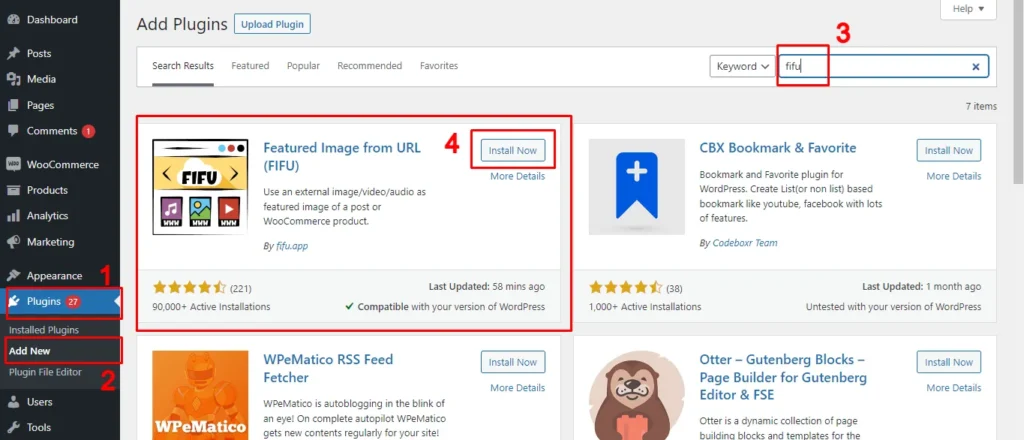
Install and activate the FIFU plugin.
You can now add external images as featured images for posts, pages, and custom post types.
How to Set a URL as Featured Image
This is ideal when you want to set a featured image from a URL in WordPress without uploading or storing the file on your server.
Before using images from other websites, just make sure you have the right permission or licensing to use them on your site.
To copy an external image URL:
- Visit the website where the image is located.
- Right-click on the image you want and choose “Copy image address.”
- The image URL is now saved to your clipboard, and you can paste it wherever you need.
Tip: If the image is from another WordPress site you own or manage, you can easily copy its URL directly from the media library.
To add a featured image for WordPress Posts, Pages, or Custom Posts like Products:
- Open any post, page, or product in the WordPress editor.
- From the top bar, click the settings icon to open the sidebar. By default, this will display the Post settings.
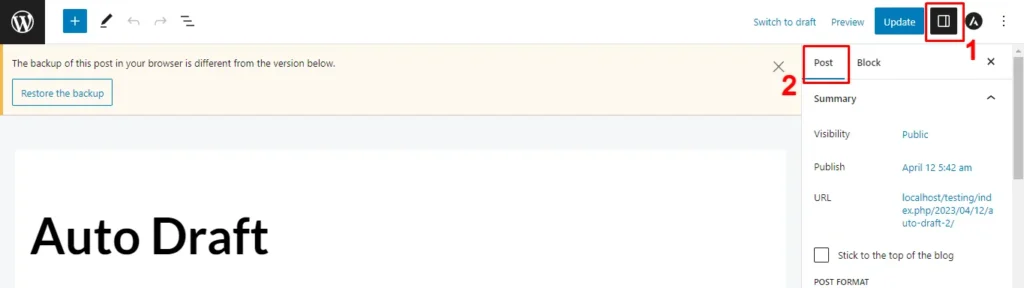
- Scroll to the Featured Image field added by FIFU.
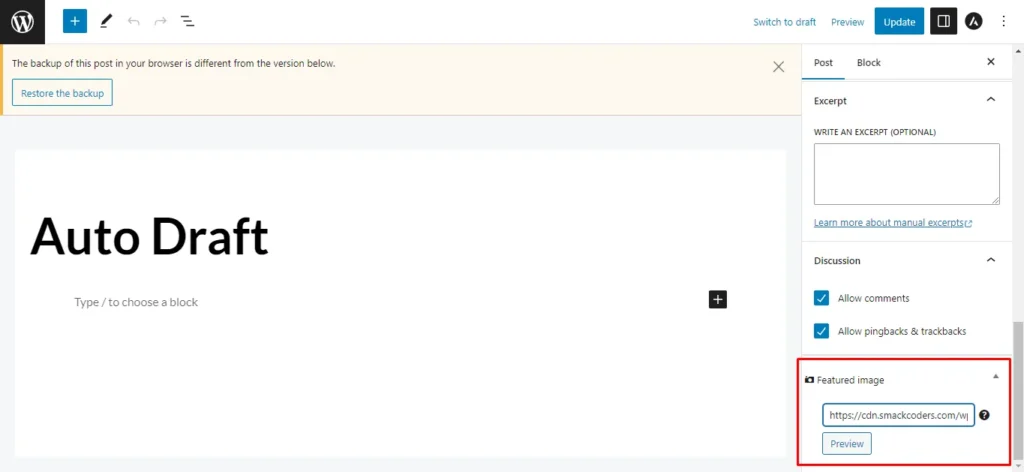
Now you can add your external image in two ways:
- Paste a WordPress external image URL or search by keyword.
Once you’ve added the image:
- Click Preview to check the image, then add alt text for SEO and accessibility.
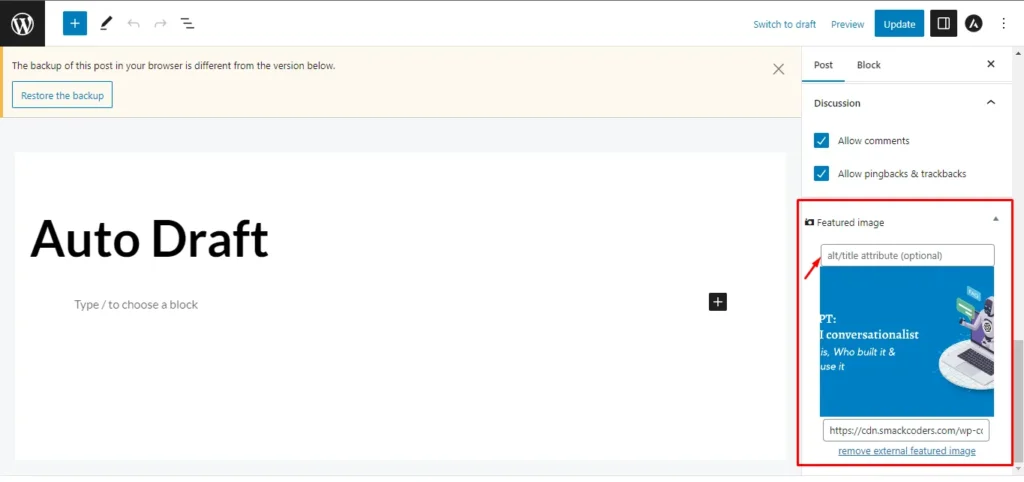
- Finally, click Save/Update to apply the changes.
To replace the featured image URL:
If you’d like to replace the featured image, simply remove the existing URL and paste a new one, then click Update.
To remove the featured image URL:
To remove it entirely, select “Remove External Featured Image” and you’ll return to the default state, where you can add another image if needed.
The above steps are applicable to Posts and Pages. To add featured image URLs for Products,
- Visit Products and open a product in an edit view
- You’ll see a “Product image” metabox newly added
- Enter the image URL inside the box and click the Preview button to view the image.
- Add an alt text for the image in the alt text box
Alt text is not optional for accessibility or search visibility.
Best practices for adding alt text:
- Describe what the image shows, not what it “is”.
- Avoid keyword stuffing.
- Keep it under 125 characters.
How to Hide the FIFU Featured Image Meta Box
Go to FIFU → Settings → Image and enable the Hide Featured Media option. You can choose which post types should hide the FIFU featured image field, such as posts, pages, or WooCommerce products. This will remove the meta box from those post types.
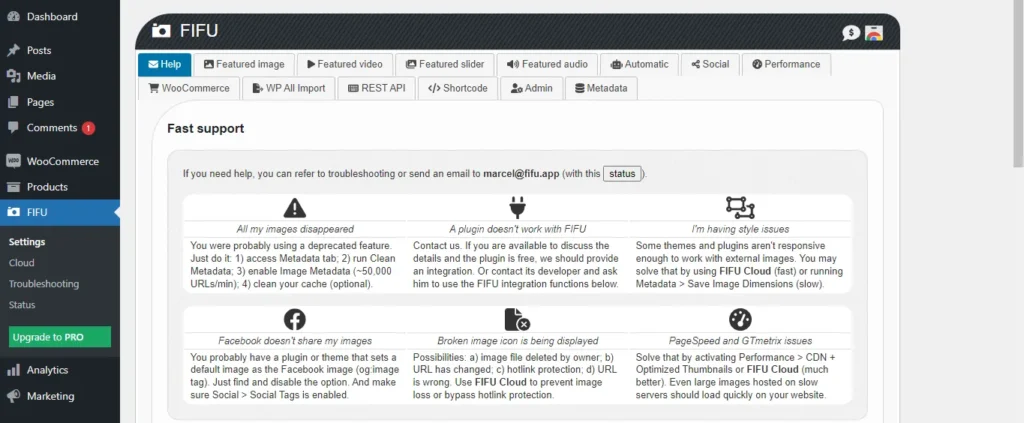
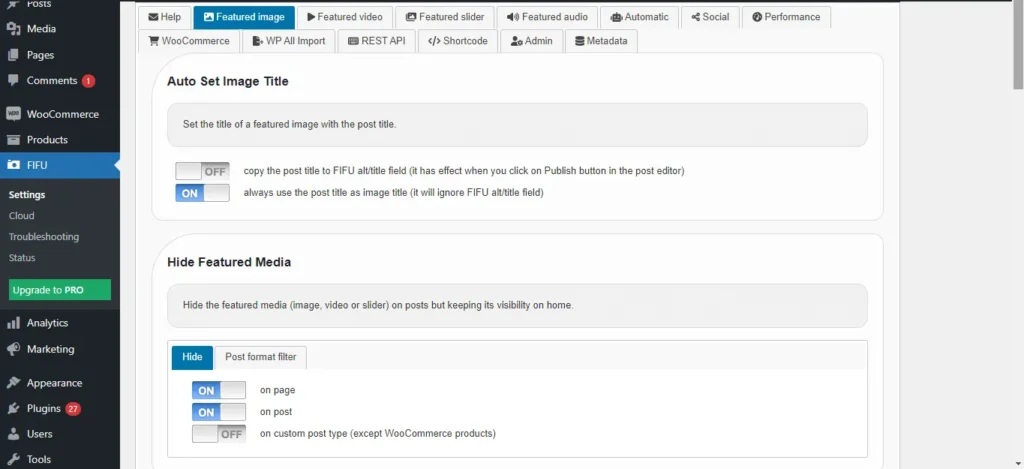
Note: Once you install the FIFU plugin, the featured image meta box will automatically display inside the post types(posts, pages, and products).
How to Add a Default Featured Image
FIFU also lets you assign a default featured image when a post does not have one.
Go to FIFU → Settings, enable Default Featured Image, and paste the image URL. You can optionally limit it to specific post types like posts or pages.
Method 2: Set Featured Image Programmatically in WordPress from a URL
To set a WordPress post thumbnail from a URL programmatically, you can use the media_sideload_image() function along with the wp_insert_post() function. Here’s an example of how you can achieve this:
| function set_featured_image_from_url($post_id, $image_url) { $image_id = media_sideload_image($image_url, $post_id, ‘Image Description’); // Set Featured Image if (!is_wp_error($image_id)) { set_post_thumbnail($post_id, $image_id); } } // Usage $post_id = 123; // Replace with your post ID $image_url = ‘https://example.com/image.jpg’; // Replace with the URL of the image set_featured_image_from_url($post_id, $image_url); |
This function downloads the image from the provided URL, attaches it to the specified post, and sets it as the featured image. The media_sideload_image() function downloads the image and returns the attachment ID, and then set_post_thumbnail() sets this attachment ID as the featured image for the specified post.
Make sure to add this code to your theme’s functions.php file or include it in a custom plugin. Also, be aware that this method relies on the allow_url_fopen setting in your PHP configuration. If it’s disabled on your server, you might need to use alternative methods or enable this setting.
Use this method when you want to set a featured image from a URL in WordPress by storing the image directly in your media library for better SEO and long‑term reliability.
Method 3: Add Image from URL Using Elementor
If you’re already building your pages with Elementor Pro, you don’t need a separate plugin to insert images from external URLs. Elementor’s built-in image widget includes a direct URL import option that lets you pull any externally hosted image into your layout without going through the WordPress media library.
Note: This method adds an image to your Elementor layout, not to the WordPress featured image field. If you need the image to appear as the featured image in search results, social shares, or archive pages, use Method 1 (FIFU) instead.
- Open your page in the Elementor editor and drag the Image widget to where you want the image to appear
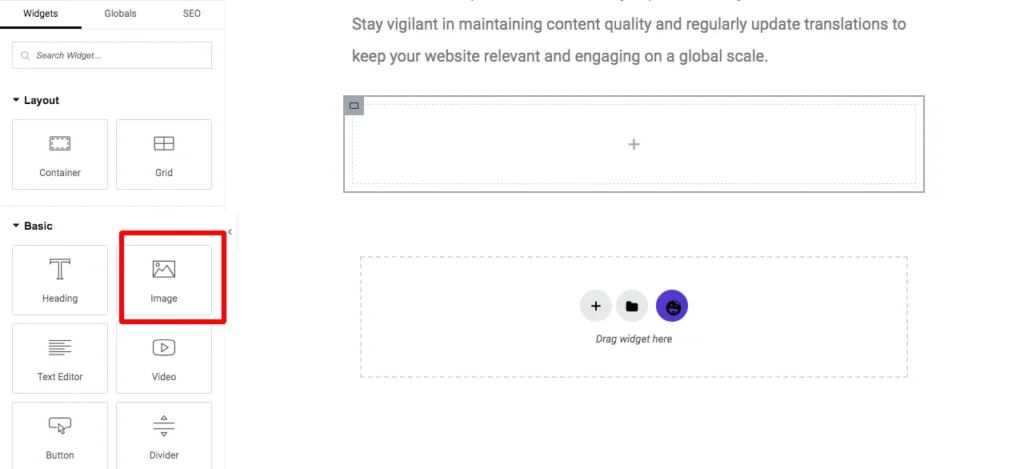
- Click Choose Image in the widget settings panel on the left
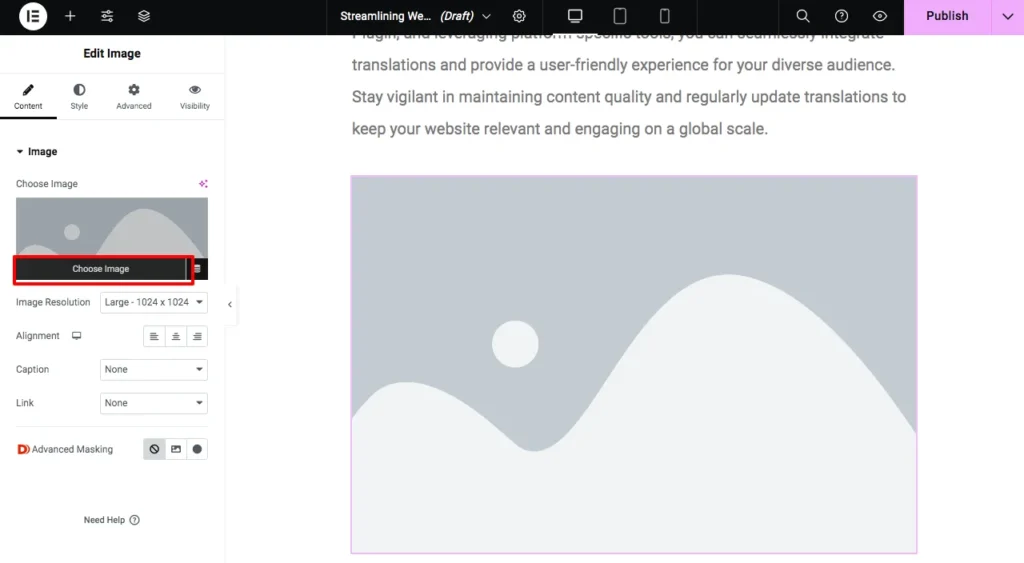
- Select the Upload Files tab, then click Insert from URL
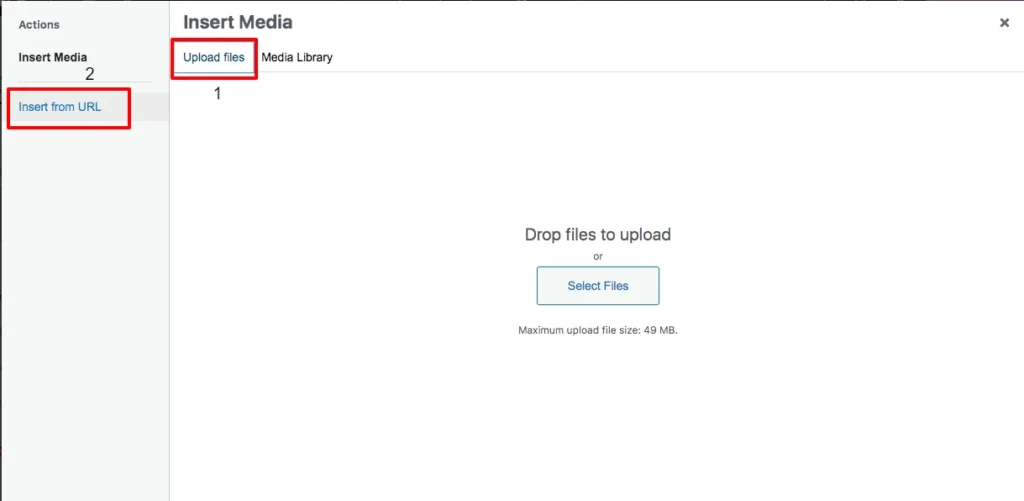
- Paste the external image URL into the field and add alt text in the Link Text box
- Click Insert into post, and the image loads directly from the external source into your Elementor layout
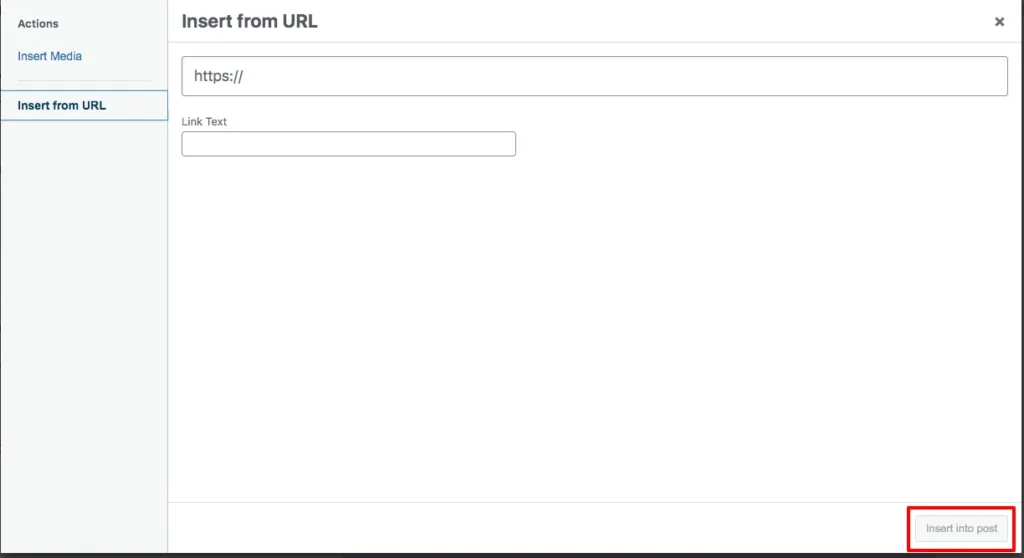
Now your images from the URL have been uploaded to your post successfully.
FIFU vs Downloading Images Locally: Which One Should You Use?
Both approaches get the job done, but they work differently and suit different situations. Here is a straightforward breakdown to help you decide which one fits your site.
| Factor | FIFU (External URL) | Downloading Locally |
| Storage Usage | No server storage used | Image saved to your media library |
| Setup Speed | Paste a URL and you’re done | Requires upload or programmatic download |
| Image Availability | It depends on external host | Fully under your control |
| SEO Stability | Works reliably when the external hosting server is stable and well maintained. | More stable and reliable long-term |
| Media Library | Stays clean, no new files added | The image becomes a permanent attachment |
| Hotlinking Risk | Yes, external host can block it | No risk, image is self-hosted |
| Best For | High‑volume sites and bulk imports using featured image from URL in WordPress | SEO‑critical evergreen pages using self‑hosted featured images. |
| Advanced Storage Options | FIFU PRO can save images locally | Images are always stored locally |
External featured images can still perform well in search results when the image host is reliable, alt text is added correctly, and the URLs remain accessible long term.
The Bottom Line:
FIFU is the smarter choice for speed and scale. Local hosting is the smarter choice for stability and SEO. Many sites use both depending on the content type. No rule says you have to pick one and stick with it across every post.
Common Issues: Featured Image Not Showing in WordPress
If your featured image from a URL is not showing correctly in WordPress, the problem is usually caused by one of these issues:
- The external website blocks hotlinking, preventing your site from loading the image
- The image URL is incorrect, expired, or redirects improperly
- A caching or optimization plugin is serving an outdated version of the page
- Your theme does not support featured images properly
- The external image host is temporarily unavailable
If the image is important for SEO or long-term content stability, storing the image locally in your media library is usually the safer option.
Bulk Importing Featured Image URLs in WordPress
If you manage a large number of posts or WooCommerce products, manually pasting external image URLs one by one becomes impractical. In these cases, bulk importing featured image URLs is much faster.
How to Import External Image URLs as Featured Images in WordPress Posts, Pages, and Custom Posts
When you are dealing with a large number of records, manually adding external image URLs as featured images can be extremely time-consuming. The WP Ultimate CSV Importer plugin makes this process much easier by allowing you to bulk import external image URLs into WordPress Posts, Pages, and WooCommerce Products, complete with their alt texts.
Here’s how to import external image URLs step by step:
Note that the same import steps are followed for posts, pages, and products. The only difference is in configuring the post type.
1. Prepare your import file: Create a file like a CSV, XML, Excel, or Google Sheet that includes the FIFU featured image URL and image alt text columns(as shown in the example screenshot below). The easier way is to export the records with WP Ultimate CSV Importer and add the image column and its values.

2. Upload your file: In your WordPress dashboard, go to the Ultimate CSV Importer plugin page. Browse and open your CSV file(or other type of file), or upload it using another available method.
3. Select the post type: Choose whether you want to import into Posts, Pages, or Products.
4. Map your fields: Match the columns in your import file with WordPress fields. Make sure to match the FIFU Post Fields for image url and alt text.
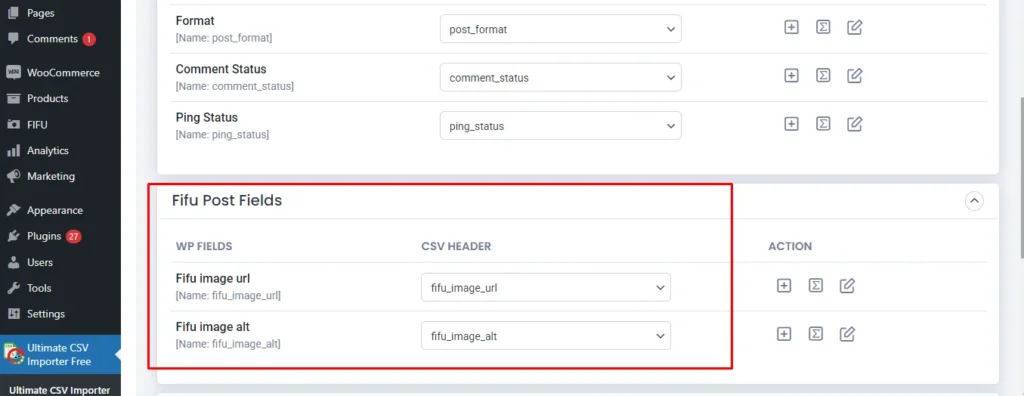
5. Run the Import: Click Import to begin. Once the process is complete, review the import log and verify the results both in the WordPress admin and on the front end.
How to Export FIFU featured image URLs and alt texts from WordPress
WP Ultimate CSV Importer also lets you export FIFU fields data from WordPress alongside posts, pages, custom posts, and products.
If you are using the free plugin, then we offer an export add-on to extract your FIFU fields.
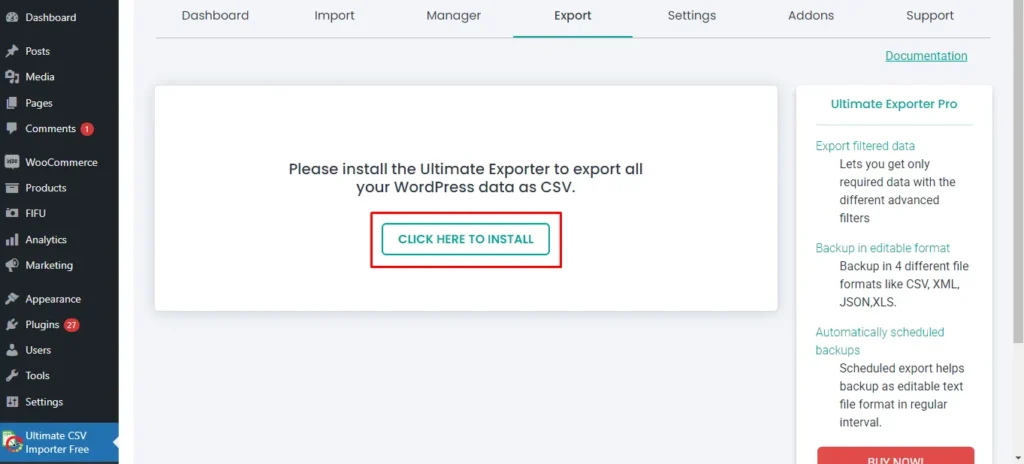
Move to the Export tab. The export page tells you to install the Ultimate Exporter plugin by providing a button link to install. The export plugin is also free to use.
This takes you to the managed add-ons page, where you can see all the supported add-ons listed.
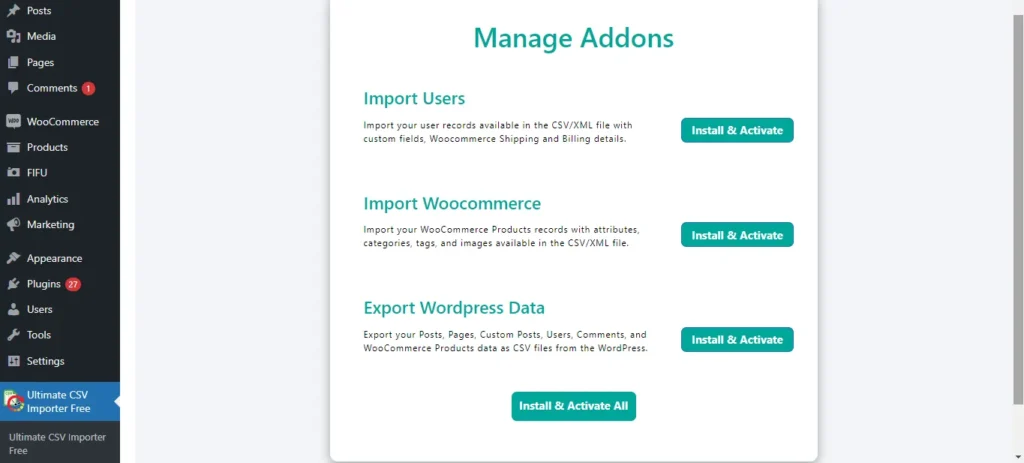
You can install and activate all the add-ons or specific add-ons you need.
When you activate the exporter addon, the export page will look like this.
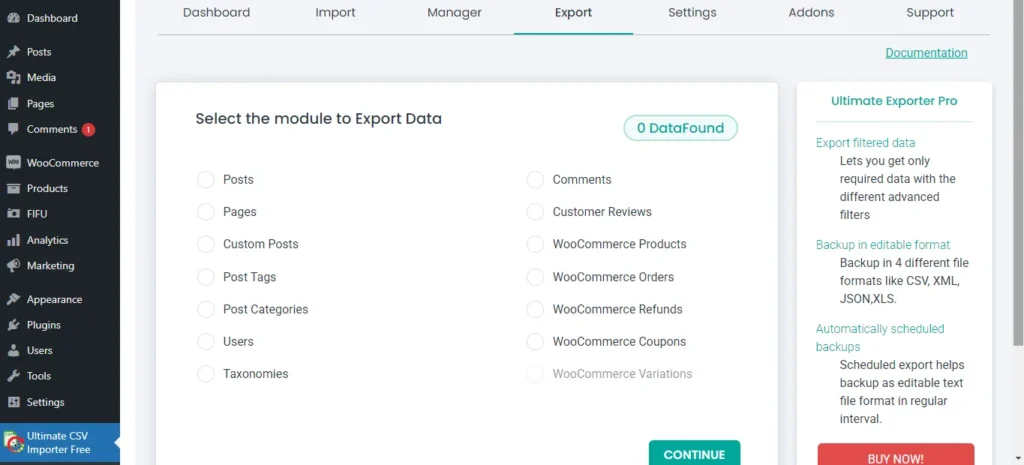
Select the post type here. Note that you can only export FIFU-featured image fields assigned to post types like Posts, Pages, Custom Posts, and WooCommerce Products.
On the next page, provide an export file name, then choose a file type.
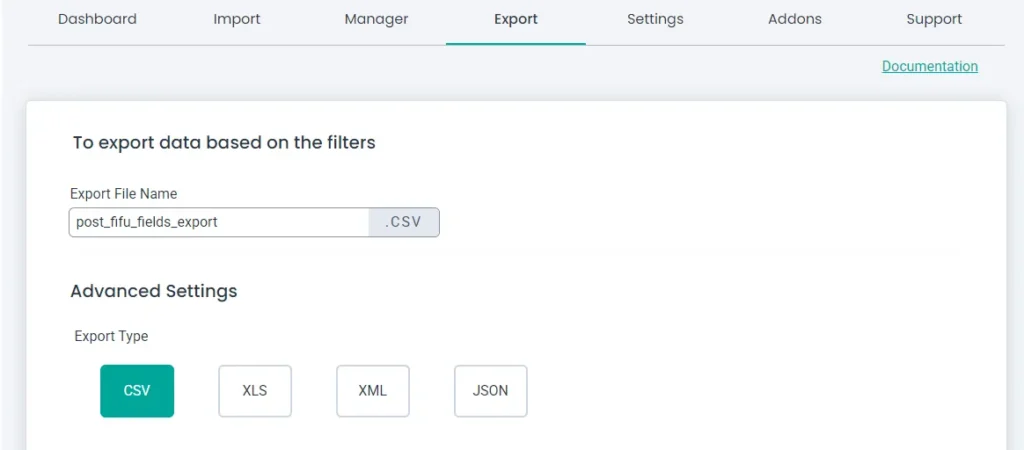
Configure filters like export for specific periods and export records of specific authors. If you don’t need filters and want to export all records of the chosen post type, just click Export without configuring the filters.
Finally, download the export file and verify the exported field data, including the FIFU Featured image and alt text columns, to confirm the successful export.
Conclusion
Setting featured images from external URLs in WordPress comes down to one decision: do you need speed and flexibility, or stability and long-term control?
For most content-heavy sites, FIFU handles the day-to-day, paste a URL, save, done. For evergreen content or SEO-critical pages where a broken image would cost you rankings and click-throughs, downloading the image locally gives you the reliability that external hosting can’t guarantee. And for sites managing content at scale, combining FIFU with a bulk import workflow through WP Ultimate CSV Importer removes the bottleneck entirely.
If you have questions about the import or export workflow, the WP Ultimate CSV Importer support team is available to help.
Frequently Asked Questions
1. How can I set a featured image from an external URL in WordPress?
WordPress does not support external featured image URLs by default, so you need a plugin like FIFU or a custom PHP solution. FIFU is the easiest option because it adds a featured image URL field directly to the post editor.
Q2. Can I use an image URL as a featured image without uploading it in WordPress?
Yes. FIFU lets you use external image URLs without uploading files to the WordPress media library. It stores only the URL while loading the image dynamically from the external source.
Q3. Does using external images affect SEO?
External images can still perform well for SEO if the image host is reliable and proper alt text is added. However, broken external image URLs may negatively affect click-through rates and user experience.
Q4. How can I find and use a WordPress featured image URL?
You can find the image URL inside the WordPress media library or directly from the FIFU featured image field. Developers can also retrieve it using get_the_post_thumbnail_url().
Q5. Can I use FIFU with WooCommerce products?
Yes. FIFU works with WooCommerce products and allows you to assign external product images using image URLs instead of uploading files to the WordPress media library. For most users, FIFU is the easiest way to manage featured images from external URLs in WordPress. Developers and SEO-focused sites may still prefer locally hosted images for long-term reliability and control.
Q6. Does FIFU affect page speed or Core Web Vitals?
FIFU itself is lightweight, but performance depends on the speed of the external image host. Slow or unreliable image servers can delay image loading and affect Core Web Vitals. Using optimized images and reliable hosting improves performance significantly.
Q7. Is the FIFU plugin free?
Yes. FIFU offers a free version through the WordPress plugin repository that supports external featured images for posts, pages, and custom post types. A PRO version is also available with advanced features like additional media support and optional local image storage.
