
Table of Contents
Inventory Management in WooCommerce
Managing inventory in WooCommerce might sound simple when your store is small, just a few products, some orders a day, and manual tracking feels enough. But as your store scales, things change drastically. You start adding product variations, multiple suppliers, and sales from different channels such as Amazon or eBay. Suddenly, keeping your stock accurate becomes a full-time task.
WooCommerce provides built-in inventory features such as stock quantity control, low-stock notifications, and backorder management. While these work well for beginners, they fall short when you handle hundreds or thousands of SKUs. Without a proper system, you risk overselling, order delays, and disappointed customers, all of which can damage your brand reputation and revenue.
Effective inventory management is more than just tracking numbers; it’s about maintaining real-time accuracy across all channels, ensuring smooth order fulfillment, and reducing manual effort through automation.
In this blog, we’ll explore the best practices, smart tools, and scalable strategies to help you take full control of your WooCommerce inventory so your business grows without chaos.
How WooCommerce Handles Inventory
WooCommerce has a built-in inventory management system that gives store owners basic control over stock levels. It’s designed to help you monitor product availability, manage out-of-stock situations, and maintain a smooth shopping experience for customers. But to truly scale, you first need to understand how these native tools work behind the scenes.
1. Product-Level Stock Management
Each product in WooCommerce can be assigned an individual stock quantity. When an order is placed, WooCommerce automatically reduces the product’s stock count. Once the stock reaches zero, the item is marked “Out of Stock”, and customers are unable to purchase it unless you choose otherwise. This automatic adjustment keeps your stock data synchronized without manual updates after every sale.
2. Low-Stock and Out-of-Stock Notifications
WooCommerce can alert you when certain items are running low. You can set a low-stock threshold and receive an email notification to restock in time. This feature helps prevent stockouts that can result in lost sales opportunities or unhappy customers.
3. Backorder Settings
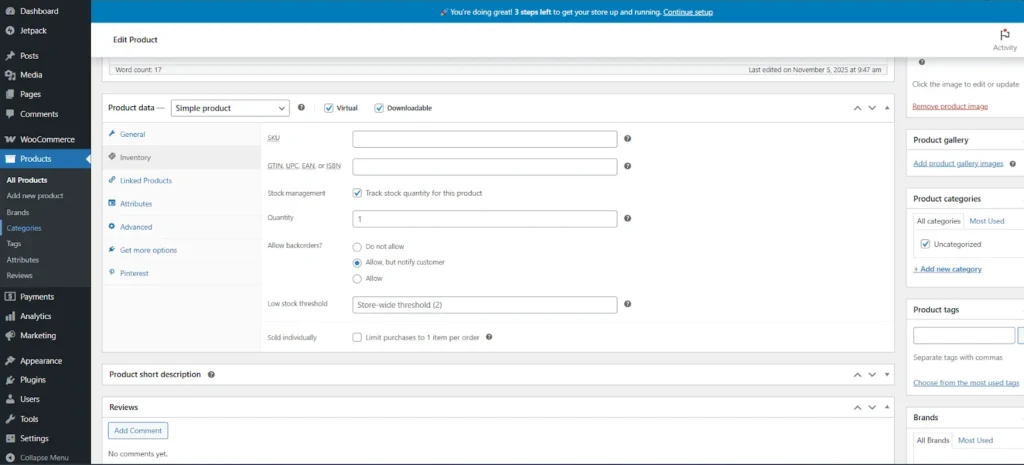
For products that you plan to restock soon, WooCommerce allows backorders, letting customers place orders even when the product is temporarily unavailable.
You can choose one of three options:
- Do not allow backorders,
- Allow but notify customers, or
- Allow without notification.
The best practice is to keep customers informed by enabling notifications, which builds transparency and trust.
4. Global Inventory Options
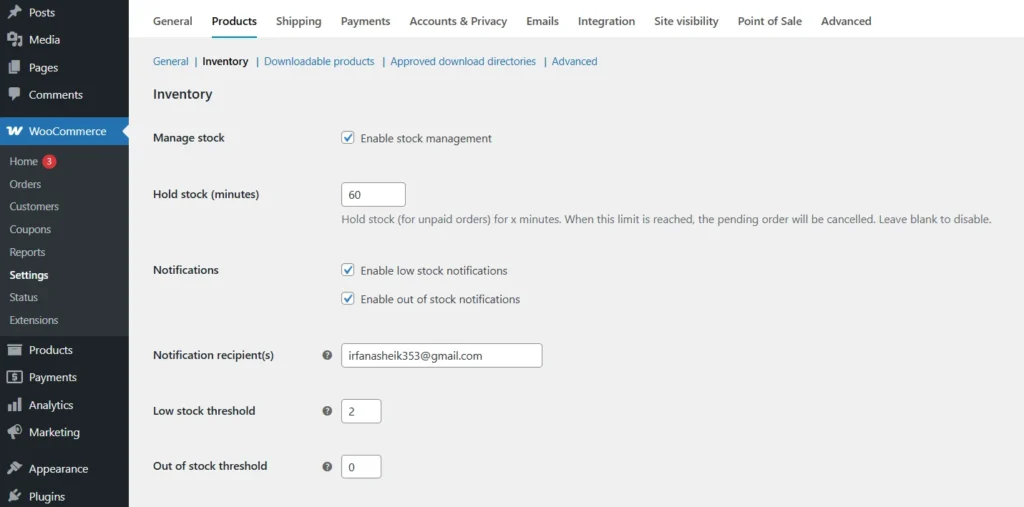
You can configure global inventory settings in the WooCommerce admin panel by navigating to WooCommerce → Settings → Products → Inventory.
Here, you can define global preferences such as:
- Hold stock duration for unpaid orders,
- Enabling stock management globally,
- Setting default low-stock thresholds, and
- Enabling notifications for out-of-stock products.
These options provide the foundation of WooCommerce’s stock control system, ideal for small to medium-sized catalogs. However, once your product list grows into hundreds of variations or you start selling across multiple channels, these native settings alone may not be enough. That’s when automation, integration, and centralized systems become essential to maintain real-time accuracy.
Common Challenges When Scaling
As your WooCommerce store expands, managing inventory becomes more complex than simply tracking stock levels. What once took a few minutes now demands full-time attention. Scaling introduces multiple moving parts from bulk orders and product variations to warehouse logistics and third-party integrations.
Here are some of the most common challenges WooCommerce store owners face while scaling inventory management:
1. Tracking Thousands of SKUs
When your catalog grows to hundreds or thousands of products, manual tracking using spreadsheets or basic WooCommerce settings becomes impractical. Human error, duplicate entries, and missing updates can easily occur, leading to confusion about what’s actually in stock.
2. Multi-Channel Sales Complications
Many growing businesses expand beyond their WooCommerce store to platforms like Amazon, eBay, Etsy, or even offline stores using POS (Point of Sale) systems. Without proper synchronization, each platform maintains its own stock count, creating discrepancies. For instance, if one product sells on Amazon, it may still appear as “in stock” on WooCommerce, causing overselling and frustrated customers.
3. Slow or Inaccurate Stock Updates
As order volume increases, delays in stock updates can disrupt your fulfillment process. By the time WooCommerce registers a sale, another order may already have been placed, resulting in inaccurate availability data. This issue multiplies during flash sales or festive promotions when hundreds of orders arrive within minutes.
4. Overselling and Refund Issues
One of the most damaging consequences of poor inventory management is overselling, accepting more orders than available stock. Customers who don’t receive their products on time often request refunds or leave negative reviews, which can impact brand trust and long-term revenue.
5. Data Silos and Lack of Centralization
When your inventory is spread across different tools, your website, spreadsheets, supplier systems, and marketplaces, data silos form. This fragmentation makes it hard to get a clear picture of your actual stock and performance metrics, affecting decision-making.
To overcome these challenges, businesses need to shift from manual or semi-automated methods to centralized, automated inventory systems. These systems synchronize real-time data across every sales channel, eliminate redundancy, and give you full control of stock flow.
Best Practices for Managing and Scaling WooCommerce Inventory
1. Centralize Your Inventory System
When your WooCommerce store begins to grow, managing inventory across multiple channels becomes one of the biggest operational challenges.
If you sell products not just on your website but also through platforms like Amazon, eBay, or physical retail stores, keeping track of stock separately can lead to costly errors. This is where a centralized inventory system becomes essential.
A centralized system allows all your sales channels, WooCommerce, marketplaces, POS systems, and warehouses to pull data from a single inventory database. This ensures every product count, update, or sale is reflected everywhere in real time. For example, if a customer buys an item on Amazon, the stock on your WooCommerce store is automatically updated to prevent overselling.
Without such synchronization, your business risks inconsistent data, delayed order processing, and even lost revenue from canceled orders. Centralization also saves time by eliminating the need to log in to multiple dashboards for manual updates.
Technical Insight
Centralized inventory systems typically operate using APIs (Application Programming Interfaces) or middleware integration tools. These tools act as a bridge between WooCommerce and other platforms, automatically transferring data such as product quantities, order status, and fulfillment updates. For instance, if you receive a return on Amazon, the system can automatically restock the item in WooCommerce without any manual intervention.
Recommended Plugin
For WooCommerce stores, ATUM Inventory Management is one of the best tools for achieving centralized control. It provides:
- Detailed product-level insights
- Supplier and purchase order tracking
- Central dashboard for managing multiple warehouses
- Real-time stock and sales reports
ATUM integrates directly into the WooCommerce dashboard, offering advanced features without the need for external systems, making it ideal for medium to large online stores.
Result: Smarter, Smoother Operations
By centralizing your inventory, you eliminate duplication, reduce data errors, and gain a unified view of your entire stock ecosystem. It not only improves operational efficiency but also enhances your customer experience by ensuring accurate product availability at all times.
In short, centralization lays the foundation for scalability. Once your inventory system speaks the same language across all sales platforms, your business can handle growth confidently and efficiently.
2. Automate Stock Updates and Forecasting
As your WooCommerce store grows, manual inventory updates quickly become unsustainable. You might start your day by adjusting stock counts, only to find out later that your data is already outdated because of new orders, returns, or canceled transactions.
Automating stock updates ensures that every sale, return, or restock is instantly reflected across your system without human intervention. This real-time accuracy eliminates the most common causes of inventory-related issues: overselling, delayed order fulfillment, and inaccurate reporting.
For instance, when a customer places an order, your WooCommerce system should automatically:
- Reduce the product’s stock count.
- Notify the warehouse for packaging and shipping.
- Adjust stock levels if the order is canceled or refunded.
These actions happen within seconds, ensuring your data stays reliable no matter how quickly your store scales.
Predictive Demand Forecasting
Automation isn’t just about updating numbers; it’s also about anticipating demand. Using predictive analytics, your system can analyze sales history, seasonal trends, and product performance to forecast when you’ll run low on stock. This proactive approach helps you reorder products before shortages occur and prevents overstocking items that don’t sell fast.
For example:
- If a specific product consistently sells out in the first week of every month, the system can automatically alert you (or even create a purchase order) a few days in advance.
- During seasonal peaks like Black Friday, predictive forecasting can estimate required stock levels based on last year’s data and current sales velocity.
Recommended Tools
To automate stock updates and forecasting in WooCommerce, you can integrate tools like:

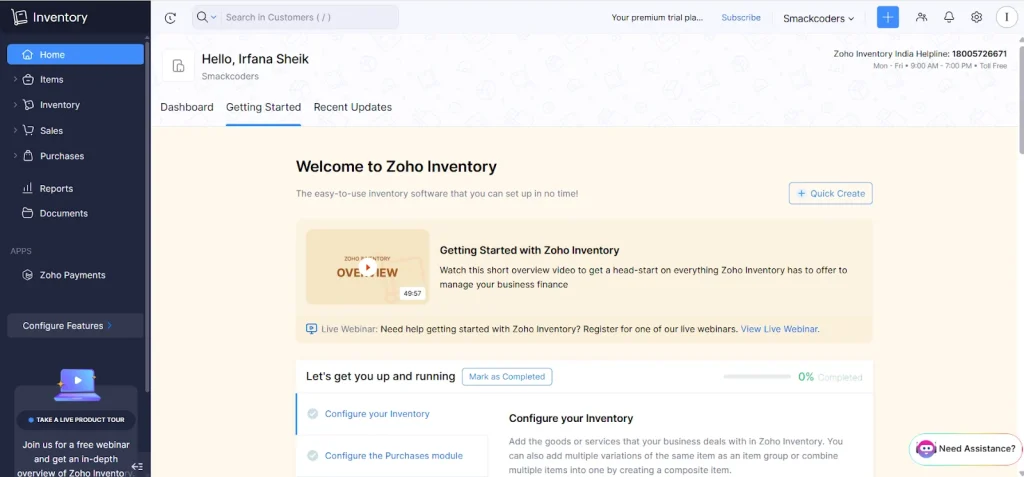
- Zoho Inventory – Excellent for real-time order syncing, demand forecasting, and automatic reordering.
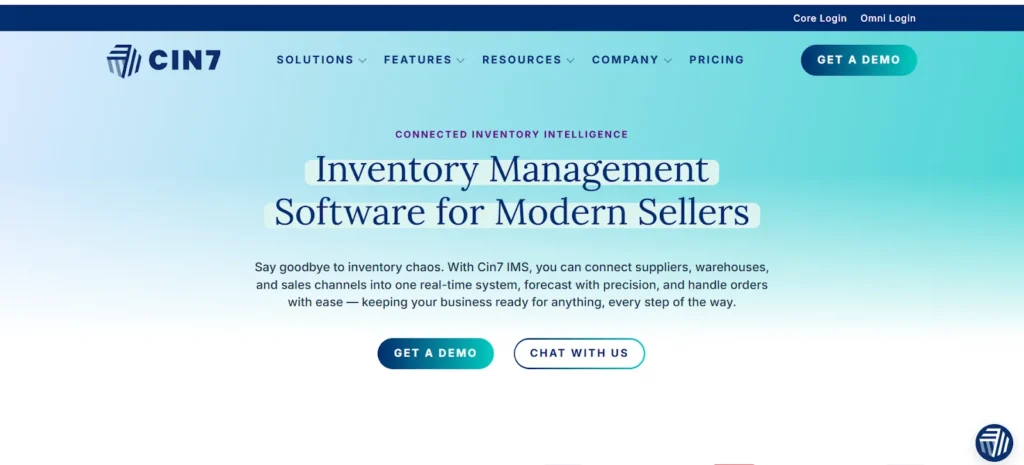
- Cin7 – An advanced solution for large-scale operations that manages inventory across warehouses, online stores, and retail POS systems in one dashboard.
Both tools connect seamlessly with WooCommerce using APIs and handle everything from automated purchase orders to advanced analytics.
The Real Benefit
By automating your stock processes, you not only save hours of manual work but also make smarter business decisions based on data, not guesswork. The result?
- Fewer stockouts
- Reduced storage costs
- Smoother operations
- Happier customers
Automation is not a luxury; it’s a scaling necessity. It allows your WooCommerce store to function like a well-coordinated system, even as order volumes increase exponentially.
3. Organize SKUs and Product Variations Systematically
As your WooCommerce store grows, you’ll likely add multiple versions of the same product different colors, sizes, or packaging options. Without a clear system for organizing SKUs (Stock Keeping Units) and variations, managing inventory can quickly become chaotic. Proper SKU organization is the backbone of accurate reporting, faster fulfillment, and seamless integration with external systems like CRMs or accounting tools.
Think of SKUs as your inventory’s DNA; each one uniquely identifies a product. A well-structured SKU system allows you to instantly identify items by type, variant, or category without confusion. It also reduces the chances of shipping errors, duplicate listings, or mismatched products.
For example, instead of using random SKU codes like “1234” or “TSH01,” create meaningful and structured SKUs that tell you exactly what the product is.
Example:
TSHIRT-BLUE-M T-shirt, Blue color, Medium size
MUG-RED-12OZ Mug, Red color, 12-ounce capacity
This pattern is easy to understand, searchable, and scalable as your catalog grows.
How to Structure Your SKU System
When designing a SKU structure, keep these best practices in mind:
- Use consistent formatting. Stick to uppercase letters and hyphens for clarity.
- Include key attributes. Product type, color, and size should always be part of your SKU.
- Avoid special characters. Symbols like “/” or “#” can break integrations with other systems.
- Keep it short and readable. Long SKUs can be hard to manage and increase the chance of data entry errors.
If you manage multiple brands or warehouses, you can even include location or supplier codes in the SKU to make it more specific.
Example:
TSHIRT-BLUE-M-WH1 → Blue medium T-shirt from Warehouse 1
How It Helps at Scale
When your store reaches hundreds or thousands of products, a structured SKU system streamlines:
- Warehouse Management: Staff can quickly pick and pack the right items.
- Reporting: Easier to filter sales by product type or size.
- Bulk Uploads: CSV imports and exports become error-free and organized.
- Automation: Integration tools like ATUM or Zoho Inventory can easily read SKU formats for syncing and analytics.
WooCommerce Tip
WooCommerce allows you to set SKUs for each product and variation under the “Product Data → Inventory” section. Once defined, these SKUs appear in reports, orders, and integrations, making them essential for any scalable inventory setup.
4. Manage Backorders and Out-of-Stock Products Wisely
Running out of stock is one of the most frustrating experiences for both store owners and customers. On the other hand, offering backorders without a proper system can lead to confusion, delayed shipping, and unhappy buyers. Managing backorders and out-of-stock products wisely ensures that your store maintains trust, consistency, and a smooth shopping experience even when inventory fluctuates.
What Are Backorders?
Backorders allow customers to purchase an item that’s currently unavailable but will be restocked soon. It’s a great way to secure sales instead of losing customers who might otherwise go elsewhere. However, it requires transparency and accurate communication about restock timelines.
In WooCommerce, you can enable backorders for each product by navigating to:
Products → Edit Product → Inventory tab → Allow Backorders.
You’ll find three options:
- Do not allow – Prevents purchases when stock hits zero.
- Allow, but notify customer – Let customers order, but clearly inform them that the product will ship later.
- Allow – Let customers buy freely without notifications (not recommended for scaling stores).
The best practice is to enable backorders with customer notifications, as this maintains clarity and builds trust.
Best Practices for Managing Backorders
- Be Transparent with Delivery Timelines
If an item is on backorder, display a clear message such as: “Available on backorder, estimated delivery in 7–10 days.” This reassures customers that you’re aware of the delay and gives them realistic expectations.
- Prioritize Restocking High-Demand Items
Use your sales reports or forecasting tools to identify products that frequently go on backorder. Replenish these items first to avoid losing potential sales.
- Set Automated Notifications
Use plugins like ATUM or Back In Stock Notifier for WooCommerce to automatically alert customers when an item becomes available again. This re-engages interested buyers without manual follow-up. - Prevent Overselling
If you’re selling across multiple channels, make sure your backorder settings sync properly. Integrating your store with inventory management systems like Zoho Inventory or Cin7 ensures all sales channels reflect accurate stock levels and backorder statuses.
Handling Out-of-Stock Products
When an item is completely out of stock with no planned restock date, hiding it might be a better choice than showing “Sold Out.” WooCommerce allows you to:
- Automatically hide out-of-stock items under WooCommerce → Settings → Products → Inventory.
- Use filters or widgets to display “In Stock” items first.
If you prefer to keep them visible for SEO reasons, display an “Out of Stock” badge and a message like:
[“Currently unavailable. Check back soon or explore similar products below.”]
This approach keeps your product pages informative while preventing customer frustration.

[ The product page displays an “Available on backorder” status, keeping customers informed that the item will be restocked soon.]
The Takeaway
Smart backorder management is about balance; you don’t want to lose customers due to unavailability, but you also don’t want to oversell and break trust. By communicating clearly, automating restock notifications, and integrating your systems, you can maintain consistent customer satisfaction and operational control even during stock fluctuations.
5. Conduct Regular Inventory Audits
Even with automation and centralized systems, no inventory management strategy is complete without regular audits. Human errors, supplier mistakes, damaged goods, and software glitches can still lead to discrepancies between your WooCommerce data and your physical stock. Conducting consistent inventory audits ensures that your digital records always match real-world inventory, a crucial step for accuracy and financial integrity.
Inventory audits act as a health check for your WooCommerce store. They help you identify mismatches early, prevent revenue loss, and ensure your customers always see correct product availability online. For scaling businesses, small discrepancies multiplied over hundreds of SKUs can turn into significant financial setbacks.
Regular audits also help:
- Detect missing or misplaced products in warehouses.
- Catch errors in SKU labeling or barcode scanning.
- Confirm product counts after returns or damaged goods.
- Maintain accurate accounting and tax reporting.
How to Perform an Inventory Audit in WooCommerce
- Export Your Stock Report
Go to WooCommerce → Reports → Stock and export your inventory data as a CSV file. This file includes all product IDs, SKUs, stock quantities, and statuses. - Compare Digital vs. Physical Stock
Use warehouse or storage data to cross-check the exported numbers. Count items manually or use barcode scanners for faster validation. - Identify and Correct Discrepancies
If a product’s physical count doesn’t match WooCommerce records, update it immediately. Ensure that the cause of the mismatch, such as damaged stock or missed entries, is addressed. - Schedule Regular Audit Intervals
- Small Stores: Once every quarter.
- Medium Stores: Monthly.
- High-Volume Stores: A Weekly or even daily audit is good during high-traffic seasonal times like Black Friday.
This frequency depends on how fast your inventory moves and how complex your catalog is.
Pro Tip: Automate Reconciliation
To minimize manual effort, integrate your WooCommerce store with accounting systems like QuickBooks or Xero. These tools automatically sync your sales, purchases, and stock levels, allowing you to reconcile inventory against financial records seamlessly.
Additionally, plugins such as ATUM Inventory Management can generate advanced reports showing discrepancies, helping you fix them before they affect sales or customer satisfaction.
The Result: Accuracy, Trust, and Profitability
Regular audits don’t just prevent mistakes; they build confidence. Accurate data allows for better forecasting, more informed restocking decisions, and a smoother customer experience. It also helps maintain transparency across your team, suppliers, and accounting department.
By making inventory audits a consistent part of your WooCommerce routine, you create a foundation of accuracy that supports long-term scalability and financial stability.
Integrate Supply Chain and Automation
The true power of scalable inventory management lies in integration, connecting every element of your supply chain into one cohesive system.
Here’s how you can integrate key components of your WooCommerce store for maximum efficiency:
1. Supplier Integration
Connect your WooCommerce store with supplier systems or ERP tools. This enables automatic purchase orders when stock drops below a certain threshold. Instead of manually reaching out to suppliers, your system can reorder stock in advance, preventing last-minute shortages.
2. Shipping and Fulfillment Integration
Link your inventory tools with shipping providers like ShipStation, EasyPost, or ShipRocket. Once an order is fulfilled, the shipping integration automatically updates the inventory count in WooCommerce, keeping your data accurate across all channels.
3. POS and Retail Integration
If you also sell in physical stores, connect your WooCommerce inventory with Point of Sale (POS) systems such as Square or Lightspeed. Every in-store sale instantly reduces stock from your WooCommerce catalog, ensuring real-time accuracy and avoiding double-selling.
4. Multi-Warehouse Management
For larger businesses, tools like Cin7 and Zoho Inventory allow you to manage stock across multiple warehouses. You can track which items are stored where, view transfer histories, and optimize delivery routes based on the customer’s location.
The Value of Automation and Integration
By integrating all these systems, you create a seamless backend ecosystem. Orders, restocks, returns, and shipments all update automatically across your platforms without human involvement. This not only saves time but also ensures consistent accuracy and a better customer experience.
In short, advanced inventory tools and integrations transform WooCommerce from a single-channel store into a scalable, enterprise-ready eCommerce solution capable of handling growth efficiently.
Conclusion: Build a WooCommerce Store
Scaling a WooCommerce store is exciting, but it comes with growing pains. As order volumes rise, product variations expand, and new sales channels open up, managing your inventory effectively becomes the key to sustainable success. Without a strong system in place, even the most well-designed store can lose efficiency, customers, and profits.
The solution lies in accurate, automated, and centralized inventory management. By combining WooCommerce’s native tools with advanced integrations, you can ensure your store stays organized, responsive, and error-free no matter how fast it grows.
A WooCommerce store is built on three principles:
- Real-time accuracy – Instant stock updates across every sales channel.
- Automation – Systems that handle updates, forecasting, and order syncing without manual work.
- Centralization – A single source of truth that connects suppliers, warehouses, and your WooCommerce dashboard.
When these principles come together, your inventory stops being a challenge and becomes a competitive advantage. You’ll spend less time fixing errors and more time focusing on what really matters: growing your brand and delighting your customers.
Actionable Takeaways
- Audit your inventory regularly. Even automated systems need human validation.
- Implement automation tools early. Don’t wait until you’re overwhelmed; integrate solutions as soon as you start scaling.
- Use meaningful SKUs. A structured naming system saves hours of confusion later.
- Enable transparent backorder communication. Customers appreciate honesty more than silence.
- Centralize your data. Connect all your channels to prevent overselling and inconsistent reports.
These small but strategic steps can save you thousands in lost sales and operational inefficiencies.
Want to simplify your WooCommerce inventory management? Check out our import tool to bulk import inventory data to products. Get in touch with us at [email protected]. Let’s help you transform your WooCommerce store into a future-ready business engine.
FAQs: Managing WooCommerce Inventory
1. Can I manage a large inventory using WooCommerce alone?
Yes, WooCommerce can handle large inventories to a certain extent. It includes native features like product-level stock tracking, low-stock alerts, and backorder options. However, as your store grows beyond a few hundred products or starts selling across multiple platforms, WooCommerce’s default tools may not be enough. For larger catalogs (1,000+ SKUs), integrating tools helps automate updates, manage supplier data, and generate advanced reports for better control.
2. How do I prevent overselling in WooCommerce?
To prevent overselling, make sure “Manage Stock” is enabled for each product in your WooCommerce dashboard. Set a low-stock threshold to get alerts before an item runs out. If you sell on multiple platforms (like Amazon or physical stores), use centralized systems to sync your stock in real time. These integrations ensure all your channels reflect accurate availability instantly after every sale or return.
3. What’s the best way to forecast inventory needs for my WooCommerce store?
Forecasting inventory is all about using your past sales data to predict future demand. You can start by analyzing WooCommerce’s built-in sales reports to spot seasonal or trending products. For more accurate insights, use AI-driven forecasting tools, which automatically study buying patterns and recommend reorder points. This ensures you always have the right amount of stock, not too much, not too little.
4. How often should I perform inventory audits?
The frequency of audits depends on your store size and order volume:
Small Stores: Every 3–4 months.
Mid-Sized Stores: Once a month.
High-Volume Stores: Weekly or even daily during peak sales seasons.
Regular audits help catch errors from damaged goods, returns, or software mismatches before they affect your customer experience. Automated reconciliation tools can make this process faster and more accurate.
5. Which is better for scaling a plugin or a third-party inventory management tool?
If your business operates primarily within WooCommerce, a plugin like ATUM is often sufficient and cost-effective. But if you run multiple stores, warehouses, or channels, a third-party solution like Zoho Inventory or Cin7 offers more flexibility, reporting, and automation.
The ideal setup often combines both a WooCommerce plugin for product-level control and an external platform for centralized data management.
6. How can automation improve my WooCommerce inventory workflow?
Automation reduces manual workload by updating stock levels, sending supplier orders, managing backorders, and forecasting demand automatically. It eliminates human errors, speeds up fulfillment, and ensures you never oversell or overstock. In short, automation allows your WooCommerce store to scale without losing accuracy or customer satisfaction.
