
Table of Contents
By default, WordPress does not allow featured images to be set from external URLs. You can either use a dedicated plugin like Featured Image from URL to reference external images without uploading them, or programmatically download the image and attach it as a featured image using WordPress core functions. The right approach depends on whether you want to reference external images or store them locally.
Key Takeaways
- WordPress does not support featured images from URLs by default.
- Plugins allow referencing external images without uploading them.
- Programmatic methods download and attach images locally.
- External images reduce storage but increase dependency risk.
- Always add alt text for accessibility and SEO.
What Does “Featured Image from URL” (FIFU) plugin Mean?
Featured Image from URL (FIFU) is a WordPress plugin that loads the post thumbnail directly from an external source instead of your WordPress media library. In simple terms, it lets you add URLs to featured images.
- The image is not uploaded to your server
- WordPress stores only the image URL
- The image is rendered dynamically from the external host
When Should You Use an External Featured Image?
Use external featured images when:
- You manage large content volumes and want to reduce storage usage
- Images are already hosted on a CDN or external asset server
- You are importing posts from another system that already references image URLs
- You want faster content publishing without media uploads
Avoid this approach if:
- You do not control the external image source
- Long-term image availability is critical
- The external site may block hotlinking
Method 1: How to Add External Image Links (URLs) to Featured Image in WordPress Posts, Pages & Products
The FIFU plugin adds a new field to the post editor, after it is installed and activated, for pasting an image URL. WordPress treats this image as the featured image without downloading it.
Install the WordPress Featured Image from URL(FIFU) plugin
The Featured Image from the URL plugin is available for free in WordPress. This plugin is easy to use and set up from your admin dashboard.
Visit dashboard → Plugins → Add new. Search for ‘fifu’ or ‘featured image from URL’ in the search box. The plugin will be listed. You can see that in the screenshot.
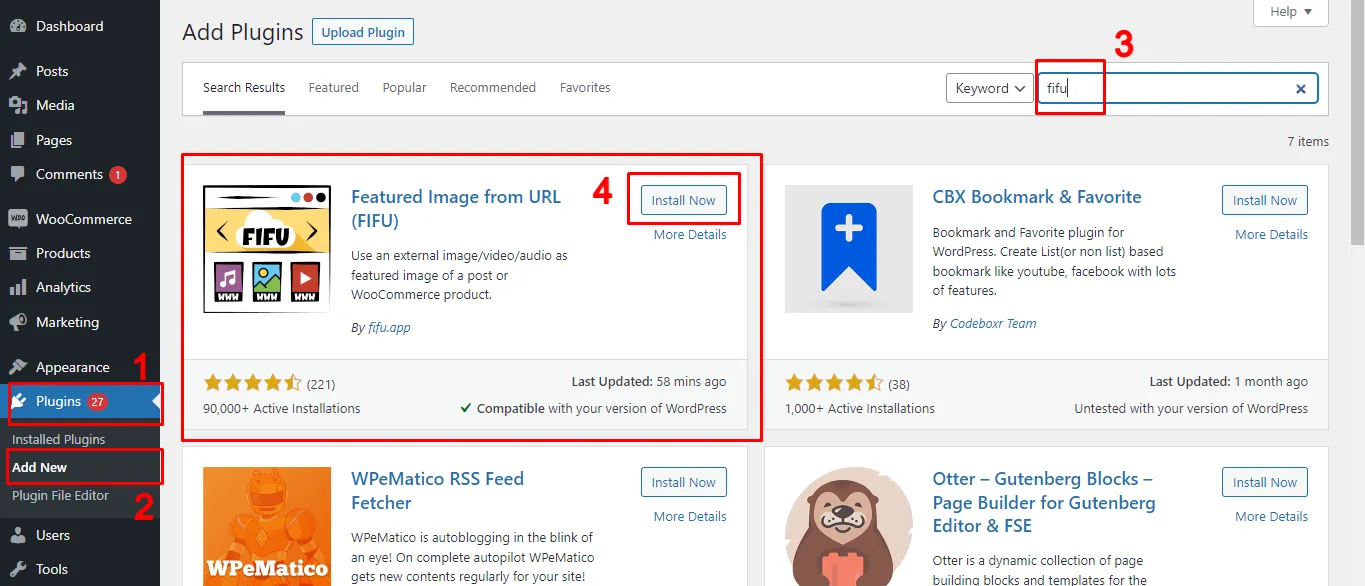
Install and activate the FIFU plugin.
You can now add external images as featured images for posts, pages, and custom post types.
How to Set a URL as Featured Image for WordPress Posts, Pages & Products
Before using images from other websites, just make sure you have the right permission or licensing to use them on your site.
To copy an external image URL:
- Visit the website where the image is located.
- Right-click the desired image and select ‘copy image address’.
- The image URL is now saved to your clipboard, and you can paste it wherever you need.
Keep in mind, you can only copy one image at a time.
Tip: If the image is from another WordPress site you own or manage, you can easily copy its URL directly from the media library.
Now, if you want to add external images as featured images for all your posts, you’ll need to copy and paste each URL into the featured image field of every post.
To add a featured image for WordPress Posts, Pages, or Custom Posts like Products:
- Open the edit screen of any post type(either create a new one or edit an existing one).
- From the top bar, click the settings icon to open the sidebar. By default, this will display the Post settings.
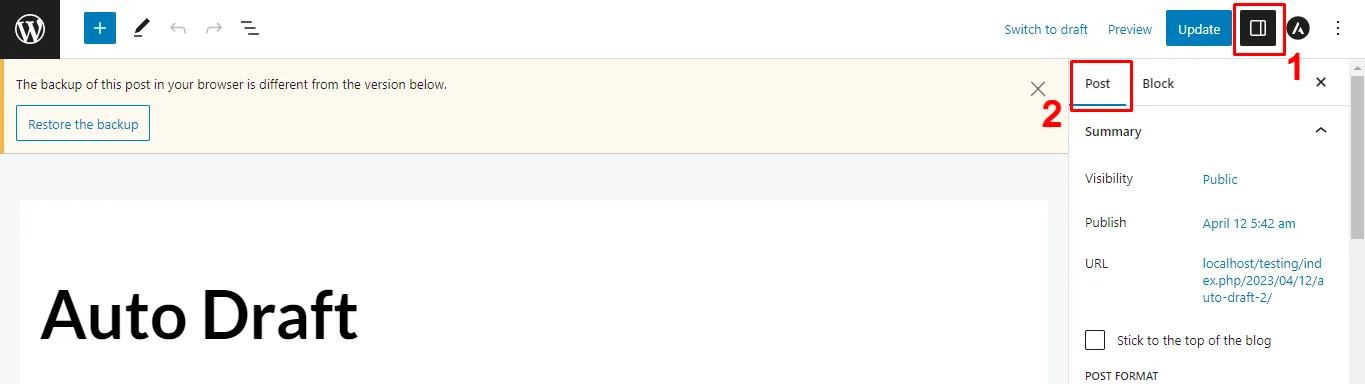
- Scroll down to locate the ‘Featured Image’ field provided by the FIFU plugin (like in the screenshot below).
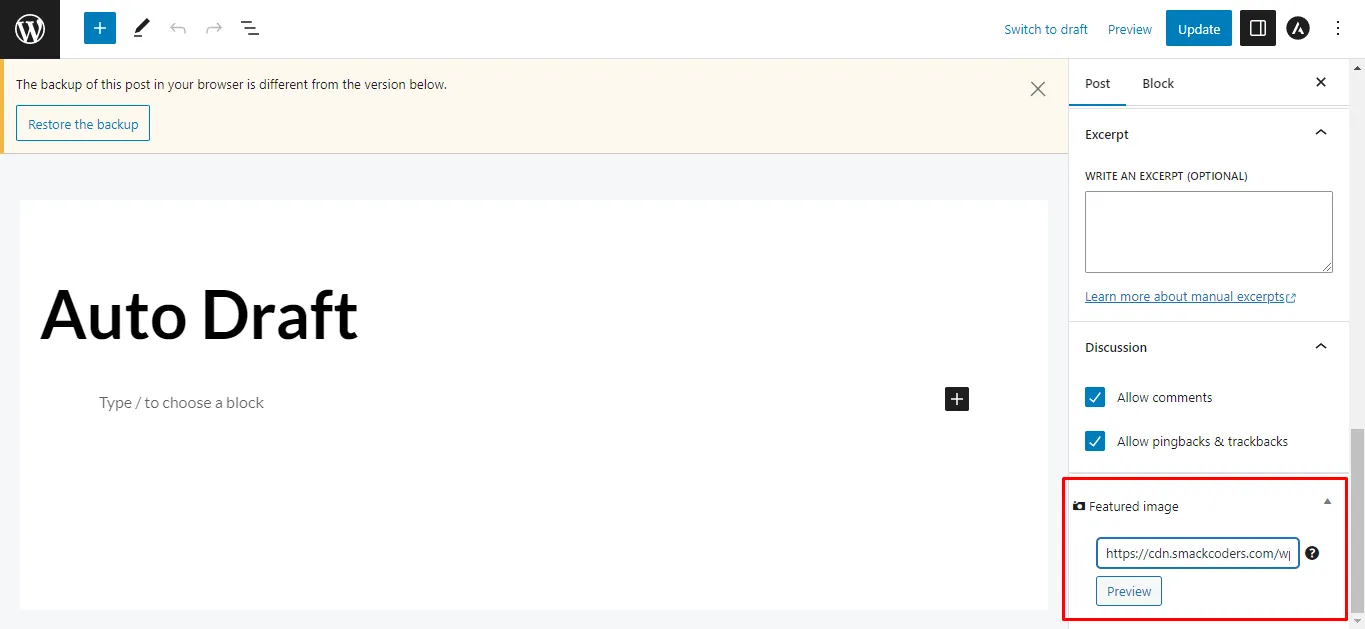
Now you can add your external image in two ways:
- Paste an image URL: Copy the external image link and paste it into the featured image text box.
- Search by keyword: Enter a keyword to get image suggestions, then choose one to use as your featured image.
Once you’ve added the image:
- Click Preview to see how it looks on your post.
- A new text box will appear where you can add Alt Text (recommended for SEO and accessibility).

- Finally, click Save/Update to apply the changes.
To replace the featured image URL:
If you’d like to replace the featured image, simply remove the existing URL and paste a new one, then click Update.
To remove the featured image URL:
To remove it entirely, select “Remove External Featured Image” and you’ll return to the default state, where you can add another image if needed.
The above steps are applicable to Posts and Pages. To add featured image URLs for Products,
- Visit Products and open a product in an edit view
- You’ll see a “Product image” metabox newly added
- Enter the image URL inside the box and click the Preview button to view the image.
- Add an alt text for the image in the alt text box
Alt text is not optional for accessibility or search visibility.
Best practices for adding alt text:
- Describe what the image shows, not what it “is”.
- Avoid keyword stuffing.
- Keep it under 125 characters.
How to Hide the FIFU Featured Image Meta Box in WordPress
Sometimes, you may want to hide the featured image meta box by the FIFU plugin for specific post types like Posts, Pages, or Custom Post types like Products. This can be easily managed from the plugin’s settings.
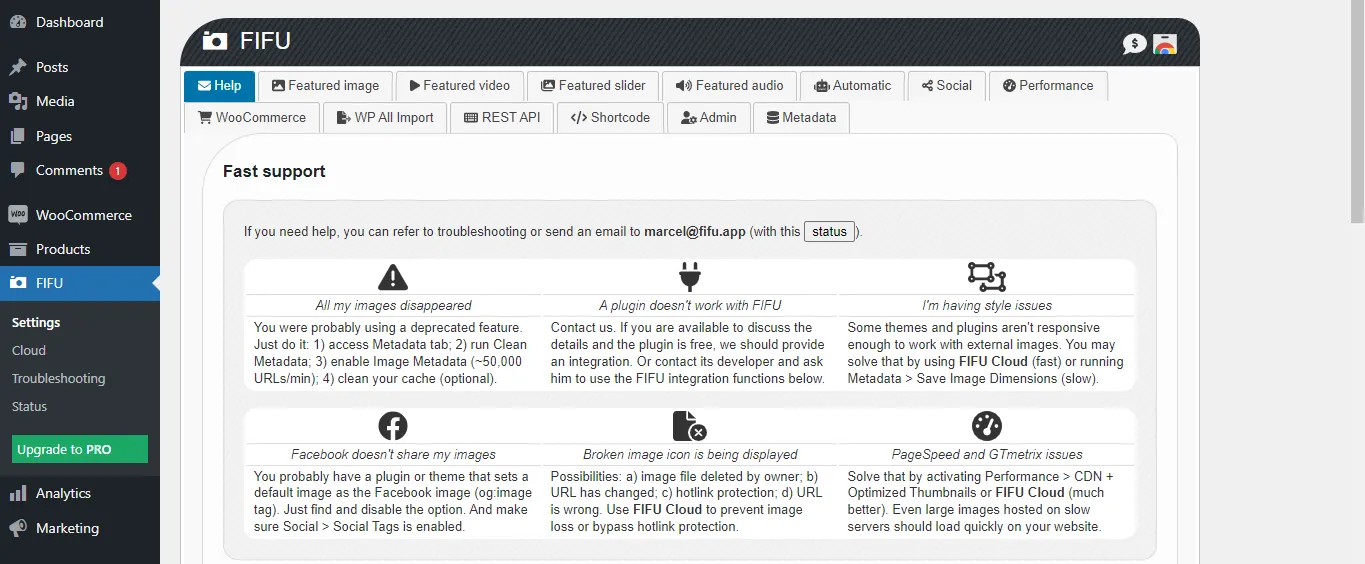
- Go to the FIFU → Settings menu in your WordPress dashboard.
- The Settings page has multiple tabs (like image, video, slider, audio, etc.). This plugin supports more than just images.
- Open the Image tab and scroll down to the “Hide Featured Media” section (just above the default featured image setting).
- Enable the Hide toggle and in the next post type filter tab, specify the post types like “page, post” you want to exclude.
- This will remove the meta box from those post types.
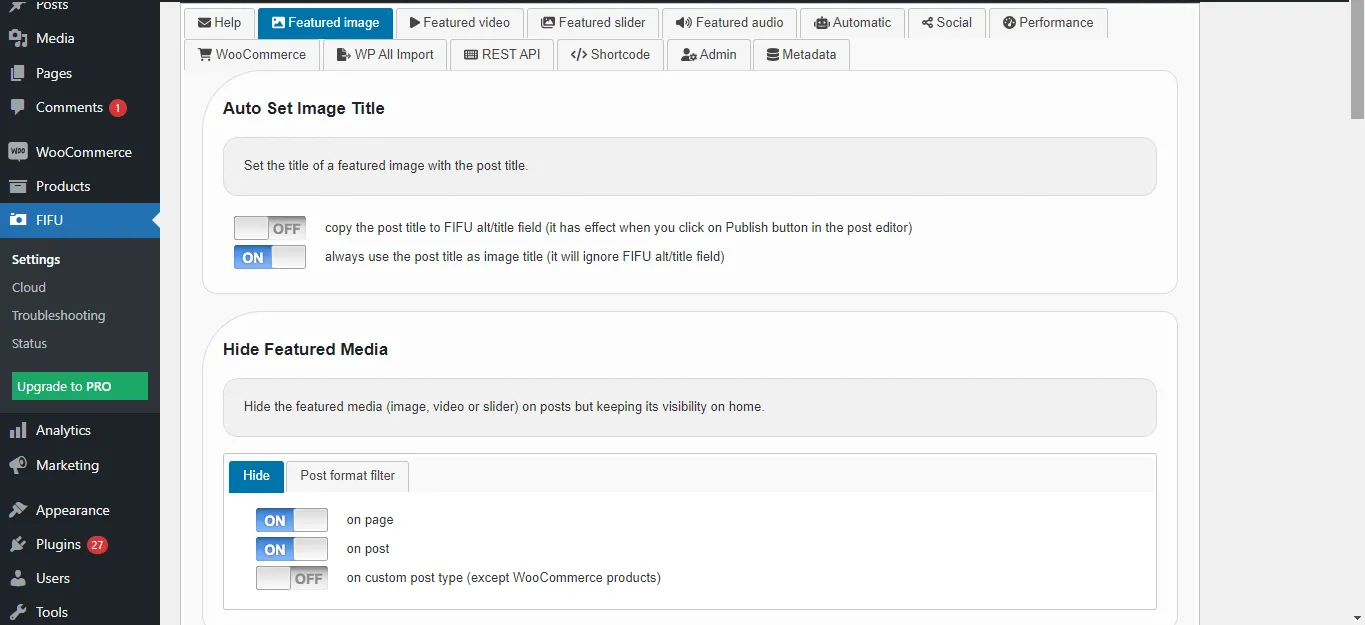
Note: Once you installed the FIFU plugin, the featured image meta box will automatically display inside the post types(posts, pages, and products).
How to Add a Default Featured Image for a Post
The Default Featured Image option is useful if you create or update a post, page, or custom post type without assigning a featured image. Instead of leaving it blank, the plugin will automatically use the default image you set.
To configure this:
- Go to the FIFU → Settings page.
- Scroll down to the Default Featured Image section.
- Enable the Default featured image toggle.
- Paste the URL of the image you want to use as the default into the Image URL field.
- (Optional) If you want this to apply only to specific post types, add their values in the Post Type filter field. Example: post, page. This ensures the default image is applied only to those post types.
- Once configured, the image will automatically be assigned as a featured image to any post type (post, page, product, etc.) that doesn’t have one.
Method 2: Set featured images from URL programmatically in WordPress
To set a featured image in WordPress programmatically from a URL, you can use the media_sideload_image() function along with the wp_insert_post() function. Here’s an example of how you can achieve this:
function set_featured_image_from_url($post_id, $image_url) {
// Add Featured Image to Post
$image_id = media_sideload_image($image_url, $post_id, ‘Image Description’);
// Set Featured Image
if (!is_wp_error($image_id)) {
     set_post_thumbnail($post_id, $image_id);
}
}
// Usage
$post_id = 123; // Replace with your post ID
$image_url = ‘https://example.com/image.jpg’; // Replace with the URL of the image
set_featured_image_from_url($post_id, $image_url);
In this example:
- Replace $post_id with the ID of the post to which you want to set the featured image.
- Replace $image_url with the URL of the image you want to set as the featured image.
This function downloads the image from the provided URL, attaches it to the specified post, and sets it as the featured image. The media_sideload_image() function downloads the image and returns the attachment ID, and then set_post_thumbnail() sets this attachment ID as the featured image for the specified post.
Ensure you add this code to your theme’s functions.php file or a custom plugin. Also, be aware that this method relies on the allow_url_fopen setting in your PHP configuration. If it’s disabled on your server, you might need to use alternative methods or enable this setting.
Advanced Help Topics
How to Import External Image URLs as Featured Images in WordPress Posts, Pages, and Custom Posts
When you are dealing with a large number of records, manually adding external image URLs as featured images can be extremely time-consuming. The WP Ultimate CSV Importer plugin makes this process much easier by allowing you to bulk import external image URLs into WordPress Posts, Pages, and WooCommerce Products, complete with their alt texts.
Here’s how to import external image URLs step by step:
Note that the same import steps are followed for posts, pages, and products. The only difference is in configuring the post type.
1. Prepare your import file: Create a file like a CSV, XML, Excel, or Google Sheet that includes the FIFU featured image URL and image alt text columns(as shown in the example screenshot below). The easier way is to export the records with WP Ultimate CSV Importer and add the image column and its values.

2. Upload your file: In your WordPress dashboard, go to the Ultimate CSV Importer plugin page. Browse and open your CSV file(or other type of file), or upload it using another available method.
3. Select the post type: Choose whether you want to import into Posts, Pages, or Products.
4. Map your fields: Match the columns in your import file with WordPress fields. Make sure to match the FIFU Post Fields for image url and alt text.
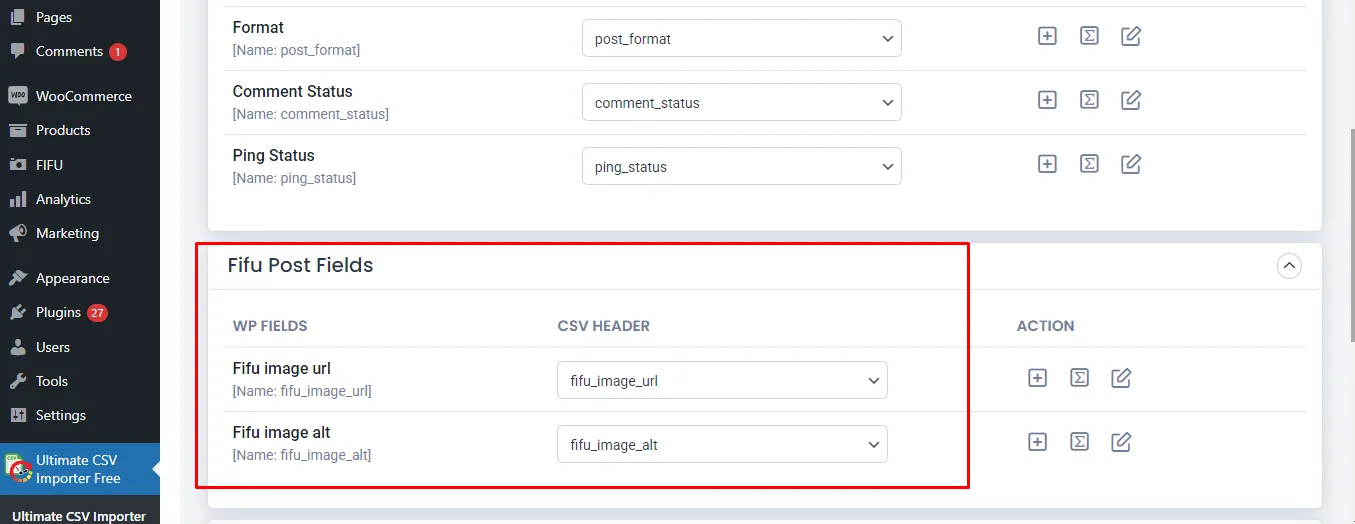
5. Run the Import: Click Import to begin. Once the process is complete, review the import log and verify the results both in the WordPress admin and on the front end.

WP Ultimate CSV Importer Pro
Get Ultimate CSV/XML Importer to import data on WordPress faster, quicker and safer.
How to Export FIFU featured image URLs and alt texts from WordPress
WP Ultimate CSV Importer also lets you export FIFU fields data from WordPress alongside posts, pages, custom posts, and products.
If you are using the free plugin, then we offer an export add-on to extract your FIFU fields.
Move to the Export tab. The export page tells you to install the Ultimate Exporter plugin by providing a button link to install. The export plugin is also free to use.
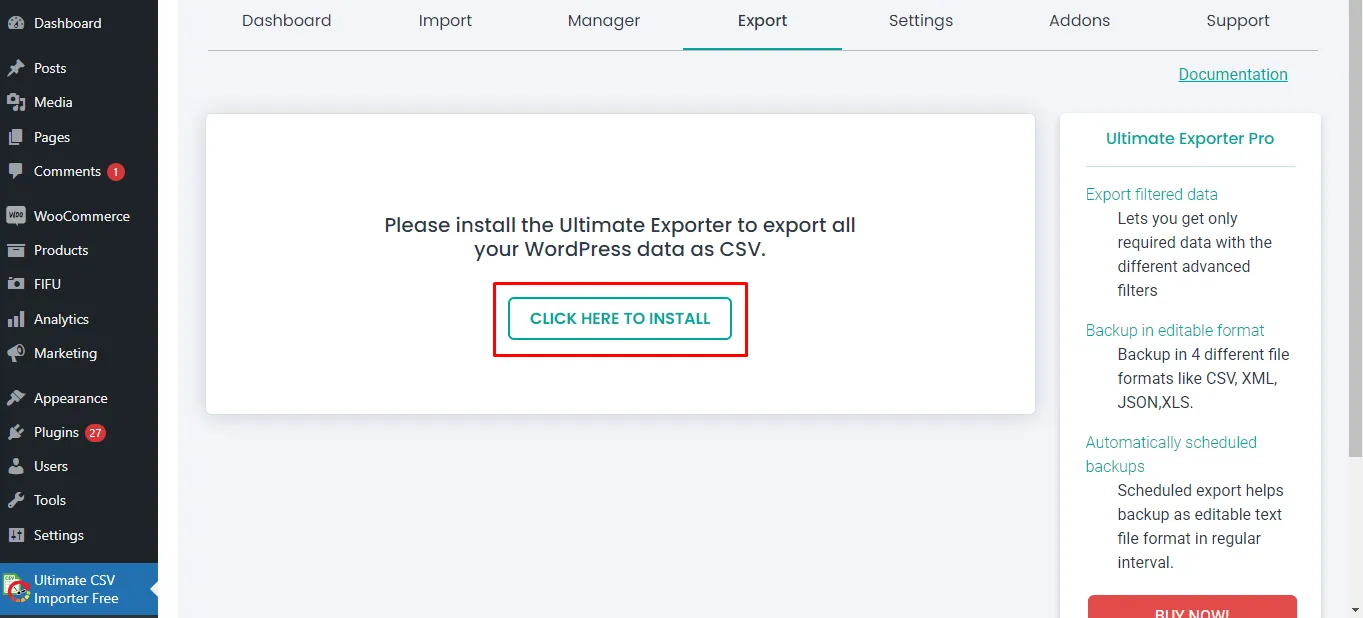
This takes you to the manage add-ons page, where you can see all the supported add-ons listed.
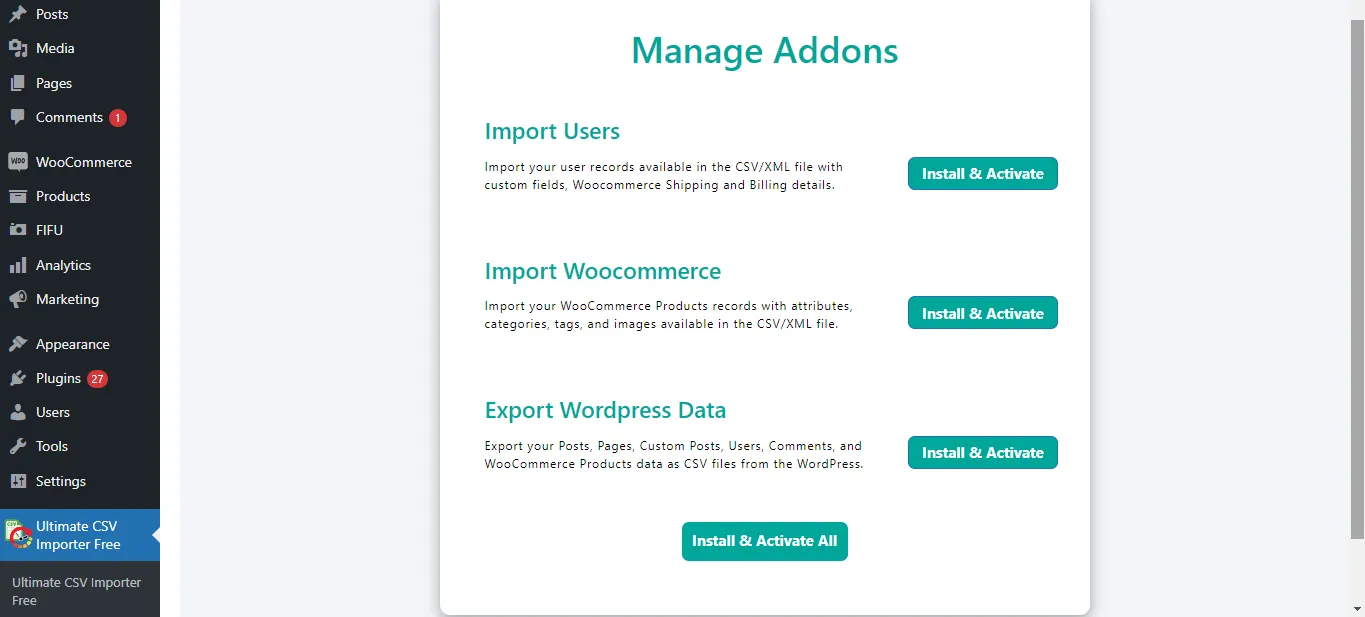
You can install and activate all the add-ons or specific add-ons you need.
When you activate the exporter addon, the export page will look like this.
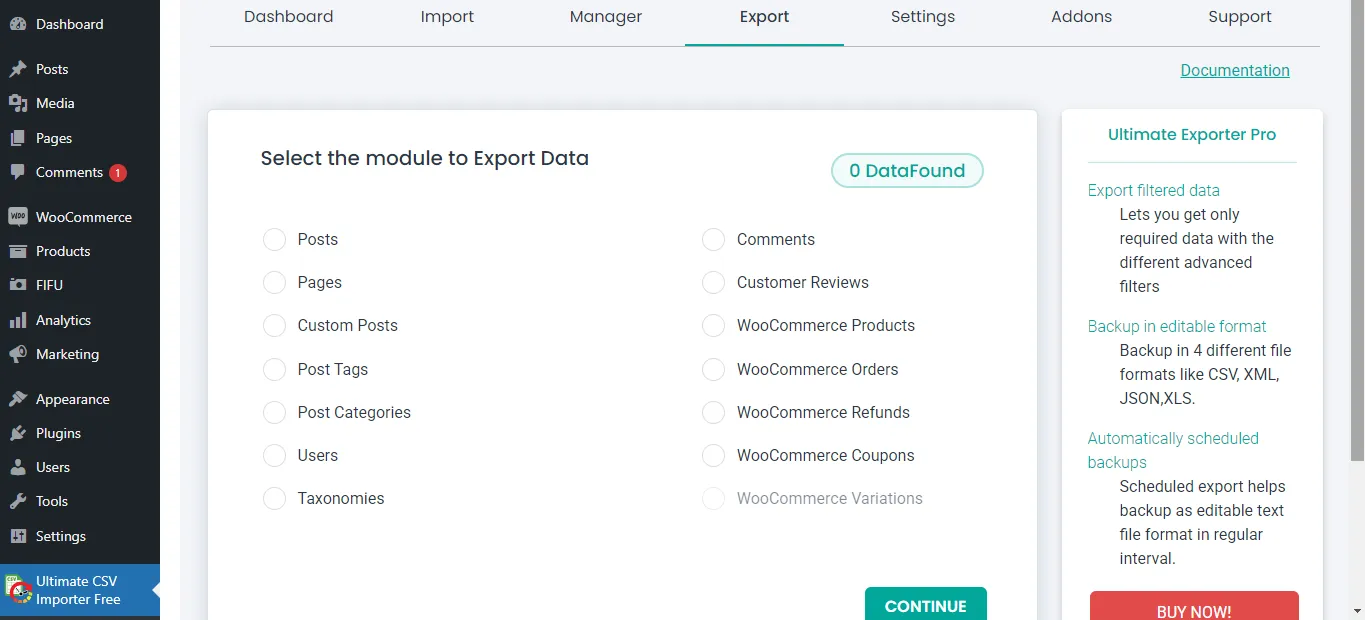
Select the post type here. Note that you can only export FIFU-featured image fields assigned to post types like Posts, Pages, Custom Posts, and WooCommerce Products.
On the next page, provide an export file name, then choose a file type.
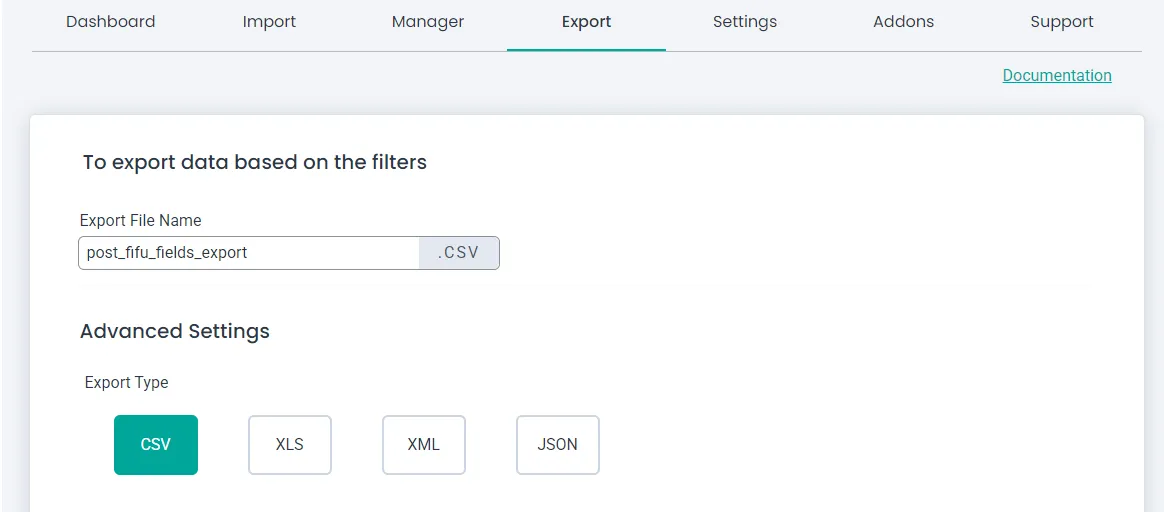
Configure filters like export for specific periods and export records of specific authors. If you don’t need filters and want to export all records of the chosen post type, just click Export without configuring the filters.
Finally, download the export file and verify the exported field data, including the FIFU Featured image and alt text columns, to confirm the successful export.
WP Ultimate CSV Importer Pro
Get Ultimate CSV/XML Importer to import data on WordPress faster, quicker and safer.
Frequently Asked Questions
1. How can I set a featured image from an external URL in WordPress?
By default, WordPress does not support featured images from external URLs. You can either use a plugin like Featured Image from URL (FIFU) to reference the image directly, or programmatically download the image and attach it as a featured image using WordPress core functions.
2. Can I use an image URL as a featured image without uploading it?
Yes. Plugins like FIFU allow you to paste an external image URL and use it as the featured image without storing the file in your media library. WordPress saves only the URL and loads the image from the external source.
3. How do you embed a URL in an image?
Embedding a URL in an image typically involves creating an image with a clickable link. This can be achieved by using HTML code if you’re working on a web page or by using image editing software such as Adobe Photoshop or GIMP if you’re creating a standalone image file.
Here’s how you can do it using HTML:
html
<a href=”https://www.example.com”>
<img src=”image.jpg” alt=”Description of the image”>
</a>
In this code snippet:
- <a> is an anchor tag used to create a hyperlink.
- href=”https://www.example.com” specifies the URL that the image will link to when clicked.
- <img> is an image tag used to display the image.
- src=”image.jpg” specifies the image file to be displayed.
- alt=” Description of the image” provides alternative text for the image, which is useful for accessibility and SEO purposes.
When a user clicks on the image, they will be directed to the specified URL.
If you’re creating a standalone image file (e.g., JPEG, PNG) and want to embed a clickable link directly into the image, you’ll typically need to use image editing software. These programs allow you to create image maps or add clickable areas to an image, which can then be exported with the link embedded. However, note that clickable images created this way will only work when displayed on a web page or in an environment that supports HTML and image maps. They won’t retain the clickable link if shared as standalone image files.
4. How do I add an Alt Tag to a Featured Image in WordPress?
- When setting or editing the featured image in WordPress, you’ll see an “Alt Text” field.
- Enter a brief, descriptive alt tag that accurately describes the content or purpose of the image.
- Save or update your post/page to apply the alt tag to the featured image.
By incorporating these techniques into your WordPress content creation workflow, you can enhance the interactivity and engagement of your posts, ultimately providing a more enriching experience for your readers. Whether it’s directing them to additional resources or improving accessibility through alt tags, these strategies can elevate the effectiveness of your WordPress website or blog.
5. Does using external images affect SEO?
External images can still rank in search results if alt text is provided. However, image performance, availability, and crawl reliability depend on the external host. For SEO stability, locally hosted images are generally safer.
6. How to set an image other than the featured image from a URL using Elementor?
With Elementor PRO, it is easy to import images from other sources using the URL.
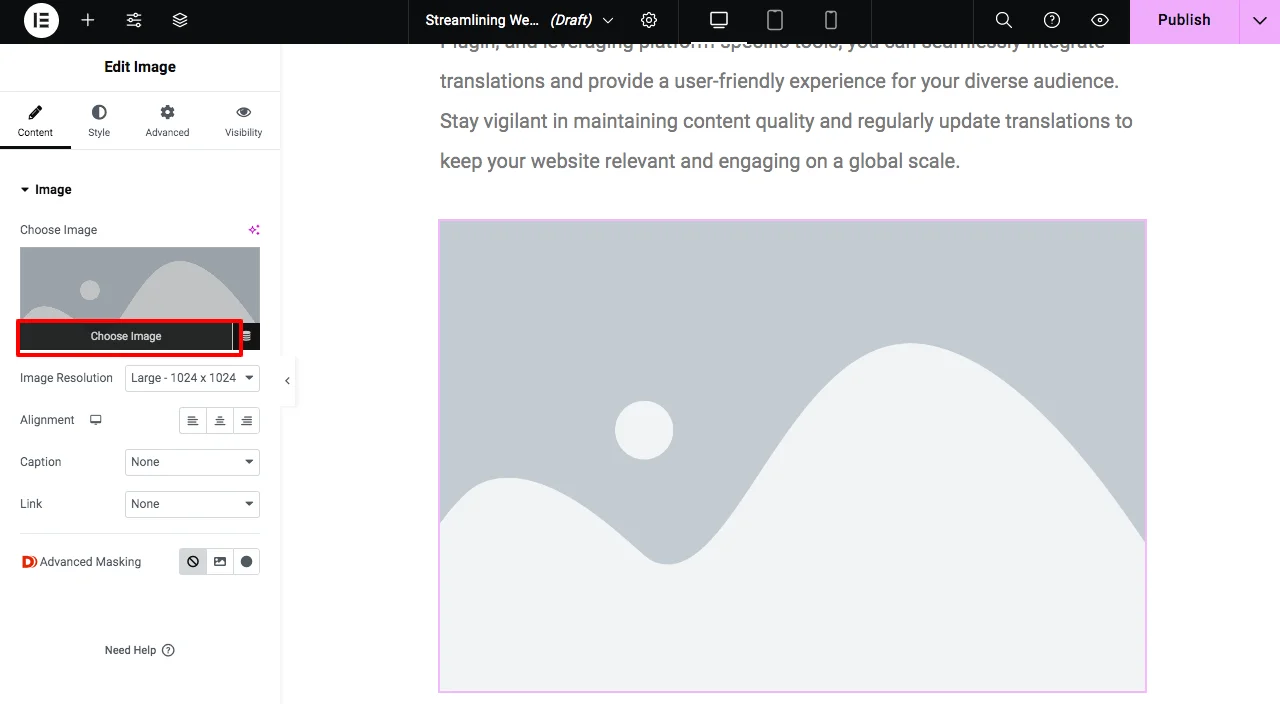
- On your Elementor, drag the image widget where you want to insert the image in your post.
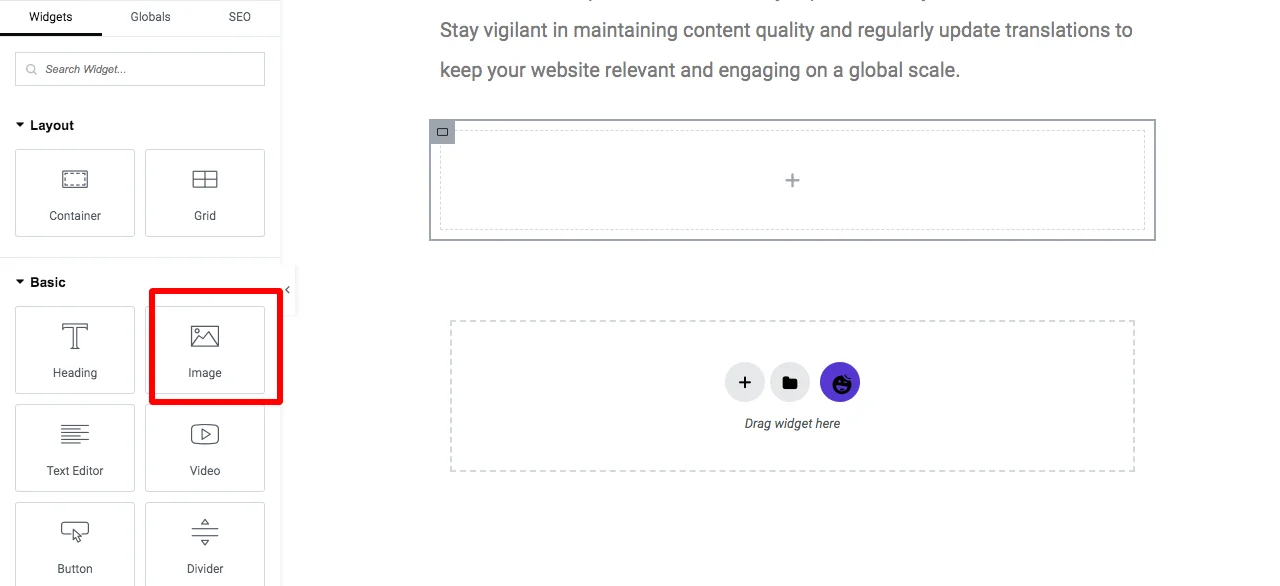
- Click on Choose Image
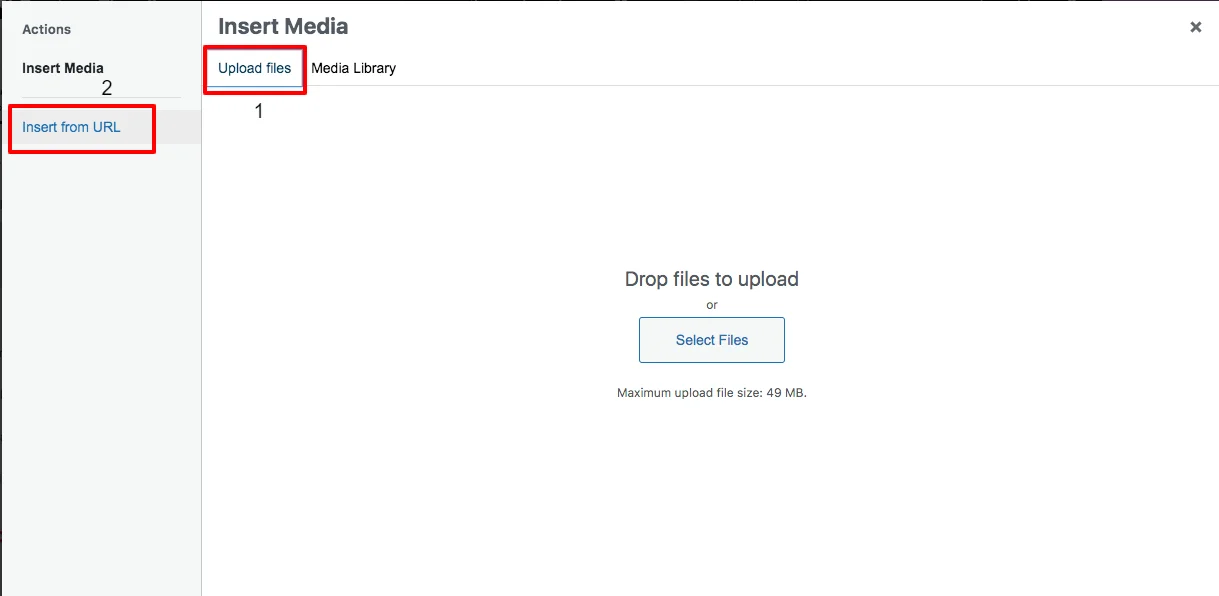
- On the Upload files section, select the Insert from URL option.
- Provide the link to your desired image and its Link Text(alt text).
- Click on the Insert to post
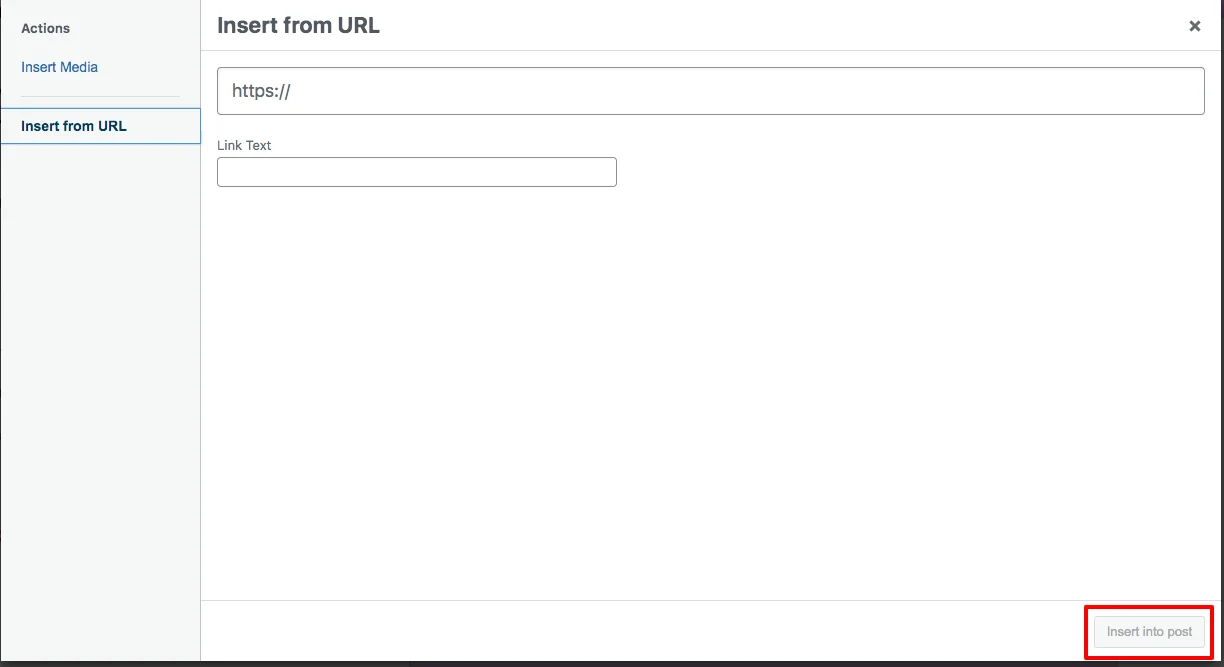
Now your images from the URL have been uploaded to your post successfully.
7. How can I find and use a WordPress featured image URL?
A WordPress featured image URL is simply the direct link to an image assigned as the featured image for a post, page, or product. If you’re using the Featured Image from URL (FIFU) plugin, you don’t need to upload the image to your media library. Instead, you can copy the external image URL (by right-clicking an image → “Copy Image Address”) and paste it into the featured image field of your post. This allows WordPress to display that external image as the featured image without consuming your server storage.
Wrapping Up
Using external URLs as featured images in WordPress is a practical solution when storage, speed, or bulk publishing is a concern. Plugins like FIFU make this easy for individual posts, while WP Ultimate CSV Importer enables scalable imports and exports for large datasets. Choose external images for flexibility, but switch to local hosting when reliability and long-term SEO matter most. If you frequently migrate or manage content at scale, combining external image URLs with structured imports gives you maximum control and efficiency.
Have questions about importing external images in WordPress? Reach out to us anytime at [email protected]. And don’t forget to subscribe to our YouTube channel for more step-by-step tutorials on getting the most out of our WordPress plugin, WP Ultimate CSV Importer.