
Table of Contents
Managing a growing online store requires more than just listing products and processing orders. As your catalog expands and customer data increases, handling everything manually within the dashboard can become time-consuming and prone to errors. This is where automation plays a critical role.
WP Ultimate CSV Importer Pro integrates directly with WooCommerce to simplify large-scale data management. It allows store owners to import, export, and update products, customers, orders, coupons, and reviews using structured CSV or XML files. Instead of editing each item individually, you can manage thousands of records through a single, streamlined workflow. This guide explains how the integration works, the real-world benefits it offers, and how WooCommerce users can use it efficiently for scalable store management.
Key Takeaways
- Manage WooCommerce products, customers, orders, coupons, and reviews efficiently in bulk, rather than updating records one by one.
- Always include a unique identifier, such as SKU, Product ID, Order ID, or Customer Email, to prevent duplicates.
- Keep your CSV or XML files clean by adding only the necessary WooCommerce fields.
- Use field mapping and selective updates to change specific data (price, stock, status) without affecting other details.
- Export store data before major updates for backup, reporting, or migration needs.
- Schedule imports (Pro feature) to automate recurring updates such as stock sync.
- Test with a small file and maintain backups before running large imports to safeguard live store data.
Understanding WooCommerce Data Management
Efficient data management is the backbone of every successful WooCommerce store. As product catalogs expand and customer transactions increase, managing data accurately becomes more complex. To keep operations smooth, store owners must understand how WooCommerce organizes and stores information behind the scenes. This knowledge becomes especially important when integrating tools like WP Ultimate CSV Importer, which rely on structured data mapping for accurate imports and updates.
WooCommerce operates within the WordPress database structure, storing information in organized tables and linking related data through IDs and metadata. When this structure is maintained properly, bulk updates, migrations, and synchronization tasks can be performed without disrupting store functionality.
Core WooCommerce Data Types
At its foundation, WooCommerce manages several key types of data that power an online store:
1. Product Data
This includes simple products, variable products, grouped products, and external products. Each product contains fields such as title, SKU, price, stock status, product description, images, and attributes.
2. Product Variations and Attributes
Variable products depend on attributes like size, color, or material. These variations are connected to a parent product, forming a structured relationship within the database.
3. Categories and Tags
Taxonomies help organize products for navigation and filtering. Categories group products broadly, while tags provide more specific classification.
4. Customer Information
WooCommerce stores customer billing details, shipping addresses, and purchase history for order processing and reporting.
5. Orders and Transaction Data
Order records include purchased products, payment details, order status, and timestamps. This data is essential for fulfillment, accounting, and analytics.
6. Custom Fields and Metadata
Additional product information, such as custom pricing rules, SEO details, or third-party plugin data, is stored as metadata.
Each of these data types is interconnected. A change in one area, such as deleting a product or altering a SKU, can affect inventory tracking, reporting, and even search visibility.
Why Structured Data Matters in eCommerce
Structured data management is essential for long-term store growth. Here’s why:
1. Inventory Accuracy
Incorrect stock values can lead to overselling or missed sales opportunities. Proper data handling ensures inventory levels are always updated.
2. Pricing Consistency
Maintaining accurate pricing prevents confusion and protects profit margins.
3. Operational Efficiency
Organized data enables faster updates, better automation, and reduced manual effort.
4. Better Reporting and Insights
Clean data improves analytics accuracy, helping store owners make informed decisions about sales trends and product performance.
5. Scalability
As your store expands to hundreds or thousands of products, structured data management becomes essential for handling growth without performance issues.
Risks of Unstructured Data
Without a structured approach, common issues begin to surface. Duplicate SKUs may appear, stock counts can become inaccurate, and product variations may disconnect from their parent items. These problems not only complicate backend management but can also damage customer trust if shoppers encounter incorrect pricing or unavailable products. Over time, poor data organization can slow down store operations and create unnecessary administrative work.
Role of WP Ultimate CSV Importer in Maintaining Data Integrity
This is where WP Ultimate CSV Importer becomes valuable. The plugin works alongside WooCommerce by matching CSV file columns with the appropriate product fields in the database. Because WooCommerce follows a structured data system, the importer can update product details—such as prices, stock levels, attributes, and metadata—without disturbing existing relationships. This ensures that bulk imports and updates remain accurate and secure.
WP Ultimate CSV Importer Free Vs Pro Version
Choosing between the Free and Pro versions of WP Ultimate CSV Importer Pro depends on your WooCommerce store size, update frequency, and automation needs. The Free version is suitable for basic imports and small websites, while the Pro version is designed for advanced WooCommerce integration, large catalogs, and scheduled automation.
Below is a clear comparison to help you understand the differences:
| What you’re looking for | Free Version | Pro Version |
Basic CSV Imports | Yes, you can import standard CSV files for simple WordPress content. | Yes, plus advanced support for CSV, XML, and large WooCommerce datasets. |
WooCommerce Product Support | Limited WooCommerce handling with basic features. | Full WooCommerce integration, including simple, variable, grouped, and external products. |
Bulk Product Updates | Basic update capability with limited flexibility. | Update products using SKU or Product ID without creating duplicates. |
Price & Stock Updates | Manual process with limited bulk control. | Easily bulk update regular price, sale price, stock quantity, and stock status. |
Handling Product Variations | Not fully optimized for complex variations. | Complete support for attributes and product variations. |
| Customer & Order Management | Limited or unavailable. | Import and export customers and orders with full field support. |
| Coupons & Reviews | Not supported. | Bulk import and export of coupons and product reviews. |
| Scheduled Imports (Automation) | Not available. | Yes — automate imports using cron scheduling. |
| Selective Field Updates | Basic control. | Update only specific fields like price or stock without affecting other data. |
| Large Catalog Handling | Suitable for small to medium stores. | Optimized for large stores with thousands of products. |
Import Rollback | Not available. | Available to safely undo changes if needed. |
| Support & Advanced Features | Standard/basic support. | Priority support with advanced performance optimization. |
Which Version Should You Choose?
- Choose the Free version if you run a small website and occasionally import basic data.
- Choose the Pro version if you manage a growing WooCommerce store, frequently update prices and stock, handle large product catalogs, or require automation and advanced control.
For businesses aiming for scalability and efficiency, the Pro version offers the tools necessary to streamline store data management while minimizing manual effort.

WP Ultimate CSV Importer Pro
Get Ultimate CSV/XML Importer to import data on WordPress faster, quicker and safer.
How WP Ultimate CSV Importer Integrates with WooCommerce
Managing large volumes of store data inside WooCommerce can become time-consuming when handled manually. Whether you are updating product prices, importing new inventory, or syncing customer data, doing it one record at a time slows down operations.
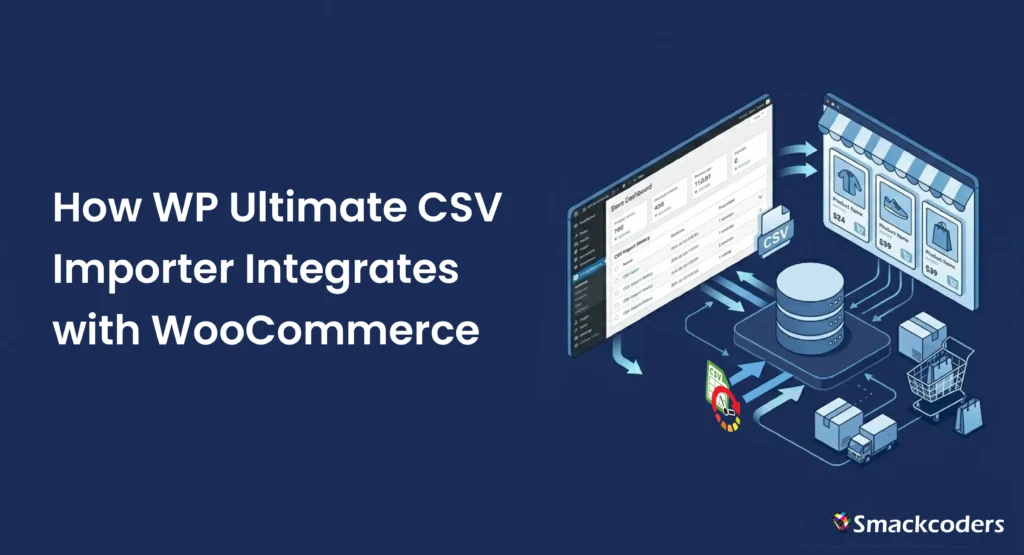
WP Ultimate CSV Importer Pro integrates directly with WooCommerce to simplify this process. It acts as a bridge between structured data files (such as CSV or XML) and your WooCommerce database, allowing bulk creation, updates, and exports without technical complexity.
Built-In WooCommerce Module Support
WP Ultimate CSV Importer comes with a dedicated WooCommerce module designed specifically to understand WooCommerce’s data structure. When you select the WooCommerce option during import, the plugin automatically loads all relevant fields related to products, customers, orders, coupons, and reviews.
This built-in support means the plugin recognizes important fields such as:
- Product name and description
- SKU and Product ID
- Regular and sale price
- Stock quantity and stock status
- Categories and tags
- Attributes and variations
- Billing and shipping details
Seamless Data Flow Between CSV and WooCommerce
The integration process follows a clear and organized workflow. First, you prepare your CSV or XML file with properly structured columns. These columns represent WooCommerce fields such as price, stock, attributes, or order details.
Next, you upload the file to WP Ultimate CSV Importer. During the import setup, you map each column from your file to the corresponding WooCommerce field using a simple mapping interface. This ensures that data is aligned correctly before processing begins.
Once mapping is complete, you can choose how the data should behave:
- Create new records
- Update existing records using SKU or ID
- Skip duplicate entries
The plugin then processes the file and inserts or updates the data inside WooCommerce without disrupting the rest of your store.
This seamless data flow allows store owners to:
- Add hundreds of new products in one import
- Update only price and stock without affecting descriptions
- Sync supplier inventory files regularly
- Import historical customer or order records
Additionally, the Pro version supports scheduled imports using cron jobs. This means files can be automatically processed at set intervals, making supplier data synchronization and stock updates fully automated.
Why This Integration Matters
By connecting structured CSV files directly with WooCommerce’s database, WP Ultimate CSV Importer removes the need for repetitive manual edits. It ensures accuracy through proper field mapping and controlled updates, while also improving efficiency for growing stores.
For WooCommerce users managing expanding catalogs, seasonal price changes, or frequent inventory updates, this integration provides a scalable and reliable data management solution.
Managing WooCommerce Products Efficiently
Managing products effectively is one of the most important responsibilities of any online store owner. As your catalog grows, updating product information manually inside WooCommerce can quickly become repetitive and time-consuming. From adding new items to modifying prices or stock levels, handling everything individually increases the risk of errors.
This is where WP Ultimate CSV Importer Pro plays a vital role. By integrating directly with WooCommerce, it enables structured, bulk product management through CSV or XML files, making the entire process faster and more accurate.
Importing New Products in Bulk
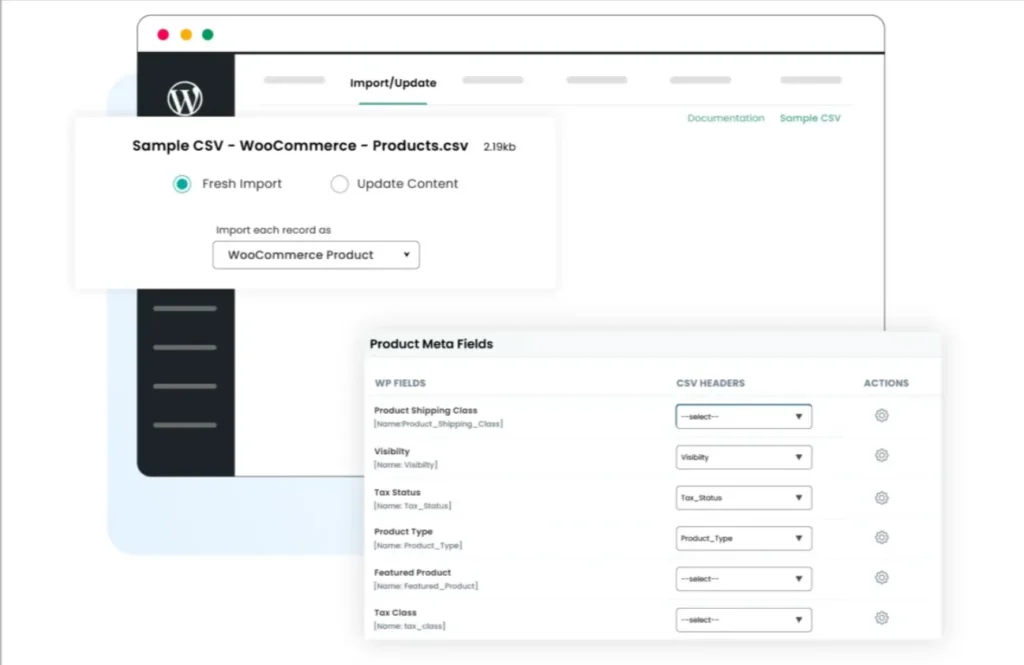
- Create a structured CSV file with product details (Name, SKU, Price, Stock, Images, etc.).
- Open WP Ultimate CSV Importer in your WordPress dashboard.
- Upload the CSV file
- Select the WooCommerce Products module and map the fields correctly.
- Click Run Import to add products in bulk.
Updating Existing Products
- Export current product data to verify correct SKU or ID references.
- Edit only the necessary fields in your CSV file, such as price, stock, or description.
- Open WP Ultimate CSV Importer and upload the updated file.
- Choose the option to update existing products using SKU or ID in WooCommerce.
- Run the update to modify products without creating duplicates.
Export WooCommerce Products
- Open the Export section in WP Ultimate CSV Importer.
- Select the WooCommerce Products module.
- Choose the required fields such as price, stock, attributes, or categories.
- Click Export and download the CSV file for backup, reporting, or further editing.
Bulk Price and Inventory Management
Managing prices and inventory in bulk is essential for maintaining profitability and operational efficiency in an online store. As product catalogs expand, updating each item manually becomes time-consuming and increases the risk of pricing errors or stock mismatches. A structured bulk management approach ensures that pricing strategies and inventory levels remain accurate across the entire store.
With the right integration tools, store owners can make large-scale adjustments quickly while preserving product relationships and database integrity.
Regular and Sale Price Update
Price changes are common in e-commerce due to seasonal promotions, supplier cost variations, or competitive strategies. Updating regular and sale prices individually inside the dashboard is not practical when dealing with hundreds of products. Bulk price management allows store owners to revise pricing fields efficiently without disrupting other product data.
By using WP Ultimate CSV Importer, pricing updates can be applied through structured CSV files. Store owners can modify regular prices, add or remove sale prices, and schedule promotional adjustments in one streamlined process. Because the plugin works directly with WooCommerce product fields, price updates reflect accurately across product pages, category listings, and checkout.
This method ensures consistency in promotional campaigns and eliminates the risk of outdated or inconsistent pricing.
Stock Quantity and Stock Updates
Accurate inventory tracking is critical for customer satisfaction and smooth order fulfillment. Incorrect stock quantities can lead to overselling, order cancellations, and negative customer experiences. Bulk stock management helps maintain real-time accuracy, especially when managing large or frequently changing inventories.
Through structured updates, stock quantities and stock status (in stock, out of stock, backorder) can be modified across multiple products at once. The importer matches products using unique identifiers such as SKUs, ensuring that only the intended items are updated without creating duplicates.
Bulk inventory updates not only save time but also keep product availability synchronized across variations and categories. This improves operational control and supports scalable growth.
WP Ultimate CSV Importer Pro
Get Ultimate CSV/XML Importer to import data on WordPress faster, quicker and safer.
Importing and Managing Customers
Customer data plays a vital role in running a successful online store. From order processing to personalized marketing, maintaining accurate customer information ensures smooth communication and efficient service. As the customer base grows, manually adding or editing individual records becomes inefficient. A structured import and export process helps store owners manage customer information quickly and accurately.
When integrated properly with WooCommerce, bulk customer management becomes streamlined and reliable.
Bulk Customer Import
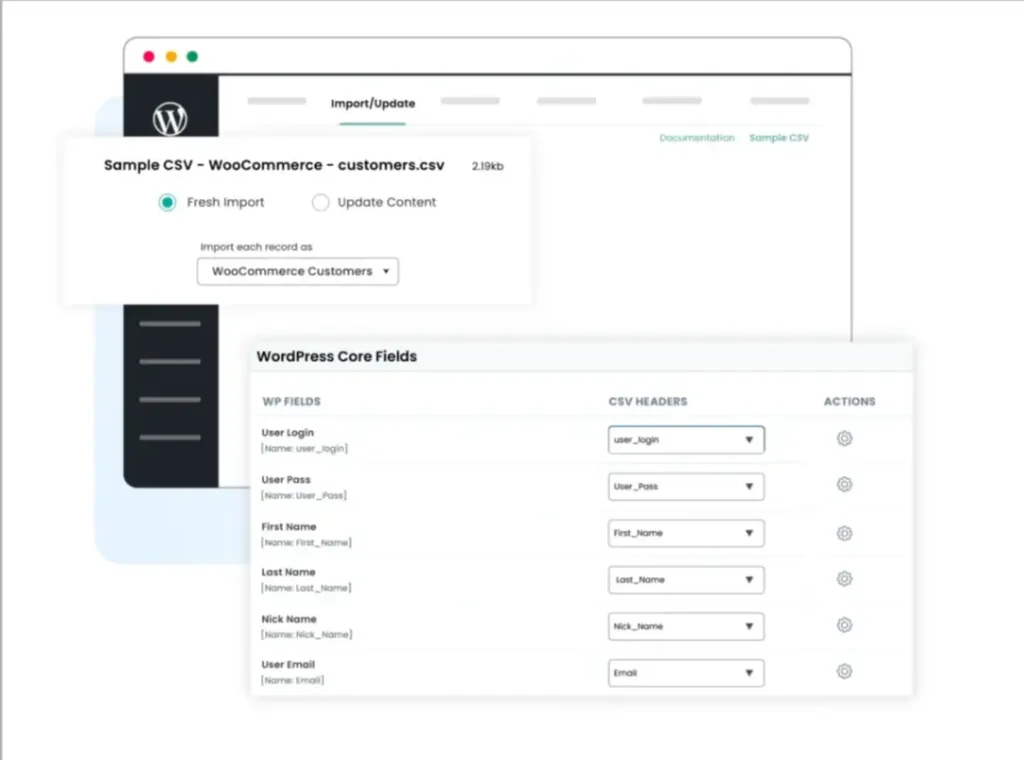
- Open WP Ultimate CSV Importer from your WordPress dashboard.
- Upload your prepared CSV file containing customer details.
- Select the WooCommerce Customers module under WooCommerce.
- Map the CSV columns to the correct customer fields.
- Choose whether to create new customers or update existing ones.
- Click Import to complete the bulk upload.
Updating Customer Details
- Export current product data to confirm correct SKU or ID references.
- Edit only the required fields in your CSV file, such as price, stock, or description.
- Open WP Ultimate CSV Importer from your WordPress dashboard.
- Upload the updated CSV file.
- Select the option to update existing products using SKU or ID.
- Click Import to apply the changes without creating duplicate products.
Export WooCommerce Customers
- Open WP Ultimate CSV Importer from your WordPress dashboard.
- Go to the Export section.
- Select the WooCommerce Customers module.
- Choose the customer fields you want to export (Name, Email, Billing details, etc.).
- Click Export and download the CSV file for backup or reporting purposes.
WooCommerce Order Management
Managing orders efficiently is crucial for maintaining accurate sales records and smooth business operations. Whether you are migrating from another platform, updating order statuses in bulk, or generating reports, having a structured workflow simplifies the entire process. When integrated properly with WooCommerce, bulk order handling saves time and reduces manual errors.
Importing Historical Orders
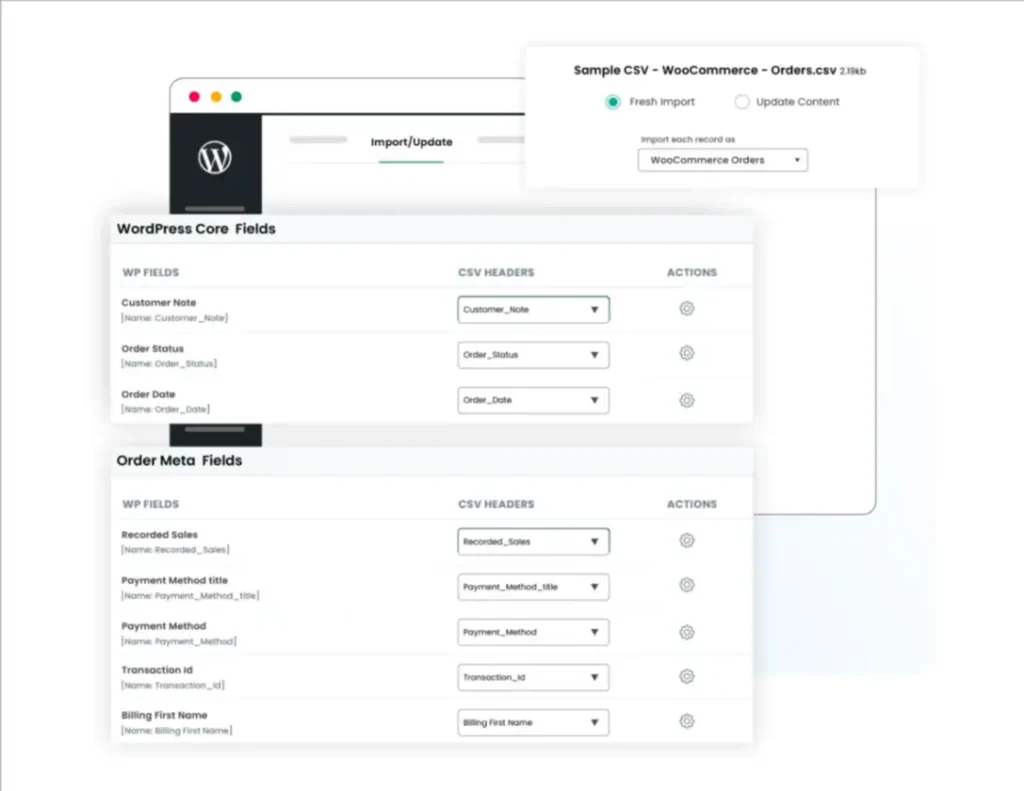
- Open WP Ultimate CSV Importer from your WordPress dashboard.
- Upload the CSV file containing past order details (Order ID, Customer Email, Products, Total, Status, Date, etc.).
- Select the WooCommerce Orders module.
- Map the CSV columns to the correct order fields.
- Review the configuration settings.
- Click Import to add historical orders into WooCommerce without affecting existing records.
Updating Order Status
- Prepare a CSV file with Order ID and updated Status fields (Processing, Completed, Cancelled, etc.).
- Open WP Ultimate CSV Importer and upload the updated file.
- Choose the WooCommerce Orders module.
- Set Order ID as the matching identifier.
- Select the update existing records option.
- Click Import to apply the status changes in bulk.
Exporting WooCommerce Orders
- Open WP Ultimate CSV Importer in your WordPress dashboard.
- Navigate to the Export section.
- Select WooCommerce Orders.
- Choose the required fields such as Order ID, Customer details, Order total, Status, and Date.
- Click Export and download the CSV file for reporting or backup purposes.
WP Ultimate CSV Importer Pro
Get Ultimate CSV/XML Importer to import data on WordPress faster, quicker and safer.
Coupon and Review Imports
Coupons and product reviews play a major role in driving sales and building customer trust in an online store. While coupons help attract new buyers through promotional campaigns, reviews influence purchasing decisions by providing social proof. Managing both elements individually can become time-consuming, especially for stores with large product catalogs. A bulk import approach simplifies this process and ensures consistency across your WooCommerce store.
Managing Coupons in Bulk
Creating multiple discount codes manually is not efficient when running seasonal sales or large promotional campaigns. By preparing a structured CSV file with details such as coupon code, discount type, amount, expiry date, and usage limits, store owners can generate multiple coupons at once. This method reduces repetitive tasks and ensures that all campaign rules are applied accurately.
Bulk coupon management also makes it easier to modify or deactivate multiple codes when promotions end. Instead of editing each coupon separately, updates can be applied through a structured import process, saving both time and effort.
Creating Discount Campaigns
- Open WP Ultimate CSV Importer from your WordPress dashboard.
- Prepare a CSV file with coupon details such as Coupon Code, Discount Type (Percentage or Fixed), Discount Amount, Expiry Date, Usage Limit, and Applicable Products.
- Upload the CSV file to the importer tool.
- Select the WooCommerce Coupons module.
- Map the CSV columns to the appropriate coupon fields.
- Click Import to create multiple discount coupons in bulk.
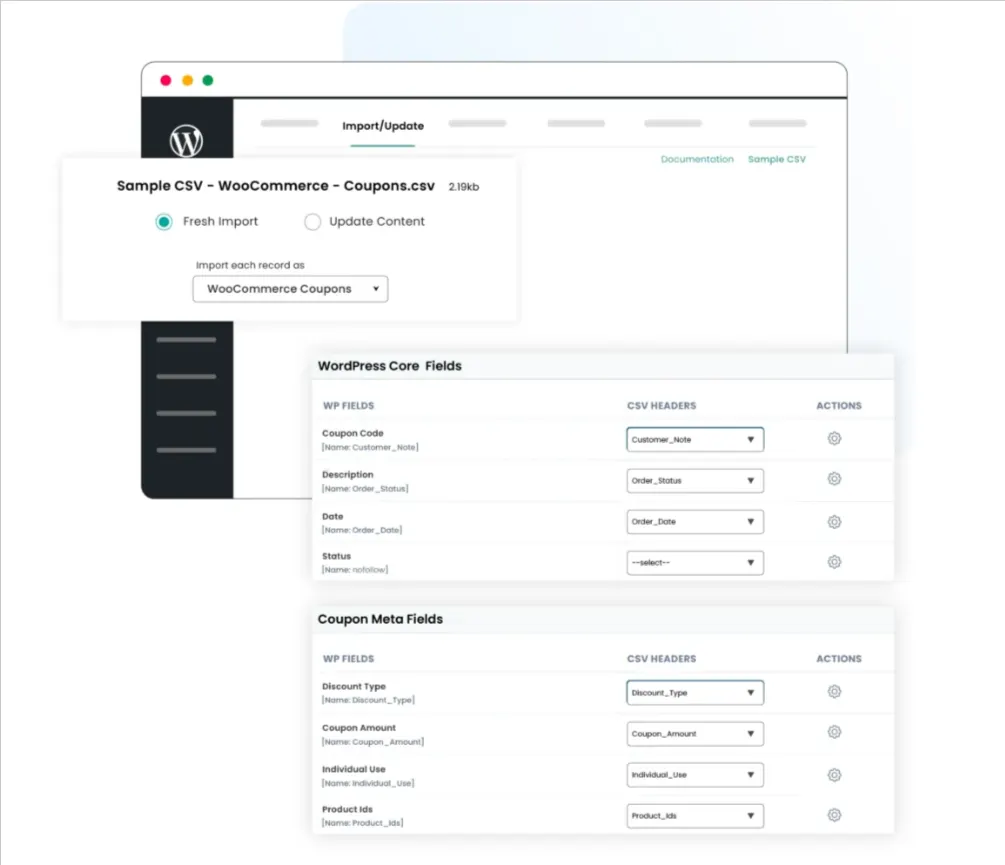
Import WooCommerce Coupons and Reviews
Importing Product Reviews
- Prepare a CSV file containing review details such as Product SKU/ID, Reviewer Name, Email, Rating, Review Content, and Review Date.
- Open WP Ultimate CSV Importer in your dashboard.
- Upload the review CSV file.
- Select the WooCommerce Reviews module.
- Map the fields correctly to match product and review data.
- Click Import to add product reviews in bulk without manual entry.
How to Export Coupons and Reviews from WooCommerce
- Open WP Ultimate CSV Importer from the WordPress dashboard.
- Go to the Export section.
- Select either the WooCommerce Coupons or the WooCommerce Reviews module.
- Choose the required fields to export.
- Click Export and download the CSV file for reporting, backup, or marketing analysis.
Advanced WooCommerce Integration Features
As WooCommerce stores grow, basic import and export functions are no longer enough. Store owners often need automation, precise control over updates, and safeguards to protect live data. The integration between WP Ultimate CSV Importer Pro and WooCommerce includes advanced features designed specifically for high-volume and frequently updated stores. These features help maintain data accuracy, reduce manual effort, and minimize risks during bulk operations.
Scheduled Imports Using Cron
One of the most powerful advanced features is scheduled importing through cron jobs. Instead of manually uploading CSV files every time you receive updated data from suppliers or inventory systems, you can automate the entire process.
With scheduled imports, you can:
- Set daily, weekly, or custom intervals for data updates
- Automatically sync product prices and stock levels
- Import new product listings at predefined times
- Keep inventory aligned with external systems.
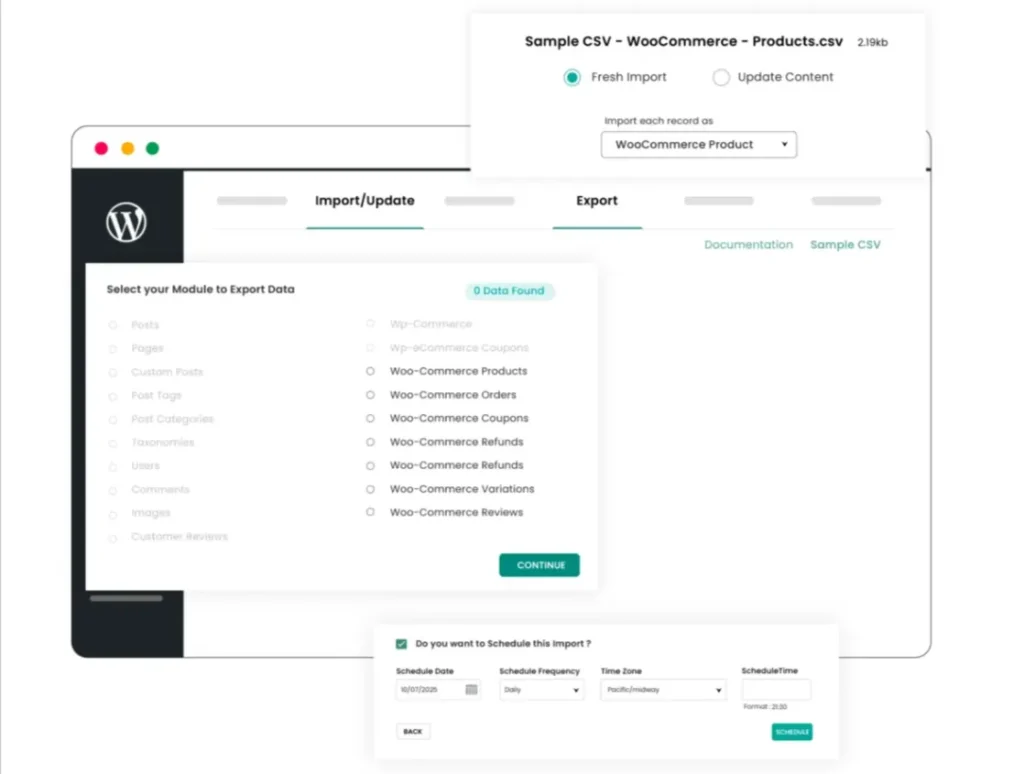
For example, if a supplier sends a stock update file every night, the system can automatically fetch and process the file without human intervention. This ensures your WooCommerce store always displays accurate availability and pricing.
Automation reduces repetitive tasks and ensures consistency, especially for businesses managing large catalogs or multiple suppliers.
Selective Field Updates
When performing bulk updates, one of the biggest concerns is accidentally overwriting important product information. WP Ultimate CSV Importer solves this issue by allowing selective field updates.
Instead of updating every field in a product record, you can choose to modify only specific data, such as:
- Regular price
- Sale price
- Stock quantity
- Stock status
- Specific custom fields
This means you can update pricing and inventory without touching product descriptions, images, SEO data, or categories.
Selective updates provide greater control over your WooCommerce database and help maintain data integrity during bulk operations. It ensures that only intended changes are applied while the rest of the product information remains intact.
Import Rollback
Even with careful planning, mistakes can happen during large imports. An incorrect file structure or mapping error could lead to unwanted changes. To protect against such scenarios, the plugin includes an import rollback feature.
Import rollback allows you to:
- Revert recent import actions
- Restore previous data states
- Correct errors without permanent damage
This feature acts as a safety net for live WooCommerce stores. Instead of manually fixing hundreds of affected records, you can undo the import and reprocess the corrected file.
Rollback functionality is particularly valuable for large-scale updates where even small mistakes can have a significant impact.
Why These Advanced Features Matter
Advanced integration features are essential for growing WooCommerce businesses. Automation through cron scheduling ensures continuous data accuracy. Selective updates provide precise control. Rollback functionality offers protection against errors.
Together, these capabilities make WP Ultimate CSV Importer more than just a bulk import tool. They transform it into a structured data management system that supports scalability, efficiency, and long-term storage reliability.
WP Ultimate CSV Importer Pro
Get Ultimate CSV/XML Importer to import data on WordPress faster, quicker and safer.
Real-World Use Cases of WooCommerce Integration
Understanding how integration works is important, but seeing how it applies in real business situations makes the value even clearer. When WP Ultimate CSV Importer Pro integrates with WooCommerce, it becomes a practical solution for everyday operational challenges faced by online stores.
Below are some common real-world scenarios where this integration proves especially useful.
Store Migration
Migrating an online store from one platform to another can be complex and risky if not handled carefully. Whether you are moving from another eCommerce platform to WooCommerce or transferring data between WordPress installations, maintaining data accuracy is critical.
With structured CSV imports, you can migrate:
- Product catalogs
- Customer records
- Order history
- Coupons and reviews
By exporting data from the old system and importing it into WooCommerce using properly mapped fields, you can preserve product details, pricing, stock levels, and customer information. Using identifiers like SKU and Order ID ensures records are correctly assigned during migration.
This structured process minimizes downtime and reduces the risk of data loss, making store migration smoother and more controlled.
ERP or Supplier Data Sync
Many growing businesses rely on external systems such as ERP software or supplier inventory feeds. These systems often generate CSV files containing updated pricing, stock quantities, or new product information.
Instead of manually copying this data into WooCommerce, the integration allows you to:
- Import supplier stock updates in bulk
- Adjust prices based on ERP data
- Add new product listings automatically
- Keep inventory aligned with warehouse systems
With scheduled imports, updates can even run automatically at fixed intervals. This ensures your store reflects real-time inventory availability and accurate pricing without requiring daily manual work.
For businesses managing multiple suppliers or warehouses, this level of synchronization significantly improves operational efficiency.
Managing Large Product Catalogs
As a WooCommerce store grows, handling hundreds or thousands of products becomes increasingly complex. Manual updates are not scalable, especially during pricing changes or inventory adjustments.
Through CSV-based bulk management, store owners can:
- Update prices across entire categories
- Modify stock levels for large product batches
- Change product attributes or descriptions efficiently
- Maintain consistency across extensive catalogs
The integration helps prevent errors that commonly occur during repetitive manual editing. It also ensures that all updates follow a structured and organized format. For stores with large inventories, this method saves time and maintains database accuracy.
Seasonal Campaign Preparation
Seasonal sales, holiday discounts, and promotional campaigns require rapid pricing and inventory adjustments. Preparing for these campaigns manually can be stressful and time-consuming.
Using structured imports, you can:
- Apply sale prices to multiple products at once
- Schedule campaign-related updates in advance
- Update stock levels before high-demand periods
- Create bulk discount codes for promotions
Why These Use Cases Matter
These real-world examples highlight how integration between WP Ultimate CSV Importer and WooCommerce goes beyond simple data import. It supports business growth, operational efficiency, and strategic planning.
Whether you are migrating a store, syncing supplier data, managing a large inventory, or preparing for seasonal promotions, structured bulk data management ensures accuracy, saves time, and reduces operational stress.
Best Practices for Successful WooCommerce Imports
When integrating WP Ultimate CSV Importer Pro with WooCommerce, following a structured approach is essential. Bulk imports can save time and improve efficiency, but they must be handled carefully to protect your store data.
By applying a few proven best practices, you can ensure that every import runs smoothly, accurately, and safely.
Always Use SKU for Matching
The SKU (Stock Keeping Unit) acts as a unique identifier for each product in WooCommerce. When updating existing products, using SKU for matching ensures the plugin modifies the correct product instead of creating duplicates.
If you attempt to update products without a unique identifier, the system may not correctly recognize existing records. This can lead to duplicate entries or incorrect updates.
For bulk updates such as price or stock adjustments, always include the SKU column in your CSV file. This guarantees accurate product mapping and prevents confusion within your catalog.
Validate the Import File Before Import
Before uploading your CSV or XML file, take time to review its structure. Ensure that:
- Column headers are clear and correctly labeled
- Required fields such as SKU, price, or stock are included
- There are no empty mandatory fields
- Data formats are consistent (for example, numbers are not mixed with text)
Cleaning and organizing your file before import reduces the chances of errors during processing. A well-structured file improves mapping accuracy and ensures WooCommerce receives the correct data in the right format.
Backup Your Store
No matter how careful you are, it is always wise to create a complete backup before running bulk imports on a live store. A backup ensures that you can restore your website if something unexpected occurs during the import process.
Backing up protects:
- Product data
- Customer information
- Order history
- Store settings
Although the plugin includes advanced safety features, maintaining a recent backup provides an additional layer of security and peace of mind.
Test with Sample Data or Small Data First
Instead of importing thousands of records immediately, start with a small test file. This allows you to:
- Confirm correct field mapping
- Check how data appears in WooCommerce
- Identify potential formatting issues
- Verify that updates behave as expected
Testing with a small dataset helps you catch mistakes early without affecting your entire store. Once the test import works correctly, you can confidently proceed with the full dataset.
Why These Best Practices Matter
Bulk imports are powerful tools for managing WooCommerce stores efficiently. However, structured preparation is key to avoiding costly mistakes. Using SKU for matching, validating your import file, backing up your store, and running test imports all contribute to safer and more reliable data management.
By following these best practices, you can fully benefit from the integration between WP Ultimate CSV Importer and WooCommerce while maintaining data accuracy and store stability.
Common Mistakes to Avoid
When using WP Ultimate CSV Importer Pro with WooCommerce, bulk imports can significantly simplify store management. However, improper preparation or incorrect settings can lead to data inconsistencies, duplicate records, or unwanted changes.
Understanding the most common mistakes helps you avoid costly errors and ensures smooth integration.
- Ignoring Unique Identifiers
One of the most frequent mistakes is failing to include a reliable unique identifier such as SKU, Product ID, Order ID, or Customer Email. Without proper matching fields, the system cannot determine whether it should update an existing record or create a new one.
This often results in duplicate products or misplaced updates. Always include a consistent identifier in your import file to maintain accurate record matching.
- Incorrect Field Mapping
Field mapping is a crucial step during the import process. Assigning the wrong CSV column to a WooCommerce field can lead to misplaced data — for example, price values appearing in stock fields or descriptions replacing product titles.
Carefully review each mapped field before running the import. Taking a few extra minutes to verify mapping prevents hours of manual corrections later.
- Importing Without Reviewing the File
Uploading a file without checking its formatting is another common issue. Inconsistent column headers, missing mandatory fields, extra spaces, or incorrect data formats can cause import failures or unexpected results.
Always open your CSV file and ensure it is clean, organized, and structured properly before uploading it to the plugin.
- Overwriting Unintended Data
Bulk imports can overwrite existing product information if selective update options are not used correctly. For example, updating prices without disabling other fields may accidentally modify descriptions or categories.
To avoid this, use selective field updates when you only need to change specific data, such as price or stock. This ensures the rest of the product information remains unchanged.
- Skipping Backup Before Import
Running large imports on a live WooCommerce store without creating a backup is risky. Even a small formatting mistake can affect hundreds of products.
Creating a full backup before executing major updates gives you the option to restore your store if needed. It acts as a safety net for unexpected issues.
- Importing Large Files Without Testing
Directly importing thousands of records without a trial run increases the chances of large-scale errors. A safer approach is to test with a smaller dataset first.
Testing helps confirm correct mapping, formatting, and behavior before processing the full file. Once validated, you can confidently proceed with the complete import.
- Not Monitoring Import Logs
After running an import, some users overlook the import log or summary report. These logs provide valuable insights into successful records, skipped entries, or errors.
Reviewing logs ensures that the import completed as expected and allows you to address any issues immediately.
WP Ultimate CSV Importer Pro
Get Ultimate CSV/XML Importer to import data on WordPress faster, quicker and safer.
FAQ- WP Ultimate CSV Importer integrates with WooCommerce
1. What is WP Ultimate CSV Importer and how does it work with WooCommerce?
WP Ultimate CSV Importer is a WordPress plugin designed to import and update data in bulk using CSV or XML files. When integrated with WooCommerce, it connects your file columns to WooCommerce fields such as product name, SKU, price, stock, customer details, and order information. After mapping the fields, the plugin processes the file and either creates new records or updates existing ones based on your chosen settings.
2. Can WP Ultimate CSV Importer update existing WooCommerce products?
Yes. The plugin can update existing products by matching them with a unique identifier like SKU or Product ID. This ensures that only the intended products are modified without creating duplicates. You can also choose to update specific fields, such as price or stock, while keeping other data unchanged.
3. What WooCommerce data can be imported using WP Ultimate CSV Importer?
The plugin supports importing and updating various WooCommerce data types, including products (simple, variable, grouped, and external), categories, tags, customers, orders, coupons, and reviews. It also allows bulk management of pricing, inventory, attributes, and order details.
4. How to automatically import products into WooCommerce?
Automatic product imports can be configured using the scheduling feature available in the Pro version. By setting up a cron-based schedule and linking it to a CSV or XML file (via URL, FTP, or server path), the plugin can run imports at predefined intervals without manual action.
5. Can I bulk update WooCommerce prices and stock using this plugin?
Yes. You can prepare a CSV file containing product identifiers along with updated price and stock columns. During import, map only the required fields and choose the update option. This allows you to modify hundreds or thousands of products in one session.
6. Can I schedule WooCommerce imports automatically?
Yes, scheduled imports are available in the Pro version. You can configure daily, weekly, or custom intervals to automate tasks such as stock synchronization, supplier updates, or price revisions. This reduces manual workload and ensures data remains current.
7. Is it safe to use WP Ultimate CSV Importer for live WooCommerce stores?
Yes, when used correctly. The plugin provides options like selective field updates and rollback support to minimize risks. It is recommended to validate your file, test with a small dataset, and maintain a backup before performing large imports on a live store.
8. Why should WooCommerce store owners use WP Ultimate CSV Importer?
Store owners benefit from faster data management, improved accuracy, and reduced manual effort. The plugin helps manage large product catalogs, automate repetitive updates, and maintain structured store data. This allows business owners to focus more on growth and customer experience instead of manual data entry.
Integrating WP Ultimate CSV Importer with WooCommerce provides a structured and dependable solution for managing large volumes of store data efficiently. As WooCommerce stores grow, manually updating products, customers, orders, coupons, and inventory inside the dashboard becomes time-consuming and increasingly prone to errors. By enabling bulk imports, controlled updates, and automation, this integration simplifies complex data operations while maintaining accuracy and consistency across the entire store.
Developed by Smackcoders, WP Ultimate CSV Importer is built to support expanding WooCommerce businesses with advanced field mapping, selective update options, scheduled imports, and rollback safety features. These capabilities allow store owners to manage structured data confidently, reduce operational risks, and maintain full control over store information.
For WooCommerce stores that frequently update pricing, synchronize supplier inventory, manage large product catalogs, or import customer and order records, adopting a CSV-based workflow is a practical step toward long-term scalability. A well-organized bulk data strategy not only improves efficiency but also strengthens data accuracy and overall store performance.
If this guide helped you better understand how WP Ultimate CSV Importer integrates with WooCommerce, feel free to reference it in your blog or share your feedback with us at [email protected]. We’re always open to collaboration and committed to supporting better, more efficient WooCommerce workflows.
