
Table of Contents
Syncing inventory between WooCommerce and Shopify ensures both stores reflect accurate stock levels in real time, preventing overselling, order cancellations, and manual update errors.
By default, WooCommerce and Shopify operate as separate systems. A sale on one platform does not update stock on the other, which creates discrepancies that affect fulfillment and customer experience.
A two-way API-based sync connects both platforms so any stock change, from an order, edit, or bulk update, reflects across both stores automatically. This requires proper API setup, consistent SKU mapping, and a reliable integration plugin.
This guide covers everything, from initial configuration and plugin setup to variable product sync, order-based stock updates, and troubleshooting, so you can manage multichannel inventory without confusion or revenue loss.
Understanding Inventory Synchronization Between WooCommerce and Shopify
Inventory synchronization means keeping stock levels automatically updated between WooCommerce and Shopify so both stores always show the correct number of items available.
When a customer buys something on one platform, the stock should drop immediately on the other platform too, no manual work needed.
- WooCommerce manages stock inside your WordPress database. You get full control: allow backorders, send low-stock alerts, and set custom rules per product.
- Shopify uses a central inventory system that easily tracks stock across multiple locations and stores, which is great when your business grows bigger.
- There are two main types of syncing WooCommerce to Shopify
One-way sync
Data flows in a single direction, such as from WooCommerce to Shopify. This is useful for migrations where one platform is primary.
Two-way (bi-directional) sync
Changes in either store update the other. This is ideal for parallel operations, preventing discrepancies in real-time.
For non-technical users, think of it like syncing your phone contacts with your computer; changes on one device appear on the other without manual input.
Why Inventory Synchronization Is Important for Multi-Store Sellers
For sellers managing multiple stores, inventory sync is more than a convenience; it’s a business necessity. Here’s why
Prevent Overselling:
Accurate stock visibility ensures you don’t sell unavailable items, reducing refund rates by up to 30% in multi-channel setups.
Accurate Stock Visibility:
Real-time updates provide a single source of truth, helping you make informed decisions on restocking or promotions.
Better Customer Trust:
Customers expect reliable availability; sync eliminates “out of stock” surprises post-purchase, boosting satisfaction and repeat business.
Reduced Manual Work:
Automation frees up time for growth activities, cutting down hours spent on spreadsheets or manual entries.
For example, a clothing retailer selling on both platforms might run a flash sale on WooCommerce. Without sync, Shopify could show outdated stock, leading to unfulfilled orders and unhappy customers.
Common Inventory Management Challenges
Multi-store sellers often face hurdles that disrupt smooth operations.
Overselling and Stock Mismatch
Overselling occurs when stock isn’t updated across platforms in time. Consider this scenario: Your WooCommerce store shows 5 units of a popular gadget. A customer buys 3 on Shopify, but without sync, WooCommerce still displays 5, allowing another sale that can’t be fulfilled. This mismatch results in cancellations, refunds, and potential chargebacks, harming your reputation.
Manual Stock Updates
Relying on spreadsheets or manual logins to update stock is error-prone and inefficient. As order volume grows, tracking changes becomes overwhelming. For instance, updating 100 products daily across platforms could take hours, and human errors like forgetting a variation amplify problems.
Delayed Order Sync
When orders aren’t synced promptly, stock availability appears incorrect. A delay of even a few minutes during peak hours can lead to multiple sales of the same item. This is common in setups without real-time WooCommerce Shopify inventory sync, causing inventory discrepancies and operational delays.
WooCommerce vs Shopify Inventory Handling
Understanding platform differences is key to effective sync. Here’s a comparison:
| Feature | WooCommerce | Shopify |
| SKU Handling | Allows custom SKUs for every product and variation. Very flexible structure. | Requires a unique SKU for each product and variant. Strict SKU management. |
| Product Variations | Supports unlimited attributes like size, color, and material. Each variation can have its own stock. | Supports up to 100 variants per product. Variants can track stock individually. |
| Stock Management Rules | Supports backorders, hides out-of-stock items, and low-stock thresholds. | Uses location-based inventory tracking with automatic stock adjustments. |
| Inventory Tracking Method | Managed at the product and variation level within the WordPress dashboard. | Managed per product and per location inside the Shopify admin. |
| Stock Notifications | Email alerts for low stock (requires configuration). | Built-in low stock alerts and detailed inventory reports. |
| Order-Based Stock Deduction | Stock reduces based on order status settings. | Stock reduces immediately after order placement. |
| Multi-Location Support | Requires extensions for advanced multi-location support. | Built-in multi-location inventory tracking. |
WooCommerce offers more customization for developers, while Shopify prioritizes simplicity for business owners. Sync tools bridge these gaps by mapping data appropriately.
Pre-Sync Requirements
Before setting up sync, ensure your stores are prepared. This minimizes errors and ensures smooth integration.
Store Access and Permissions
You need admin access to both WooCommerce and Shopify.
For WooCommerce
Go to Settings, open Advanced, and select REST API from your WooCommerce dashboard. Click on Add Key or Create API Key to generate new credentials. Set the permissions to Read and Write to allow full synchronization access, then generate the key and securely save the Consumer Key and Consumer Secret for use in the integration plugin.
For Shopify
Log in to your Shopify Admin panel and open Apps, then select Develop apps to begin creating a custom app. Click on Create an app and proceed to the Admin API access settings. Enable the necessary permissions for Products and Inventory to allow proper data synchronization. After configuring the permissions, install the app and copy the generated Admin API access token for authentication within the sync plugin.
Product SKU Consistency
SKUs must match exactly between stores for accurate mapping. Audit your products: Export CSVs from both, compare SKUs, and standardize them, e.g., use “PROD-001” consistently. Inconsistent SKUs are a top cause of sync failures.
API and Integration Readiness
Verify API limits-Shopify has rate limits,e.g., 2 requests/second, so choose tools that handle throttling. Test connections in a staging environment to avoid disrupting live stores.
Inventory Data That Can Be Synced
Not all data syncs equally; focus on essentials for efficiency.
Stock Quantity
Core to sync, this updates available units. Tools can push/pull quantities bi-directionally, ensuring real-time accuracy.
Product Variations
For items with options like sizes or colors, sync at the variant level. Map WooCommerce attributes to Shopify variants using SKUs.
Price and Product Status
Sync prices to maintain consistency and avoid pricing errors. Product status active/draft can also sync, along with limited metadata like descriptions. Limitations include images often requiring separate handling, and custom fields may need advanced tools.
| Data Type | Can Be Synced | Sync Direction | Notes |
| Stock Quantity | Yes | One-way / Two-way | Real-time supported |
| Product Variations | Yes | Bi-directional | SKU required |
| Price | Yes | Configurable | Avoid pricing conflicts |
| Product Status | Yes | Configurable | Active/Draft |
| Images | Limited | Usually One-way | May require separate handling |
| Custom Fields | Limited | Depends on the plugin | Advanced setup needed |
Methods to Keep Inventory in Sync
Several approaches exist, each suited to different needs and technical levels.
Plugin-Based Sync Method (Recommended) – WooCommerce to Shopify
Plugins are ideal for non-technical users, offering user-friendly interfaces and automation. They handle API connections, mapping, and scheduling without coding. Recommended for most sellers due to ease and reliability.
Manual Inventory Update Method
This involves logging into each platform and updating stock manually or via CSV imports. It works for very small stores under 50 products with low order volume, but fails as businesses scale, leading to errors and time loss.
Custom API Integration Method
Developers can build integrations using WooCommerce and Shopify APIs. Pros include full customization; cons are high development costs and maintenance needs. Suitable for large enterprises with unique requirements.
| Method | Technical Skill | Cost | Scalability | Recommended For |
| Plugin-Based Sync | Low | Medium | High | Most businesses |
| Manual Updates | None | Free | Very Low | Small stores |
| Custom API Integration | High | Expensive | Very High | Enterprises |
Step-by-Step Guide to Sync Inventory Between WooCommerce and Shopify | Plugin-Based Sync Method
Synchronizing inventory between WooCommerce and Shopify becomes much easier when you use a dedicated integration plugin instead of manual CSV exports or custom API scripts. The W2S – WooCommerce to Shopify Sync plugin by Smackcoders helps automate product, stock, order, and customer synchronization using native APIs from both platforms.
Below is a technical, implementation-focused breakdown of how to configure inventory sync properly.
Install and Configure the W2S – WooCommerce to Shopify Sync Plugin
Start by installing the plugin on your WordPress site where WooCommerce is active.
After activation:
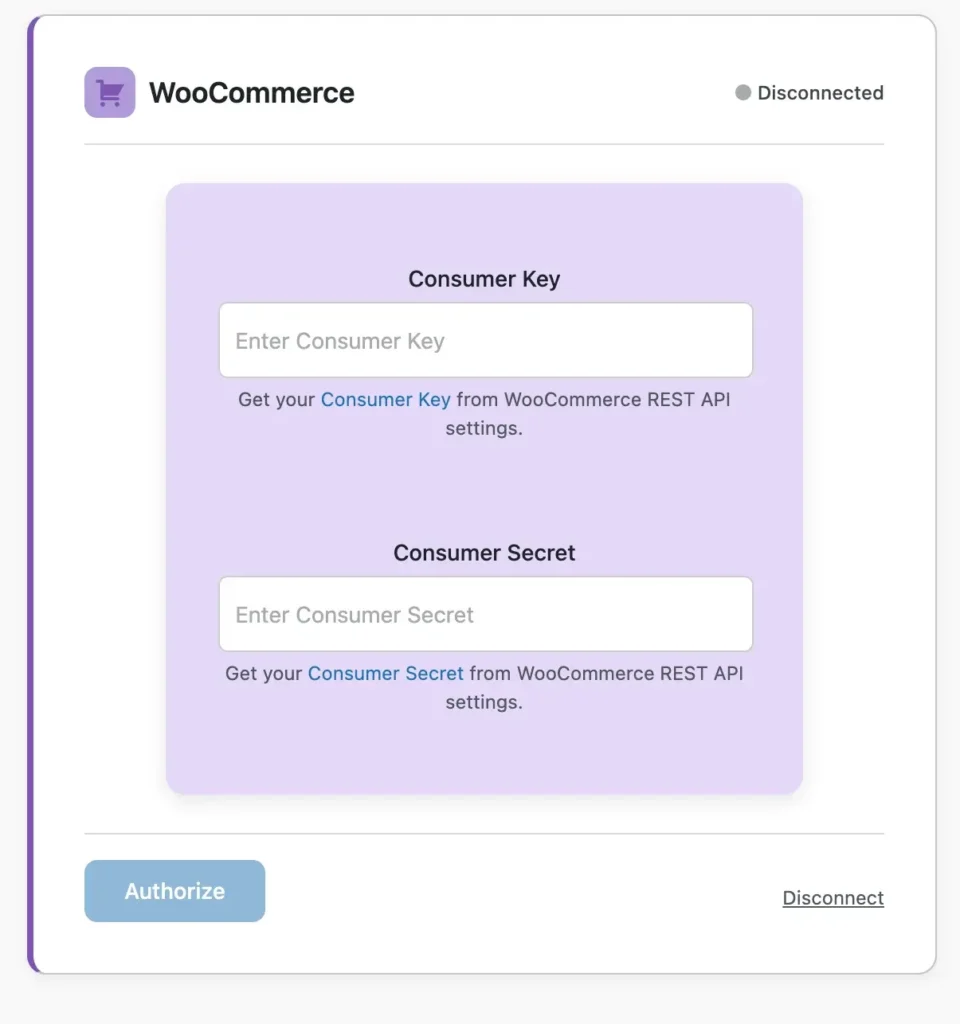
1. Generate WooCommerce REST API Keys
Go to WooCommerce, open Settings, navigate to Advanced, and select REST API. Create a new API key with Read and Write permissions, then copy the generated Consumer Key and Consumer Secret for later use in the integration process.
2. Create a Shopify Custom App
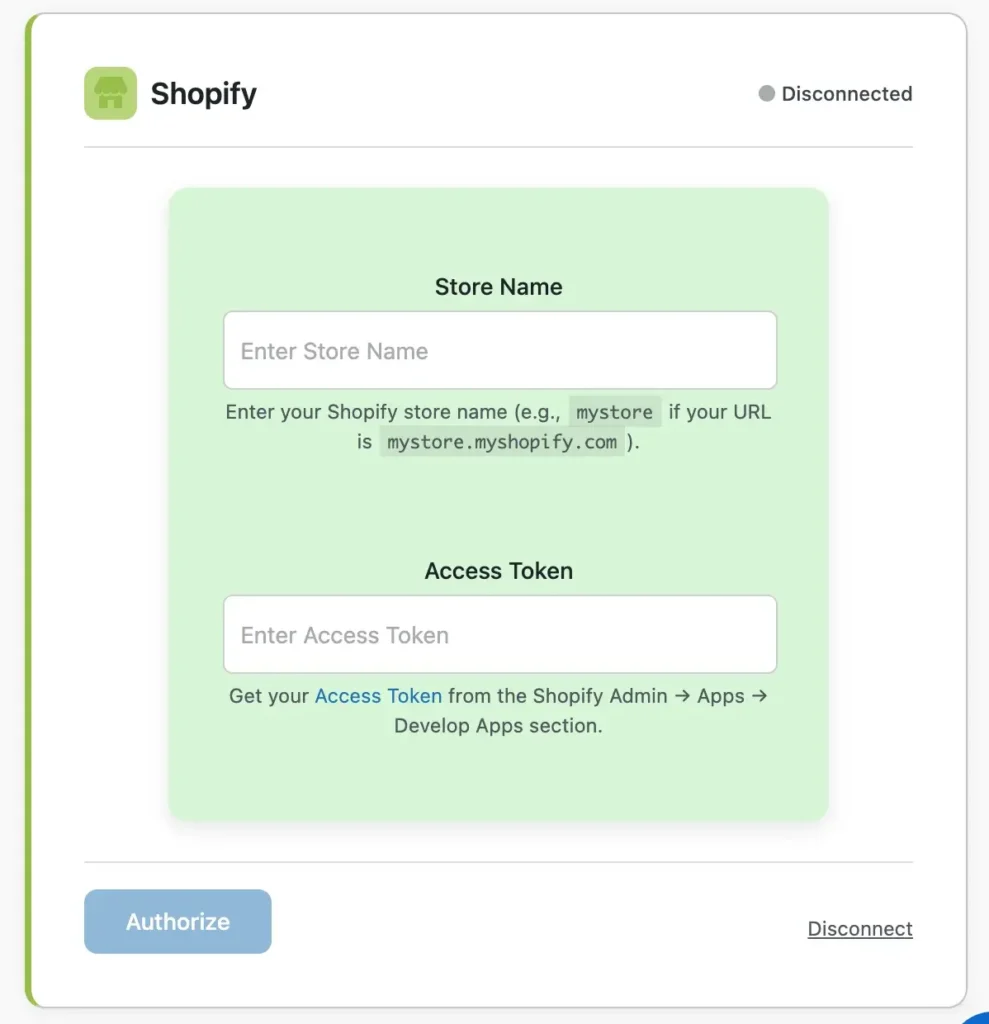
Log in to your Shopify Admin dashboard, open Apps, and select Develop apps to create a new custom app. Enable the required Admin API scopes, such as Products, Inventory, Orders, and Customers,s based on your synchronization needs, then generate and copy the Admin API access token.
3. Authenticate Both Stores in the Plugin
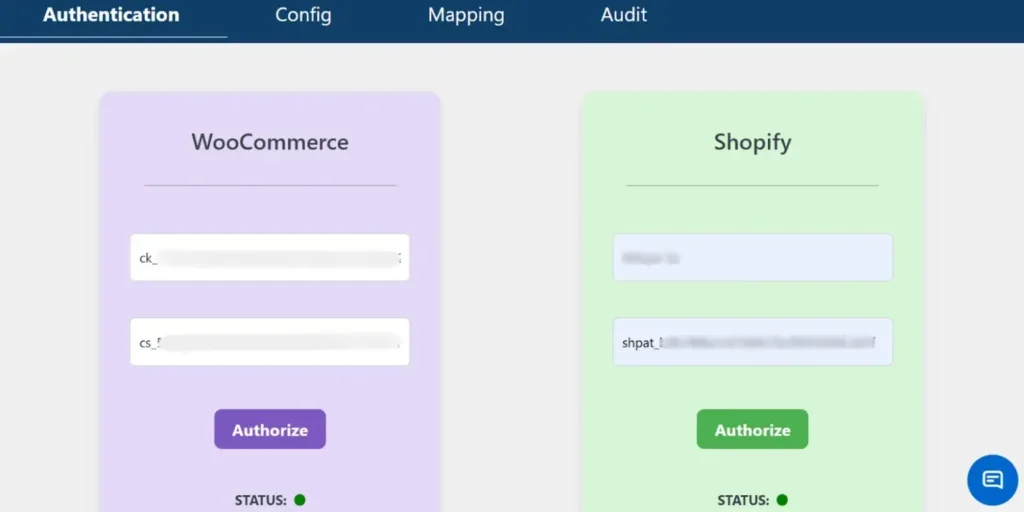
Open the sync plugin settings in your WordPress dashboard and enter the WooCommerce API credentials along with your Shopify store URL and Admin API access token. After entering the required details, validate the connection status to successfully authenticate both stores and establish secure communication between the platforms.
The plugin uses secure API-based communication. Once authentication is successful, you can proceed with inventory and product sync configuration.
Map Products Using SKU (Automatically Mapped)
Accurate inventory sync depends on consistent SKU mapping between platforms.
The plugin automatically matches products using
- SKU Primary identifier
- Product variations if SKUs are unique per variation
For technical setups
- Ensure all WooCommerce products have unique SKUs
- Ensure Shopify variants also use matching SKUs
- Avoid duplicate SKUs across variable products
If SKU values match correctly, stock updates sync seamlessly without creating duplicate products.
For stores with large catalogs, SKU consistency is critical to prevent incorrect stock adjustments.
Configure Sync Direction and Rules
The plugin allows you to define how inventory data flows between platforms.
You can configurew2s
- WooCommerce → Shopify (common for content-first stores)
- Shopify → WooCommerce (common for Shopify-primary sales)
- Bi-directional sync (for dual-active stores)
Sync Direction Options Between WooCommerce and Shopify
When configuring inventory synchronization, choosing the correct sync direction is critical. The direction determines which platform acts as the primary source of truth for product and stock data.
WooCommerce to Shopify
In this setup, WooCommerce acts as the main store where products and inventory are managed, and updates are pushed to Shopify. This approach is common for content-first stores that use WordPress for blogging, SEO, and content marketing while using Shopify as an additional sales channel. Any stock updates, product edits, or changes made in WooCommerce are automatically reflected in Shopify, ensuring consistency across platforms.
Shopify to WooCommerce
Here, Shopify becomes the primary sales platform, and WooCommerce mirrors its product and inventory data. This configuration is ideal for businesses that process most of their sales through Shopify and want WooCommerce to function as a secondary storefront. Stock updates triggered by Shopify orders are pushed to WooCommerce, helping prevent overselling and keeping inventory aligned.
Bi-Directional Sync
Bi-directional synchronization allows both WooCommerce and Shopify to update each other. If a sale occurs on either platform, the inventory is updated across both stores automatically. This method is suitable for dual-active stores where both platforms are used equally for sales. However, it requires careful configuration to avoid circular updates or conflicting data changes.
Selecting the right sync direction ensures accurate inventory management and prevents stock discrepancies across your multi-store setup.
For inventory management,
- Create new products on destination store
- Update stock levels automatically
- Enable or disable deletion sync
- Control which modules to sync (Products, Orders, Customers)
Technical users should carefully plan direction rules to avoid circular updates or unintended overwrites.
If Shopify is your primary checkout system, inventory should typically sync from Shopify to WooCommerce to avoid overselling.
Enable Real-Time or Scheduled Sync
- The plugin supports two primary synchronization modes that allow you to control how and when inventory updates are pushed between WooCommerce and Shopify. Choosing the right mode depends on your store traffic, sales volume, and operational workflow.
Real-Time Sync
- Real-Time Sync automatically triggers whenever a product is updated or an order is placed. As soon as stock levels change on one platform, the update is instantly pushed to the connected store. This ensures inventory accuracy across both systems without delay.
- This mode is ideal for high-volume stores where products sell frequently throughout the day. Immediate stock updates reduce latency between transactions and inventory adjustments, significantly minimizing the risk of overselling or stock mismatches. For businesses running flash sales, limited stock items, or fast-moving inventory, real-time synchronization provides maximum reliability and accuracy.
Scheduled Sync
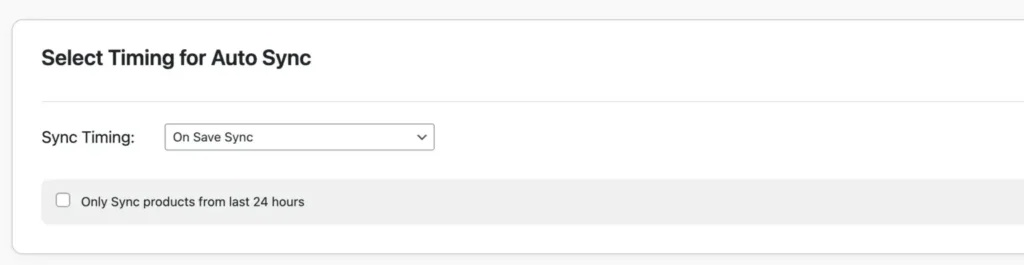
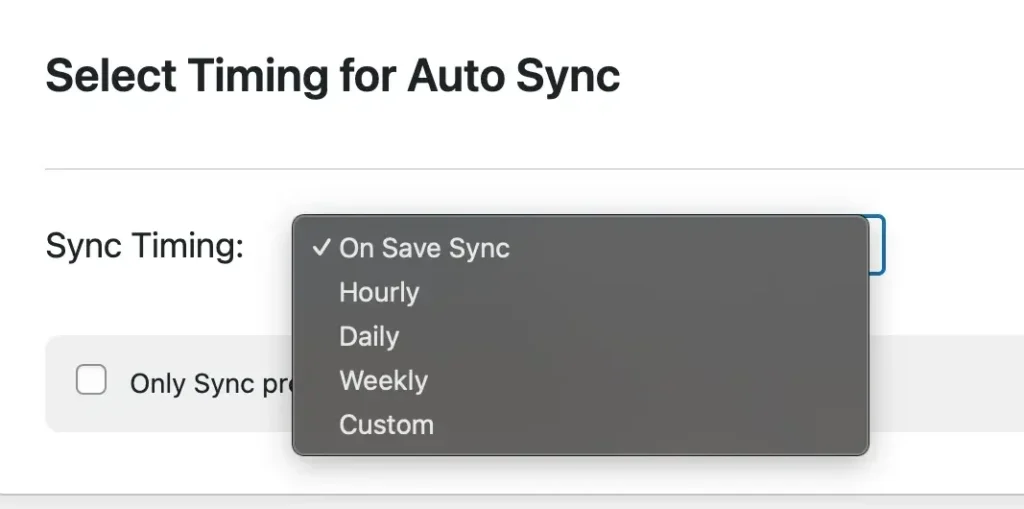
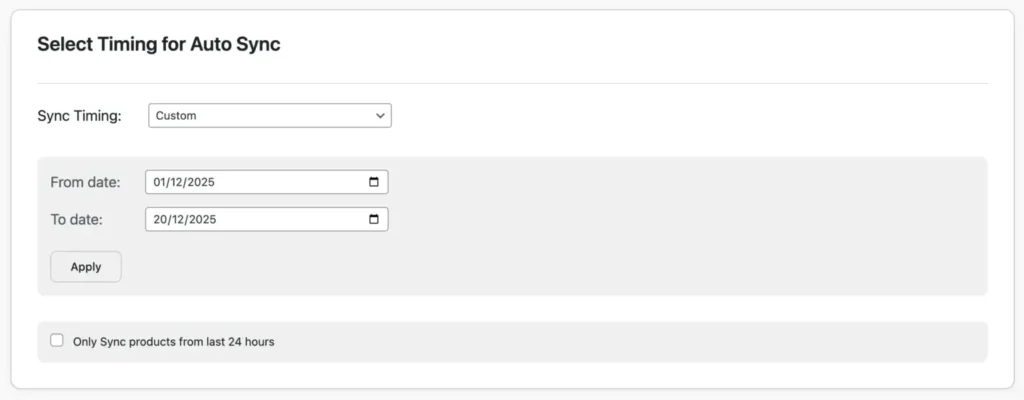
- Scheduled Sync updates inventory at predefined intervals such as hourly, daily, weekly, or a custom time frame configured within the plugin settings. These updates run using WordPress Cron, which automates background synchronization tasks without manual intervention.
- This method is suitable for moderate-traffic or low-volume stores where real-time updates may not be necessary. It helps reduce server load while still maintaining consistent stock alignment between WooCommerce and Shopify. Scheduled sync is also useful when performing bulk product updates or managing larger catalogs where periodic synchronization is sufficient.
- By selecting the appropriate sync mode based on your business needs, you can ensure efficient inventory management while maintaining optimal store performance.
| Feature | Real-Time Sync | Scheduled Sync |
| Update Speed | Instant | Based on the interval |
| Best For | High-volume stores | Low/medium stores |
| Server Load | Higher | Lower |
| Overselling Risk | Very Low | Moderate |
Technical recommendation
- Use real-time sync for fast-moving inventory
- Use scheduled sync for bulk updates or low-traffic environments
- Ensure WP-Cron is functioning properly on your server
Monitoring can be done via the plugin’s audit logs to track sync status and troubleshoot failures.
For a stable WooCommerce Shopify inventory sync
- Maintain SKU consistency across platforms
- Avoid manual stock edits on both platforms simultaneously
- Test with a few products before enabling full sync
- Monitor logs after initial deployment
- Confirm Shopify API rate limits are not exceeded
Using a plugin-based sync method eliminates manual exports and reduces inventory errors, making it ideal for businesses running multi-platform e-Commerce operations.
Syncing Inventory for Variable Products
Variable products, like t-shirts in different sizes and colors, require precise mapping. In W2S Sync:
- Ensure each variation has a unique SKU in both platforms.
- The plugin syncs attributes automatically if SKUs match.
For example, if WooCommerce has a “Large-Red” variant with SKU “TSH-LR”, map it to Shopify’s equivalent.
- Test by placing an order: Stock should be deducted from the specific variant across stores.
Limitations: Complex bundles may need Pro features or custom tweaks.
This prevents partial overselling, where one size sells out but others remain available.
Handling Order-Based Stock Updates
Orders directly impact inventory. With sync enabled
- When an order is placed on Shopify, the plugin detects it and reduces stock in WooCommerce automatically.
- Vice versa for WooCommerce orders.
- Real-time sync is crucial here to avoid delays. Set it up to trigger on order creation or status change.
- For refunds or cancellations, enable reverse sync to restore stock.
This automation ensures stock reflects true availability, reducing manual interventions.
Error Handling and Troubleshooting
Common issues include
Missing SKU: Products won’t sync; fix by auditing and standardizing SKUs.
API Limits Exceeded: Shopify throttles requests; use plugins with retry logic or schedule during off-peak hours.
Connection Failures: Check API keys; regenerate if invalid.
Sync Conflicts: Set priority rules in the plugin.
Debugging: Use the Audit Log to view errors; export CSVs for analysis.
If issues persist, contact plugin support or test in staging.
Best Practices for WooCommerce–Shopify Inventory Sync
To maximize efficiency
- Regularly audit SKUs for consistency.
- Start with a small product set for testing.
- Use bi-directional sync only if both stores are active.
- Monitor audit logs weekly for anomalies.
- Set low-stock alerts on both platforms.
- Avoid manual edits during sync to prevent conflicts.
- Backup stores before initial sync.
- Optimize for performance: Limit sync to essential data.
- Update plugins and platforms regularly.
- Train the team on sync processes to avoid errors.
Following these ensures long-term accuracy.
Frequently Asked Questions (FAQs)
1. Can I sync products and inventory between WooCommerce and Shopify?
Yes, it is possible to sync products and inventory between WooCommerce and Shopify using a dedicated integration plugin such as W2S Sync. These plugins allow you to synchronize product details, stock quantities, variations, pricing, and other related data across both platforms. Many solutions also support bi-directional syncing, meaning updates made in either store can reflect automatically in the other, ensuring consistent product and inventory information.
2. How to keep WooCommerce and Shopify in sync?
To keep both platforms synchronized, you need to install a compatible sync plugin and connect the two stores using their respective APIs. Once connected, products are typically mapped using SKUs to ensure accurate matching. After mapping, you can enable real-time or scheduled synchronization so that inventory, product updates, and order-related stock changes remain aligned continuously without manual intervention.
3. How to enable inventory sync in the WooCommerce to Shopify sync plugin?
After installing and activating the plugin, navigate to its configuration settings within your WordPress dashboard. Enable the inventory or stock synchronization module, then choose the desired sync direction, such as WooCommerce to Shopify, Shopify to WooCommerce, or bi-directional. Finally, activate either real-time or scheduled synchronization based on your store’s needs to ensure stock levels update automatically.
4. How does WooCommerce Shopify inventory sync work?
Inventory synchronization works through secure API communication between the two platforms. When a change occurs in one store, such as a stock reduction after an order is placed, the plugin detects the update and pushes or pulls the corresponding data to the connected store. This automated data exchange ensures both systems reflect the same stock levels, minimizing discrepancies.
5. Can I sync inventory between WooCommerce and Shopify in real time?
Yes, most advanced sync plugins support real-time synchronization. In this mode, events such as product updates, stock edits, or order placements immediately trigger inventory updates on the connected platform. This helps prevent delays in stock adjustments and reduces the risk of overselling, especially in high-volume stores.
6. What happens if the SKU doesn’t match?
If SKUs do not match between WooCommerce and Shopify, the plugin cannot correctly identify corresponding products. As a result, those products may not sync, or the system may generate error logs. To resolve this, you need to manually correct the SKUs or map the products properly so that the plugin can establish accurate product relationships.
7. Can variable products be synced?
Yes, variable products can be synced effectively as long as each variation has a unique SKU. The plugin uses these unique identifiers to match variations such as size, color, or other attributes across both platforms. When configured correctly, inventory changes for each variation are updated automatically without affecting other variants of the same product.
Keeping inventory in sync between WooCommerce and Shopify transforms multi-store management from a challenge into a true growth advantage. By preventing overselling, reducing manual work, and maintaining accurate stock levels, real-time WooCommerce Shopify inventory sync builds customer trust and supports scalable multichannel selling. The key is proper setup begin with pre-sync checks, choosing a reliable plugin-based synchronization method, and following proven inventory management best practices. Instead of depending on manual updates that cause costly errors, automate your inventory syncing today and implement a professional WooCommerce-Shopify sync solution to eliminate stock confusion, streamline operations, and focus confidently on growing your eCommerce business.
