
Knowing how to optimize WordPress database for large sites becomes critical the moment your site scales – thousands of posts, WooCommerce products, or active users mean constant queries every second. Without the right structure, slow queries and bloated tables drag down page speed and cause timeouts during peak traffic. This guide covers advanced indexing, caching, and query optimization for large WordPress sites at any scale. Haven’t done basic cleanup yet? Start with our WordPress database optimization guide first, then come back here.
Understanding Database Challenges in Large WordPress Sites
As your WordPress site grows, every plugin, comment, and update adds more data — and inefficiencies compound fast. The real problem isn’t size, it’s structure and query efficiency. Large sites typically run into four core challenges
1. Heavy Query Load
Every page view triggers multiple SQL queries – on a large site, hundreds or thousands per minute during peak traffic. Without proper indexing and query optimization, these requests strain the server and slow load time.
2. Table Bloat
Tables like wp_postmeta, wp_options, and wp_comments bloat over time as plugins store unnecessary data and never delete temporary entries – resulting in slower lookups and longer backup times.
3. Unoptimized Autoloaded Data
When too many large options are set to autoload = On in wp_options, every page request slows down – including static pages. It’s one of the most overlooked causes of slow enterprise WordPress performance.
4. Inefficient Storage Engine or Database Settings
WordPress uses InnoDB by default, but for high-traffic or data-heavy sites, fine-tuning parameters like buffer pool size and cache limits delivers massive performance gains.
How to Optimize WordPress Database Performance for Large Sites
Step 1: WordPress Database Optimization – Why Your Site Is Slow and How to Diagnose It
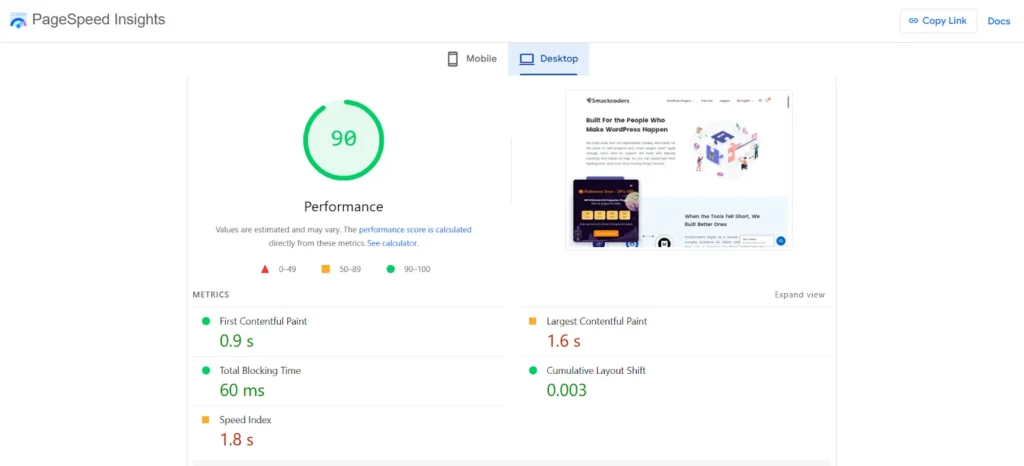
Before you optimize anything, you need to know exactly what’s slowing your WordPress database down – slow queries, oversized tables, or bloated autoloaded data. The right diagnosis is the foundation of any WordPress database optimization best practice.
Database Analysis and Optimization Toolkit for WordPress
To measure accurately, you’ll need a few reliable tools. These are beginner-friendly and highly used by professionals.
Query Monitor Plugin
Displays slow and repeated database queries directly in your WordPress dashboard, pinpointing exactly which plugins or themes are responsible.
Check database size and optimize tables directly from the terminal. Fast and safe for large sites where the dashboard loads slowly.
wp db size
wp db optimize
Visual overview of every database table. Sort by “Size” or “Rows” to instantly spot oversized tables – wp_postmeta usually tops the list on large sites.
Correlates database performance with front-end speed. Low TTFB or LCP scores are a direct signal that database queries are part of the slowdown.
Once you’ve run your tools, focus on these four indicators:
- Largest Tables – wp_postmeta, wp_options, or custom plugin tables.
- Slow Queries – Anything over 1 second needs indexing or investigation.
- Server Metrics – CPU and memory spikes during traffic hours signal MySQL bottlenecks.
- Autoloaded Options – wp_options values exceeding 1MB load on every single page.
Step 2: WordPress Database Cleanup – Clear Revisions, Transients, and wp_options Safely
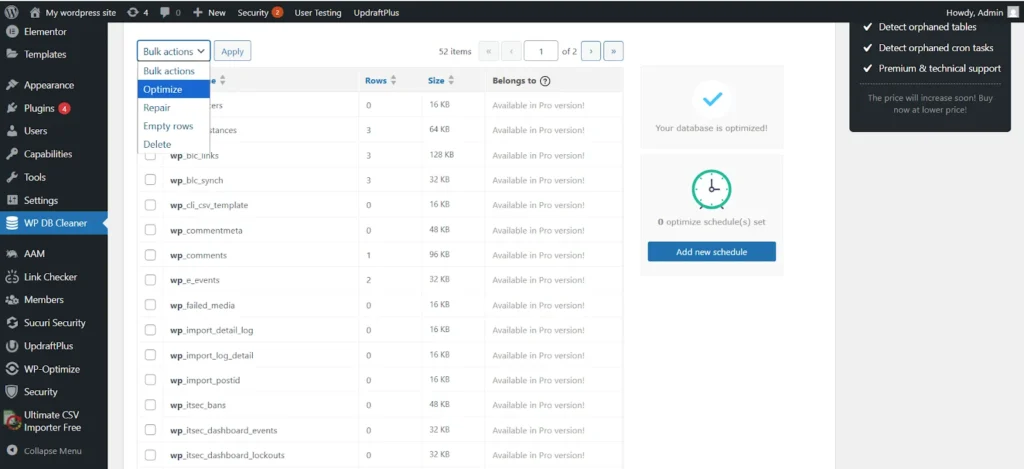
Large sites can’t afford random cleanup – one wrong move can break plugins, forms, or orders. Every post edit, product update, or plugin change adds rows to your database, and over time that builds into hundreds of megabytes of redundant revisions, transients, and temporary entries bloating wp_posts, wp_postmeta, and wp_options on every page load.
Safe Cleanup Actions You Can Perform
Revisions & Drafts
WordPress saves a new revision on every update – on content-heavy sites, these number in the thousands. Clean them via WP-CLI: wp post delete $(wp post list –post_type=’revision’ –format=ids) Or use WP-Optimize to cap revisions automatically. For editorial or news sites, keeping 2–3 revisions per post is the right balance.
Expired Transients
Expired transients stay in your database until manually cleared. Run wp transient delete –expired via WP-CLI, or use the Transient Manager plugin to automate it – especially useful for WooCommerce or API-heavy sites.
Spam & Trash
Spam comments and trashed items stay in your database until manually cleared. Go to Dashboard → Comments → Spam or Trash → Empty All, or automate it with a WP-CLI cron job scheduled during off-peak hours.
Autoloaded Options
The wp_options table loads on every page – if it’s bloated, every request slows down. Use phpMyAdmin or Advanced Database Cleaner to audit autoload values, keep total autoloaded data under 1 MB, and replace any plugin pushing entries over 100 KB.
Scheduling Cleanups for Stability
Automate weekly transient deletion, monthly revision cleanup, and quarterly wp_options audits using WP-CLI cron jobs.
Step 3: WordPress Query Optimization: Fix wp_postmeta and Slow Database Queries
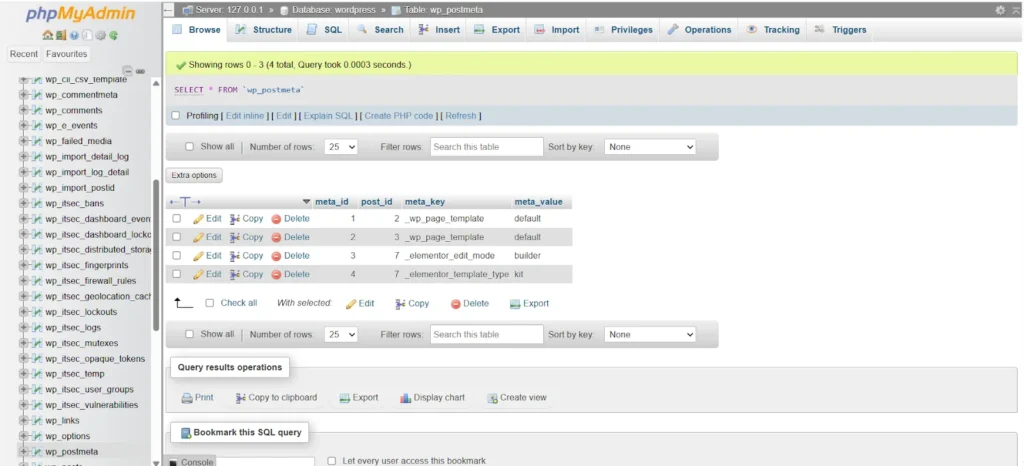
On large sites, wp_postmeta is usually the heaviest table in your database – storing hundreds of metadata entries per post, product, or plugin. Without proper indexing, WordPress scans every row line by line, making it the most common source of slow database queries on enterprise WordPress sites.
Fixing this is the fastest way to optimize WordPress database for large sites and speed up queries on any enterprise install.
How to Optimize wp_postmeta
Add Database Indexes
Indexes tell MySQL where to look instead of scanning millions of rows. Add this compound index to wp_postmeta: ALTER TABLE wp_postmeta ADD INDEX post_id_meta_key (post_id, meta_key(191)); This directly speeds up queries filtering by post_id and meta_key – the most frequent queries in large WooCommerce stores.
Pro Tip: Always back up your database before running manual SQL commands.
Use Safe Plugins for Indexing
If you prefer a plugin-based solution, Index WP MySQL for Speed is beginner-friendly and safe for large sites. It automatically adds essential indexes to speed up metadata lookups without risking data integrity.
Split Metadata for Extremely Large Stores
If your WooCommerce or membership site has grown to millions of products or user records, splitting wp_postmeta into separate custom tables reduces table size and query load significantly.
- Move product-related meta to a dedicated table.
- Keep post meta separate from blog content.
Custom tables handle targeted queries more efficiently, cutting response times on high-traffic product and membership pages.
Regular Maintenance
Even after optimization, wp_postmeta keeps growing – schedule weekly checks and monthly optimization via WP-CLI or WP-Optimize to stay ahead of it.
Step 4: Enable Object Caching (Redis or Memcached)
Object caching stores your most-used data directly in server memory – so WordPress stops querying the database for the same information on every request. For MySQL-heavy environments like large WordPress sites, WooCommerce stores, and membership platforms, it’s one of the fastest ways to improve overall site responsiveness.
Why large sites need object caching
A WooCommerce catalog with 50,000 products is a database-intensive environment. Pricing, inventory, metadata, and related product data all require separate queries on every page load. Stack that across hundreds of concurrent visitors and your database buckles fast. Object caching absorbs that repeated query load by holding the results in RAM – so the database only works when it actually needs to, not on every click.
Redis or Memcached – which one fits your site
Redis and Memcached serve different needs. Redis covers persistent storage, expiration rules, and clustering – ideal for WooCommerce stores and membership platforms. Memcached trades those features for raw speed and a lighter memory footprint, best for leaner server environments with straightforward caching needs.
Setting up object caching
Redis Object Cache Plugin
- Install and activate it from your WordPress dashboard.
- Connect it to your Redis server – hosting stacks like Kinsta, WPVIP, and Cloudways ship with Redis already configured, so no additional server work is required.
- Switch caching on, run a few page loads, and verify it’s working correctly.
Object Cache Pro (Premium)
Built ground-up for enterprise WordPress, this plugin handles native WooCommerce and membership plugin compatibility while supporting Redis cluster configurations and advanced cache management at scale.
What to keep in mind after setup
- After any database optimization or bulk import, wipe your object cache immediately – stale data after structural changes causes unpredictable issues.
- Keep your cache hit rate above 80% – anything lower means the database is still doing too much work. Redis Object Cache shows this inside your dashboard.
- Pair object caching with a page caching plugin like WP Rocket – one handles the database layer, the other handles frontend delivery.
Step 5: Tune Your MySQL Server for Big Data
Cleaning tables and adding indexes only gets you so far. When MySQL itself isn’t set up to handle your traffic volume and data size, performance breaks down at the server level regardless of how well your tables are structured.
Why MySQL tuning matters on large sites
Three problems show up repeatedly on high-traffic WordPress installs. First, multiple users hitting product metadata queries at the same time creates server contention that slows every request in the queue. Second, backend reporting and admin operations consume disproportionate CPU and memory, starving frontend queries of resources. Third, when complex queries outgrow available memory, MySQL dumps temporary tables to disk – and disk writes are orders of magnitude slower than memory operations.
Parameters that make the biggest difference
1. innodb_buffer_pool_size MySQL uses this buffer to cache table data in RAM before going to disk. Dedicate 60–80% of your total server RAM to this setting on any database-focused server – no other configuration change delivers a bigger performance return.
2. max_connections Caps the number of open database connections at any given moment. Default values are conservative – sites with sustained concurrent traffic need this raised to prevent requests from queuing up and timing out.
3. tmp_table_size & max_heap_table_size Both settings cap how large an in-memory temporary table can grow. Push these values up and MySQL keeps complex query processing in RAM rather than writing intermediate results to disk.
4. query_cache_size Removed entirely in MySQL 8.0. Don’t configure this – use Redis object caching instead, which handles repeated query results far more reliably on current database stacks.
Diagnostic tools worth running
- MySQLTuner – Reads your live server metrics and produces a ranked list of configuration changes based on real usage data rather than generic defaults.
- Percona Toolkit – Runs granular performance diagnostics across large datasets, covering query analysis, table health checks, and replication monitoring.
- phpMyAdmin or Adminer – Browser-based access to your current configuration values and slow query logs without needing terminal access.
Step 6: Automate WordPress Database Optimization – Maintenance & Backups
The only way to truly optimize WordPress database for large sites long term is scheduled automation. A database that ran perfectly last month can degrade quietly this month – new posts, orders, plugin updates, and user registrations pile up continuously. Without scheduled maintenance, that degradation compounds until it becomes a visible performance problem.
Why manual maintenance fails at scale
Sites processing thousands of daily transactions – orders, form submissions, user registrations, content updates – generate too much database activity for any manual process to keep up with. Scheduled automation handles the repetitive work consistently, keeps tables lean, and runs backups without anyone needing to remember to do it.
Automating database cleanup
- Scheduled table optimization Run OPTIMIZE TABLE commands on a weekly or monthly cycle using WP-Optimize or WP-CLI. Focus on wp_postmeta, wp_posts, wp_options, and any high-activity plugin tables – these accumulate overhead fastest on busy sites.
- Automated deletion of redundant data Configure cron jobs or plugin schedules to purge expired transients, old post revisions, and spam or trashed content on a fixed cycle. On very large databases, run these deletions in smaller batches rather than all at once – bulk operations on massive tables can spike server load and cause timeouts.
- Autoloaded data monitoring Set up scheduled audits of wp_options autoload entries. Flag anything oversized, archive or remove entries that no longer serve active functionality, and keep total autoloaded data well under 1MB.
Automating Backups
Losing database data on a high-traffic site is catastrophic. Automated backups remove human error from the equation entirely.
UpdraftPlus Schedule daily or weekly backups and push them automatically to remote storage – Google Drive, Dropbox, or AWS S3 all integrate natively. Database and file backups can run independently on separate schedules if needed.
Host-level backup systems Managed hosting platforms like Kinsta, WPVIP, and Cloudways run automatic daily snapshots with point-in-time restore capability built in – no plugin configuration required. For high-traffic sites, this is the most reliable safety net available.
Building a database health report
Large sites benefit from a simple monthly health log – record current table sizes, index status, backup completion dates, and any slow queries flagged during the period. Over time this log becomes your early warning system, showing degradation trends before they turn into outages.
Scale Your WordPress Database with Confidence
The best way to optimize WordPress database for large sites is to treat it as an ongoing practice. From fixing slow queries and cleaning bloated tables to Redis caching and MySQL tuning – every step compounds into long-term performance gains.
For basic cleanup steps, refer to our WordPress database optimization guide. Need personalized support? Reach out at [email protected].
FAQ: WordPress Database Optimization for Large Sites
1. Why is my WordPress database so slow on a large site?
Slow performance on large sites usually comes from unindexed wp_postmeta, bloated wp_options autoloaded data, or missing MySQL tuning. Use Query Monitor to identify the exact bottleneck before touching anything.
2. How do I optimize a WordPress database without breaking my site?
Back up first, then follow this order: clean transients and revisions via WP-CLI, audit wp_options autoload values, add indexes to wp_postmeta, and enable Redis caching. Schedule bulk deletions as off-peak cron jobs – never run them during live traffic hours.
3. How often should I optimize a large WordPress database?
Consistent wordpress database optimization means running cleanups every 2–4 weeks for active sites. Automate transient deletion weekly, revision cleanup monthly, and wp_options audits quarterly. Skipping maintenance compounds damage fast on large sites.
4. Does WordPress database optimization improve SEO and Google rankings?
Yes – directly. An optimized database reduces TTFB and improves LCP, both Core Web Vitals signals Google uses for page experience ranking. Faster queries mean faster pages, and faster pages rank higher.
5. What are the best practices to optimize WordPress database for large sites?
To optimize WordPress database for large sites – index wp_postmeta on post_id and meta_key, keep wp_options autoloaded data under 1MB, enable Redis caching, tune MySQL innodb_buffer_pool_size to 60–80% of RAM, and automate cleanups with WP-CLI. These five steps resolve 90% of performance issues on enterprise WordPress sites.
