
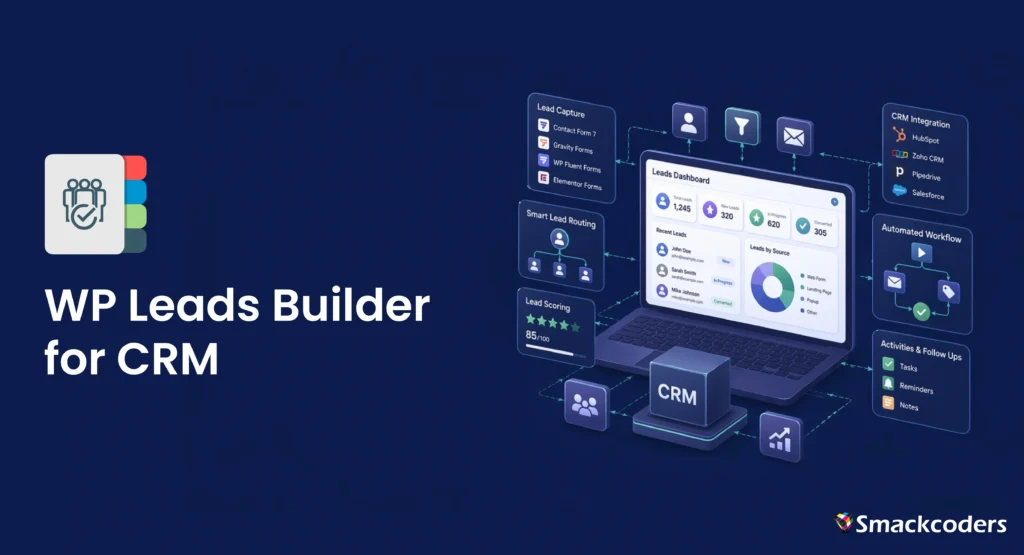
Most WordPress sites still email form submissions to a shared inbox. Someone copies the details into Zoho or Salesforce on Monday, the lead sits cold for two days, and the reporting dashboard never matches reality.
The fix is one plugin that pushes every WordPress form submission straight into your CRM, with the right owner, the right lead source, and no duplicates. That’s exactly what WP Leads Builder for Any CRM does, and it’s why thousands of WordPress teams use it as their lead capture layer.
This guide walks through what the plugin does, how to set it up (free and Pro), how to connect it to Zoho CRM or Salesforce in minutes, and how to decide whether the free version is enough for your business.
Why WP Leads Builder Is Considered the Best WordPress CRM Plugin for Lead Capture
Most WordPress CRM plugins lock you into a single CRM. If your company runs Zoho today and Salesforce tomorrow, you reinstall, remap, and retest everything.
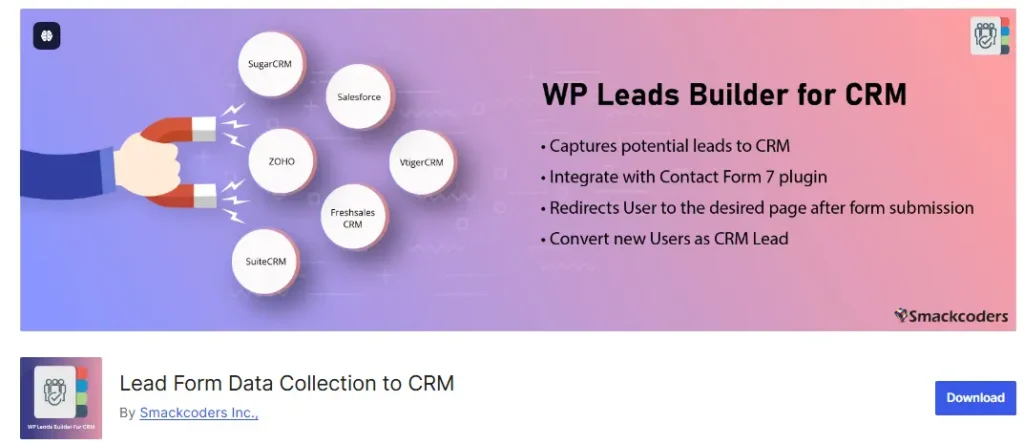
WP Leads Builder is different. A single install connects your WordPress site to eight CRMs:
• Zoho CRM
• Zoho CRM Plus
• Salesforce
• SugarCRM
• SuiteCRM
• Vtiger CRM
• Freshsales
• Joforce CRM
That means one plugin, one UI, one skill set, whether you’re running a SaaS product in Salesforce or a consulting practice in Zoho. When you switch CRMs, the lead capture layer doesn’t break.
On top of multi-CRM support, three capabilities make it stand out for serious marketing and sales teams:
Works with forms you already use. No need to rebuild forms. Contact Form 7, WPForms, WPForms Pro, Gravity Forms, Ninja Forms, and Elementor Forms are all supported. You can also build forms inside the plugin if you prefer.
Duplicate management is built in. Incoming leads are matched against existing CRM records and can be skipped, updated, or merged so your sales team stops wasting Fridays cleaning duplicates.
Automatic lead assignment. New leads get assigned to sales reps the moment they arrive, using round-robin or rule-based logic.
Free vs Pro: Which WP Leads Builder Is Right for You?
Smackcoders publishes both a free (Community) version on WordPress.org and a Pro version with extended features.
| Capability | Free (Community) | Pro |
| Unlimited WordPress forms | Yes | Yes |
| Send leads to a supported CRM | Yes | Yes |
| Connect to all 8 CRMs | Limited | Yes |
| Third-party form builder support | Basic | Full |
| Duplicate management rules | Basic | Advanced (skip/update/merge) |
| Automatic lead assignment | — | Yes |
| Google reCAPTCHA protection | — | Yes |
| Map WordPress fields to CRM fields | Limited | Full + edit labels |
| Sync existing WordPress users | — | Yes |
| MemberPress, ACF, WP-Members sync | — | Yes |
| WooCommerce checkout sync to CRM | — | Yes |
| Google Ads GCLID capture (Zoho) | — | Yes |
| URL redirection after submission | — | Yes |
If you run a single CRM, light traffic, and simple contact forms, the free version is a perfectly good starting point. If you run paid ads, a membership site, WooCommerce, or a sales team that needs clean attribution, Pro pays for itself quickly. Smackcoders also offers a 48-hour Pro trial so you can validate before you buy.
How to Install WP Leads Builder (Free Version)
The free version takes under five minutes:
- In WordPress admin, go to Plugins, click Add New.
- Search for “Lead Form Data Collection to CRM” (the WordPress.org name for WP Leads Builder).
- Click Install Now, then Activate.
- In the sidebar, open Leads Builder → CRM Configuration.
- Pick your CRM and paste the authentication details (covered below).
- Map form fields to CRM fields and save.
From this point forward, every form that’s connected in the plugin’s settings will push leads to your CRM in real time.
How to Install WP Leads Builder Pro
The Pro version is distributed as a downloadable zip because it includes premium add-ons: here is the Pro documentation – https://www.smackcoders.com/documentation/wordpress-leads-builder-for-any-crm-pro/lead-builder-for-any-crm
- Purchase Pro from the Smackcoders product page (or start the 48-hour trial).
- Download the plugin zip from your My Accounts page.
- In WordPress, go to Plugins → Add New → Upload Plugin.
- Upload the zip, click Install Now, and activate.
- Install the CRM add-on for your target CRM (Zoho, Salesforce, etc.) and activate it alongside the parent plugin.
- Open CRM Configuration and continue with the CRM-specific auth steps below.
Step-by-Step: Connecting WP Leads Builder to Zoho CRM
- Visit https://api-console.zoho.com and click Add Client.
- Choose Server-based Applications and click Create Now.
- Enter your Client Name, Homepage URL, and the Authorized Redirect URL (copy it from the Leads Builder CRM Configuration tab).
- Zoho gives you a Client ID and Client Secret.
- Paste them into WP Leads Builder and click Authenticate.
- Choose whether new submissions become Leads or Contacts.
- Map each WordPress form field to a Zoho CRM field (name, email, phone, company, plus any custom fields).
- Set the duplicate rule. The most common choice is “update existing record if email matches.”
- Enable Google Ads GCLID capture if you run paid search (Pro only). This lets Zoho’s Google Ads integration actually attribute revenue to keywords.
- Submit a test form and confirm the lead appears in Zoho within a second or two.
Step-by-Step: Connecting WP Leads Builder to Salesforce
- Log in to Salesforce and open Setup → Apps → App Manager → New Connected App.
- Fill in the basic app details.
- Tick Enable OAuth Settings and paste the Callback URL from the Leads Builder CRM Configuration tab.
- Under Selected OAuth Scopes, add Full access (full).
- Click Save. Salesforce will give you a Consumer Key and Consumer Secret.
- Paste them into WP Leads Builder along with the Callback URL and click Authenticate.
- Map WordPress form fields to Salesforce Lead or Contact fields.
- Set your duplicate-handling rule.
- If you run WooCommerce, enable checkout sync, and every completed order becomes a Salesforce Contact with order details attached (Pro only).
- Test with a real submission.
The same shape applies to SugarCRM, Vtiger, Freshsales, SuiteCRM, and Zoho CRM Plus: authenticate, map fields, set rules, and test.
Connecting Existing Forms (Contact Form 7, WPForms, Gravity Forms, Elementor)
You don’t need to recreate forms. In Leads Builder → Form Settings:
- Select the form builder you use (Contact Form 7, WPForms, Gravity Forms, Ninja Forms, or Elementor Forms).
- Pick the specific form on your site.
- Map each form field to a CRM field.
- Save. The plugin listens to submissions on that form and pushes them to the CRM.
This is the fastest way to get existing lead forms into a CRM without rebuilding anything.
Real-World Ways Teams Use WP Leads Builder
Agencies managing multiple clients. One agency stack across clients running Zoho, Salesforce, and SugarCRM no need for three different plugins.
Membership sites. The Pro version syncs WP-Members, MemberPress, and ACF fields, so member profiles carry into the CRM with full detail.
WooCommerce stores. Checkout data lands in Salesforce or Zoho as Contacts, orders, amounts, and product details, including giving sales reps actual context before a follow-up call.
Google Ads advertisers. The GCLID capture for Zoho lets Google Smart Bidding learn from closed deals instead of just form fills, which is the single biggest lever in paid-search ROI.
WordPress-native businesses. Existing WP users can be batch-synced in one pass, useful for anyone who has built up a WP user base without a CRM record attached.
Frequently Asked Questions
Which CRMs does WP Leads Builder support?
Zoho CRM, Zoho CRM Plus, Salesforce, SugarCRM, SuiteCRM, Vtiger CRM, Freshsales, and Joforce CRM.
Does it work with Contact Form 7 and Elementor?
Yes. Contact Form 7, WPForms, WPForms Pro, Gravity Forms, Ninja Forms, and Elementor Forms are all supported, no rebuild required.
How does it prevent duplicate leads in my CRM?
The Pro version matches incoming leads against existing CRM records by email, phone, or custom fields, and lets you choose to skip, update, or merge. This typically saves sales teams an hour or more per week.
Is WordPress CRM Plugin secure?
The plugin communicates with each CRM over its official web services API. API credentials are stored server-side inside WordPress, and Pro supports Google reCAPTCHA to block spam before it reaches your CRM.
Start Capturing WordPress Leads the Right Way
If your forms are still emailing leads to an inbox, you’re losing deals you’ll never see. WP Leads Builder is the WordPress CRM plugin built to close that gap, with eight CRMs, six form builders, duplicate protection, and a free version that’s genuinely useful on day one.
Grab the free version on WordPress.org and connect your first CRM today. When you’re ready for multi-CRM support, WooCommerce capture, GCLID attribution, or user sync, move up to WP Leads Builder for Any CRM Pro or walk through the Pro documentation first.
Every form submission is a pipeline opportunity. Don’t let them die in an inbox.
