
Table of Contents
Automatically importing 10,000+ products into WooCommerce is one of the most efficient ways to manage a large product list without any manual effort. Adding products one by one is not practical for growing businesses, especially when they deal with frequent updates, large inventories, or supplier-based product data. Instead, the owners can use CSV or XML files, along with an advanced import plugin like WP Ultimate CSV Importer, to upload products in bulk and automate updates.
This approach is mostly useful for large WooCommerce stores, marketplace websites, and businesses that regularly update their prices, stock levels, or product details. Automated product imports help maintain consistency, reduce human error, and save time compared to manual uploads.
This blog explains how to automatically import large volumes of products into WooCommerce by using the WP Ultimate CSV Importer plugin. The plugin is built to handle bulk uploads, scheduled imports, and large datasets smoothly, making it easier for store owners to manage thousands of products efficiently and to keep their WooCommerce store up to date.
Key Takeaways
- WooCommerce supports bulk product imports using CSV or XML files
- Importing 10,000+ products manually is not efficient
- WP Ultimate CSV Importer is used to automate the large product imports
- Automated imports save time, reduce data entry errors, and improve store management
- Proper file preparation and import scheduling ensure smooth and error-free imports
Why Automating Product Imports in WooCommerce Matters
As your WooCommerce store grows, manually adding and updating products becomes time-consuming and difficult to manage. Each product requires accurate details such as pricing, stock levels, categories, and images, which increases the risk of errors. Automated product imports allow store owners to upload and update products in bulk using CSV or XML files, reducing manual effort and improving data accuracy. This automation ensures consistency across product information and keeps the store well – organized. It also saves valuable time and improves overall efficiency, allowing store owners to focus more on marketing, sales, and delivering a better customer experience.
Things to Prepare Before Importing Products into WooCommerce
Importing products into WooCommerce helps store owners save time, especially when adding a large number of products at once. However, starting the import without proper preparation can lead to errors, missing product details, or incorrect product listings. To ensure a smooth and successful import process, it is important to get a few essential things ready in advance.
- Choose the correct file format, such as CSV or XML, supported by WooCommerce or your import plugin.
- Make sure the import file is properly structured with clear and correct column headers.
- Prepare required product fields like product name, SKU, price, product type, and stock status.
- Ensure each product has a unique SKU to avoid duplication issues
- Create and organize product categories and tags before importing, or the plugin will automatically create them during import
- Prepare product images by uploading them to the media library or using valid image URLs
- Check and set up product attributes and variations if importing variable products
- Verify prices, taxes, and currency settings in WooCommerce
- Install and configure a reliable product import plugin like WP Ultimate CSV Importer
- Take a full website backup to prevent data loss
- Test the import using a small sample file before importing all products
Choosing the Right Import Tool or Plugin for WooCommerce
When importing products into WooCommerce, choosing the right import tool or plugin is very important. The right tool helps you import products accurately, save time, and avoid data errors. WooCommerce provides a built-in importer, but for advanced needs, third-party plugins like WP Ultimate CSV Importer offer more powerful features.
WP Ultimate CSV Importer (Advanced Import Plugin)
WP Ultimate CSV Importer is an advanced WordPress plugin used to import and export large amounts of data in WooCommerce. It supports CSV, XML, and many file formats and allows store owners to import products, variations, categories, images, and custom fields easily. The plugin provides advanced field mapping, which helps match file data accurately with WooCommerce fields. It is especially useful for bulk imports, scheduled imports, and regular product updates. Overall, it saves time, reduces errors, and is ideal for stores with large or complex product data.
Best suited for:
- Stores with large product catalogs
- Regular or scheduled product imports
- Complex data such as variations, attributes, images, and custom fields
Key features and benefits:
- Supports CSV and XML file imports
- Advanced field mapping and customization
- Imports product images, attributes, and variations easily
- Allows scheduled imports using cron jobs
- Suitable for bulk imports of thousands of products
Which Import Tool Should You Choose?
If you are a beginner or managing a small store, the default WooCommerce importer is a good starting point for simple imports. However, if your store handles large volumes of products, frequent updates, or complex product data, WP Ultimate CSV Importer is the better choice. It offers more flexibility, automation, and control, making the import process faster and more reliable.

WP Ultimate CSV Importer Pro
Get Ultimate CSV/XML Importer to import data on WordPress faster, quicker and safer.
Step-by-step guidance to Automate Products Import
Automatically importing products into WooCommerce helps store owners save time and manage large product catalogs efficiently. Instead of adding products one by one, you can use a plugin like WP Ultimate CSV Importer to upload products in bulk and even schedule imports to run automatically. Below is a simple step-by-step guide to help beginners understand the complete process.
Step 1: Log in to Your WordPress Dashboard
Firstly, log in to your WordPress admin panel using your username and password. This is where you will manage plugins, products, and import settings.
Step 2: Install and Activate WP Ultimate CSV Importer
Go to Smackcoders and click on my account, and then log in. Now download the plugin and go to the WordPress plugin, then install and activate it.
Step 3: Prepare Your Import File
Create a CSV or XML file containing your product data. Make sure it includes important fields such as product name, SKU, price, category, stock status, and image URLs. Ensure the file is clean, well-structured, and free of errors before importing. Download the sample CSV file WooCommerce Products Import CSV.
Step 4: Open WP Ultimate CSV Importer
Navigate to WP Ultimate CSV Importer and then Import from the WordPress menu.
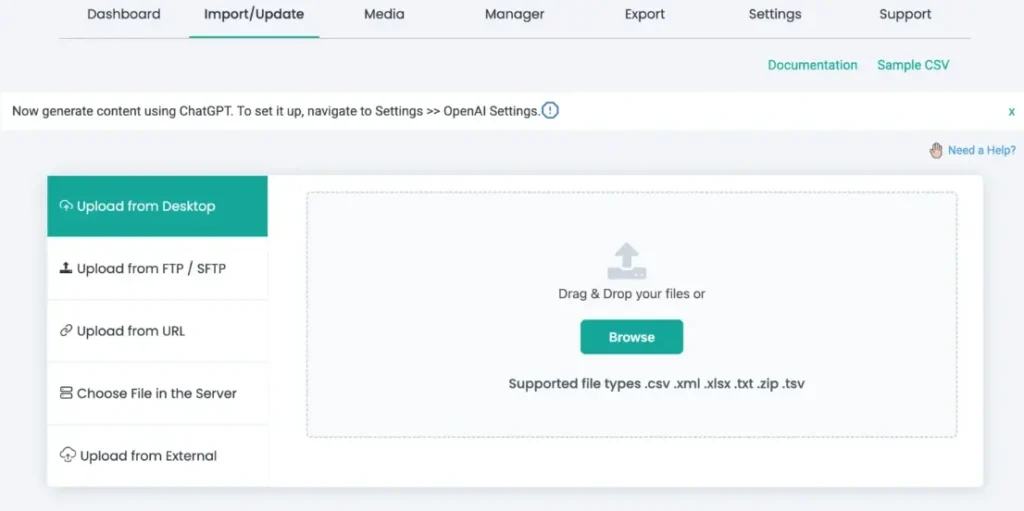
Step 5: Upload Your Import File
Upload your CSV or XML file from your computer, or choose other options like Upload from URL, FTP/SFTP, or external sources if your data is stored online.
Step 6: Choose import type
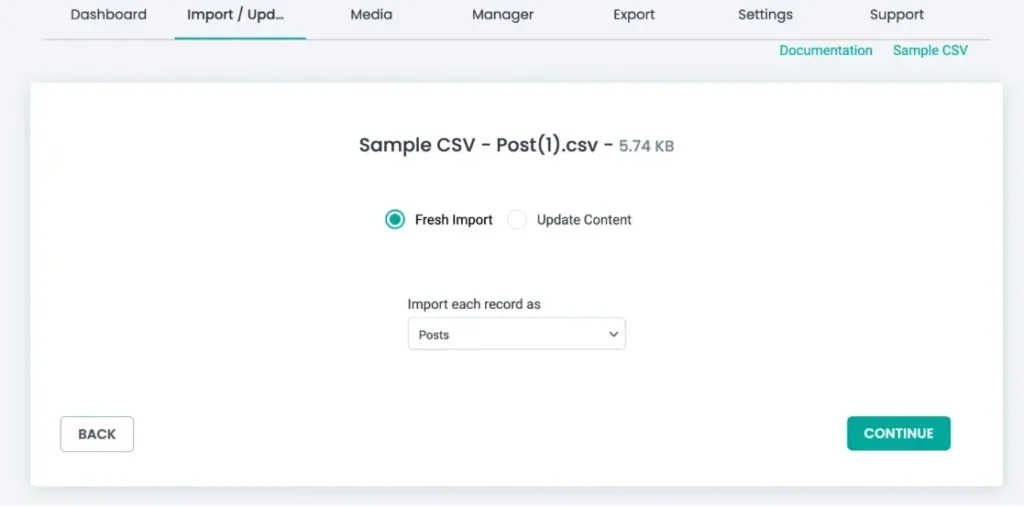
Choose Fresh Import if you are importing products from a new file for the first time. Choose Update Content if you want to update existing products or schedule automatic imports.
Choose the post type as WooCommerce Products to begin the import process.
Select the option you need, then click Continue to proceed to the next step.
WP Ultimate CSV Importer Pro
Get Ultimate CSV/XML Importer to import data on WordPress faster, quicker and safer.
Step 7: Map File Fields to WooCommerce Fields
Field mapping is a crucial step. Here, you match the columns in your import file with WooCommerce product fields such as title, price, SKU, categories, and images.
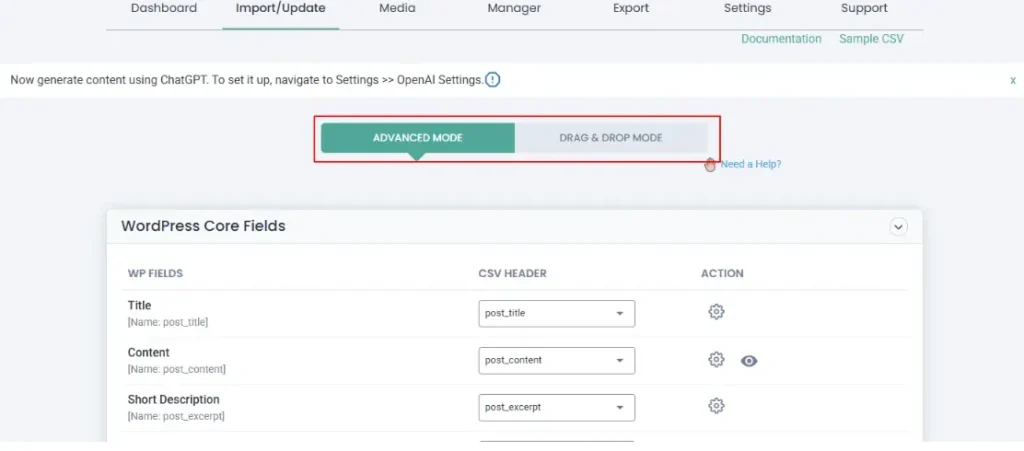
WP Ultimate CSV Importer provides an easy drag-and-drop interface to make this step simple.
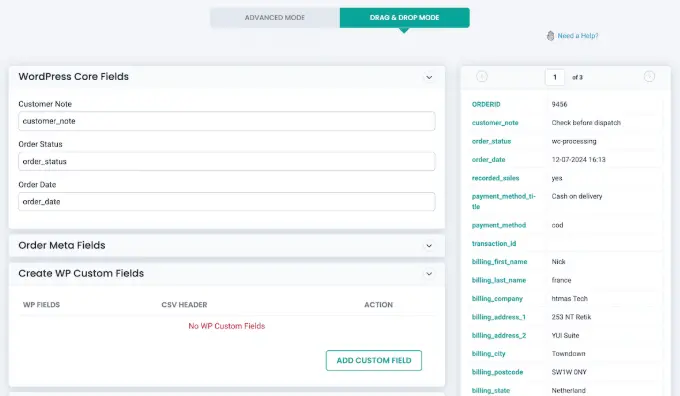
Step 8: Configure Import Settings
Depending on your needs, you can easily manage media files and configure import settings in one place. The plugin lets you back up data using the Rollback (backup before import) option and enables maintenance mode during the import process. It also supports smart duplicate handling, ensuring existing products are updated correctly, and imports remain duplicate-free.
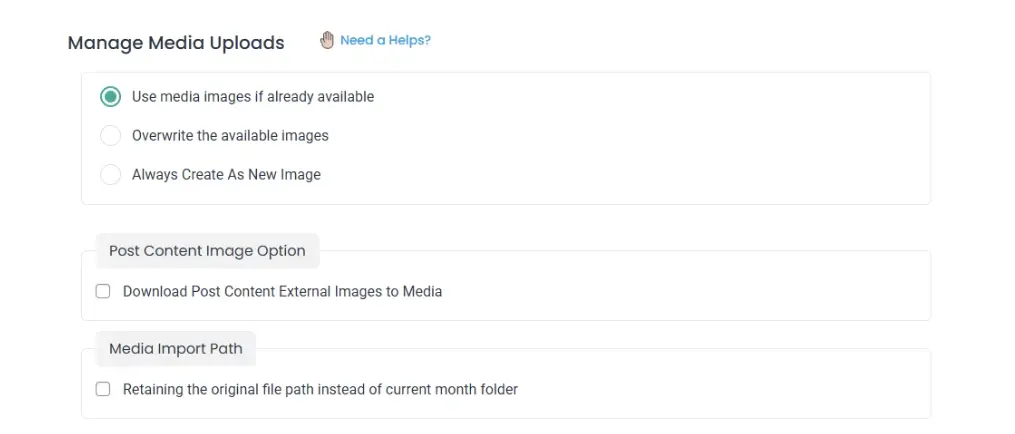
Step 9: Enable Automatic or Scheduled Import
To import products automatically, enable scheduled import using cron jobs. This allows WooCommerce to import products at fixed intervals without manual action. Make sure server cron jobs are enabled before scheduling the import. Enable Schedule Import and choose the frequency (hourly, daily, weekly, or custom).
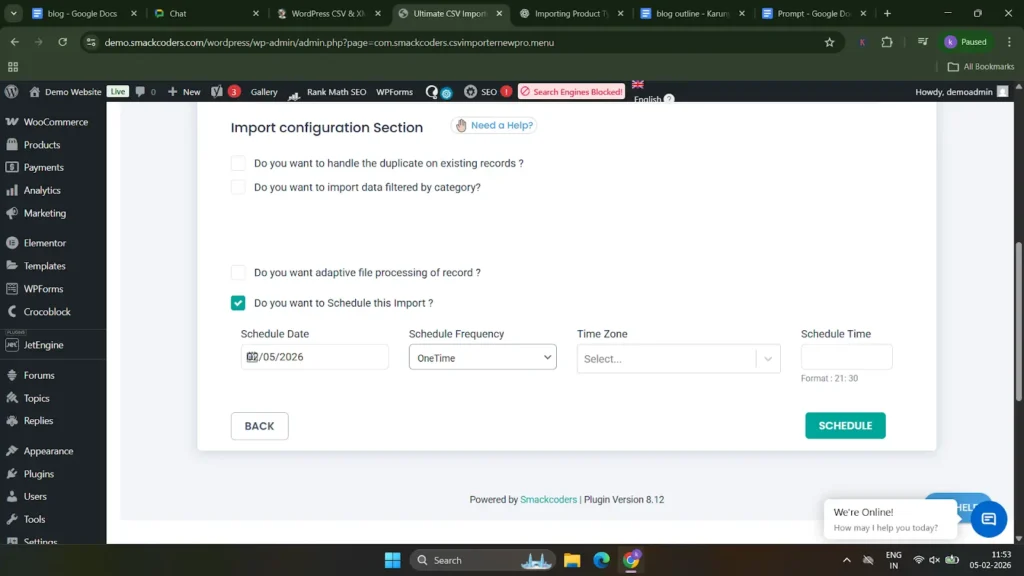
Step 10: Schedule the Import
Click the Schedule Import button to start the process. The plugin will display progress and logs so you can track the import in real time. To check the scheduled import, go to the manager and then click file manager. There, you can see the imports that have already been scheduled.
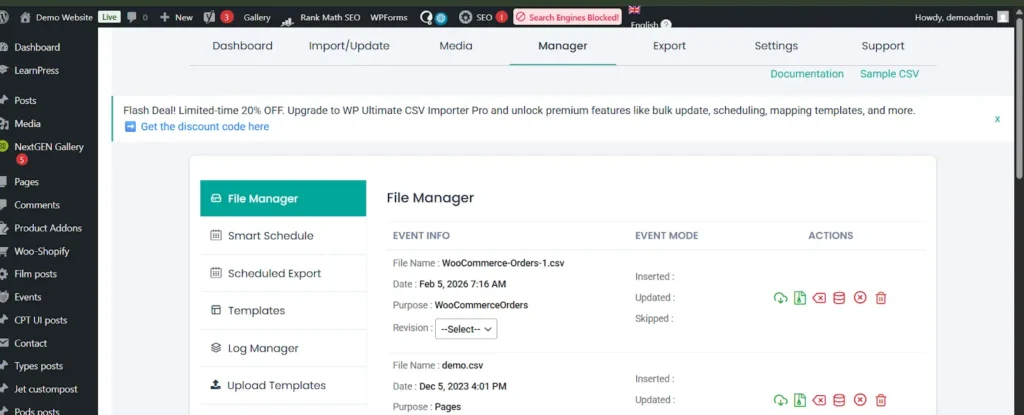
Step 11: Verify Imported Products
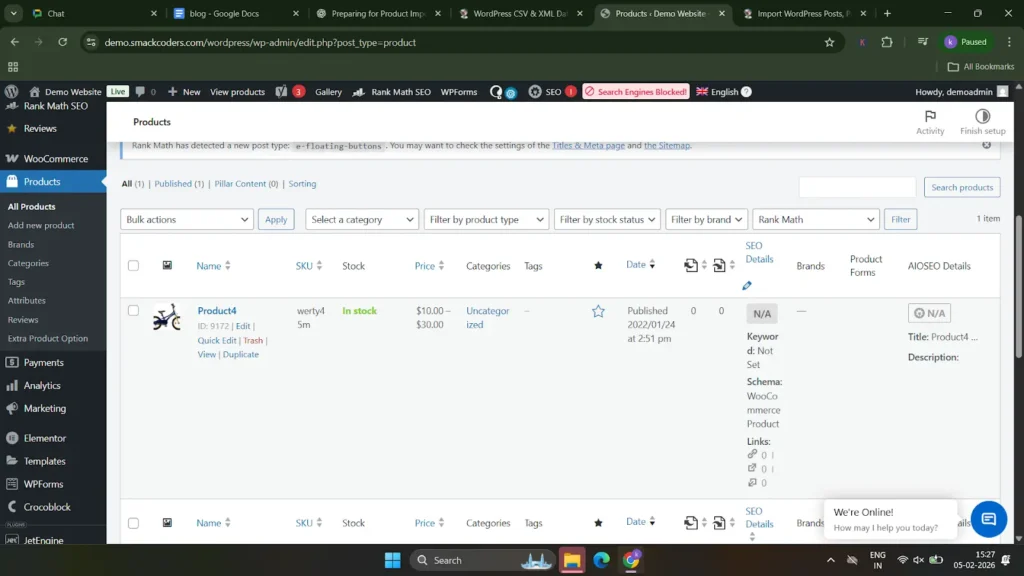
After the import is completed, go to Products and click All Products in WooCommerce to verify that the products are imported correctly.
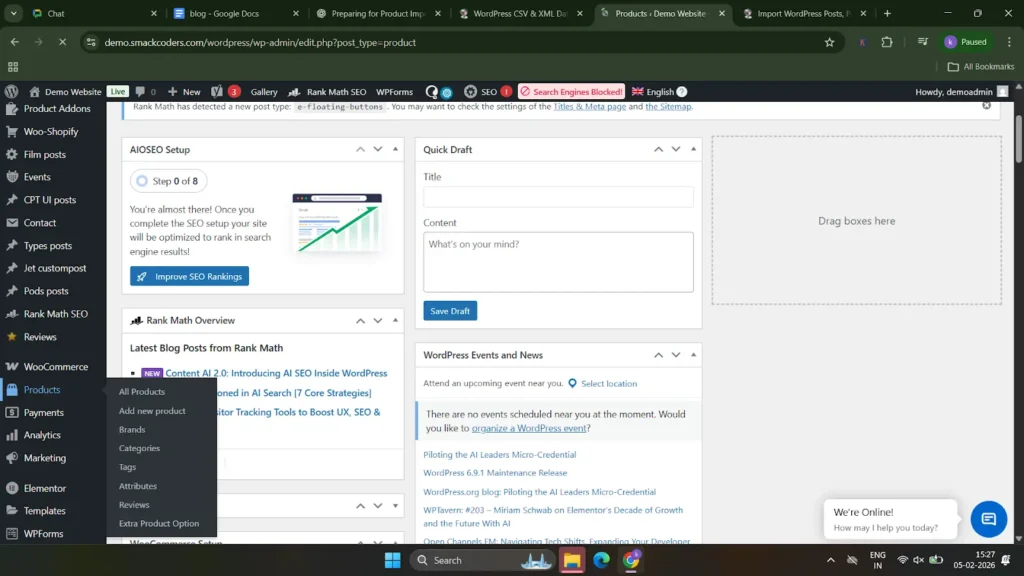
Check prices, images, categories, and stock details to ensure accuracy.
WP Ultimate CSV Importer Pro
Get Ultimate CSV/XML Importer to import data on WordPress faster, quicker and safer.
Best practices for smooth import of bulk products (10,000 or above)
Importing products becomes much easier when you follow a few simple best practices. These tips help beginners avoid common errors and ensure a smooth import process.
Make Sure Your File Is Ready
Before importing, ensure your CSV or XML file is properly prepared to avoid errors. Use the correct file format, keep column headers clear and accurate, fill in all required fields, remove empty rows or extra spaces, and save the file in UTF-8 format. A clean and well-structured file helps ensure a smooth and successful WooCommerce product import.
Double-Check Your Product Details
Before importing, carefully review all product details to ensure accuracy. Check product names, prices, categories, stock status, and descriptions for mistakes or missing data. Verifying these details in advance helps prevent incorrect product displays and reduces the need for re-imports later.
Use Unique Product Codes to avoid duplicates.
Always use unique product codes, such as SKUs, for each product to prevent duplicates during import. Unique SKUs help WooCommerce identify products correctly, making it easier to update existing items instead of creating repeated entries. This ensures a clean, organized, and duplicate-free product catalog.
Keep Images Light and Clear
Use optimized, high-quality images that are clear but not too large in size. Compress images before import and use supported formats like JPG or PNG to improve import speed and site performance. Light and clear images help your products load faster and look professional in your WooCommerce store.
Use server cron jobs instead of WordPress cron jobs.
Using server cron jobs is more reliable than WordPress cron jobs, especially for large product imports. Server cron runs tasks at fixed times regardless of site traffic, ensuring scheduled imports execute on time without interruption. This helps improve performance and makes bulk imports more stable and consistent.
Keep WooCommerce and import plugins updated.
Always keep WooCommerce and your import plugins updated to ensure compatibility, security, and better performance. Updates often fix bugs and improve import stability, helping you avoid errors during product imports and maintain a smooth workflow.
Run a test import with small samples.
Before importing all products, run a test import with a small sample of data. This helps you identify mapping errors, missing fields, or formatting issues early, saving time and preventing problems during the full import.
plan rollback strategy
Always plan a rollback strategy before starting the import. Take a full site or database backup so you can quickly restore your store if something goes wrong. A proper rollback plan ensures data safety and gives you confidence when importing products.
Frequently asked questions (FAQs)
1. How to import variable products in WooCommerce?
To import variable products in WooCommerce, first prepare a CSV or XML file with one row for the parent variable product and separate rows for each variation. Set the product type correctly, define attributes like size or color, and link variations to the parent using a parent SKU or product ID. Upload the file using the WooCommerce importer or an import plugin, map all fields properly, and run a small test import before completing the full import.
2. How to add products from Excel to WooCommerce?
To add products from Excel to WooCommerce, first convert the Excel file to a CSV format. Then upload the file using WP Ultimate CSV Importer, map the Excel columns to the correct WooCommerce product fields, configure import settings, and run a test import before importing all products.
3. How to prevent duplicate products from being imported?
You can prevent duplicate products by using unique SKUs for each product and enabling the update existing records option in WP Ultimate CSV Importer. This allows the plugin to match products correctly and update them instead of creating duplicates.
4. Is it possible to set up two daily imports – one for updating products and one for adding new ones?
Yes, it is possible. You can create two separate scheduled imports in WP Ultimate CSV Importer – one set to update existing products using SKUs and another set to add new products only. By configuring the update and duplicate-handling options correctly, both imports can run daily without conflicts.
5. How to automate products exported from WooCommerce?
You can automate products exported from WooCommerce by scheduling imports in WP Ultimate CSV Importer using the exported CSV file. Once the file is updated regularly, set up a scheduled import with server cron, enable the update option using SKUs, and WooCommerce products will be automatically added or updated without manual effort.
6. How to import products with images in WooCommerce?
You can import products with images in WooCommerce by including image URLs or file names in your CSV file and importing it using WP Ultimate CSV Importer. During import, map the image field correctly and enable media handling options so the plugin downloads and attaches images to products automatically.
7. Can I import other product types?
Yes, you can import other product types using WP Ultimate CSV Importer. The plugin supports simple, variable, grouped, virtual, downloadable, and external/affiliate products, as long as the product type and required fields are correctly defined in your import file.
Managing products in WooCommerce does not have to be time-consuming or stressful. By using automated product imports and advanced tools like WP Ultimate CSV Importer, you can save hours of manual work, reduce errors, and keep your store organized. Now is the perfect time to explore automation, experiment with powerful import plugins, and optimize your WooCommerce workflow. Start small, test confidently, and take your online store management to the next level.
If you have any questions or need help during the setup, the Smackcoders support team is here to help. Feel free to contact [email protected] for expert assistance.
