
Table of Contents
If you’re managing five, fifteen, or even fifty WordPress sites, you’ve probably noticed that “Update available” notifications now eat entire mornings. Plugin licenses multiply. Brand inconsistencies creep in between properties. A security patch on Site #12 quietly gets forgotten, until something breaks at 2 a.m.
These WordPress Multisite best practices exist for exactly this reason. Multisite, a feature built into WordPress core since version 3.0 (released in 2010), solves this by letting you run an unlimited number of sites from a single installation, single codebase, and single dashboard. The same architecture powers WordPress.com, Harvard’s blog network, and TED’s regional sites.
But Multisite isn’t a magic switch. Activating it without a plan often replaces old problems with worse ones, like one vulnerable plugin can compromise every site in the network and one viral post can crash all of them, and not every plugin even works in a multisite environment.
This guide covers the WordPress Multisite best practices that actually matter in production – following these from day one saves you from costly mistakes later. when Multisite is the right call, the architectural decisions you have to get right on day one, the security configurations that prevent network-wide compromise, and the specific tools that keep large networks stable as they grow.
What WordPress Multisite Actually Is: Best Practices Start Here
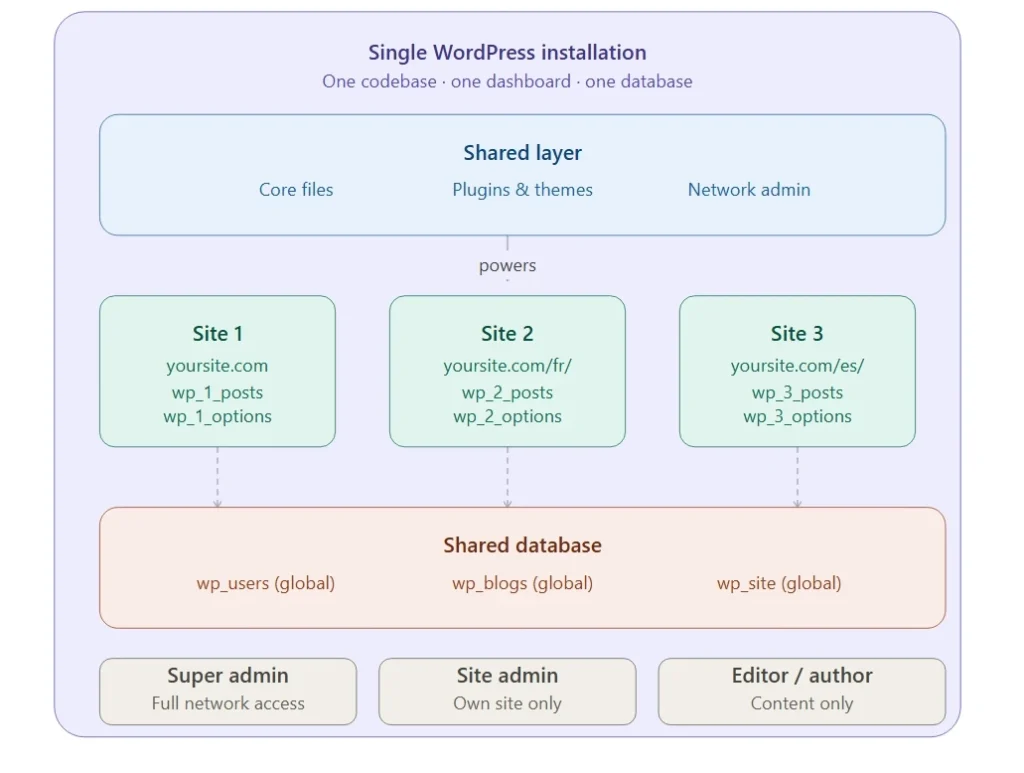
A standard WordPress install runs one site, one database, one set of files. Multisite changes the architecture in three ways:
- One codebase, many sites. WordPress core, plugins, and themes are installed once and shared across every site in the network.
- One database, mixed tables. All sites live in the same database. Some tables are global, most importantly wp_users, which means a single user account can access multiple sites. Other tables are duplicated per site with an ID prefix: wp_2_posts, wp_3_posts, and so on.
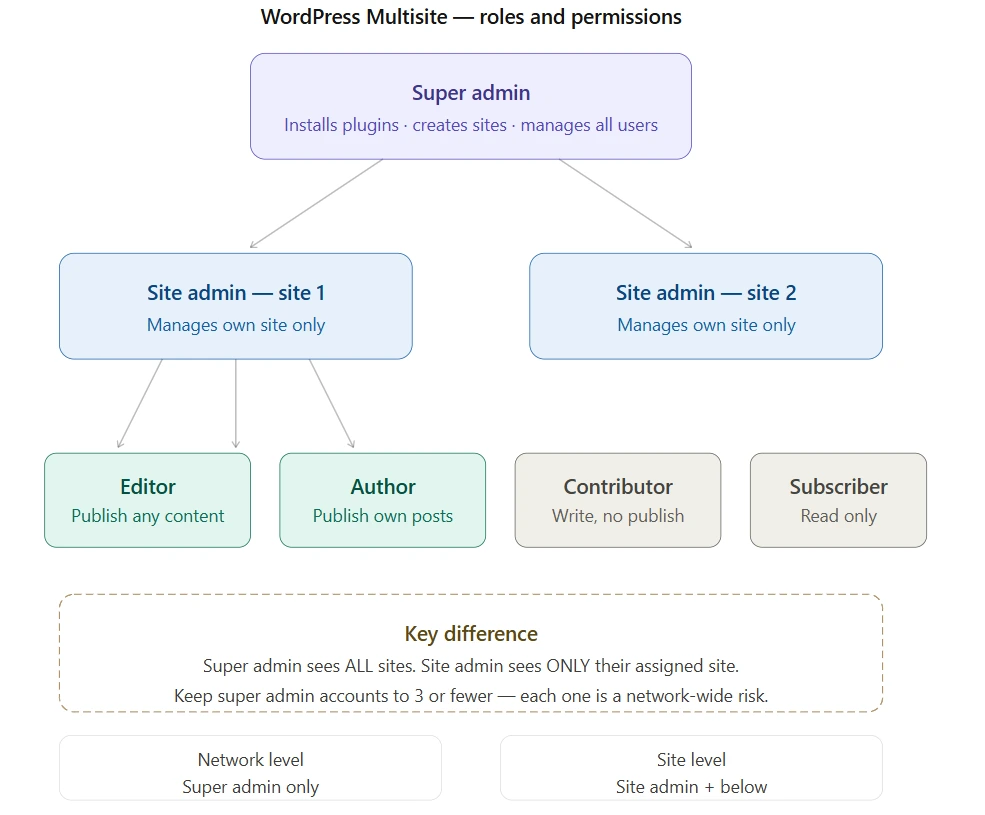
- A new role on top: Super Admin. Super Admins control the entire network such as creating sites, installing plugins, managing users across every property. Site Admins manage only their assigned site, with no visibility into others.
This shared-but-separated model is what makes Multisite efficient and what makes it risky. Update WordPress core once, and every site updates. Install a vulnerable plugin once, and every site is exposed. In 2026, many enterprises also run a hybrid setup – using Multisite as the content management backend while serving the frontend via headless frameworks like Next.js on Vercel or Netlify, consuming WordPress’s REST API per site.
When to Use Multisite and When Not To
Most “Multisite vs. separate installs” advice online skips the most useful question: when is Multisite the wrong tool?
Multisite is the right call when:
- Sites share a brand, parent organization, or administrative team (corporate regional sites, university departments, franchise locations, media networks).
- You need single sign-on across properties.
- The sites have similar functional requirements and can run on the same plugin and theme set.
- You want one team patching, backing up, and monitoring the whole network.
Multisite is the wrong call when:
- Sites need hard isolation for compliance reasons (PCI, HIPAA, GDPR data residency). A shared database means a shared blast radius.
- Sites have wildly different traffic profiles. A viral post on one site consumes resources every other site needs.
- Clients own their sites and may want to leave with their data. Migrating a single site out of a Multisite network is genuinely painful and often requires specialized tools.
- You need WooCommerce stores per site. WooCommerce technically works on Multisite, but payment gateways, tax handling, and shipping integrations frequently assume a single-site context. Most agencies running multi-store WooCommerce setups use separate installs.
- Plugin requirements differ significantly across sites. One plugin that doesn’t play nice with Multisite breaks the whole network.
A useful gut check: if you can’t list three things every site in your proposed network has in common, beyond “WordPress”, you probably want separate installs.
The Subdomain vs Subdirectory Decision
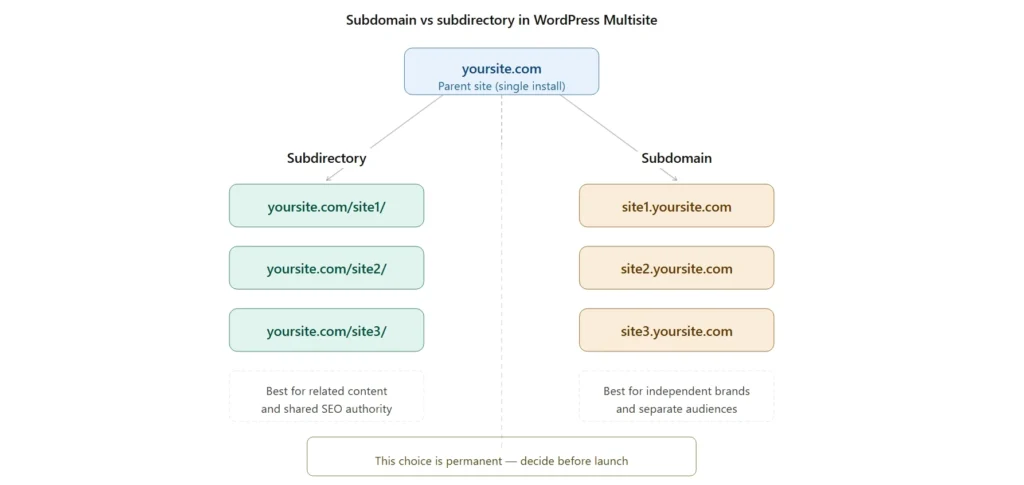
When you enable Multisite, WordPress forces a permanent choice during setup: subdirectories (yoursite.com/site2/) or subdomains (site2.yoursite.com). Switching later is technically possible but SEO-disruptive and requires URL redirects across the entire network. Decide carefully on day one.
Choose subdirectories when your sites share a brand, topic, or audience. For example, a corporate site with regional pages, or a publisher with topic verticals. Subdirectories let all sites share the parent domain’s accumulated authority, which is the simpler SEO win for related content.
Choose subdomains when sites are functionally independent, a university with department sites, a hosting reseller, or a network of unrelated brands. You’ll need wildcard DNS configured at the server level (*.yoursite.com) and each subdomain will need to be registered as a separate property in Google Search Console.
On the SEO debate: Google’s John Mueller has stated publicly that Search treats both structures equally. In practice, most SEO professionals report that subdirectories perform better for content that’s topically related to the parent domain, because backlink equity consolidates rather than distributing across what Google effectively treats as separate sites. If your sites are topically related, this is a real factor. If they aren’t, it doesn’t matter much.Domain mapping (giving each site its own top-level domain like clientsite.com) is supported via core WordPress since version 4.5. You don’t need a separate plugin anymore. You’ll still need to configure DNS and SSL for each mapped domain.
Security Hardening: The Three Configs You Set on Day One
Multisite security is fundamentally different from single-site security because of what security professionals call the “domino effect.” One compromised subsite, one vulnerable plugin, or one captured Super Admin account can expose every site on the network.
Three concrete hardening steps every Multisite network should implement before going to production:
Security is where WordPress Multisite best practices matter most – one vulnerability affects every site in the network.
1. Restrict file modifications. Add this line to wp-config.php:
define(‘DISALLOW_FILE_MODS’, true);
This prevents any user, including Super Admins, from installing, updating, or editing plugins and themes through the dashboard. It eliminates an entire class of remote code execution vulnerabilities, including documented CVEs like CVE-2024-31210 that specifically targeted Super Admin plugin uploads on Multisite. Updates then happen through WP-CLI or your deployment pipeline, which is how serious teams should be doing it anyway.
2. Force HTTPS for all admin sessions. Add to wp-config.php:
define(‘FORCE_SSL_ADMIN’, true);
Combined with HSTS headers at the server level, this stops admin cookies from ever traveling unencrypted.
3. Limit Super Admin accounts ruthlessly. A Super Admin can install plugins, create sites, reset any user’s password, and access every subsite’s data. Three or fewer is a reasonable target for most networks. Require multi-factor authentication on all of them. Wordfence and WP 2FA both work network-wide.
Beyond the basics:
- Disable XML-RPC unless you actively use it (the Disable XML-RPC plugin handles this).
- Set file permissions to 644 for files and 755 for directories. Never 777.
- Audit network-active plugins quarterly. Every network-active plugin runs on every site, a vulnerability anywhere is a vulnerability everywhere.
- Use a network-activated security plugin like Wordfence or Sucuri for centralized monitoring and a web application firewall.
Performance and Scaling Without Surprises
Multisite shares server resources across every site, which means a traffic spike on one property degrades performance for all of them. The performance work is mostly the same as single-site WordPress, but a few practices matter more in a Multisite context:
Object caching is non-optional. With shared global tables (especially wp_users and wp_options), object caching with Redis or Memcached produces noticeable improvements as the network grows. On managed hosts like Kinsta, WP Engine, or Pantheon, this is configured at the platform level. On VPS or dedicated hosting, you’ll install and configure it yourself.
Page caching needs a Multisite-aware plugin. WP Rocket, W3 Total Cache, and LiteSpeed Cache all support Multisite. Cheap or older caching plugins often don’t and will serve cached content from the wrong site, a confusing failure mode that’s hard to debug.
Use a CDN for static assets. Cloudflare’s free tier handles most networks; for high-traffic sites, Bunny.net or KeyCDN offer better cache control. The CDN reduces load on your origin server, which matters disproportionately when one server is handling every site.
Database management gets more important at scale. Each new site adds roughly nine new tables. At 50+ sites, you have hundreds of tables, and unoptimized queries start showing up in slow query logs. WP-Optimize (with Multisite support) and a quarterly review of slow query logs catch most issues. For very large networks (hundreds or thousands of sites), HyperDB allows you to split tables across multiple database servers, this is what WordPress.com itself uses.
Hosting matters more than for single sites. Shared hosting almost never works well for Multisite past two or three sites. Realistic minimums: VPS for small networks, managed WordPress hosting (Kinsta, WP Engine, Pantheon, Pressable) for anything serious. Container-based platforms isolate sites within shared infrastructure, which is the architectural sweet spot for Multisite at scale. Minimum recommended specs for a stable Multisite setup: 4GB RAM, high-frequency CPUs, and PHP 8.3+.
The Tools That Actually Work for Multisite
Plenty of WordPress plugins claim Multisite compatibility but have rough edges. The list below is what’s currently considered production-grade by most agencies running networks at scale. Check current Multisite compatibility before installing plugin support changes.
Security:
- Wordfence – Network-level firewall, malware scanning, two-factor authentication. Network-activated.
- Sucuri Security – Stronger if you also use their cloud WAF. Better suited to large networks.
- WP 2FA – Two-factor authentication enforcement across the network.
- WP Activity Log – Tracks changes across every site for audit and incident response.
Backups:
- UpdraftPlus – The most popular Multisite-compatible backup plugin. Restores the whole network or individual sites.
- Solid Backups (formerly BackupBuddy) – Stronger restore controls, paid.
- Duplicator Pro – Best for migrations, including extracting single sites out of a Multisite network.
Performance:
- WP Rocket – Multisite-compatible caching, easiest setup.
- W3 Total Cache – More configuration, free.
- LiteSpeed Cache – Free, excellent if you’re on LiteSpeed-based hosting.
- WP-Optimize – Database cleanup with Multisite support.
Network management:
- WP Multi Network – Lets you run multiple separate networks within a single Multisite install (advanced use case).
- Multisite Enhancements – Adds useful admin columns and quality-of-life improvements to the Network Admin dashboard.
- User Switching – Network admins can impersonate users to debug per-site issues without resetting passwords.
- WP-CLI – Not a plugin, but the single most useful Multisite tool. Update bulk plugins, reset passwords, and run maintenance across all sites from the terminal in seconds.
WordPress Multisite Best Practices: 5 Mistakes to Avoid
After narrowing the field to mistakes that actually break things in production:
1. Network-activating too many plugins. Every network-active plugin runs on every site, on every page load. The more you network-activate, the larger your performance and security blast radius. Network-activate only what genuinely needs to run everywhere (security, caching, analytics). Activate everything else per-site.
2. Treating staging as optional. A WordPress core update on Multisite touches every site simultaneously. Test in staging first, every time. Most managed hosts give you a staging environment for free.
3. Letting Super Admin counts grow. Every new Super Admin is another credential that, if compromised, hands an attacker the entire network. Audit the list quarterly. Anyone who doesn’t actively need network-level access should be a Site Admin instead.
4. Forgetting that uploads share storage. By default, all sites upload to a shared /wp-content/uploads/sites/{id}/ structure. One site uploading multi-gigabyte videos can fill the disk for everyone. Set per-site upload quotas in Network Settings, or offload media to S3 with a plugin like WP Offload Media.
5. Skipping migration planning. A site may need to leave the network, be sold to a client, be spun off as its own brand, or be archived. Tools like Duplicator Pro and All-in-One WP Migration handle Multisite-to-single-site extraction, but neither is push-button. Test your extraction process before you need it for real.
Managing content migrations across a Multisite network? WP Ultimate CSV Importer Pro supports Multisite – import posts, pages, and custom post types across sites in bulk. [Learn more →]
Conclusion
WordPress Multisite is a force multiplier for teams managing related sites at scale. Set up correctly, with the right hosting, hardened configurations, named-and-tested tools, and a clear understanding of when not to use it, it cuts maintenance time substantially and enforces consistency that’s nearly impossible to achieve across separate installs.
When set up carelessly, it concentrates risk and creates exactly the maintenance nightmare it was supposed to solve.
The decisions that matter most are the ones you make before launch: subdirectory vs subdomain, hosting tier, the three security configs in wp-config.php, and an honest answer to whether your sites actually belong in a network at all.
Running a WordPress Multisite network at scale? Smackcoders builds plugins designed for high-volume WordPress environments. [Explore our plugins →]
1. What is WordPress Multisite?
WordPress Multisite is a built-in WordPress feature that lets you run multiple websites from a single WordPress installation. All sites share the same core files, plugins, and themes, but each site has its own content, settings, and (in most cases) its own subset of users. The whole network is administered from a single network admin dashboard.
2. When should I use WordPress Multisite?
Use Multisite when you’re managing multiple related sites under one organization or team, universities, franchises, regional corporate sites, or media networks with shared editorial control. Avoid it when sites need data isolation, have wildly different traffic patterns, or might need to be sold or migrated independently.
3. How is Multisite different from separate WordPress installations?
Separate installations are fully independent: they have their own database, their own plugins, their own everything. Multisite shares the WordPress core, the codebase, and the database (with per-site tables) across all sites. Multisite reduces maintenance overhead but couples the sites together, a problem on one site can affect the others.
4. Can I use WooCommerce on WordPress Multisite?
Technically, yes, but most agencies don’t recommend it for production multi-store setups. Payment gateway integrations, tax plugins, and shipping calculators frequently assume a single-site context, and per-site customization can become difficult. If you need multiple distinct stores, separate WooCommerce installs are usually the safer path.
5. How do I migrate a single site out of a Multisite network?
It’s harder than migrating a standard WordPress site. The recommended path is to use Duplicator Pro, All-in-One WP Migration (Multisite extension), or WP Ultimate CSV Importer, combined with manual database adjustments. Plan your extraction process before you need it, this is the single biggest reason agencies regret choosing Multisite for client work.
6. Does Multisite affect website performance?
Yes, because all sites share server resources. A traffic spike on one site consumes resources every other site needs. Mitigate with object caching (Redis or Memcached), Multisite-aware page caching (WP Rocket, W3 Total Cache), a CDN, and managed hosting designed for Multisite workloads.
7. Is WordPress Multisite secure?
It can be, but the architecture concentrates risk. One vulnerable network-active plugin or one compromised Super Admin account can expose every site. The three baseline hardening steps: set DISALLOW_FILE_MODS in wp-config.php, enforce FORCE_SSL_ADMIN, and keep Super Admin accounts to a minimum with mandatory MFA.
8. What’s the maximum number of sites in a Multisite network?
There’s no hard limit. WordPress.com runs millions of sites on Multisite architecture. Practical limits depend on your hosting infrastructure and database performance. Most agencies start hitting friction around 50–100 sites without specialized hosting; large enterprise networks use HyperDB or sharded architectures for thousands of sites.
