
Table of Contents
Exporting WooCommerce orders to Google Sheets helps store owners, bloggers, and developers manage, analyze, and share order data more efficiently. Rather than relying on static reports in WordPress or manually exporting CSV files, which can be time-consuming and error-prone, Google Sheets provides real-time access to your data, with options to filter, sort, and collaborate instantly. This makes it easier to track sales trends, manage inventory, reconcile accounts, and share information with your team without giving direct access to your store dashboard.
While some methods attempt to export WooCommerce orders to Google Sheets without plugins, they are often unreliable, difficult to automate, and not suitable for large stores. Using WP Ultimate CSV Importer Pro offers a structured, secure, and beginner-friendly way to export WooCommerce orders accurately, with features like advanced filtering, scheduled exports, and automated syncing, allowing you to keep a real-time, easy-to-use WooCommerce orders spreadsheet.
Key Takeaways
- Export WooCommerce orders directly to Google Sheets for easy reporting and collaboration.
- WP Ultimate CSV Importer Pro simplifies the export process, even for large stores.
- Advanced filters allow exporting by date range, product, payment method, or order status.
- Scheduled exports automate your workflow and keep data up to date.
- Performing a quick pre-export checklist prevents errors and ensures accurate data.
- The plugin is beginner-friendly but powerful enough for advanced users.
Benefits of Exporting WooCommerce Orders to Google Sheets
Exporting WooCommerce orders to Google Sheets makes order management faster and more flexible. Instead of checking reports inside WordPress, store owners can work with data in a simple spreadsheet format.
Simplified reporting
Easily create sales summaries, tax reports, and performance metrics using Google Sheets formulas and filters.
Real-time collaboration
Share order data with accountants, marketing teams, or fulfillment partners without giving WordPress access.
Automation and efficiency
Scheduled exports reduce manual work and keep your order data up to date automatically.
Data backup and security
Keeping orders in Google Sheets provides an additional backup outside your WordPress database.
Scalability for high-traffic stores
Regular exports help store owners organize data efficiently and optimize WordPress for high traffic by reducing the amount of admin-side data processing.
These benefits explain why many store owners prefer exporting WooCommerce orders to Google Sheets instead of relying solely on dashboard reports.
What is WP Ultimate CSV Importer?
WP Ultimate CSV Importer is a powerful WordPress plugin for importing and exporting data on WordPress and WooCommerce websites. It helps store owners and developers manage WooCommerce orders without needing custom scripts or technical setup. The plugin supports direct export of WooCommerce orders to Google Sheets, making data handling simple and efficient.
It is built to handle large order volumes smoothly, which is important for high-traffic stores. With features like advanced filtering, scheduled exports, and a guided workflow, WP Ultimate CSV Importer is suitable for beginners and advanced users who need precise control over their exports.

WP Ultimate CSV Importer Pro
Get Ultimate CSV/XML Importer to import data on WordPress faster, quicker and safer.
What Should We Do Before Exporting Orders
Before exporting WooCommerce orders, it is important to check that your store data is ready. Make sure orders exist, required fields are available, and access permissions are correctly set. This preparation helps avoid errors and ensures accurate exports to Google Sheets.
Step 1: Install and Activate the WP Ultimate CSV Importer Pro Plugin
First, visit the Smackcoders website and go to the My Account page. Log in to your account or create one if you are new. After logging in, purchase the WP Ultimate CSV Importer Pro version and download the plugin ZIP file.
Then, log in to your WordPress admin dashboard, upload the downloaded file from the Plugins section, install it, and activate the plugin. Once activated, the plugin will appear in your dashboard, confirming it is ready to use.
Step 2: Verify WooCommerce Order Settings
Before exporting, make sure your WooCommerce store has orders available. Open the Orders section in your WordPress dashboard and confirm that the order statuses you plan to export, such as Processing or Completed, are present. Also, ensure each order contains essential details like customer information, purchased products, and payment status. Verifying this in advance helps prevent empty exports, missing orders, and failed export processes.
Step 3: Configure Google OAuth Access for WP Ultimate CSV Importer
To export WooCommerce order data into Google Sheets, WP Ultimate CSV Importer needs secure authorization to interact with your Google account. This is done using Google OAuth, which allows the plugin to create and update spreadsheets without exposing your Google login credentials.
Create a New Google Cloud Project
Begin by signing in to the Google Cloud Console using the Google account you plan to connect with Google Sheets. At the top of the console, click Select a project and choose New Project.
Provide a project name and click Create.
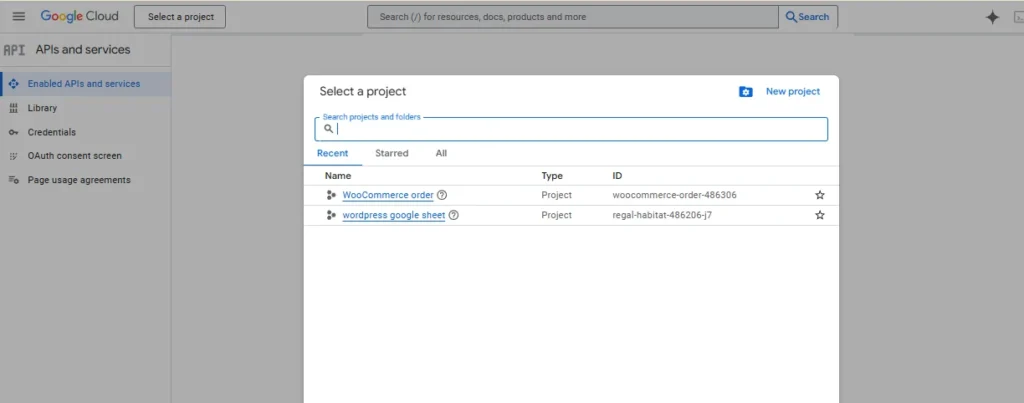
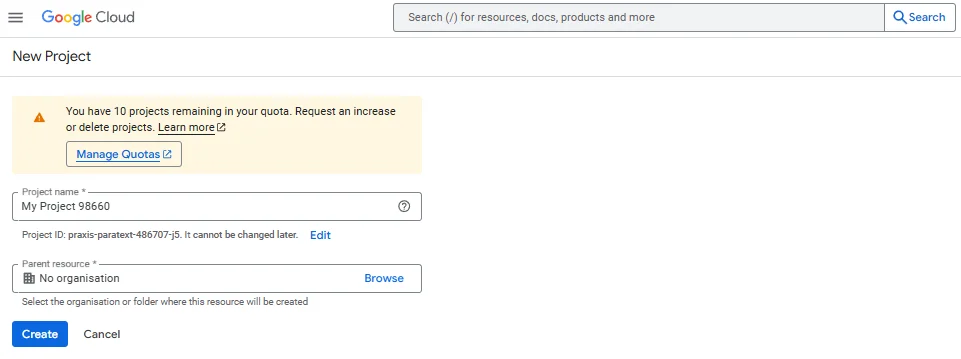
Once the project is created, ensure it is selected as the active project. This project will be used to generate the Client ID and Client Secret required by WP Ultimate CSV Importer.
Enable the Google Sheets API
With your project selected, open APIs & Services from the Google Cloud Console menu.
Navigate to Library, search for Google Sheets API, and enable it for your project.
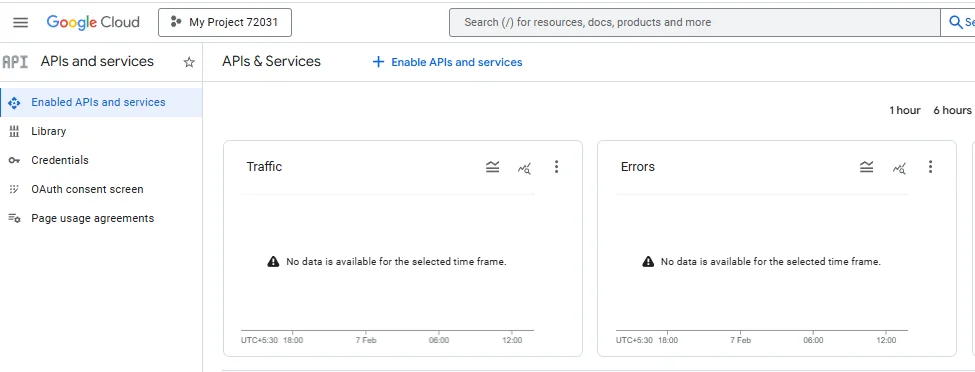
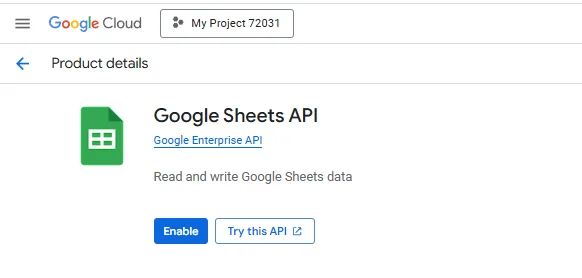
Enabling this API allows WP Ultimate CSV Importer to send WooCommerce order data directly to Google Sheets. Without it, the plugin will not be able to access or modify spreadsheets.
Set Up the OAuth Consent Screen
After enabling the API, go back to APIs & Services and open the OAuth consent screen.
Start by entering an application name. This name will be shown to you when Google asks for permission during authentication.
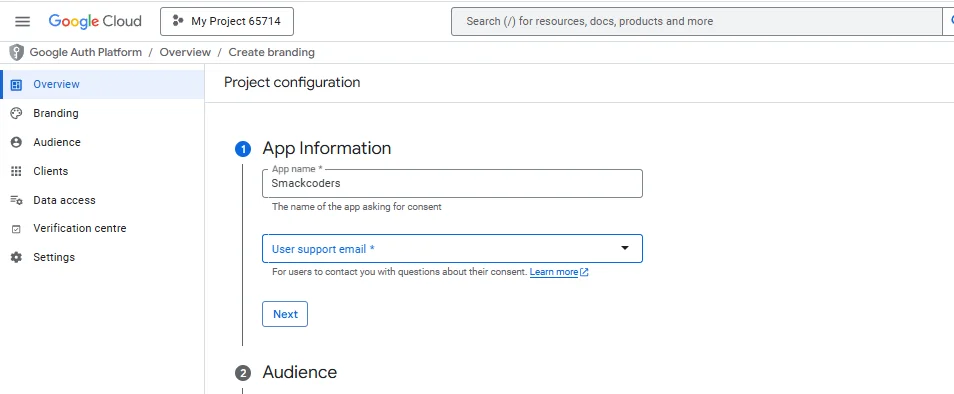
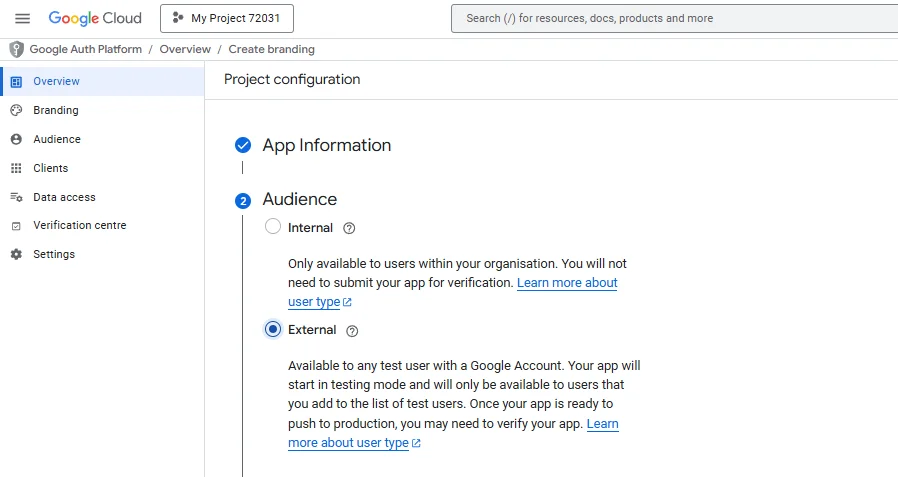
For User Type, select External, which allows the plugin to connect with your Google account.
Add your email address in the required fields, save the configuration, and continue to the next step.
Generate OAuth Client ID and Client Secret
Next, open the Credentials section under APIs & Services and click Create Credentials → OAuth Client ID.
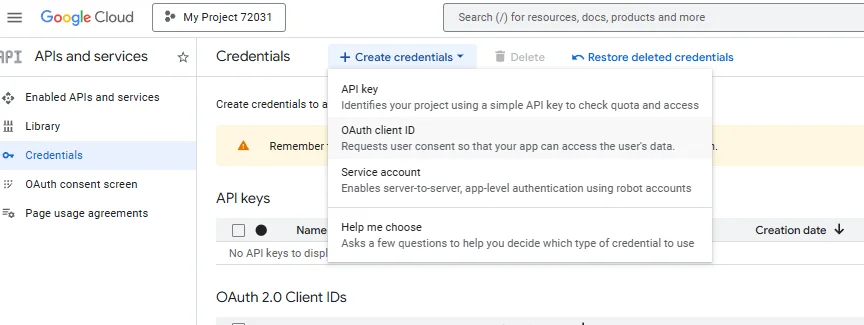
Choose Web application as the application type.
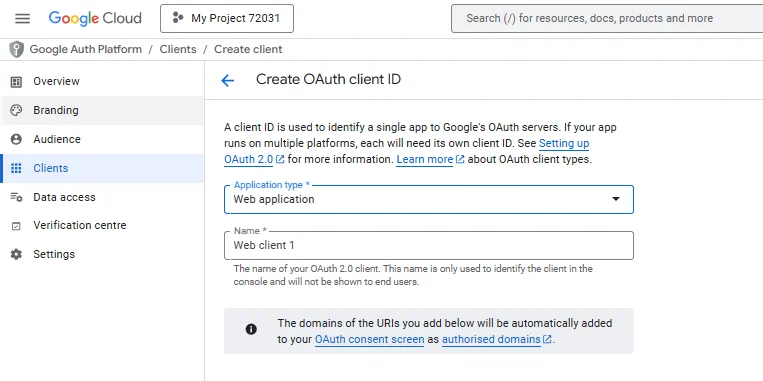
Add Authorized URLs
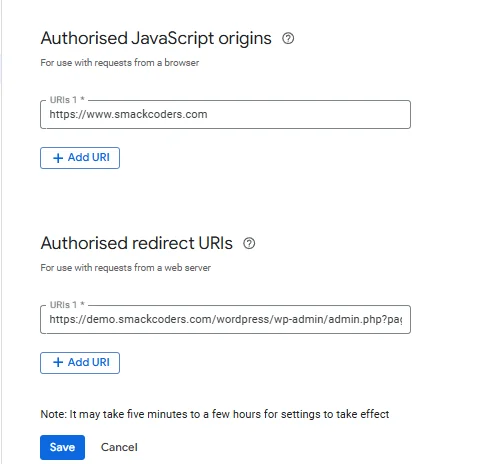
Scroll down to find the fields for authorized URLs:
- Authorized JavaScript origins
Enter your website’s base URL (for example, https://yourdomain.com). This tells Google which site is allowed to initiate authentication requests. - Authorized Redirect URLs
Open the WP Ultimate CSV Importer Settings page in your WordPress dashboard, copy the full page URL from the browser, and paste it into this field.
After saving, Google will generate a Client ID and Client Secret. Keep these details handy for the next step.
Connect Your Google Account in WP Ultimate CSV Importer
Return to your WordPress admin area and open the WP Ultimate CSV Importer → Settings page.
- Paste the Client ID and Client Secret into the corresponding fields.
- Add the authorized redirect URL if required, then save the settings.
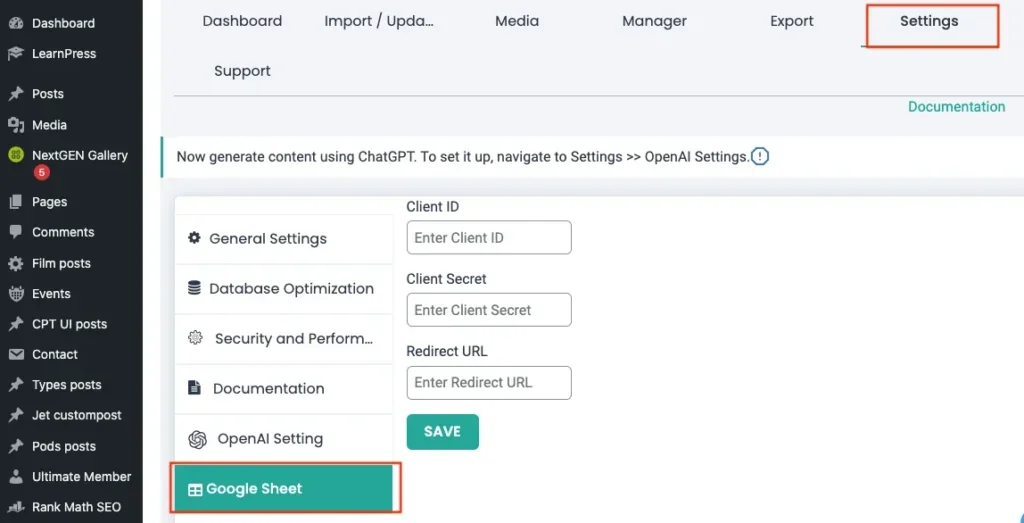
Click the option to connect your Google account. Once authentication is successful, you’ll see a confirmation message indicating that the plugin is now authorized to export WooCommerce orders to Google Sheets.
Step 4: Confirm Google Sheets Permissions
After connecting your account, Google will prompt you to grant access permissions. Make sure you allow access so the plugin can create and update spreadsheets.
If exported data does not appear in Google Sheets, double-check that:
- You approved access during the OAuth prompt
- The correct Google account was used during authentication
Permission issues often occur when access is denied or a different account is selected.
Step 5: Pre-Export Checklist for WooCommerce Orders
Before exporting, confirm that WP Ultimate CSV Importer is active and connected to your Google account. Make sure WooCommerce orders are available for export and Google Sheets permissions are approved. This quick check helps prevent export failures.
How to Export WooCommerce Orders to Google Sheets Using WP Ultimate CSV Importer
This section explains how to export WooCommerce orders to Google Sheets using WP Ultimate CSV Importer, from selecting the data to verifying the exported spreadsheet. Follow these steps to ensure accurate and successful exports.
Open the Export Module
From your WordPress dashboard, open WP Ultimate CSV Importer and click on the Export option. This will take you to the export screen, where you can start exporting WooCommerce orders to Google Sheets.
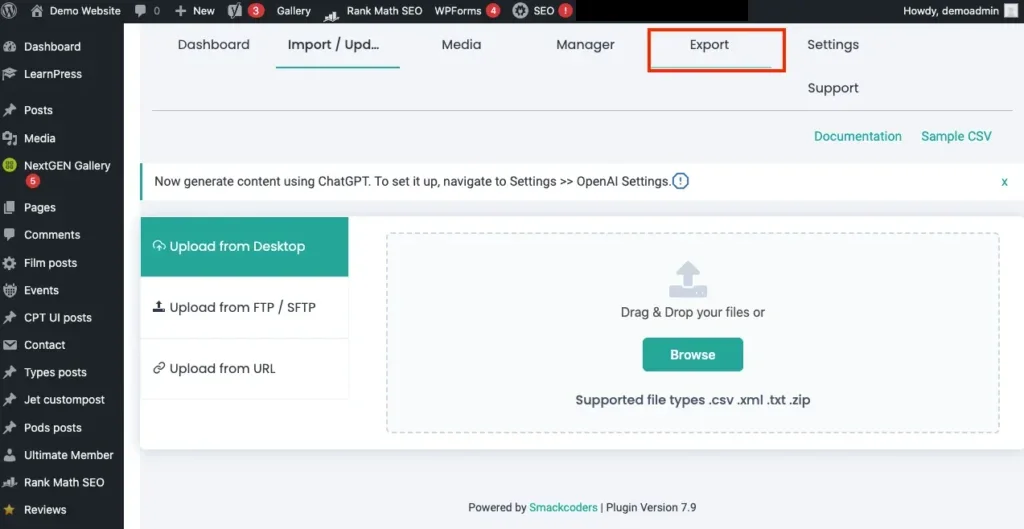
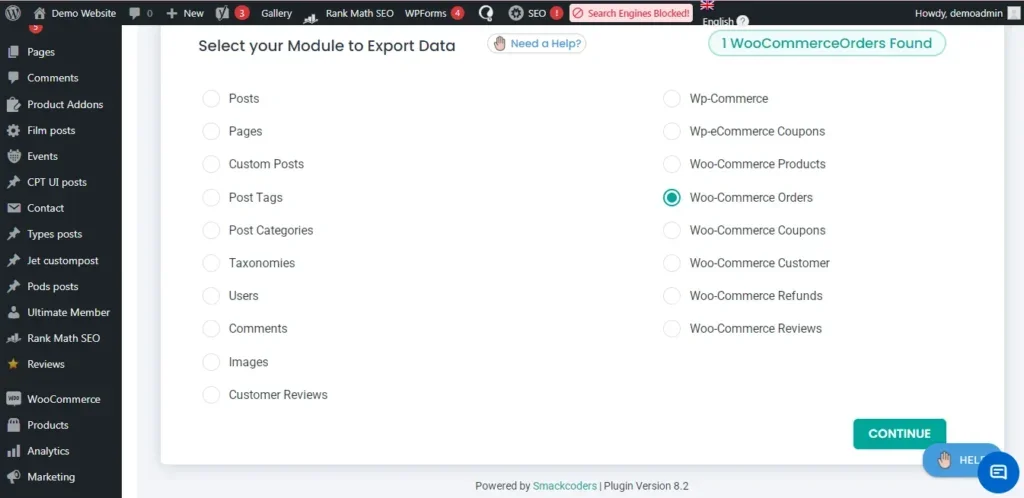
Select WooCommerce Orders
From the post type list, select WooCommerce Orders. When you choose this option, the total number of WooCommerce orders available on your WordPress site will be displayed next to it, helping you confirm how many orders will be exported.
WP Ultimate CSV Importer Pro
Get Ultimate CSV/XML Importer to import data on WordPress faster, quicker and safer.
Configure Basic Export Settings
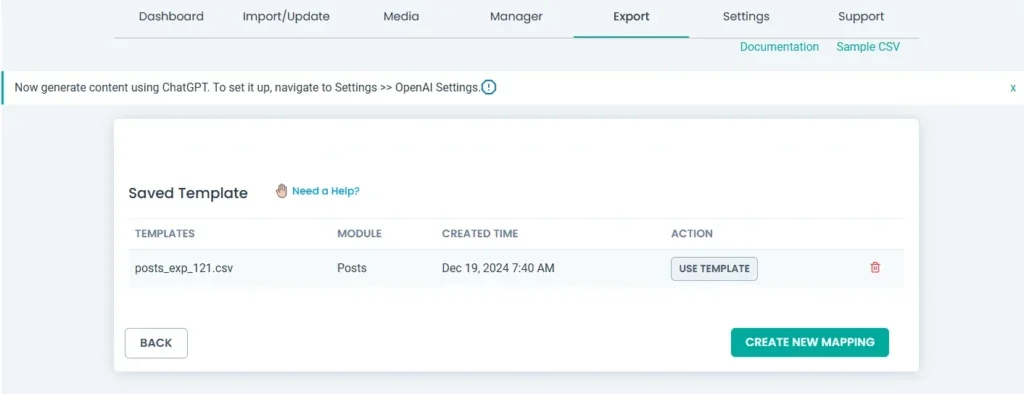
At this stage, you can choose to use an existing mapping template or create a new one for your export. If you select Create New Mapping, you will be taken to the next screen to configure advanced settings and apply filters as needed.
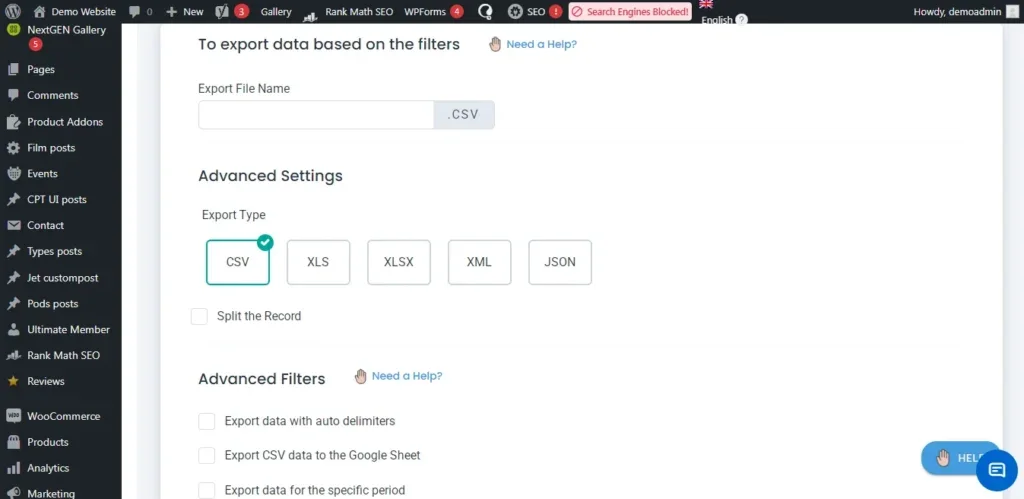
Enter a name for the export file and select the required file type from the Advanced Export Settings. For large WooCommerce order exports, enabling the split records option can help improve performance and prevent timeouts, or configure batch processing to completely avoid these errors.
Configure Advanced Export Filters
WP Ultimate CSV Importer provides several export options that help you control how WooCommerce orders are sent to Google Sheets.
- Export CSV data to Google Sheets allows you to export WooCommerce order data directly into Google Sheets. Enable this option to choose Google Sheets as the export destination.
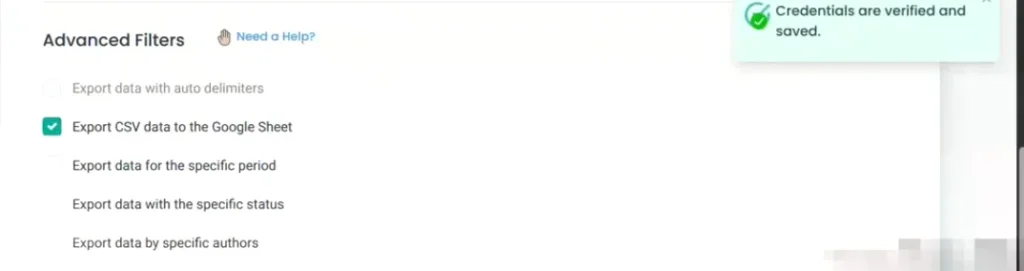
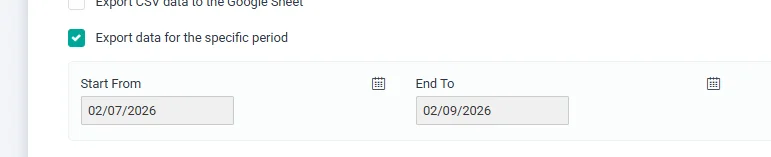
- Export data for a specific date range helps you export WooCommerce orders created within a selected time period. Enable this option and enter the From Date and To Date fields. Only orders placed between these two dates will be exported. For example, you can enter the first and last date of a month to generate a monthly sales report.
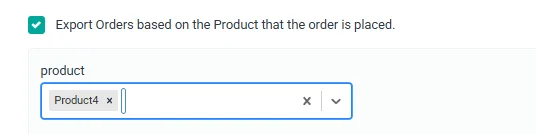
- Export data by product lets you export orders that include a specific product. Enable this filter and select the required product from the product list. Only WooCommerce orders that include the selected product will be exported to Google Sheets.
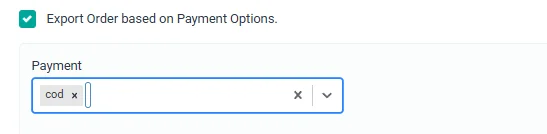
- Export data by payment method lets you export WooCommerce orders based on how customers paid for their orders. Enable this option and select the required payment method from the available options. This is useful when you want to review or reconcile payments made through a specific gateway.
- Export data with a specific order status allows you to export WooCommerce orders based on their current status. Enable this filter, then select one or more order statuses, such as Pending Payment, Processing, On Hold, Completed, or Cancelled. Only orders matching the selected status will be included in the export.
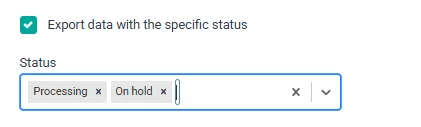
By entering the correct values for each filter, you can export only the WooCommerce orders you need and keep your Google Sheets clean, accurate, and easy to manage.
Schedule Automatic Exports to Google Sheets
WP Ultimate CSV Importer Pro allows you to automate WooCommerce order exports to Google Sheets. This feature helps keep your spreadsheet updated without running the export manually each time.
To enable scheduling, turn on the scheduled export option and choose how often the export should run, such as daily, weekly, or monthly. Set the preferred time and apply the required filters, like date range or order status. Once saved, the plugin will automatically export new or updated WooCommerce orders to Google Sheets based on the schedule.
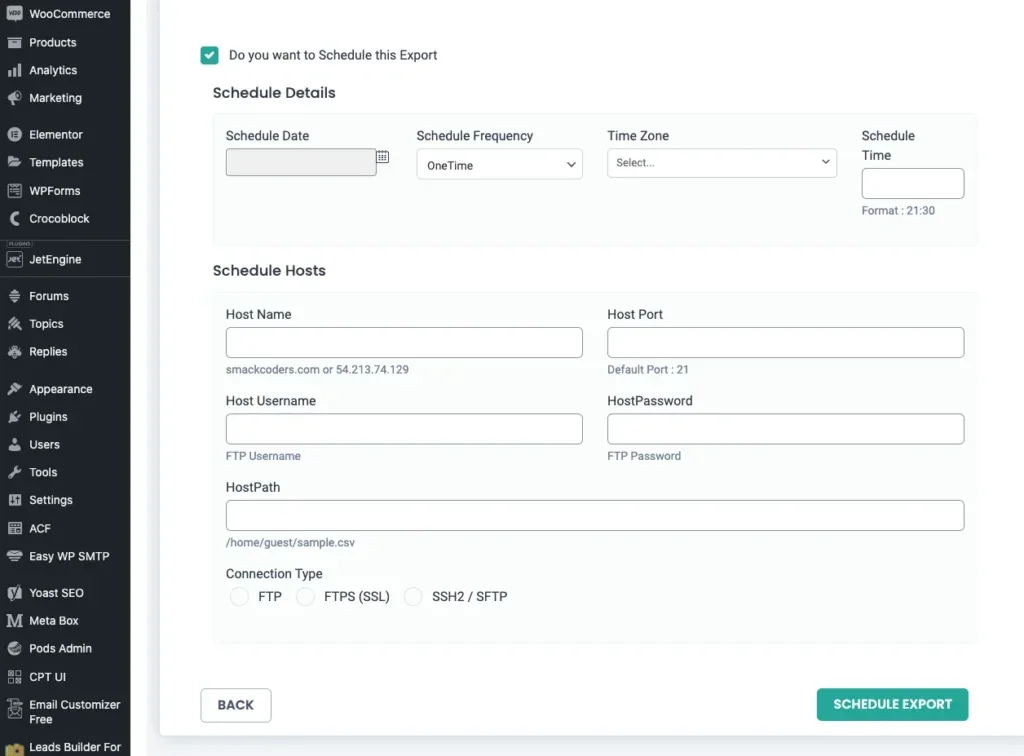
Scheduled exports are useful for regular sales tracking, accounting updates, and team reporting, as your Google Sheets will always contain the latest order data.
Run the Export Process and Verify the Export
After configuring all export settings and filters, click the Export button to start the process. WP Ultimate CSV Importer Pro will export the selected WooCommerce orders to Google Sheets.
Once the export is completed, you will see Download and G-Sheets options. Click the G-SHEETS option to open the exported WooCommerce orders directly in Google Sheets. Review a few records to confirm that order details such as customer information, products, payment method, and order status are exported correctly.
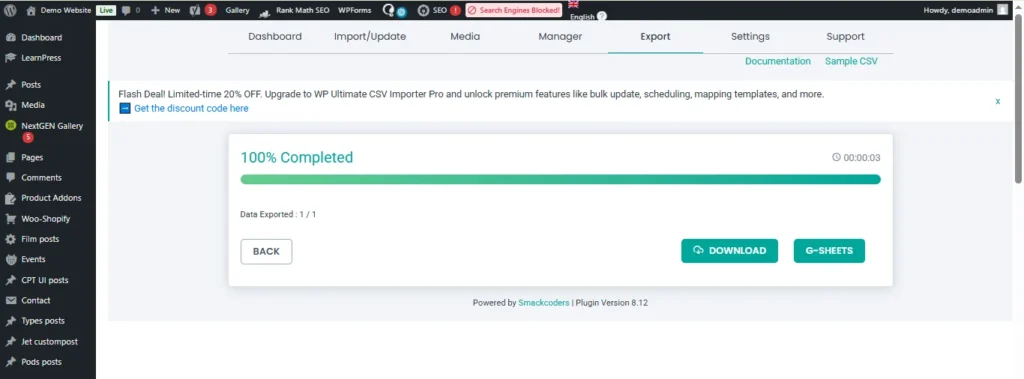
This verification step ensures the export was completed successfully and the data is accurate.
WP Ultimate CSV Importer Pro
Get Ultimate CSV/XML Importer to import data on WordPress faster, quicker and safer.
Use Cases for Exporting WooCommerce Orders to Google Sheets
Exporting WooCommerce orders to Google Sheets is useful in many day-to-day business scenarios. Store owners often use Google Sheets to create sales reports by filtering orders based on date, product, or payment method. This makes it easier to track performance without logging into WordPress repeatedly.
For accounting and payment reconciliation, exported order data helps teams verify transactions, calculate totals, and share reports with accountants. Since Google Sheets updates in real time, finance teams can access the latest order data whenever needed.
Google Sheets is also helpful for inventory planning. By reviewing product-level order data, store owners can identify fast-selling items and plan stock replenishment accordingly.
Team collaboration becomes easier when WooCommerce orders are shared in Google Sheets. Customer support, sales, and management teams can access the same order data, add notes, and coordinate actions without exporting files manually.
Common Issues and Troubleshooting
While exporting WooCommerce orders to Google Sheets using WP Ultimate CSV Importer Pro is generally smooth, you may occasionally encounter issues. Most of these problems are easy to resolve with a few simple checks.
Common Problems and Solutions
| Issue | Possible Cause | Solution |
| Google authentication error | Client ID, Client Secret, or Redirect URL is incorrect | Recheck the credentials in Google Cloud and ensure the Redirect URL matches exactly |
| Google Sheets was not created | Google Sheets API not enabled | Go to Google Cloud Console and enable the Google Sheets API for the project |
| Orders are missing in the export | Filters applied incorrectly | Review date range, order status, product, or payment method filters |
| Permission denied error | Google account access not approved | Reconnect the Google account and allow all requested permissions |
| Export fails for large orders | Server timeout or memory limit | Enable the split records option or export data in iterations (batch export) |
Additional Tips
If issues persist, ensure that WP Ultimate CSV Importer and WooCommerce are updated to the latest versions. Clearing cache plugins and retrying the export can also help resolve temporary conflicts.
By following these troubleshooting steps, most export-related issues can be resolved quickly without technical expertise.
Wrap Up
Exporting WooCommerce orders to Google Sheets makes order management easier and more efficient. It helps store owners improve reporting, share data with teams, and avoid manual exports. Keeping order data in Google Sheets also ensures better organization and quick access when needed.
With WP Ultimate CSV Importer Pro, you can securely export WooCommerce orders, apply filters, and schedule automatic exports directly to Google Sheets. The plugin is built to handle large order volumes and supports both beginners and advanced WooCommerce users.
If you have any questions or need help during the setup, the Smackcoders support team is here to help. Feel free to contact them at [email protected] for expert assistance.
Frequently Asked Questions
1. How do I export bulk orders from WooCommerce?
You can export bulk orders from WooCommerce by using an export plugin like WP Ultimate CSV Importer Pro. It allows you to select all WooCommerce orders, apply filters if needed, and export them in bulk directly to Google Sheets or other file formats.
2. What is the best export plugin for WooCommerce orders?
WP Ultimate CSV Importer Pro is one of the best export plugins for WooCommerce orders. It supports large data volumes, advanced filtering, scheduled exports, and direct integration with Google Sheets, making it suitable for both beginners and advanced users.
3. How do I export all orders from WooCommerce?
To export all orders, select WooCommerce Orders in the export module and avoid applying any filters. WP Ultimate CSV Importer Pro will export all available orders from your store into your chosen destination, such as Google Sheets.
4. How do I export WooCommerce orders to Excel?
WP Ultimate CSV Importer Pro allows you to export WooCommerce orders in Excel-compatible formats such as CSV or XLS. You can then open these files directly in Microsoft Excel for further analysis.
5. How does WP Ultimate CSV Importer Pro handle large order exports?
WP Ultimate CSV Importer Pro is optimized for large datasets. It includes options like split records and scheduled exports, which help prevent server timeouts and ensure smooth exports even for stores with thousands of orders
