All languages
 English
 Japanese
 Spanish


Table of Contents
Importing users and customers into WordPress using a CSV file is one of the fastest and most reliable ways to manage bulk user creation. Instead of creating accounts manually one by one, you can upload a single CSV file and automatically generate hundreds or even thousands of WordPress user accounts in minutes using a WordPress CSV user import plugin.
This method is highly useful for real-world website management scenarios such as site migrations, membership platforms, LMS websites, and corporate portals. WooCommerce store owners also commonly use CSV imports when moving customers from another platform or restoring customer records from CRM exports. Since WordPress does not provide a built-in CSV import feature for users by default, using a dedicated plugin becomes the most practical approach for bulk user import tasks in WordPress tasks, especially when accuracy and time-saving are important.
In this guide, you will learn how to import users into WordPress using CSV and also how to import WooCommerce customers using CSV with the correct format and field structure. You will understand how user roles and permissions work, why field mapping is necessary, and how to avoid common import errors. The tutorial will focus on WP Ultimate CSV Importer, a popular and effective CSV user import plugin that WordPress site owners and developers use for smooth bulk user and customer imports.
Key Takeaways
- Importing users and customers into WordPress using CSV is one of the fastest ways to handle bulk account creation. It eliminates manual user entry and helps site owners manage large datasets efficiently.
- WordPress user import and WooCommerce customer import are closely related, but WooCommerce customers require additional billing and shipping fields. Proper CSV formatting ensures customer profiles are created with complete checkout-ready information.
- A clean and well-structured CSV file is the foundation of a successful import. Missing mandatory columns like user_login, user_email, or incorrect formatting can cause failed imports and duplicate account issues.
- WP Ultimate CSV Importer simplifies the entire process with features like field mapping, duplicate handling, import logs, and user role assignment. This makes it suitable for both beginners and developers managing large-scale imports.
- User roles must be assigned carefully during import. Incorrect role assignment can create serious security risks, especially when importing admins or privileged accounts in bulk.
- Post-import validation is essential. Always verify imported users, test login access, and confirm WooCommerce customer billing/shipping details to ensure the imported data works correctly across the website.
Understanding User and Customer Imports In WordPress
User and customer imports in WordPress mean adding multiple accounts to your website in bulk, instead of manually creating accounts one by one. This process is mainly used when a website has to manage large user databases, such as membership websites, LMS platforms, corporate portals, or WooCommerce stores. It saves time and reduces the risk of human errors while creating accounts.
In WordPress, user imports are mostly done to create login accounts for subscribers, authors, editors, or administrators based on the website’s needs. Customer imports are mainly related to WooCommerce, because customers require additional details like billing address, shipping address, and contact information for checkout and order processing.
By importing users and customers properly, website administrators can quickly set up roles, permissions, and profile details, making user management easier and more organized.
Use Cases for Importing Users and Customers
One of the most popular use cases is website migration, where user accounts must be moved from an old WordPress site or another platform into a new WordPress installation. It is also useful for corporate portals where administrators need to create employee logins in bulk, saving time and reducing manual errors during onboarding.
Another major use case is membership sites, LMS platforms, and WooCommerce stores. Membership websites often need to upload large subscriber lists, while LMS websites use CSV imports to add students in batches for course access. WooCommerce store owners frequently use CSV imports when migrating customers from platforms like Shopify or CRM exports, including billing and shipping details. This makes WordPress CSV user import and WooCommerce customer import essential for websites that handle large-scale user management.

WP Ultimate CSV Importer Pro
Get Ultimate CSV/XML Importer to import data on WordPress faster, quicker and safer.
Difference Between Users and Customers
| WordPress Users | WooCommerce Customers |
| A WordPress user is anyone who has an account on the website and can log in using a username and password. | A WooCommerce customer is also a WordPress user, but mainly created for shopping and purchasing products. |
| Users can have different roles like Subscriber, Contributor, Editor, or Administrator based on what access they need. | Customers are usually assigned the Customer role, which is mainly used for buying products and managing orders. |
| WordPress users store only basic details like name, email, username, and profile-related information. | WooCommerce customers store extra details like billing address, shipping address, phone number, and order history. |
| WordPress users are mostly used for managing website access, content creation, and admin tasks. | WooCommerce customers are used for checkout, payment, delivery, and order tracking in the store. |
WordPress User Roles and Permissions
User roles and permissions are one of the most important parts of WordPress user management because they control what each user can access and modify on your website. Every WordPress user account must have a role, and that role defines the level of authority the user has. Assigning the correct roles during a WordPress CSV user import is critical for both website security and proper site operation. If roles are assigned incorrectly, users may gain access to sensitive admin features, which can create serious security risks.
WordPress includes several default roles such as Subscriber, Contributor, Author, Editor, and Administrator. For WooCommerce websites, an additional role called Customer is commonly used for buyers. A Subscriber usually has minimal access, while an Editor can manage and publish content, and an Administrator has full control over the site. During a bulk user import WordPress process, roles can be assigned directly through a CSV column or set as a default role for all imported users. You can refer to the WordPress official documentation, for a deeper understanding of WordPress roles and capabilities.
Pre-Import Requirements
Before starting the WordPress CSV user import process, it is important to prepare your website and user data properly. Bulk importing users directly affects your WordPress database, so even a small mistake in the CSV file or field mapping can create incorrect accounts, duplicate records, or incomplete customer profiles. To avoid such issues, you should always plan the import process carefully and follow a checklist before uploading your CSV file.
The first and most important requirement is taking a full backup of your WordPress website, including both the database and files. This ensures you can restore your site if the import creates unwanted users or incorrect role assignments. Next, you must install a reliable CSV user import plugin WordPress supports, such as WP Ultimate CSV Importer, and confirm that it is updated to the latest version. You should also clean your CSV file by removing duplicate emails, invalid usernames, empty mandatory fields, and unwanted spaces. Preparing accurate data in advance reduces errors during import and ensures that the users and WooCommerce customers are created correctly.
CSV File Structure and Data Requirements
A properly formatted CSV file is essential for a successful WordPress CSV user import and customer import. The CSV file should contain clear column headers and correct values, because WordPress import plugins rely on these headers to map data into user fields. If column names are incorrect or required values are missing, the import may fail or create incomplete user accounts.
1. Mandatory User Fields
Mandatory fields are required to create a WordPress user account successfully. These typically include username, email, password, and role. If any of these fields are missing or invalid, the plugin may skip the user record import process.
2. Optional and Custom Fields
Optional fields help create complete user profiles, but are not required for account creation. Common optional fields include first_name, last_name, display_name, nickname, website, and description. You can also import custom user meta fields, such as phone number or membership ID, and WooCommerce billing/shipping fields like billing_phone and shipping_city for customer profiles.
Methods to Import Users and Customers into WordPress
There are multiple ways to import users and customers into WordPress. The best method depends on your website size, technical knowledge, and how much control you need over the import process. Generally, WordPress site owners prefer plugin-based imports, while developers may choose custom methods for advanced requirements.
1. Plugin-Based Import Method
Using a CSV import plugin is the easiest and most reliable method for bulk user import tasks. This plugin supports features like CSV upload, auto-field mapping(if names are the same), duplicate handling, import logs, batch import, and schedule import. This method is suitable for beginners, WooCommerce store owners, and administrators who want a fast and safe WordPress CSV user import process.
2. Manual or Custom Import Method
Manual import methods include using custom PHP scripts, WP-CLI commands, or direct database import techniques. This approach is mainly suitable for developers working with large datasets or complex migrations. While it provides more control, it requires technical expertise and may cause errors if not implemented carefully.
Step-by-Step Guide to Import Users Using CSV
Importing users into WordPress using a CSV file is one of the easiest ways to handle bulk user creation.
Instead of manually creating user accounts one by one, you can upload a single CSV file that contains all user information, such as usernames, emails, passwords, and even custom profile fields. This is a huge time-saver for websites that need to onboard large groups of users like students, employees, or paid members.
1. Preparing the CSV File
Before starting the import process, your CSV file must be prepared in the correct structure. If any fields are missing, the import may create incomplete user profiles. That’s why preparing the file properly is the most important step.
2. Creating the CSV File:
To create your CSV file, you can use Excel or Google Sheets. Each row should represent one user, and each column should contain a specific detail related to that user.
Your CSV file should contain the basic required fields like:
- username
- email
- password
Along with these, you can also include any extra user details or profile fields you want to import. For example:
- first_name
- last_name
- phone_number
- user_role
- user_email
- user_login
Once your file is ready, save it in CSV format so it can be uploaded into WordPress without issues.
3. Configuring the Import Process
Once your CSV file is ready, the next step is setting up the import process in WordPress. The easiest way to do this is by using the WP Ultimate CSV Importer plugin, which supports bulk user imports.
1. Install the Import Plugin
To import users into WordPress, the first step is to install a suitable import plugin.
Install and activate the WP Ultimate CSV Importer plugin from the WordPress dashboard. After activation, you will be able to access the plugin from the admin menu.
2. Start the Import Process
After installing the plugin, go to the WP Ultimate CSV Importer → Import/Update area.
Now upload the CSV file that you created earlier. Once uploaded, the plugin will scan the file and detect the available user data fields.
3. Select Users to Import
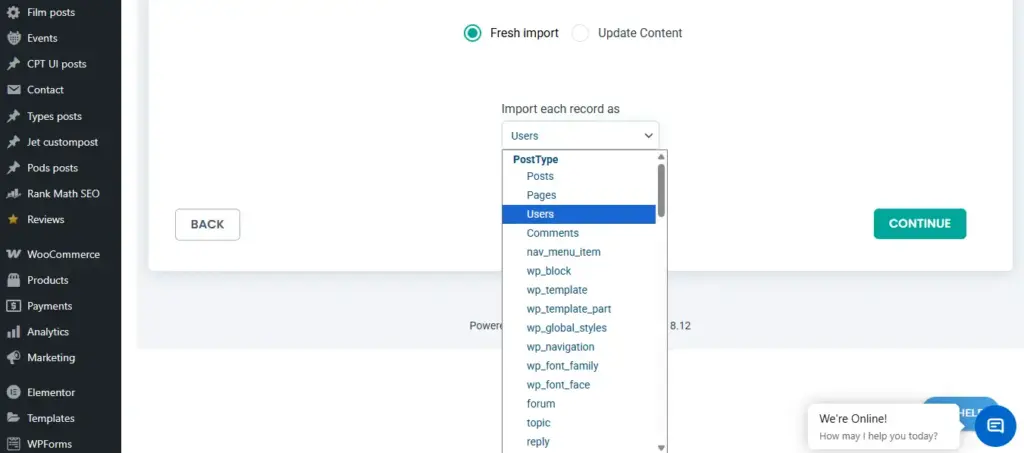
In the import setup screen, select Users as the data type.
This step is important because the plugin supports different import types, such as posts, pages, products, and users. By selecting “Users,” you are telling the plugin that the CSV data should be added to WordPress user accounts.
4. Set Import Options
After selecting the post type, configure the import type based on your needs.
For example, you can decide whether the plugin should create new users or update existing users if their email or username already exists. This option is helpful when you are updating customer details instead of creating duplicates.
5. Map the Fields
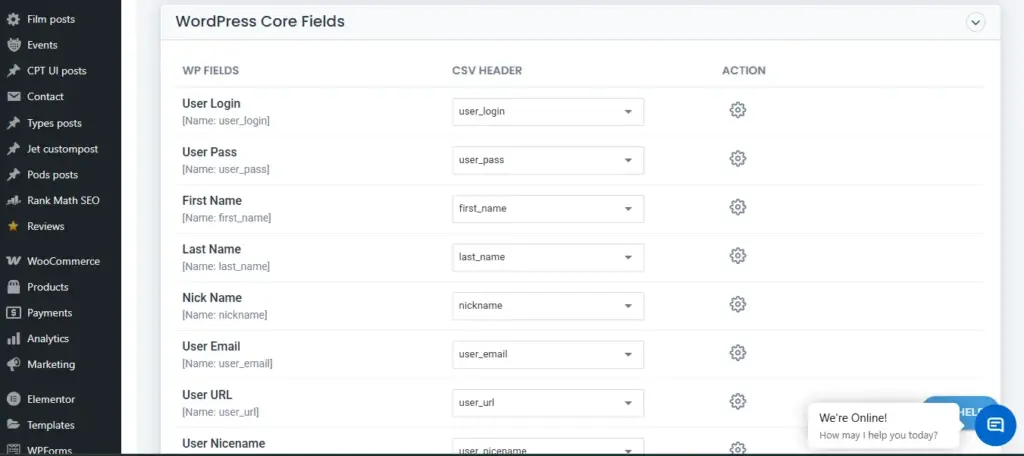
Field mapping is the step where you connect your CSV columns with the correct WordPress Users fields. This ensures every piece of information goes into the right place.
For example:
- username → Username field
- useremail → Email field
- userlogin → User Login field
- first_name → First Name field
- user_phone → Phone Number field
If you have custom fields, you must carefully map them as well. Otherwise, those details may not appear in the user profile even if the import is successful.
6. Run the Import
After completing the field mapping and settings, you can start the import.
Click the import button, and the plugin will process the CSV file row by row. Once completed, it will create user accounts automatically and store the imported details inside WordPress.
After the import finishes, you should check the WordPress Users menu and verify whether all users were imported correctly.
WP Ultimate CSV Importer Pro
Get Ultimate CSV/XML Importer to import data on WordPress faster, quicker and safer.
Importing Customers into WooCommerce
Managing customers is an important part of running a WooCommerce store. If you are migrating from another platform or updating many customer records at once, adding customers manually can take a lot of time.
With WP Ultimate CSV Importer, you can upload a customer file and import multiple WooCommerce customers in one process. This makes bulk customer management faster and easier.
Import & Export WooCommerce Customers with WP Ultimate CSV Importer – Step-by-Step Guide
Step 1: Start a New Import for WooCommerce Customers
First, prepare a CSV file with customer details such as username, email, password, billing address, and shipping address.
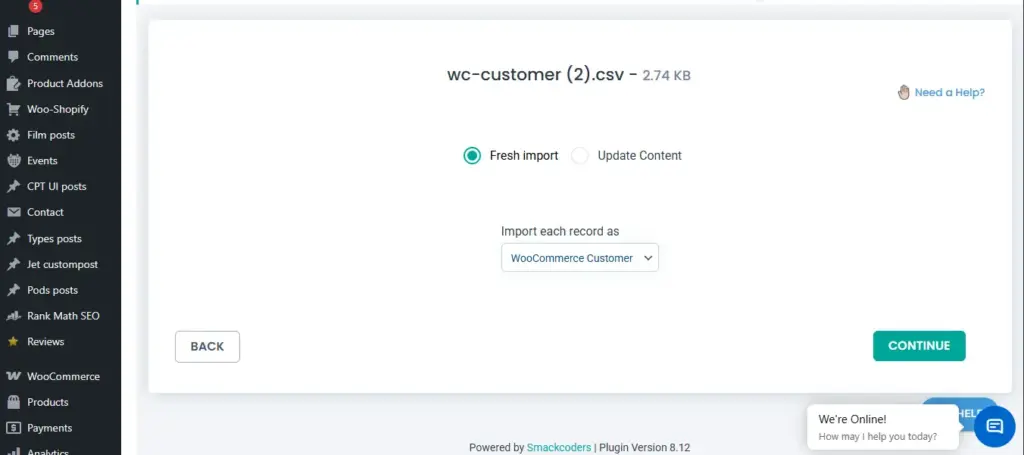
Then go to your WordPress dashboard, open WP Ultimate CSV Importer, upload the CSV file, and select WooCommerce Customer as the post type. Choose Fresh Import for new customers (selected by default) or Update Content to update existing customers. Click Continue.
Step 2: Mapping WooCommerce Customer Fields
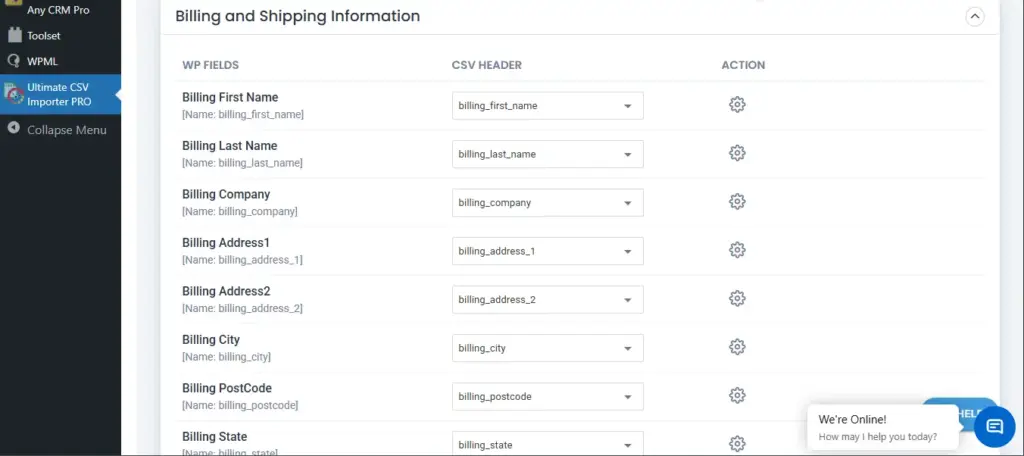
Now match your CSV columns with WooCommerce customer fields. If the headers are correct, the plugin will map them automatically. If not, you can map them manually.
Make sure billing and shipping fields are mapped correctly. After mapping, you can save it with a name as a template for future imports. Click Continue.
Step 3: Import Settings Configuration
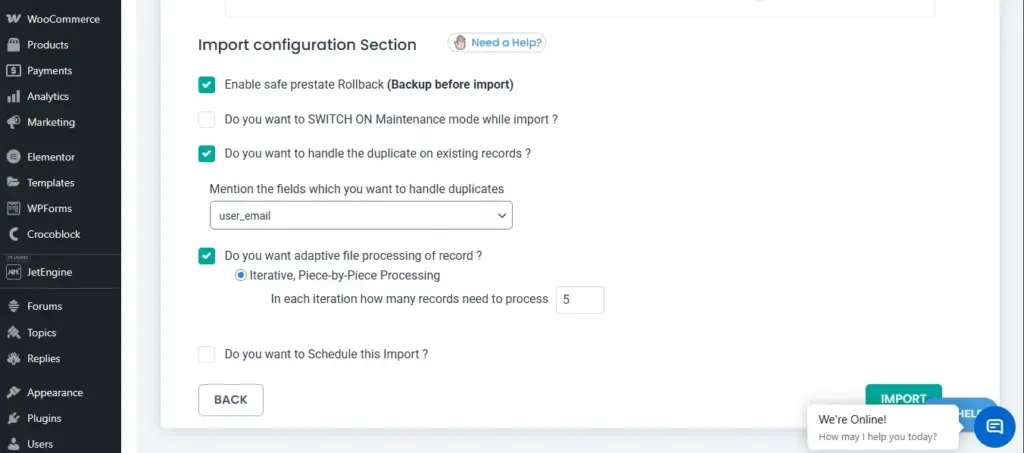
In the settings section, you can enable options like duplicate handling to avoid importing the same customer again. For large files, enable batch processing to prevent server timeout issues.
Finally, click Import to start the process. After the import is completed, download the log file to check results and verify customers under WooCommerce → Customers.
WP Ultimate CSV Importer Pro
Get Ultimate CSV/XML Importer to import data on WordPress faster, quicker and safer.
Error Handling and Troubleshooting
During a WordPress CSV user import, errors may occur due to incorrect CSV formatting, missing mandatory fields, or duplicate user records. Common issues include duplicate email addresses, invalid usernames, and incorrect role values. These problems can cause the plugin to skip users or stop the import process.
To fix errors, check the plugin import log and identify the exact row causing the issue. Ensure your CSV headers match the correct WordPress fields and remove extra spaces, empty rows, or unsupported characters. If duplicates exist, enable the update option instead of creating new users, so existing users can be updated without failure.
Post-Import Validation and Verification
After completing the import process, it is important to verify whether all users and customers were created correctly. You can check imported accounts by going to WordPress Dashboard → Users → All Users and confirming usernames, emails, and assigned roles. This step ensures that the WordPress CSV user import was successful and no users were skipped or imported incorrectly.
For WooCommerce customers, open the customer profile and confirm that billing and shipping details are available. It is also recommended to test login credentials for a few sample users to ensure accounts work properly. Post-import validation helps you identify missing fields, incorrect mapping, or role issues before the site goes live.
Best Practices for User and Customer Imports
To ensure a successful bulk user import WordPress process, always take a full website backup before starting the import. It is also recommended to test the import on a staging site first, especially when importing large user databases. This prevents data loss and helps you fix errors without affecting the live website.
Always keep your CSV file clean by removing duplicates, empty rows, and invalid usernames or emails. Import users in smaller batches if the file is large, and assign user roles carefully to avoid security risks. After import, verify user accounts and WooCommerce customer profiles to ensure all required data is imported correctly.
Frequently Asked Questions (FAQ)
1. How to import and add users from CSV?
To import users from CSV, prepare a file with required columns like username, email, password, and role. Then upload it using a CSV user import plugin and complete field mapping to create user accounts automatically.
2. How do I import users into WordPress?
You can import users into WordPress by using a plugin that supports WordPress CSV user import. The plugin reads your CSV file and creates user profiles based on the data, including roles and optional user meta fields.
3. How to bulk add users to WordPress?
The easiest way to bulk add users is by using a CSV user import plugin for WordPress. Upload your CSV file, assign roles, and execute the import to create multiple users in one process.
4. How to export users to CSV in WordPress?
To export users to CSV, you can use export plugins such as WP Ultimate CSV Importer, WP All Export, or user export tools. These plugins allow you to download user details, including roles and custom meta fields, in CSV format.
5. How do I export customers from WooCommerce?
WooCommerce customers can be exported using plugins like WP Ultimate CSV Importer or WooCommerce Customer/Order Export tools. These plugins export customer details such as email, billing address, shipping address, and order-related information into a CSV file.
Conclusion
Importing users and customers into WordPress using CSV is one of the most efficient methods for handling bulk account creation. It is especially useful for WooCommerce stores, membership websites, LMS platforms, and business portals where managing large user databases manually is not practical. With a properly structured CSV file, you can quickly upload thousands of users while maintaining accurate profile information and reducing the chances of human errors.
Using WP Ultimate CSV Importer makes the WordPress CSV user import process simple by providing features like field mapping, duplicate handling, and role assignment. It also supports importing WooCommerce customers along with billing and shipping details, ensuring customer profiles are complete and ready for checkout.
To get the best results, always follow best practices such as taking backups, testing imports on staging sites, and validating user records after import. When done correctly, CSV-based bulk import saves time, improves data consistency, and helps administrators manage WordPress users and WooCommerce customers in a more scalable and professional way.