
Table of Contents
Securing your WordPress website goes beyond using strong passwords. Two-factor authentication (2FA) strengthens your login security by asking for an additional confirmation beyond your password. Even if someone discovers your password, they cannot access your account without the second verification step. In this guide, you will learn how to set up two-factor authentication in WordPress using trusted plugins and authentication apps, along with practical steps to ensure your login remains secure.
Requirements and Compatibility for WordPress 2FA Setup
Before enabling two-factor authentication, ensure your WordPress environment is properly configured. Most 2FA plugins require an updated WordPress version, a supported PHP version, and administrator access to configure security settings. It is also recommended to take a full backup of your site before making any security changes.
If you are using managed hosting or a staging environment, test the configuration there first. Enable one security setting at a time and verify that login works correctly before applying additional changes. This approach reduces the risk of accidental lockouts or conflicts with other plugins.
In case of issues, temporarily disable the 2FA plugin through your hosting file manager or control panel. Review the plugin documentation carefully and consult the official support channel if you need assistance. Making incremental changes and testing thoroughly ensures a stable and secure WordPress login setup.
Implementation: Enabling Two-Factor Authentication in WordPress
Enabling two-factor authentication (2FA) in WordPress requires a structured approach to ensure both security and usability. Proper implementation reduces login vulnerabilities while preventing accidental lockouts. Follow the steps below to configure 2FA safely and effectively.
Step 1 – Update and Back Up Your Website
Before enabling two-factor authentication, ensure that your WordPress core, themes, and plugins are up to date with their latest versions. Security features function best in an updated environment.
It is also important to create a full backup of your website. If any configuration issue occurs during setup, you can restore your site quickly without data loss.
Step 2 – Install a WordPress 2FA Plugin
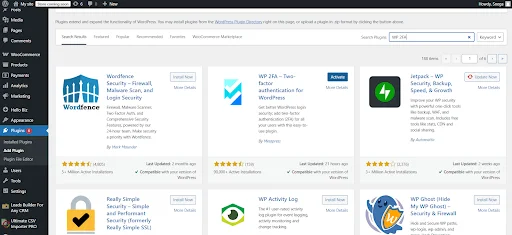
To enable two-factor authentication, you need a security plugin that supports two-factor authentication (2FA) functionality. You can find reliable plugins directly in the WordPress plugin repository.
After installing and activating the plugin, navigate to the security or login protection settings. Look for the two-factor authentication configuration option to begin setup.
Step 3 – Choose Your Authentication Method
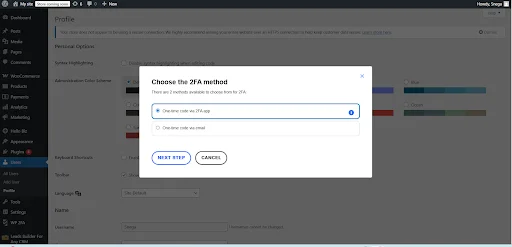
Most 2FA plugins allow you to select from different verification methods, including:
- Authentication apps (recommended)
- Email-based verification
- Backup codes
Authentication apps such as Google Authenticator or Microsoft Authenticator provide stronger protection compared to email-based verification.
Step 4 – Connect an Authentication App
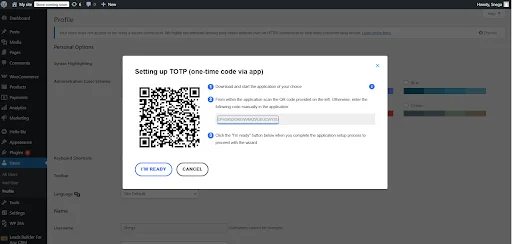
If you choose app-based authentication, the plugin will generate a QR code. Open your authentication app on your mobile device and scan the QR code.
Once scanned, the app will generate a time-based verification code. Enter this code into your WordPress dashboard to complete the connection.
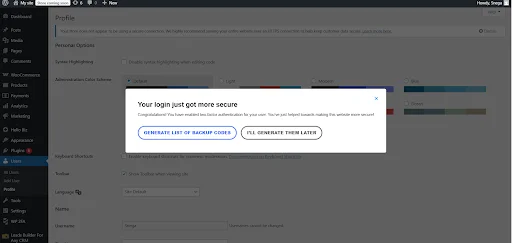
Step 5 – Save Backup Recovery Codes
Most plugins provide backup recovery codes during setup. These codes are essential in case you lose access to your mobile device.
Store them securely in a safe location. Avoid saving them only inside your WordPress dashboard.
Step 6 – Test the Login Process
After completing the configuration, log out of your WordPress dashboard and attempt to log in again.
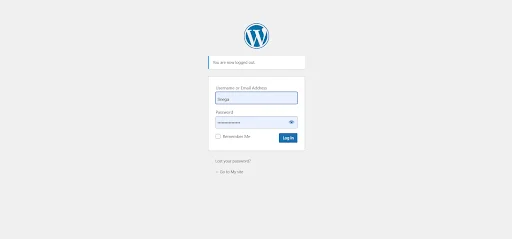
You should now see an additional verification step after entering your username and password.
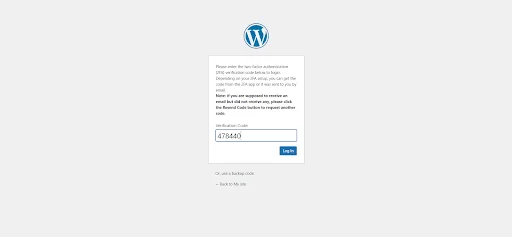
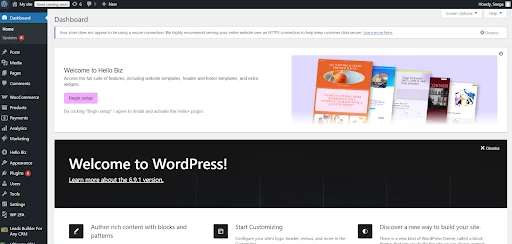
If the second verification screen appears and accepts your code, two-factor authentication is successfully enabled.
Best Practice: Enable 2FA for Admin Accounts
For maximum protection, enable two-factor authentication for all administrator and editor accounts. These accounts have elevated permissions and are common targets for attackers.
You may choose whether to enforce 2FA for all users or only privileged roles, depending on your website requirements.
Security and Maintenance After Enabling Two-Factor Authentication
Enabling two-factor authentication is only the first step in securing your WordPress login. After activating 2FA, it is important to monitor your website to ensure everything continues to function smoothly.
Monitor Login Activity
After rollout, regularly review login activity within your security plugin dashboard. Check for failed login attempts, suspicious IP addresses, or repeated verification failures. Monitoring login logs helps detect potential threats early.
If your website handles user registrations or eCommerce transactions, ensure that the 2FA process does not interrupt normal user workflows.
Keep Plugins and WordPress Updated
Two-factor authentication relies on plugin compatibility. When WordPress core, PHP, or security plugins receive updates, verify that 2FA continues to function correctly.
After each major update:
- Test admin login
- Verify authentication app codes
- Confirm backup codes still work
Keeping your environment updated reduces vulnerabilities and compatibility issues.
Protect Administrator Accounts
Ensure that all administrator accounts have two-factor authentication enabled. These accounts have elevated permissions and are primary targets for attacks.
You may also consider limiting login attempts and restricting dashboard access by IP address for additional protection.
Maintain Backup and Recovery Access
Store backup recovery codes securely. If you lose access to your authentication device, recovery codes are essential to regain entry without disabling the feature.
Periodically review your recovery settings to ensure they are up to date.
Periodic Testing and Review
Schedule a periodic review of your login security setup. Log out and test the authentication flow to confirm it is functioning correctly.
Document your current WordPress version, PHP version, and security plugin version. This makes troubleshooting easier if compatibility issues arise after future updates.
Troubleshooting WordPress Two-Factor Authentication Issues
Even after correctly enabling two-factor authentication, you may occasionally encounter login or verification problems. Most issues are easy to fix once you identify the cause.
Verification Code Not Working
If your authentication code is rejected, the most common reason is a time synchronization issue. Authentication apps generate time-based codes, so make sure your mobile device’s date and time are set automatically. Incorrect time settings can cause the verification code to fail.
You can also try generating a new code and entering it quickly before it expires.
Locked Out After Enabling 2FA
Getting locked out can happen if the setup was incomplete or if backup codes were not saved. In this case:
- Use a backup recovery code if available.
- Access your hosting panel and temporarily disable the 2FA plugin by renaming its folder inside the wp-content/plugins directory.
- Log in again and reconfigure the plugin properly.
Always store recovery codes securely to avoid this situation.
Two-Factor Prompt Not Appearing
If you enabled 2FA but do not see the verification step:
- Confirm that the feature is fully activated in plugin settings.
- Clear your browser cache.
- Clear any caching plugin or server-side cache.
- Ensure 2FA is enabled for your specific user role.
Some plugins require role-based activation.
Plugin Compatibility Issues
Occasionally, a 2FA plugin may conflict with another security plugin or an outdated PHP version. If errors appear:
- Update WordPress core and plugins.
- Check plugin compatibility requirements.
- Temporarily deactivate other security plugins to test conflicts.
Testing changes on a staging site is always recommended.
Multisite Configuration Issues
In WordPress Multisite environments, two-factor authentication may need to be enabled either network-wide or per site. Verify whether the setting is applied at the correct level.
If unsure, check the Network Admin dashboard for configuration options.
Where to Check for Errors
If problems continue, enable debugging temporarily:
- Activate WP_DEBUG and WP_DEBUG_LOG in the wp-config.php file.
- Review the PHP error log in your hosting panel.
- Check plugin-specific logs if available.
Disable debug mode after testing to avoid exposing sensitive information.
Frequently Asked Questions
1. What breaks most often with WordPress?
Version mismatches (WP/PHP/plugins), cache not invalidating after changes, and permissions. Revert the last change first; then check PHP, web server, and WP debug logs.
2. Server config vs plugin vs custom code when to use which?
Server-side for control and performance; plugin for speed to ship; custom code when neither fits. Choose who maintains it and how often you need to change it.
3. How do I verify the change took effect?
Hit the affected URLs, check response headers and status codes, and compare before/after if you have baselines. Confirm in DB or file timestamps where relevant.
4. Rollback strategy?
Revert the single config/code change, clear caches, and confirm the previous state. Keep a one-line rollback note in your runbook.
Conclusion
Securing your WordPress website should always be a top priority, and enabling two-factor authentication is one of the most effective ways to protect your login system. By adding an extra verification step, you significantly reduce the risk of unauthorized access even if your password is compromised.
Setting up WordPress two-factor authentication is straightforward when approached methodically. Choose a reliable plugin, configure your preferred authentication method, store recovery codes safely, and test the login process to ensure everything works correctly.
As cyber threats continue to evolve, strengthening your login security is no longer optional it is essential. Implement two-factor authentication today to safeguard your WordPress site and maintain control over your user access.
