
Bulk update WooCommerce stock quantities quickly using CSV imports, WooCommerce bulk editing tools, or advanced inventory management plugins. Instead of manually updating products one by one, these methods help store owners modify stock levels across hundreds or thousands of products in minutes. Managing inventory for a growing WooCommerce store becomes difficult as your catalog expands. Manual stock updates increase the risk of overselling, incorrect inventory counts, and time-consuming product management tasks. Using bulk stock update methods helps maintain accurate inventory, improves operational efficiency, and keeps product availability synchronized across your WooCommerce store.
If you’re still updating product stock one by one from your WordPress dashboard, you’re burning hours every week on a task that should take minutes. Bulk updating stock quantities prevents costly mistakes like overselling, keeps out-of-stock products off your shelves automatically, and frees your team to focus on growth instead of data entry.
This guide explains how to bulk update WooCommerce stock quantities using built-in WooCommerce tools, CSV imports, and automation plugins for stores of every size. Whether you manage 50 products or 50,000, you’ll find the right approach here. WP Ultimate CSV Importer is our top pick for medium-to-large catalogs.
Note: All methods in this guide have been tested on WooCommerce 8.x and 9.x, including stores running High Performance Order Storage (HPOS), introduced in WooCommerce 8.2+.
Key Takeaways
• Bulk updating WooCommerce stock saves hours compared to manual inventory edits.
• WooCommerce’s built-in bulk edit works best for quick updates on small catalogs.
• CSV imports provide the most flexible way to bulk update WooCommerce stock quantities at scale.
• Always use SKUs instead of product IDs for accurate stock mapping during imports.
• WP Ultimate CSV Importer simplifies complex inventory updates and variation handling.
• WP Ultimate CSV Importer’s URL and FTP scheduling automates WooCommerce stock syncing without external tools.
• Variable products require separate SKUs and stock updates for each variation.
• Common stock update issues like duplicate products and wrong stock status can be avoided with proper CSV mapping.
• Always back up your WooCommerce products before running bulk imports.
Why You Need to Bulk Update WooCommerce Stock Quantities
Manual stock updates seem manageable when you have 10 products. But once your catalog scales, the problems stack up quickly:
• Time drain: Updating hundreds of products one by one costs hours that could go toward marketing, customer service, or growth.
• Human error: Manual entry increases the risk of wrong quantities, leading to overselling or phantom availability.
• Scalability: Flash sales, supplier deliveries, and seasonal resets require fast, store-wide changes, not one-by-one edits.
• Sync issues: If your store connects to an ERP, warehouse platform, or supplier feed, your inventory data must stay consistent in real time.
5 Methods to Bulk Update WooCommerce Stock Quantities (Comparison)
Choose the method that fits your store size, technical comfort level, and update frequency:
| Method | Best For | Skill Level | Speed | Price | Best Feature |
|---|---|---|---|---|---|
| Built-in Bulk Edit | Small stores (< 50 products) | Beginner | Moderate | Free | No setup needed |
| Native CSV Import | Mid-size (50–500 products) | Intermediate | Fast | Free | No plugins needed |
| WP Ultimate CSV Importer | Large catalogs (500+) | Intermediate | Very Fast | Free/Paid | Smart Mapping |
| WP All Import | Enterprise & Automated Syncs | Advanced | Fastest (Scheduled) | Paid | Auto-scheduling |
| Stock Manager Plugin | Visual Spreadsheet View | Beginner | Fast | Free | Visual Inventory Management |
Each method below shows you exactly how to bulk update WooCommerce stock quantities based on your store size and workflow. Looking to handle catalogs of 500+ products with zero errors? WP Ultimate CSV Importer is built for exactly this. Try it free from the WordPress.org plugin directory.
Method 1: How to Bulk Update WooCommerce Stock Quantities Using the Built-in Bulk Edit Tool
The built-in WooCommerce bulk editor lets you update stock quantities for multiple products at once without any plugin, directly from your WordPress admin. Use it for quick, one-time stock changes across a small set of products, no file preparation needed.
How to Bulk Update WooCommerce Stock Using the Built-in Editor – Step by Step
1. Go to WooCommerce > Products > All Products in your WordPress admin.
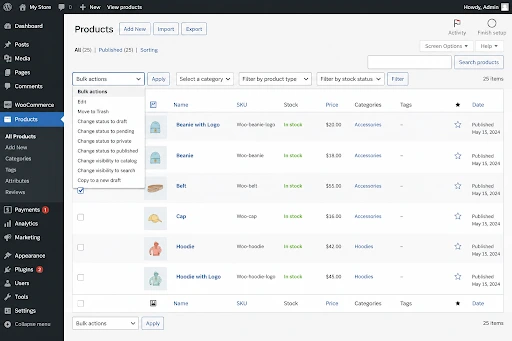
2. Use the category, product type, or stock status filters to narrow your selection.
3. Check the boxes next to the products you want to update, or use the top checkbox to select all visible products.
4. From the Bulk Actions dropdown, choose Edit and click Apply.
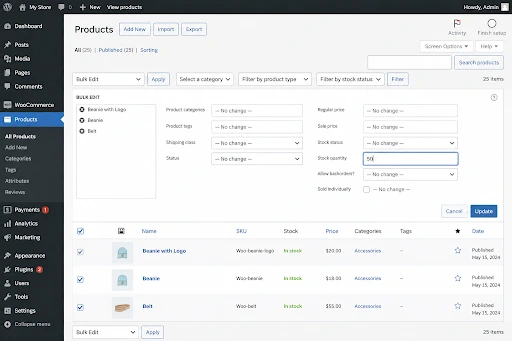
5. In the Bulk Edit panel that appears, locate the Stock Quantity field and enter your updated value.
6. Click Update. WooCommerce applies the change to all selected products instantly.
Pre-Import Checklist for WooCommerce Stock Updates
Before You Hit “Import”: The Safety Checklist
To avoid data errors or site crashes, ensure you’ve ticked these boxes:
• Full Backup: Always take a database backup using UpdraftPlus or your hosting panel.
• CSV Format: Your file must be saved in CSV UTF-8 (comma-delimited) format.
• SKU Accuracy: Ensure every product has a unique SKU; duplicates will cause mapping errors.
• Manage Stock: Set the manage_stock column to ‘1’ or ‘yes’ to enable tracking.
• Test Run: Import only 5–10 rows first to verify everything maps correctly.
Method 2: How to Bulk Update WooCommerce Stock Quantities via CSV File
The CSV method is the most reliable way to bulk update WooCommerce stock quantities across stores of any size. It lets you assign unique stock quantities to each product in a single import run; no plugins are required beyond WooCommerce core.
Step 1: Enable WooCommerce Stock Management for Your Products
Before importing, confirm that WooCommerce is actively tracking stock for each product:
• Go to WooCommerce > Products > All Products.
• Open a product and navigate to the Product Data > Inventory tab.
• Check the Manage Stock? checkbox to activate quantity tracking for that product.
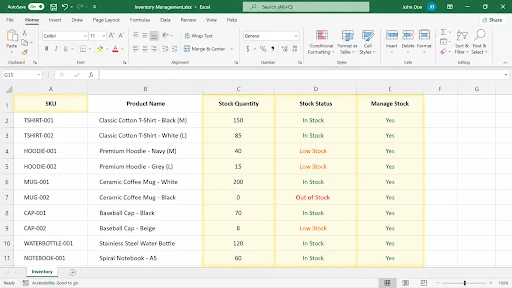
Step 2: Prepare Your WooCommerce CSV File for Stock Import
Your CSV file drives the entire update. It must include the right columns so WooCommerce can correctly identify and overwrite each product’s stock data.
Required columns:
• SKU: The unique identifier for each product. Use the SKU instead of the product ID; it stays consistent across environments and exports.
• Stock: The new quantity value to assign.
• Stock Status: Set explicitly as in stock, out of stock, or on backorder.
• Manage Stock: Set to 1 to ensure tracking is active.
WooCommerce Stock CSV – Sample Structure
| SKU | Product Name | Stock Quantity | Stock Status |
| WC-001 | Blue Cotton T-Shirt | 150 | in stock |
| WC-002 | Black Denim Jeans | 0 | out of stock |
| WC-003 | White Sneakers | 75 | in stock |
| WC-004 | Leather Wallet | 30 | in stock |
Step 3: Export Existing WooCommerce Products Before Updating
Always create a backup before making bulk changes:
1. Go to Products > All Products and click Export at the top of the page.
2. Export all products and download the CSV to your computer.
3. Save this file; it’s your rollback point if anything goes wrong.
Step 4: Import and Bulk Update WooCommerce Stock via CSV
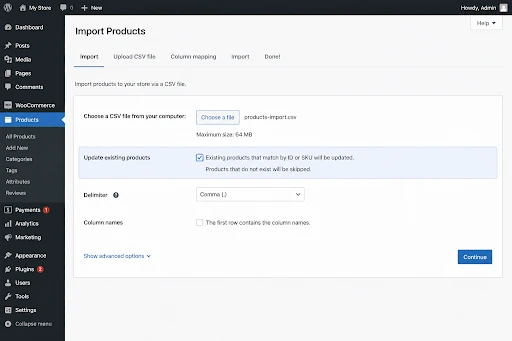
1. Go to Products > All Products and click Import.
2. Select your updated CSV file and click Continue.
3. On the Column Mapping screen, confirm that SKU maps to SKU and Stock maps to Stock Quantity.
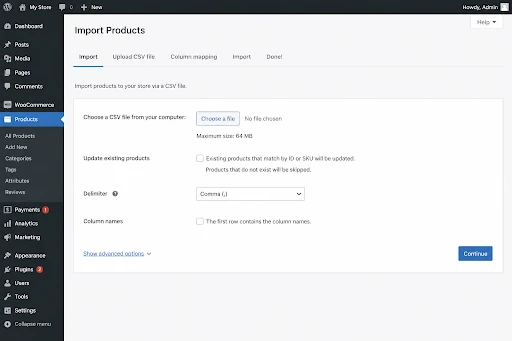
4. CRITICAL: Check the box labeled Update Existing Products. Without this, WooCommerce will create duplicate product entries instead of updating your existing ones.
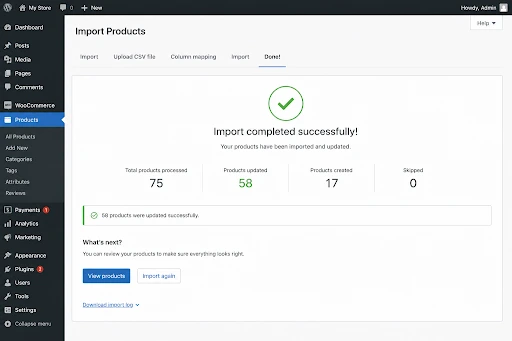
5. Click Run the Importer. WooCommerce processes the file and updates stock quantities.
Method 3: Bulk Update WooCommerce Stock with WP Ultimate CSV Importer
For larger stores or more complex scenarios, including variable products, product variations, and custom field mapping, WP Ultimate CSV Importer gives you precise control over every aspect of the bulk update process.
Why WP Ultimate CSV Importer for WooCommerce Stock Updates
• Supports CSV, XML, and Excel file formats.
• Update-only mode modifies only the fields you specify all other product data stays untouched.
• Handles variable products and individual variations using their own SKUs.
• Live preview lets you catch mapping errors before running a full import.
• Detailed import logs make troubleshooting large catalogs straightforward.
• Compatible with WooCommerce 8.x / 9.x and HPOS-enabled stores.
How to Bulk Update WooCommerce Stock Quantities Using WP Ultimate CSV Importer
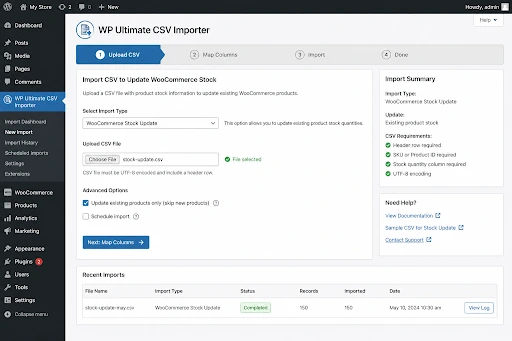
1. Install and activate WP Ultimate CSV Importer from the WordPress plugin directory.
2. Prepare your CSV file with SKU and stock quantity columns as described in Method 2.
3. Navigate to WP Ultimate CSV Importer > Import from your dashboard.
4. Upload your CSV and select WooCommerce Products as the import type.
5. Map your CSV columns to the correct WooCommerce stock fields.
6. Enable Update Existing Records mode so existing products are updated, not duplicated.
7. Run a preview import on 5–10 rows to validate your mapping before committing.
8. Click Run Import to apply changes across your full catalog.
WP Ultimate CSV Importer handles catalogs of 500+ products with variation-level control and update-only mode. Try it free on WordPress.org.
Method 4: Bulk Edit WooCommerce Stock Quantities with Stock Manager Plugin
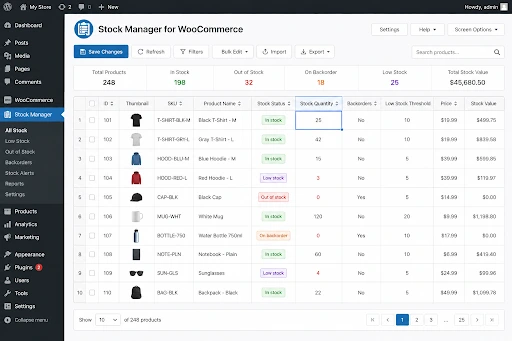
Stock Manager for WooCommerce gives you a spreadsheet-style inventory dashboard where you can view and bulk edit stock quantities, prices, SKUs, and stock status directly on screen with no file preparation needed.
Stock Manager Plugin Features for WooCommerce Inventory
• Inline editing: click any cell to update values without opening individual product pages.
• Filter by category, product type, or stock status for targeted bulk edits.
• Supports both simple and variable products.
• Export and import stock data as CSV for offline editing when needed.
• 100% free; no premium version required.
How to Bulk Update WooCommerce Stock Using the Stock Manager Plugin
1. Install and activate Stock Manager for WooCommerce from the WordPress plugin directory.
2. Navigate to WooCommerce > Stock Manager from your dashboard sidebar.
3. Use the filters at the top to narrow products by category or stock status.
4. Click any quantity cell in the table and type the updated value directly.
5. Click Save Changes to apply your edits across all modified products.
This plugin is ideal for store managers who prefer a visual interface over working with raw CSV files.
Method 5: Automate WooCommerce Stock Updates with WP All Import
For enterprise stores or operations that sync inventory from external systems, ERPs, warehouse platforms, or supplier data feeds, WP All Import offers powerful automation for WooCommerce stock updates.
Why WP All Import for Automated WooCommerce Stock Updates
• Imports stock data from CSV, XML, or Google Sheets.
• Scheduled imports automatically refresh stock at set intervals: hourly, daily, or custom.
• Match products by SKU, product ID, or title for flexible data alignment.
• Supports all product types: simple, variable, grouped, and custom.
• Connect directly to FTP servers, hosted URLs, or email attachments as data sources.
• Detailed logs and error handling built in for large-scale operations.
• Compatible with WooCommerce HPOS (8.2+) and the latest WooCommerce block-based product editor.
How to Schedule Automatic WooCommerce Stock Quantity Updates
1. Install WP All Import and the WooCommerce Add-On from the WordPress plugin directory.
2. Go to All Import > New Import and paste the URL of your hosted CSV or XML feed.
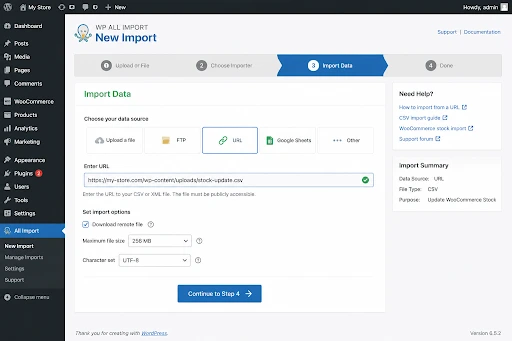
3. Select WooCommerce Products as the import type.
4. Map your data fields SKU to SKU, inventory quantity to stock, and stock status accordingly.
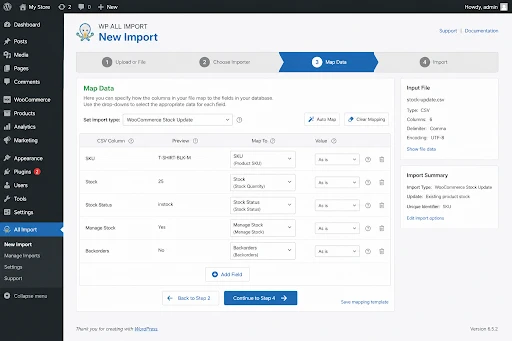
5. Enable the scheduling option and set your preferred sync frequency (hourly, daily, etc.).
6. Run the importer once manually to confirm data is mapping correctly, then let automation take over.
Stores using AI-powered inventory tools or platforms like Zapier, n8n, or warehouse management systems can push stock data to a hosted CSV endpoint that WP All Import polls automatically, creating a fully hands-free sync pipeline.
How to Bulk Update WooCommerce Stock for Variable Products
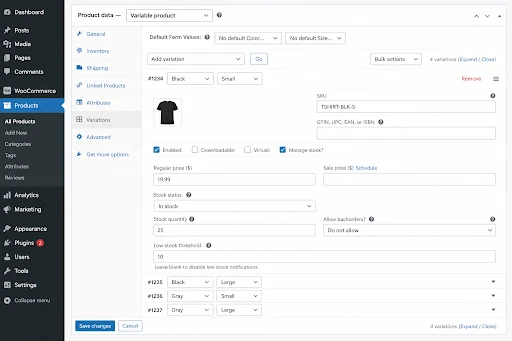
Variable products, such as a t-shirt available in multiple sizes and colors, require special handling during bulk stock updates. Each variation is treated as its own inventory unit.
WooCommerce Variable Product Stock Update – Key Rules
• Each variation has its own unique SKU. Use the variation SKU in your CSV, not the parent product SKU.
• Stock is managed at the variation level; updating the parent product will not change individual variation quantities.
• Your CSV must include a separate row for each variation.
• Use WP Ultimate CSV Importer for variation-level bulk updates. It handles this explicitly with dedicated variation SKU support.
WooCommerce Variation Stock CSV – Example Structure
| Variation SKU | Product Name | Stock Qty | Stock Status |
| WC-001-S | Blue T-Shirt (Small) | 80 | in stock |
| WC-001-M | Blue T-Shirt (Medium) | 45 | in stock |
| WC-001-L | Blue T-Shirt (Large) | 0 | out of stock |
Common WooCommerce Stock Update Errors and How to Fix Them
Most errors that occur when you bulk update WooCommerce stock quantities come down to wrong CSV mapping or missing the Update Existing Products checkbox.
Error 1: WooCommerce SKU or Product ID Not Found During Import
Problem: WooCommerce cannot match a CSV row to an existing product.
Fix: Export your current product list first and copy SKUs directly from that export into your update file. Trim extra spaces and remove any special characters.
Error 2: WooCommerce Stock Status Not Updating After Bulk Import
Problem: You set the quantity to 0, but the product still shows as In Stock on the front end.
Fix: Add an explicit Stock Status column to your CSV and set it to out-of-stock for all zero-quantity rows. Also, confirm that Manage Stock is enabled at the product level.
Error 3: Duplicate WooCommerce Products Created on Stock Import
Problem: After import, you see double entries for your products.
Fix: You skipped the Update Existing Products checkbox during import. Delete the duplicates, then re-import with that option checked.
Error 4: WooCommerce CSV Column Mapping Mismatch
Problem: Stock quantities are updating to the wrong product fields.
Fix: Always review the column mapping screen carefully before finalizing any import. Run a test import on 5 products before processing your full catalog.
Best Practices for WooCommerce Bulk Stock Quantity Updates
Following these best practices every time you bulk update WooCommerce stock quantities prevents data loss and overselling.
• Always export first. Before any bulk operation, download your current product data and keep a full site backup.
• Test with a small sample. Run your CSV on 5–10 products first to verify that field mapping and settings are correct.
• Use SKUs as identifiers. They remain stable across environments, exports, and imports, unlike product IDs.
• Always match stock status to quantity. When quantity hits 0, explicitly set stock status to “out of stock” in the same row.
• Verify after every import. Spot-check a random sample of products in your dashboard to confirm quantities are correct.
• Schedule large imports during off-peak hours. Heavy imports can slow your server; run them overnight or during low-traffic windows.
• Use update-only mode. Never do a full re-import unless absolutely necessary. Update-only mode touches only the fields you include.
• Stay compatible. If you’re running WooCommerce 8.2+, confirm your chosen plugin supports HPOS before running large imports.
Pro Tips for High-Volume Inventory
These pro tips apply whether you bulk update WooCommerce stock quantities for 500 or 50,000 products.
Expert Advice for Managing Large Catalogs
• Use Batch Processing: If you have 10,000+ products, split your CSV into smaller files (e.g., 2,000 rows each) to prevent server timeouts.
• Sync During Off-Peak Hours: Schedule large imports during late-night hours when customer traffic is lowest to ensure site stability.
• Automate Stock Status: Don’t just update the quantity. Include a stock_status column to automatically switch products to “Out of Stock” when they hit zero.
• Match by SKU, Not ID: Always use SKUs as your primary identifier. Product IDs can change if you migrate your site, but SKUs remain constant.
FAQs: How to Bulk Update WooCommerce Stock Quantities
Q1. Can I bulk update WooCommerce stock quantities without a plugin?
Yes. WooCommerce’s native CSV import tool (Products > All Products > Import) handles bulk stock updates without any third-party plugin. For variable products, scheduled syncing, or catalog sizes above a few hundred items, a dedicated plugin is the more reliable choice.
Q2. What is the best CSV format for WooCommerce stock updates?
At a minimum, your CSV needs four columns: SKU, Stock (quantity), Stock Status, and Manage Stock. Always use the SKU as your product identifier – it’s more reliable than the product ID across different environments and database states.
Q3. How do I bulk update WooCommerce stock using a CSV file?
Export your current products from Products > All Products > Export, update the Stock Quantity and Stock Status columns in your spreadsheet, then reimport using Products > Import. Check the “Update Existing Products” box to modify existing items instead of creating duplicates.
Q4. What happens if I don’t check “Update Existing Products” in WooCommerce import?
WooCommerce will create duplicate product entries for every row in your CSV instead of updating the existing ones. Always enable this option when running a stock update import.
Q5. Can I bulk update WooCommerce stock for variable products?
Yes, but each product variation needs its own SKU and a separate row in your CSV. WP Ultimate CSV Importer handles variation-level stock updates directly using variation SKUs, without affecting parent product data.
Q6. Can I bulk edit stock status in WooCommerce?
Yes. Include a stock status column in your CSV and set each row to in stock, out of stock, or on backorder as needed. You can update stock status independently of quantity or combine both changes in the same import file
Q7. How do I fix the out-of-stock status not updating in WooCommerce?
This usually happens when the Manage Stock option is disabled at the product level, or when your CSV is missing an explicit Stock Status column. Enable stock management for each affected product and include a stock status field in your import file with the correct value.
Q8. Will bulk updating stock affect other product data?
Not when you use Update Existing Products mode and include only stock-related columns in your CSV. Any product fields not included in the import file will remain completely unchanged.
Conclusion
Knowing how to bulk update WooCommerce stock quantities is a non-negotiable skill for any store owner running more than a handful of products. The method you choose should match your catalog size, update frequency, and technical setup.
Start with the built-in bulk editor for quick, small-scale changes. Move to WooCommerce’s native CSV import for medium-sized catalogs that need per-product quantities. Graduate to WP Ultimate CSV Importer when your catalog grows, your data gets complex, or you need variation-level control. And for fully automated, enterprise-grade syncing, WP Ultimate CSV Importer’s scheduled URL and FTP imports handle it without any external tools.
The habits that matter most: back up before every import, test with a small sample first, use SKUs as your identifier, and always verify your results. Build those into your workflow, and bulk stock management becomes fast, accurate, and stress-free.
Ready to simplify your inventory management? Try WP Ultimate CSV Importer free from the WordPress.org plugin directory today.
