
Table of Contents
Maintaining accurate product prices and stock levels is a daily responsibility for WooCommerce store owners or maintainers. While this task may feel manageable in the early stages of a store, it becomes increasingly difficult as the number of products grows. Updating each product manually takes time, demands attention, and often leads to avoidable mistakes.
Bulk updating WooCommerce prices and stock using a CSV file offers a practical and scalable solution. Instead of editing products one by one, store owners can manage updates in a single file and apply changes across the entire catalog at once. This method is especially useful for stores handling frequent price adjustments or inventory changes.
This article explains how to bulk update WooCommerce prices and stocks using CSV files, with a focus on using WP Ultimate CSV Importer as a reliable solution. The goal is to help store owners, managers, and beginners understand both the process and the reasons why CSV-based updates are essential for efficient store management.
Key Takeaways
- Use CSV files to update WooCommerce prices and stock levels in bulk, rather than editing products individually, saving significant time and effort.
- Always include a reliable product identifier, such as SKU or Product ID, to ensure updates apply to the correct existing products without duplication.
- Review and structure your CSV carefully by keeping only necessary columns like regular price, sale price, stock quantity, and stock status for accurate updates.
- Use a trusted import tool – WP Ultimate CSV Importer with field mapping and update options to modify pricing and inventory without affecting other product data.
- Test imports with a small sample file and keep a complete backup before running full bulk updates to prevent large-scale errors and maintain data safety.
Common challenges in updating WooCommerce prices and stocks manually
Running a WooCommerce store involves constant monitoring of product prices and inventory levels. While manual updates may seem manageable in the early stages, they quickly become inefficient as your store grows. Many store owners struggle with accuracy, time management, and scalability when relying on manual methods. Understanding these challenges highlights why bulk updates using CSV files are a smarter alternative.
Manual Updates Consume Valuable Time
Updating prices and stock product by product through the WooCommerce dashboard is extremely time-intensive. For stores with large catalogs, even a simple price change can take hours. This repetitive work slows down daily operations and diverts attention from business-critical activities.
Increased Chances of Human Error
Manually entering numbers increases the risk of mistakes such as incorrect pricing, missing zeros, or wrong stock quantities. These errors can lead to overselling, underselling, or displaying inaccurate product information to customers.
Lack of Efficiency for Bulk Changes
Price updates due to supplier changes, discounts, or seasonal sales often affect multiple products at once. Handling these changes manually makes bulk updates impractical and exhausting, especially for stores with hundreds or thousands of items.
Inconsistent Product Data
When updates are done manually, it’s easy to forget to update either the price or the stock. This results in mismatched data where a product shows the correct price but incorrect availability, confusing customers and impacting conversions.
No Easy Rollback or Update History
If an error occurs during manual updates, reverting changes is difficult. WooCommerce does not offer a straightforward undo option for bulk manual edits, making recovery time-consuming and potentially risky.
Poor Scalability as the Store Grows
Manual price and stock management may work for small stores, but it does not scale. As the number of products increases, manual updates become unmanageable and prone to delays.
Reduced Focus on Business Growth
Spending hours on routine updates limits the time available for marketing, customer engagement, and strategic planning. This can slow overall business growth and reduce productivity.
Why CSV-Based Bulk Updates Are the Better Solution
Because of these challenges, many WooCommerce store owners switch to bulk updating prices and stock using CSV files. CSV-based updates allow you to modify hundreds or thousands of products at once, reduce errors, maintain consistency, and save valuable time making inventory and pricing management far more efficient.
Why CSV-based bulk updates save time and reduce errors
Updating WooCommerce prices and stock manually takes time and often leads to mistakes. Using CSV-based bulk updates with WP Ultimate CSV Importer Pro makes the process faster, more accurate, and easier to manage. Store owners can maintain all product data in a single CSV file and map fields like price and stock directly to WooCommerce products, ensuring correct updates every time. The plugin’s high-speed import feature allows thousands of products to be updated in one go, saving significant effort. Preview and validation options help identify issues before changes go live, reducing errors. Product matching through SKU prevents duplicates and keeps the database clean. If corrections are needed, the CSV can be edited and re-imported safely. Scheduled imports using Cron further automate regular updates, keeping inventory accurate without manual work. Overall, CSV-based bulk updates improve efficiency and allow store owners to focus more on business growth instead of repetitive product management tasks.
When Do You Need Bulk Price & Stock Updates?
Bulk price and stock updates are not occasional tasks for most WooCommerce stores. They are often required regularly due to changing business conditions and inventory movement. Stores with large catalogs or frequently changing products depend on bulk update methods to maintain accurate data. Without bulk updates, keeping prices and stock levels consistent becomes difficult.
Below are common situations where bulk updates are especially useful.
Seasonal sales & discounts
Seasonal promotions and sales events often require updating sale prices across many products within a short period. Making these changes manually increases the risk of missed or incorrect pricing.
Using CSV updates, discounts can be applied by adjusting values in one file. This ensures that all eligible products reflect the correct sale price quickly and consistently.
Supplier price changes
Supplier cost changes often affect multiple products at once. When costs increase or decrease, store owners must update retail prices to maintain profit margins.
CSV updates allow price adjustments to be applied in bulk, reducing delays and preventing outdated pricing from being displayed to customers.
Managing large product catalogs
Stores with hundreds or thousands of products cannot rely on manual updates. As catalog size increases, the risk of missing updates also increases.
Bulk update methods save time, reduce effort, and help maintain accurate product data across the entire store. CSV files offer a scalable long-term solution for catalog management.

WP Ultimate CSV Importer Pro
Get Ultimate CSV/XML Importer to import data on WordPress faster, quicker and safer.
CSV File Structure for Price & Stock Updates
A well-organized CSV file is the foundation for accurate WooCommerce product updates. Since WooCommerce relies on specific data fields to recognize products and apply modifications, maintaining the correct structure is extremely important. If the file is poorly formatted, the import process may fail or result in incorrect price changes and inventory inconsistencies. Issues such as missing columns, wrong product identifiers, or invalid values can cause serious update errors. Preparing and reviewing the CSV file carefully before starting the import helps ensure a smooth and reliable bulk update process.
Required Columns (Product ID / SKU, Regular Price, Sale Price, Stock Quantity, Stock Status)
Each column in the CSV serves a clear purpose during the update workflow.
- The Product ID or SKU is used to connect each CSV entry with the correct existing product in WooCommerce.
- The Regular Price column defines the standard selling price of the product.
- The Sale Price column allows you to apply discounts whenever needed.
- The Stock Quantity field updates the available inventory count.
- The Stock Status determines whether the product appears as in stock or out of stock in the store.
Using accurate Product IDs or SKUs is especially important because it ensures updates are applied to existing products without accidentally creating duplicate listings.
Example CSV explanation (no raw CSV dump, explain field purpose)
Each column in the CSV corresponds directly to a WooCommerce product field. The regular price column controls the base price, while the sale price column overrides it during discounts.
Stock quantity updates inventory counts, and stock status ensures an accurate display of availability. Together, these fields allow WooCommerce to reflect current pricing and inventory without manual edits.
Step-by-Step: Bulk Update WooCommerce Prices & Stock Using WP Ultimate CSV Importer
Managing prices and inventory manually inside WooCommerce becomes time-consuming as your product catalog grows. Instead of editing each product one by one, you can update hundreds or even thousands of products in minutes using WP Ultimate CSV Importer. By working with CSV files, store owners can easily export existing product data, make changes offline, and import updates back into WooCommerce without disrupting the store’s structure.
The following step-by-step process explains how to safely export your products, update price and stock information, and import the revised data back into your WooCommerce store.
Step 1: Access WP Ultimate CSV Importer Pro
To get started, log in to your WordPress admin dashboard. This is the central place where all store management tasks happen.
Before you update any prices or stock values, it’s important to export your existing product data first. Doing this gives you a safe backup and ensures you’re working with accurate, up-to-date information.
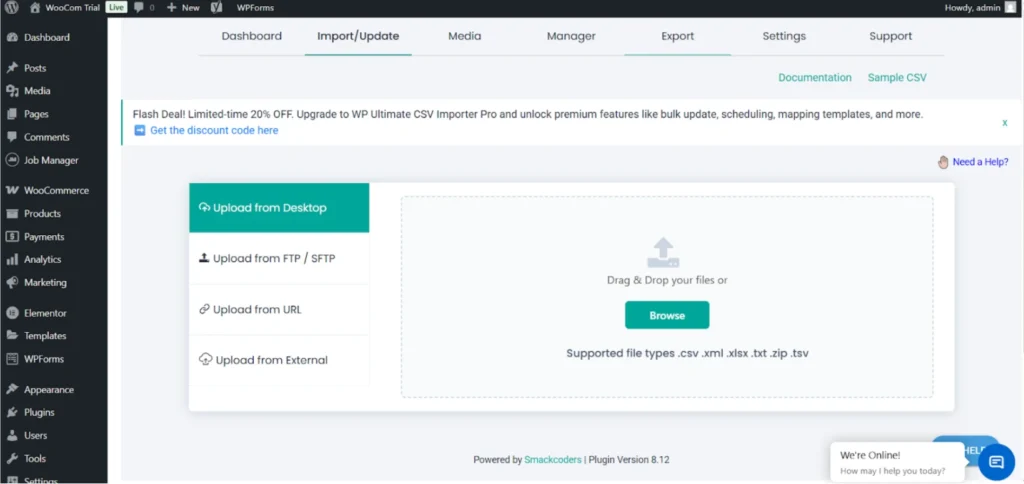
What you need to do:
- Navigate to Ultimate CSV Importer Pro → Export from the WordPress dashboard
- Use the export section to download your current WooCommerce product details
By exporting your products at the beginning, you create a reliable base file that you can edit confidently without worrying about data loss.
Step 2: Select WooCommerce Products for Export
Once you’re on the export page, you’ll notice multiple modules that allow you to export different types of data. At this stage, you need to specify exactly what information you want to download. Since the goal is to update product prices and stock, selecting the correct module is essential.
What you need to do:
- Choose Woo-Commerce Products from the list of available modules
- Confirm that the displayed product count matches the number of products in your store
- Click Continue to move forward
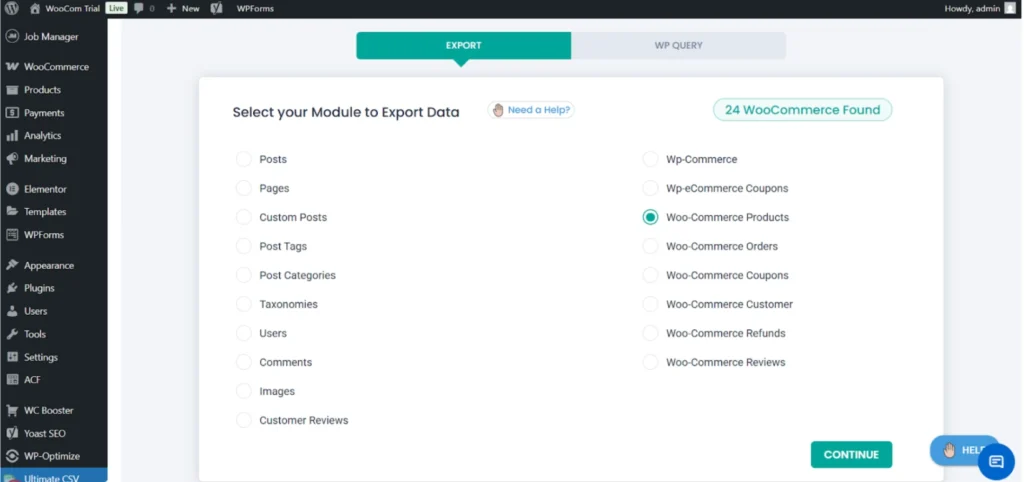
Selecting the WooCommerce Products module ensures that only product-related data is exported, keeping the CSV file clean and relevant for the update process.
Step 3: Export Products in CSV Format
After selecting the WooCommerce Products module, the next step is to choose how your product data should be exported. The file format you select here matters because it affects how easily you can edit and re-import the data later. CSV is the most practical option, as it works smoothly with tools like Excel and Google Sheets.
What you need to do:
- Select CSV as the export format
- Leave advanced filter options unchanged unless you need specific product conditions
- Click Export to start generating the file
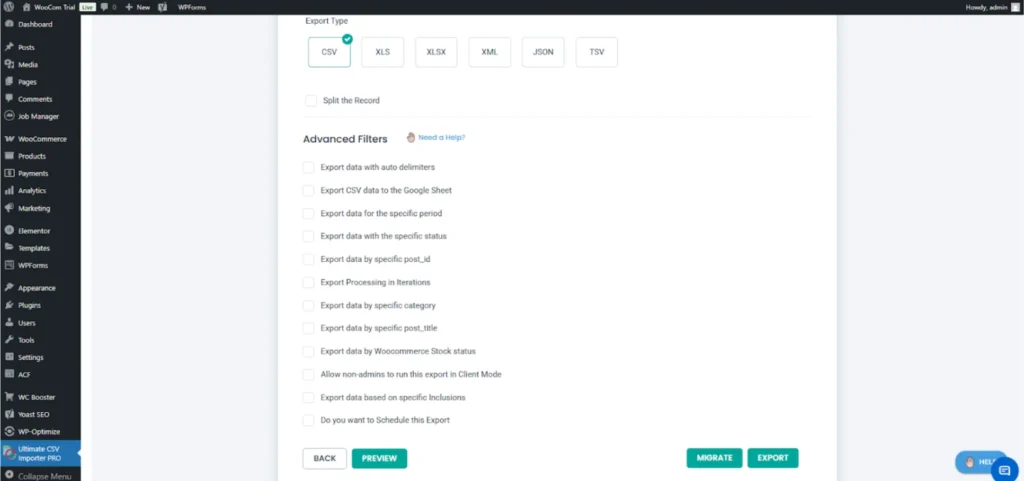
Exporting your products in CSV format makes it easier to edit prices and stock values while ensuring compatibility during the import process.
Step 4: Download the Exported CSV File
Once the export process begins, the system will generate your product file in the background. After the export reaches completion, you’ll be able to download the CSV file to your computer. This file plays an important role, as it serves both as your working file and a safety backup.
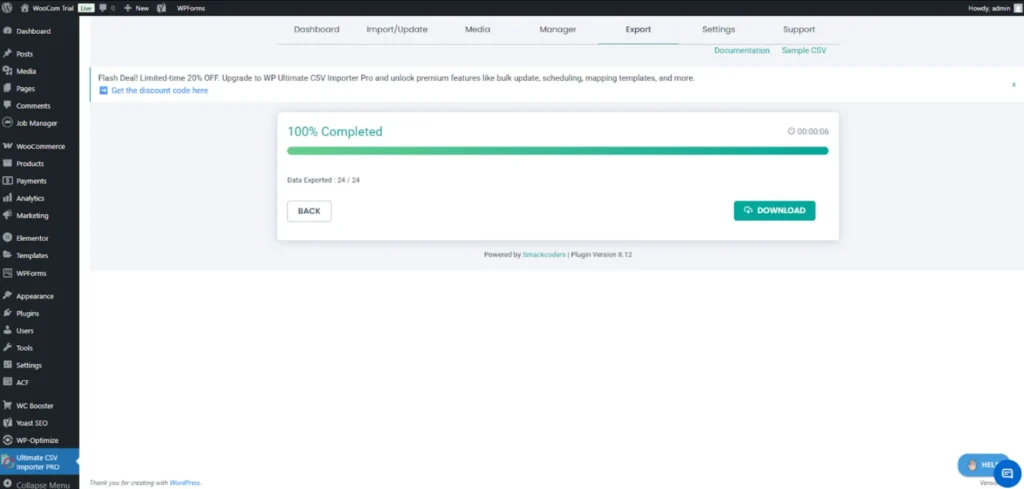
What you need to do:
- Wait until the export status shows 100% completed
- Click the Download button to save the file
- Store the file securely on your system before making any edits
Keeping this original CSV file unchanged gives you a reliable backup, allowing you to restore your product data if needed.
Step 5: Open the CSV File in Excel or Google Sheets
After downloading the CSV file, the next step is to open it using a spreadsheet tool such as Excel or Google Sheets. This is where you’ll review and prepare the data for updates. At first glance, the file may look overwhelming because it contains many columns, but you only need to focus on a few key fields.
What you need to do:
- Open the downloaded CSV file in Excel or Google Sheets
- Review the columns, including product name, SKU, price, stock quantity, and stock status
- Take a moment to understand the file structure before making any changes.
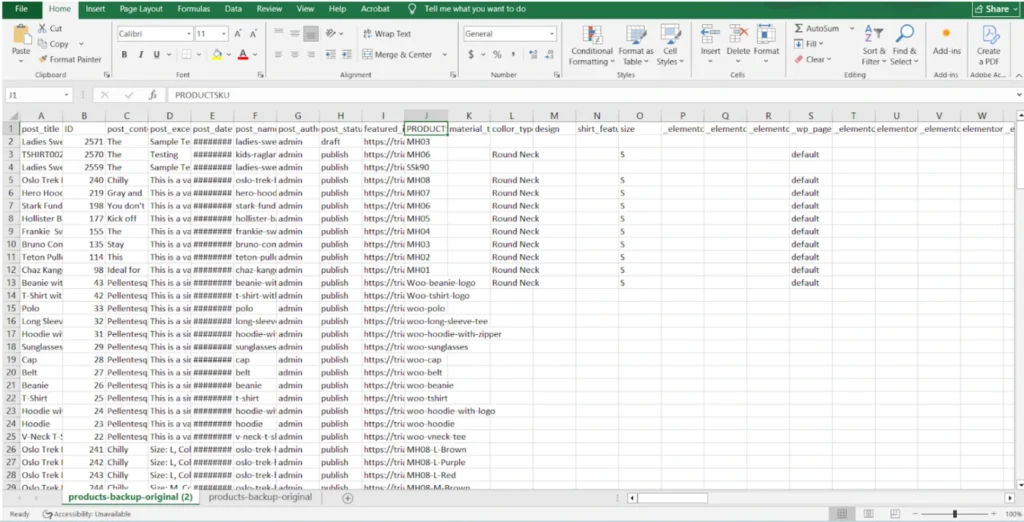
Familiarizing yourself with the CSV layout helps prevent mistakes and makes the editing process much smoother.
Step 6: Edit Prices and Stock Values Carefully
This is the most important part of the entire process, because this is where your actual product updates happen. Inside the CSV file, you can now adjust pricing and inventory details directly. While editing, it’s best to focus only on the fields you really need to change and avoid touching unnecessary columns.
What you need to do:
- Update the regular price if you want to change the main product price
- Modify the sale price if the product is on discount
- Adjust the stock quantity based on available inventory
- Update the stock status if needed (in stock or out of stock)
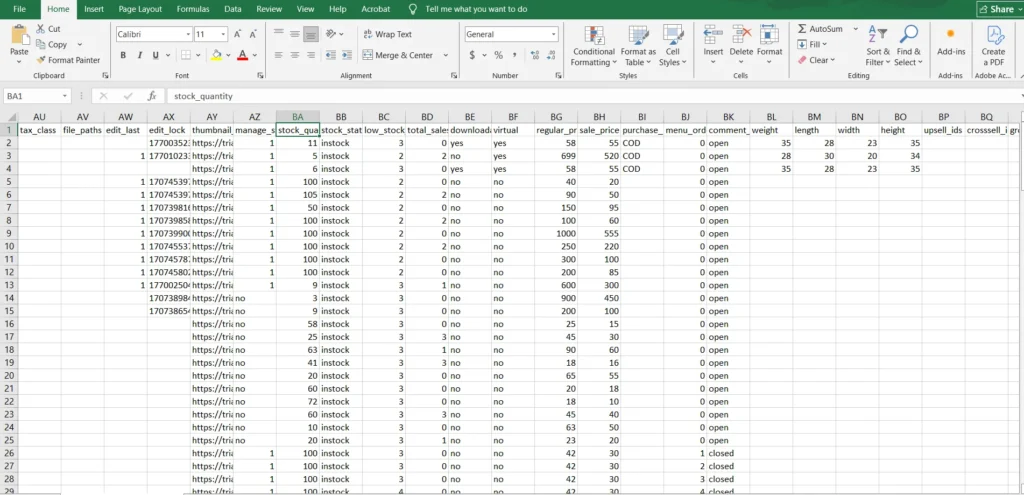
One critical thing to remember here is not to change the SKU values. WooCommerce uses SKUs to identify products, so keeping them unchanged ensures the correct products get updated during import.
Step 7: Save the Updated File as CSV
Once you’ve finished editing prices and stock values, the next step is to save the file correctly. Saving the file in the proper format is important because it ensures the importer can read and process the data without errors.
What you need to do:
- Click Save As in your spreadsheet tool
- Choose CSV as the file format
- Give the file a clear and recognizable name
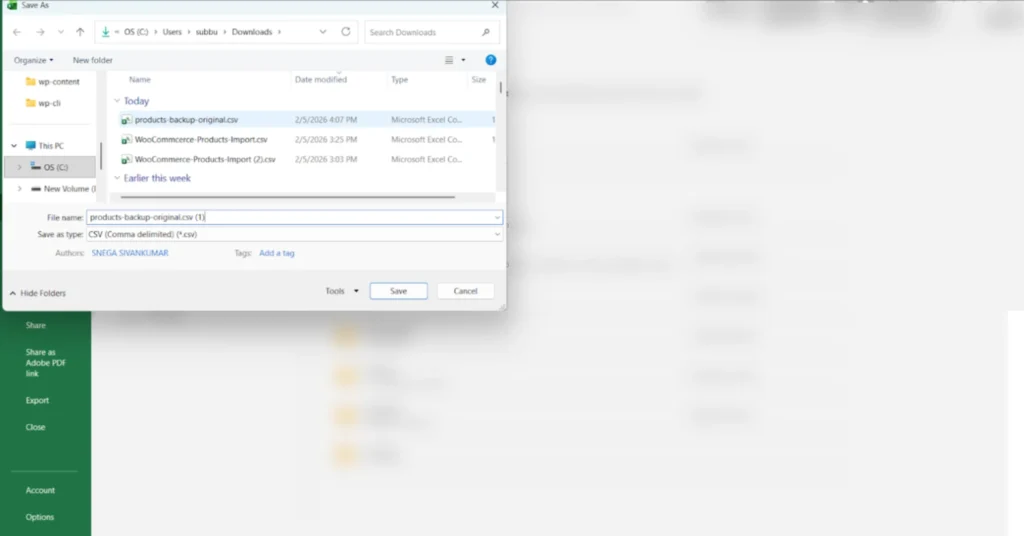
Saving the file in CSV format keeps it compatible with the import process and helps avoid upload issues later.
WP Ultimate CSV Importer Pro
Get Ultimate CSV/XML Importer to import data on WordPress faster, quicker and safer.
Step 8: Upload the Updated CSV File
Now that your CSV file is ready, it’s time to upload it back into WordPress. This step brings your edited data back into the system so the updates can be applied.
What you need to do:
- Go to Ultimate CSV Importer Pro → Import / Update
- Select Upload from Desktop
- Choose your edited CSV file and upload it
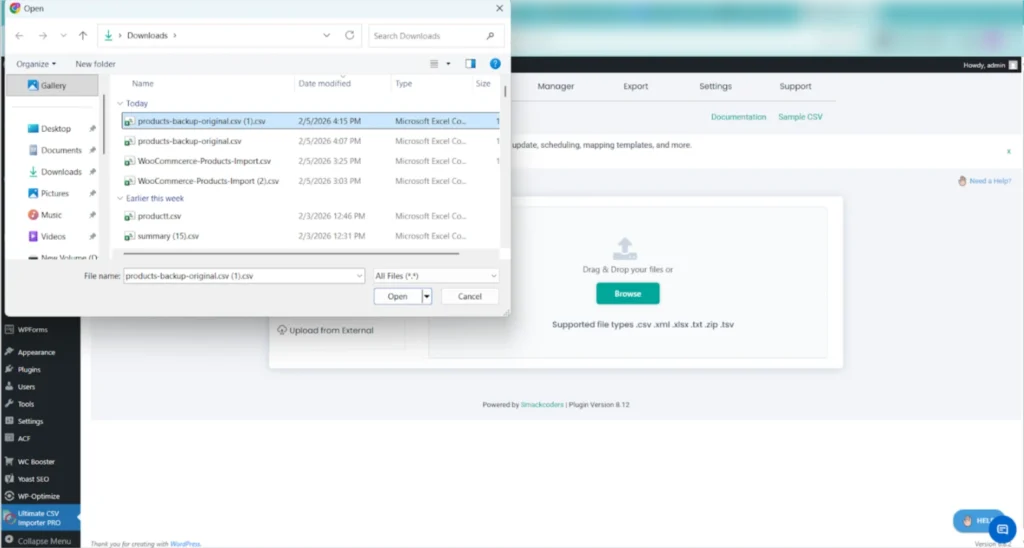
Uploading the correct file ensures the importer works with your latest changes.
Step 9: Select Update Content Mode
After uploading the CSV, you’ll be asked how the data should be processed. This step is crucial because it determines whether products are updated or duplicated.
What you need to do:
- Select Update Content
- Set the record type as WooCommerce Product
- Click Continue to proceed
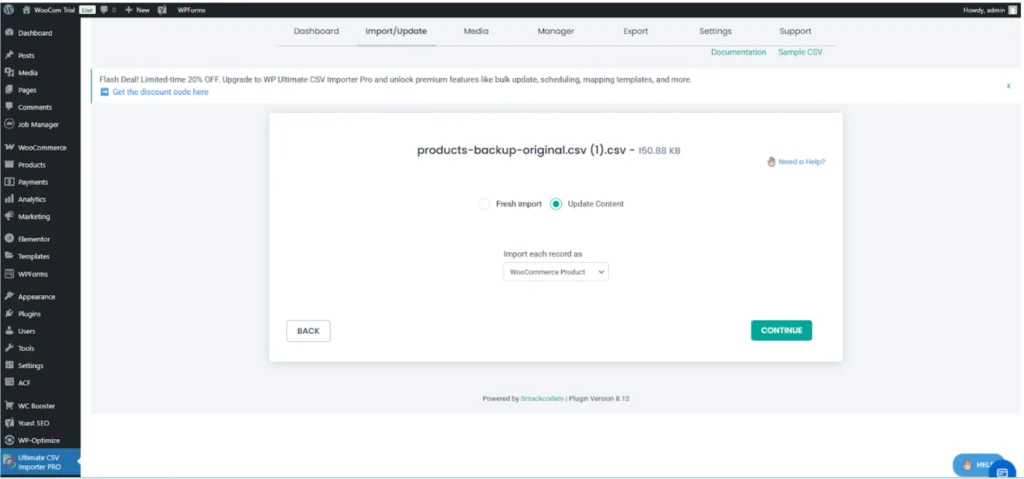
Choosing Update Content tells the system to modify existing products instead of creating new ones.
Step 10: Match CSV Columns with WooCommerce Fields
Next, you’ll see the field-mapping screen. While this may look technical at first, most mappings are handled automatically. Still, it’s important to review them carefully.
What you need to check:
- Product title mapping
- Product ID mapping
- Description and short description
- SKU field mapping
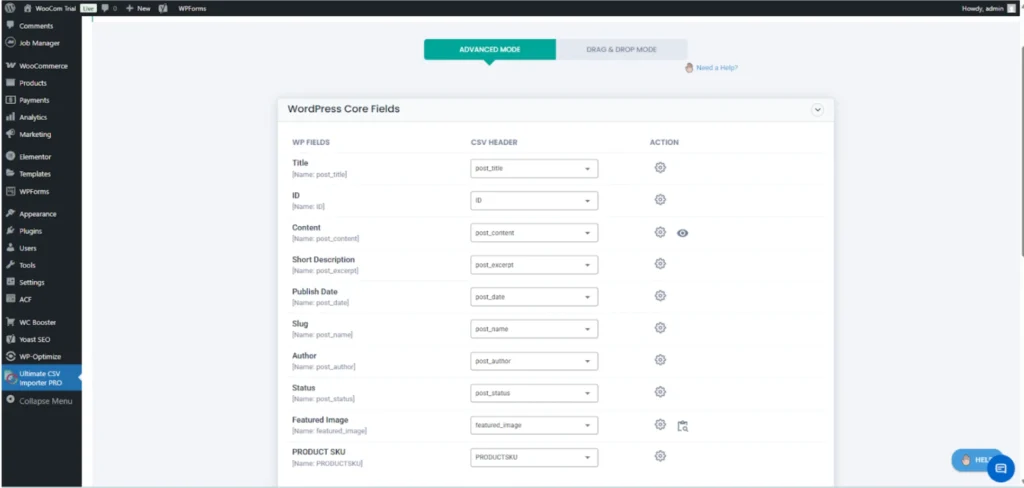
Taking a moment to verify these mappings helps ensure data is updated correctly.
Step 11: Map Stock and Pricing Fields
This is where WooCommerce receives updated stock and price values from your CSV file.
Make sure the following fields are mapped correctly:
- Stock quantity
- Stock status
- Regular price
- Sale price
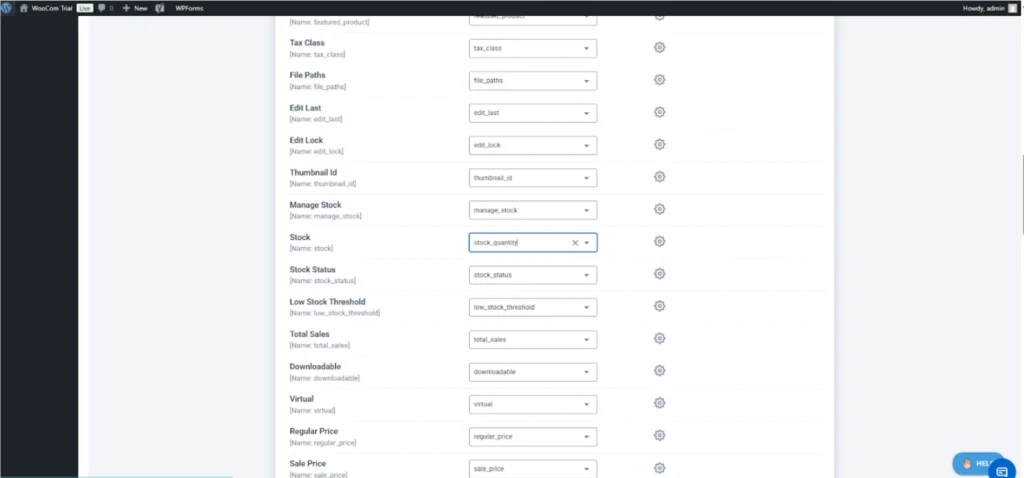
Correct mapping here ensures your store reflects accurate pricing and inventory levels.
Step 12: Review Optional Sections and Continue
You may notice additional sections related to SEO fields, product attributes, or page builder data. These sections are optional and only need attention if your CSV includes related information.
What you should do:
- Leave these sections unchanged if they are not relevant
- Review to ensure nothing is misconfigured
- Click Continue to move forward
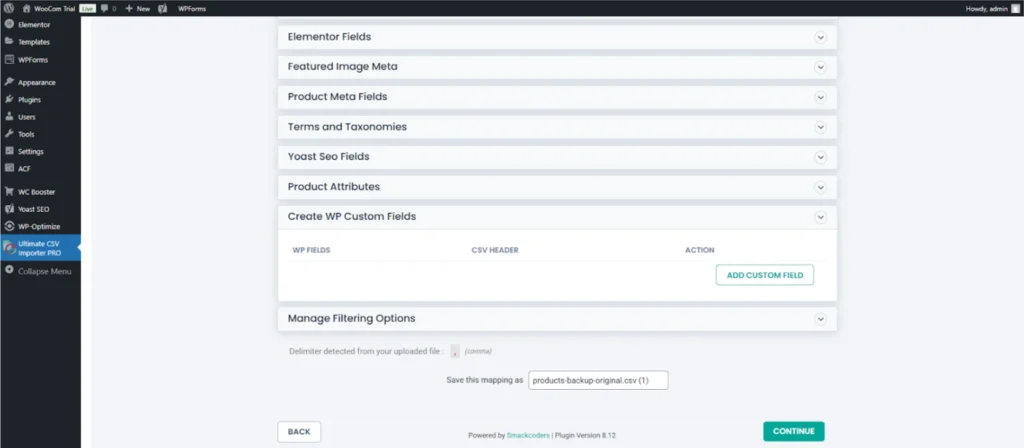
Skipping unnecessary fields helps keep the import clean and focused.
Step 13: Configure Import Rules Using SKU
In the import configuration screen, you’ll define how records should be matched and updated. This step ensures accuracy during the update process.
What you need to do:
- Enable handling duplicate records
- Choose Update records based on → PRODUCTSKU
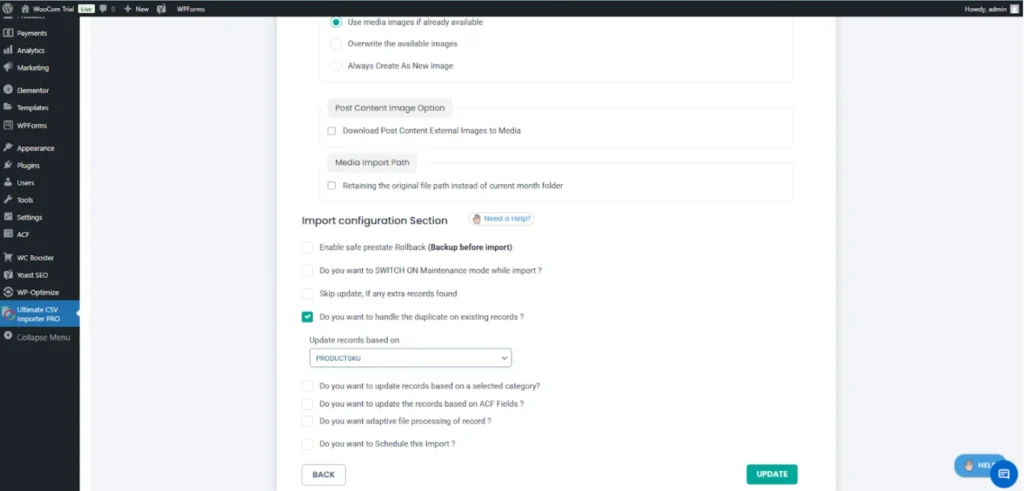
Using SKU as the matching key ensures each product is updated correctly.
Step 14: Run the Import Process
Once all settings are confirmed, you’re ready to run the import. The system will now process each product from the CSV file.
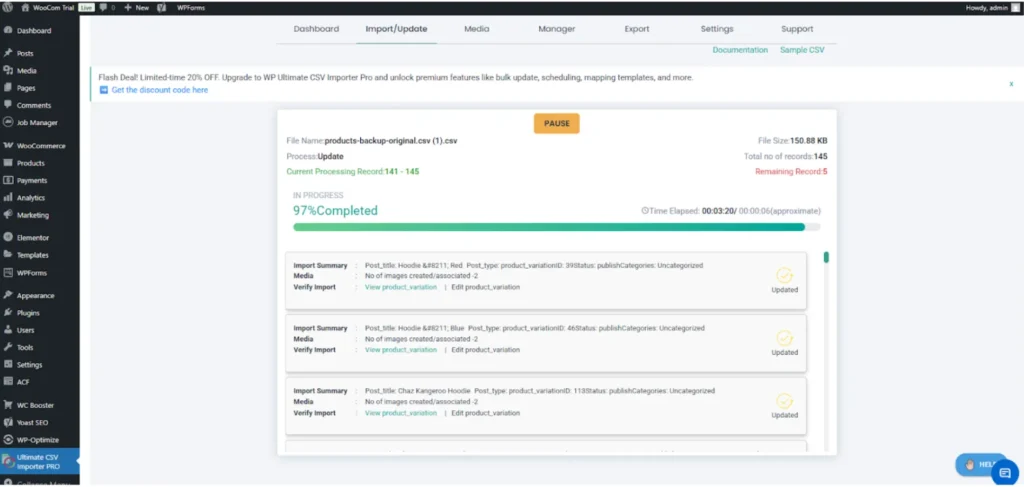
What you’ll notice:
- A progress bar showing real-time import status
- Automatic processing of product updates
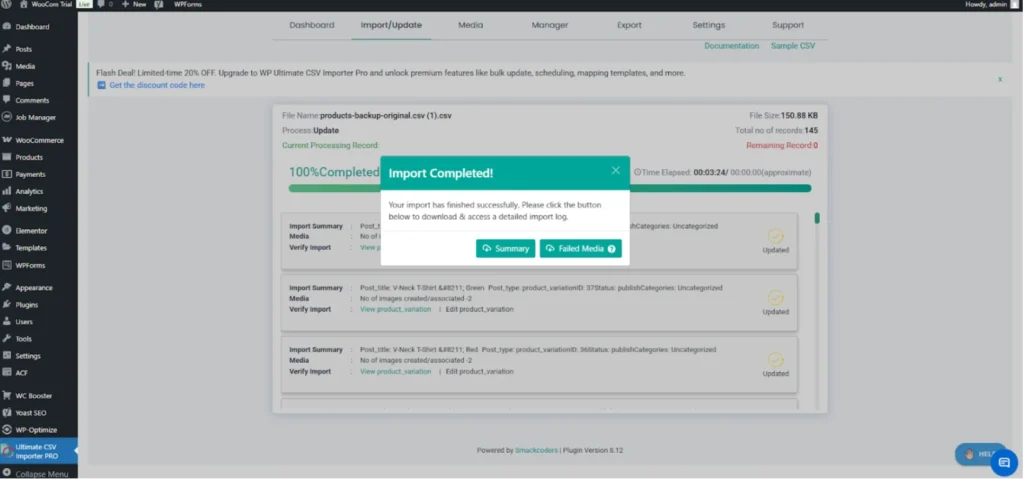
When the import completes, you’ll see a confirmation message indicating success.
Step 15: Review the Import Summary
After the import finishes, it’s a good idea to review the summary for confirmation and clarity.
The import summary shows:
- Number of products successfully updated
- Any failed images or records
- Overall import status
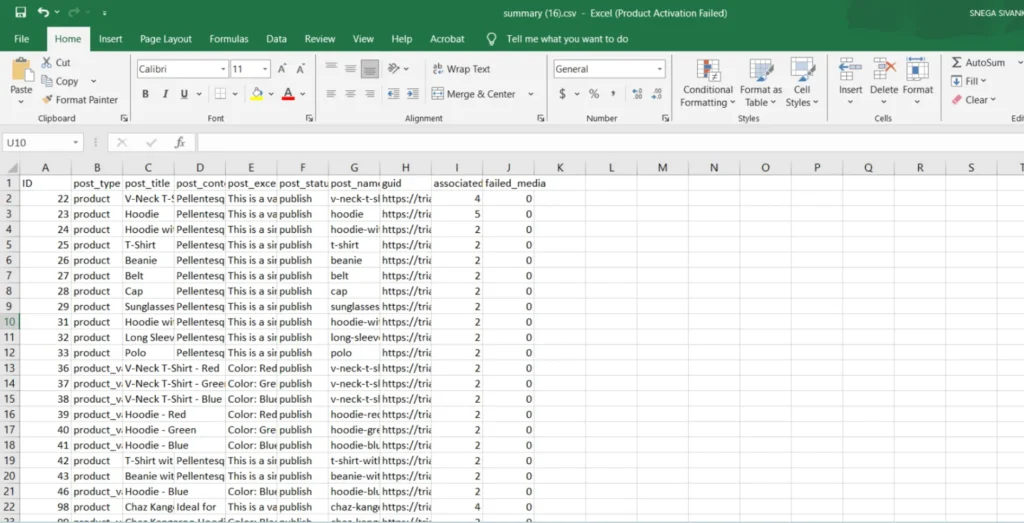
This step helps you quickly verify whether everything worked as expected.
Step 16: Verify Changes in WooCommerce
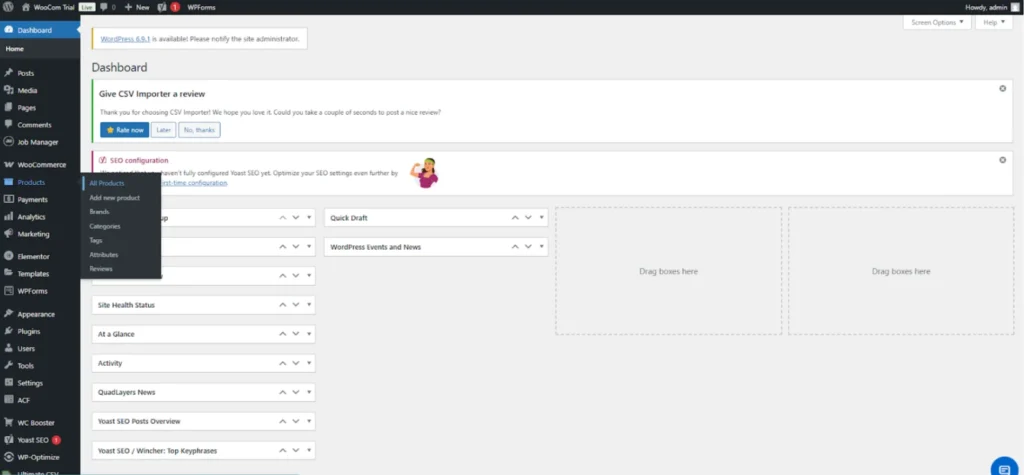
As a final check, head over to WooCommerce → Products → All Products and review a few items manually.
Make sure to confirm:
- Prices are updated correctly
- Stock quantities match the CSV values
- Products remain published and visible

Once everything looks correct, your bulk update process is complete
WP Ultimate CSV Importer Pro
Get Ultimate CSV/XML Importer to import data on WordPress faster, quicker and safer.
Best Practices for Successful Bulk Updates
To maintain data integrity and avoid mistakes, always keep a backup of your original CSV file. Use SKU values consistently to identify products, and consider testing the import with a small number of products before updating your entire catalog. Avoid altering product IDs manually, and ensure that all price and stock values are entered in a clean numeric format.
Important Import Settings to Avoid Mistakes
Choosing the right configuration during a bulk import plays a major role in keeping your WooCommerce store data accurate. Incorrect options can unintentionally change product details, create duplicate listings, or update stock information wrongly. Taking a moment to review and understand the available settings helps ensure the import runs smoothly and updates remain fully under your control.
Updating only selected fields
Configure the importer so that it modifies only the necessary fields, such as pricing and inventory values. Limiting the update scope protects other product elements like descriptions, images, categories, and attributes from being changed during the process.
Preventing product duplication
Duplicate entries usually appear when the system cannot properly identify existing products from the CSV file. Using consistent identifiers like SKU or Product ID allows WooCommerce to match records accurately and apply updates to the correct items without creating extra products.
Handling out-of-stock products correctly
Make sure that stock status settings correspond with the inventory quantities provided in the CSV. When the quantity reaches zero, products should automatically be marked as out of stock. Proper stock handling keeps availability information accurate and helps customers clearly understand which items are currently available.
Essential Practices for Safe and Accurate WooCommerce Bulk Updates
Applying proven methods during bulk updates helps minimize risks and ensures your WooCommerce data stays accurate and consistent. Careful preparation and smart workflow habits make the update process smoother and reduce the chances of unexpected issues.
Always test with a small CSV first
Start by running a trial import using a small WooCommerce Products sample file before updating the full product catalog. This allows you to verify field mapping, review settings, and confirm that the updates work as intended. Testing on a smaller scale helps detect problems early and prevents large-scale errors.
Use SKU instead of Product ID when possible
Whenever available, rely on SKU values for product matching instead of internal product IDs. SKUs remain more consistent across different websites, migrations, or staging environments, which helps maintain accurate product identification and reduces matching errors.
Backup before bulk updates
Create a complete backup of your website or product database before performing any large import. Having a backup ensures that you can quickly restore previous data if pricing or inventory updates do not produce the expected results, giving you an extra layer of protection.
Why Use WP Ultimate CSV Importer for WooCommerce Updates
WP Ultimate CSV Importer is designed to make large-scale WooCommerce product updates faster and more manageable. With advanced field mapping options, precise update controls, and the ability to process large CSV files, it helps store owners update pricing and inventory efficiently while maintaining data accuracy.
Supports large product catalogs
The plugin is built to manage bulk updates across extensive product databases, including stores with thousands of items. Automating updates through CSV files, it significantly reduces manual workload and speeds up product catalog maintenance.
Safe update without overwriting unwanted data
Flexible update settings allow you to choose exactly which product fields should be modified during the import process. This ensures that essential content, such as descriptions, images, and categories remain untouched unless intentionally updated.
Works with variable products and stock status
WooCommerce variable products often include multiple variations and complex stock details. The plugin supports accurate handling of variation pricing and inventory levels, ensuring that both product options and stock availability are updated correctly.
Conclusion
Bulk updating WooCommerce prices and stock using CSV is the most practical approach for managing large or growing product catalogs. CSV-based updates save time, reduce errors, and improve consistency across the store.
Using WP Ultimate CSV Importer streamlines the entire process, from file upload to safe and accurate updates. By following best practices, testing before full imports, and reviewing results carefully, store owners can manage WooCommerce pricing and inventory with confidence.
Don’t let manual product edits slow down your WooCommerce growth. Start simplifying your workflow today, prepare a structured CSV file, use reliable bulk import tools, and keep your prices and stock updated in minutes instead of hours.
If this guide helped you manage WooCommerce updates more efficiently, feel free to reference it in your blog or share your feedback with us at [email protected]. We’re always happy to collaborate and support better WooCommerce workflows.
If your WooCommerce store experiences frequent pricing or inventory changes, adopt CSV-based bulk updates using WP Ultimate CSV Importer or a similar structured workflow to improve efficiency, accuracy, and scalability
FAQ – Bulk Update Prices and Stocks in WooCommerce
1. Can I bulk update WooCommerce prices and stock without editing products manually?
Yes. WooCommerce allows bulk updates using CSV files, which let you modify prices and stock quantities for multiple products at once. This approach eliminates the need to open and edit each product individually, making it ideal for stores with large catalogs or frequent price changes.
2. What is the safest way to bulk update prices and stocks in WooCommerce?
The safest method is using a structured CSV file with a reliable import tool that supports update-only mode. This ensures that only selected fields—such as prices and stock—are updated without affecting other product data like descriptions, images, or categories.
3. Should I use Product ID or SKU for WooCommerce CSV updates?
Using SKU is generally recommended because it remains consistent across environments and imports. Product IDs can change between sites or during migrations, while SKUs provide a more reliable way to match existing WooCommerce products during bulk updates.
4. Can I update stock status along with stock quantity using a CSV file?
Yes. Along with stock quantity, you can also update stock status (in stock, out of stock, or backorder) through CSV-based imports. Correctly mapping both fields ensures accurate inventory visibility and prevents customers from purchasing unavailable products.
5. Will bulk CSV updates overwrite my existing WooCommerce product data?
Bulk updates will only overwrite the fields you choose to update. If your import is configured to update prices and stock only, other product data, such as titles, images, and attributes, will remain unchanged. This makes CSV updates a controlled and low-risk process.
6. Is it possible to bulk update prices for variable products in WooCommerce?
Yes. Variable products can be updated via CSV by targeting individual variations using their unique identifiers. Prices and stock levels can be adjusted per variation, making CSV imports suitable for complex WooCommerce product structures.
7. What precautions should I take before running a bulk update?
Before performing a bulk update, always back up your site and test the import with a small CSV file. This helps identify mapping issues early and prevents large-scale errors when updating your full product catalog.
8. How can I update bulk prices in WooCommerce?
Bulk price updates can be completed by preparing a CSV file that contains product identifiers, such as SKU or Product ID, along with updated pricing details. After editing the file in a spreadsheet, you can import it into WooCommerce using a bulk import plugin like WP Ultimate CSV Importer and map the price fields correctly. This method allows you to modify large numbers of products at once without editing each item individually.
9. How to bulk update stock in WooCommerce?
To update inventory in bulk, create a CSV file that includes the product identifier and stock quantity fields. Upload the file through a WooCommerce-compatible import tool and connect the stock columns to the correct inventory fields during mapping. Once the import is completed, WooCommerce automatically adjusts product availability and stock levels based on the data provided.
10. Can I import 10,000+ products in WooCommerce?
Yes, WooCommerce can manage very large product imports when supported by a reliable CSV importer plugin and proper server resources. Tools such as WP Ultimate CSV Importer are designed to handle high-volume data and allow you to upload thousands of products in a single or segmented import process. Using a clean and well-organized CSV file helps ensure the import runs smoothly without performance issues.
