
Table of Contents
| TL;DR WAMP is Windows-only. XAMPP runs on Windows, Mac, and Linux. Both bundle Apache, MySQL, MariaDB, and PHP into a single free installer so you can run WordPress or any PHP project on your local machine, no live hosting needed. Choose WAMP for Windows-only work; choose XAMPP for everything else. |
How to install WAMP and XAMPP is one of the most searched questions among WordPress developers setting up a local server for the first time. Both tools bundle Apache, MySQL, MariaDB, and PHP into a single free installer so you can run WordPress or any PHP project on your local machine without live hosting.
In this guide, you will learn what WAMP and XAMPP are, how they differ, and which one is right for your operating system. We cover step-by-step installation for Windows, macOS, and Linux, the most common setup errors and how to fix them, and a clear WAMP vs XAMPP comparison so you can make the right call before you download anything. By the end, you will have a fully working local server ready for WordPress development, testing, and migration work.
Key Takeaways:
• WAMP Server is Windows-only. Mac and Linux users should use XAMPP instead.
• Both tools include Apache, MySQL/MariaDB, PHP, and phpMyAdmin all in a single free installer.
• WAMP makes switching PHP versions easier on Windows, with one click from the system tray menu.
• XAMPP is cross-platform, open-source, and works on Windows, macOS, and Linux.
• The default Apache port is 80. If it conflicts with another app, switch to port 8080.
• Access your local server at http://localhost after installation.
• phpMyAdmin is available at http://localhost/phpmyadmin. The default username is root with no password.
• Never use WAMP or XAMPP for live production hosting; both are local development tools only.
| Note: WAMP Server is available for Windows only. If you are on a Mac or Linux machine, skip to the XAMPP installation section below, which covers step-by-step setup for macOS and Linux as well. |
What Is WAMP?
WAMP is a free Windows-only software stack that bundles Apache, MySQL, MariaDB, and PHP into a single installer, letting you run WordPress and PHP apps on your computer without web hosting.
WAMP stands for Windows, Apache, MySQL, and PHP. It is a free software stack that installs all four components together on your Windows machine, turning it into a local web server. Once installed, you can run PHP-based applications like WordPress, Joomla, or any custom PHP project entirely offline, no hosting account needed.
The WAMP Server control panel sits in your system tray and lets you start, stop, and restart Apache and MySQL services with a single click. It also lets you switch between multiple PHP and Apache versions without reinstalling anything, which is genuinely useful when you are working on projects with different PHP version requirements.
WAMP includes:
• Apache web server
• MySQL and MariaDB databases
• PHP (multiple versions)
• phpMyAdmin for database management
What Is XAMPP?
XAMPP is a free, open-source local server stack that runs on Windows, macOS, and Linux, bundling Apache, MariaDB, PHP, and Perl into one installer so you can develop and test websites locally.
XAMPP stands for Cross-Platform, Apache, MariaDB, PHP, and Perl. Developed by Apache Friends, it is a free, open-source local server stack that runs on Windows, macOS, and Linux. If you have ever searched for WAMP on Mac and hit a dead end, XAMPP is the answer. It is the go-to local development tool for non-Windows users.
The XAMPP Control Panel is beginner-friendly. You start and stop Apache and MySQL with dedicated buttons, no tray icon hunting is required. Most users only ever need Apache and MySQL running for standard WordPress or PHP development.
XAMPP includes:
• Apache
• MariaDB (MySQL-compatible)
• PHP
• Perl
• phpMyAdmin
• FileZilla FTP
• Mercury Mail
• Apache Tomcat
WAMP vs XAMPP: Which One Should You Choose ?
Both tools do the same fundamental job: they give you a local server to develop and test web applications. But they are built for slightly different users. Here is a straight comparison so you can make the right call before you download anything.
Before you decide which tool to download, understanding how to install WAMP and XAMPP correctly on your operating system will save you time and avoid common setup errors.
| Feature | WAMP Server | XAMPP |
| Operating System | Windows only | Windows, macOS, Linux |
| Installation Ease | Very easy on Windows | Easy on all platforms |
| PHP Version Switching | Built-in, one click | Manual (separate installs) |
| Interface | System tray icon | Full control panel |
| Includes Perl | No | Yes |
| FTP Server (FileZilla) | No | Yes |
| Mail Server | No | Yes (Mercury) |
| Portable (USB) | No | Yes |
| Database | MySQL / MariaDB | MariaDB (MySQL-compatible) |
| Open Source | Free, open source (GPML license) | Fully open source |
| Best For | Windows-only PHP developers | Cross-platform & beginners |
| Mac users: Mac users looking for a native alternative can also consider MAMP, which is built specifically for macOS. |
So Which One Should You Pick?
If you are building WordPress sites only and do not need a general PHP environment, LocalWP is worth considering as a third option. It requires zero configuration no Apache setup, no port conflicts, and no phpMyAdmin setup. You install it, click “Create Site,” and your local WordPress site is running in under a minute. The only tradeoff is that LocalWP only runs on WordPress. You cannot use it for custom PHP projects or non-WordPress applications. If that limitation is fine for you, LocalWP is the easiest starting point of the three.
Choose WAMP if: You are on Windows, you only need PHP (not Perl), and you want the cleanest, lightest setup possible. WAMP’s ability to switch PHP versions from the tray menu is a genuine time-saver for Windows developers managing multiple projects.
Choose XAMPP if: You are on Mac or Linux (WAMP will not run on these), you want a portable setup you can run from a USB drive, or you need a more complete stack that includes FTP and mail server tools.
If you are a beginner just starting, either works fine for running WordPress locally. XAMPP has a slightly friendlier control panel and is the better choice if you are not sure which OS you will be working on long-term.
What about Docker and WSL2?
If you are a professional developer or planning to scale your workflow in 2026, two alternatives are worth knowing about. WSL2 (Windows Subsystem for Linux 2) lets Windows users run a full Linux environment natively without a virtual machine, making it a strong option for developers who want a production-like setup. Docker lets you run your entire local environment – Apache, MySQL, MariaDB, and PHP – inside containers that match your live server exactly.Compared to WAMP and XAMPP, configuring both options requires more technical setup. For beginners and most WordPress developers, WAMP or XAMPP remains the fastest and simplest starting point.
System Requirements Before You Install
WAMP Server Requirements (Windows Only)
• Windows 11 (64-bit) Windows 10 support ended in October 2025; Windows 11 is now recommended.
• Visual C++ Redistributable packages: VC11, VC13, and VC17 (2015–2022) – install all before running the WAMP installer
• At least 2 GB RAM (4 GB+ recommended for running WordPress locally)
• 1 GB free disk space
• Administrator privileges on your machine
• 32-bit Windows is not supported. WAMP is 64-bit only as of 2023.
XAMPP Requirements (Windows / Mac / Linux)
• Windows 10/11, macOS 12 (Monterey) or later, or any modern Linux distribution
• At least 512 MB RAM (1 GB+ recommended)
• 300 MB free disk space
• Administrator or sudo privileges
macOS 14 Sonoma and macOS 15 Sequoia users: When you first open the XAMPP installer, macOS may block it with a security warning. To get past this, go to System Settings → Privacy & Security → scroll down until you see the blocked app → click Open Anyway. This is normal for apps downloaded outside the App Store. If you are on an Apple Silicon Mac (M1, M2, or M3 chip), XAMPP will run through Rosetta 2 automatically, but performance may be slightly slower than on an Intel Mac.
| Important: Do not run WAMP and XAMPP at the same time. Both use port 80 for Apache and port 3306 for MySQL by default. Running them simultaneously causes port conflicts, and neither will work correctly. |
How to Install WAMP Server on Windows (Step-by-Step)
Installing WAMP on Windows takes about 10 minutes. Download the installer from wampserver.com, install the required Visual C++ packages first, run the setup wizard, and verify the system tray icon turns green
Step 1: Download WAMP Server
1. Go to the official WampServer website at wampserver.com and click Start Using WampServer. Download WAMPSERVER 64 BITS (x64). WampServer 3.4.0 is 64-bit only and no longer offers a 32-bit version.
2. Before downloading, install the required Visual C++ Redistributable packages: VC11, VC13, and VC17 (2015–2022). If you are on 64-bit Windows, install both the 32-bit and 64-bit versions of each package.
3. Right-click each installer and select Run as Administrator; otherwise, WAMP will not launch correctly.
| Tip: The fastest way to install all required VC++ packages at once is to use the Visual C++ Redistributable Runtimes All-in-One by TechPowerUp. It installs everything needed with a single batch file. |
Step 2: Run the WAMP installer.
If you have an older version of WAMP already installed, uninstall it completely before running this installer. Installing over an existing version will break the installation.
- Locate the downloaded .exe file and double-click it to start the installer.
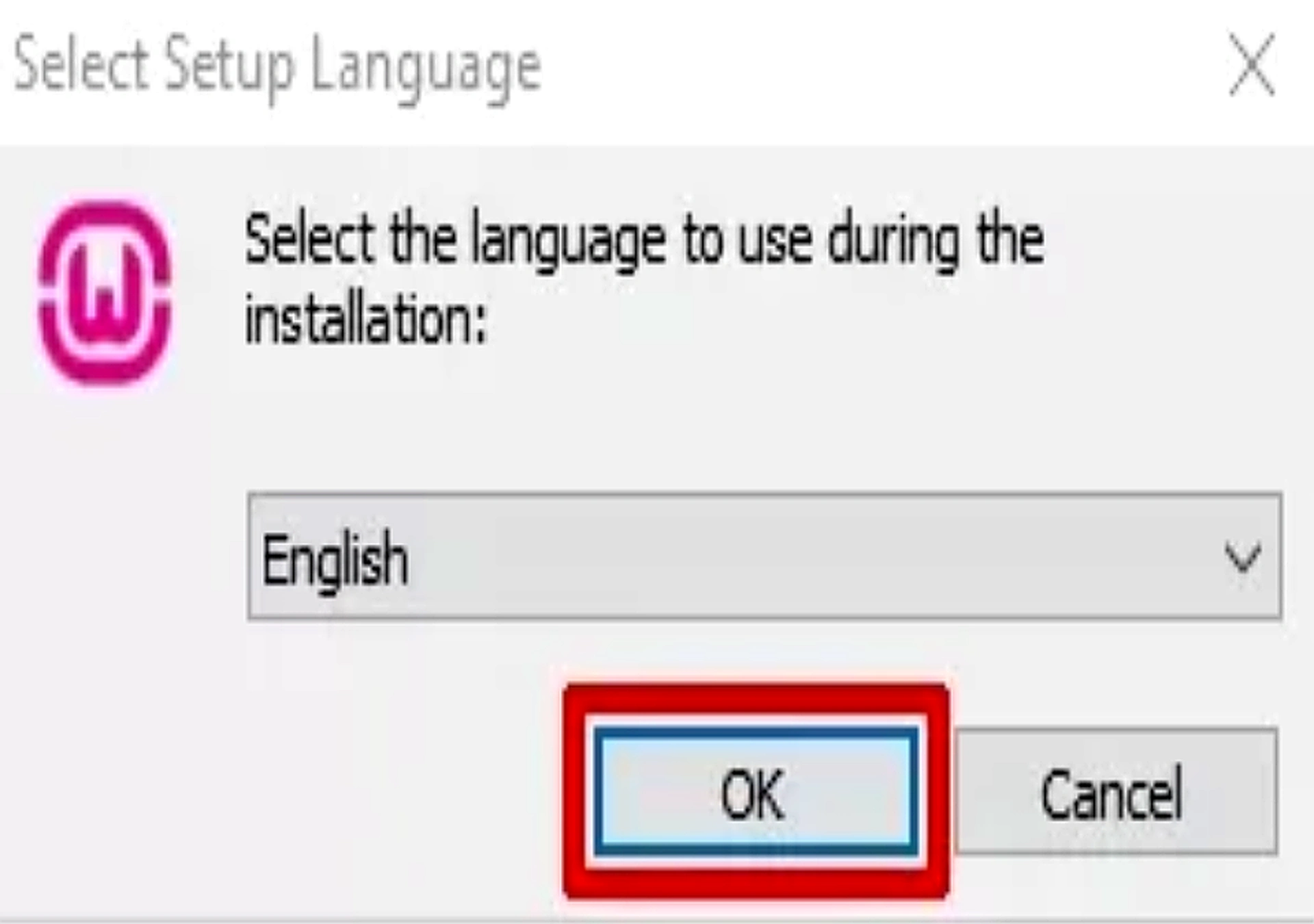
- Select your language and click OK.
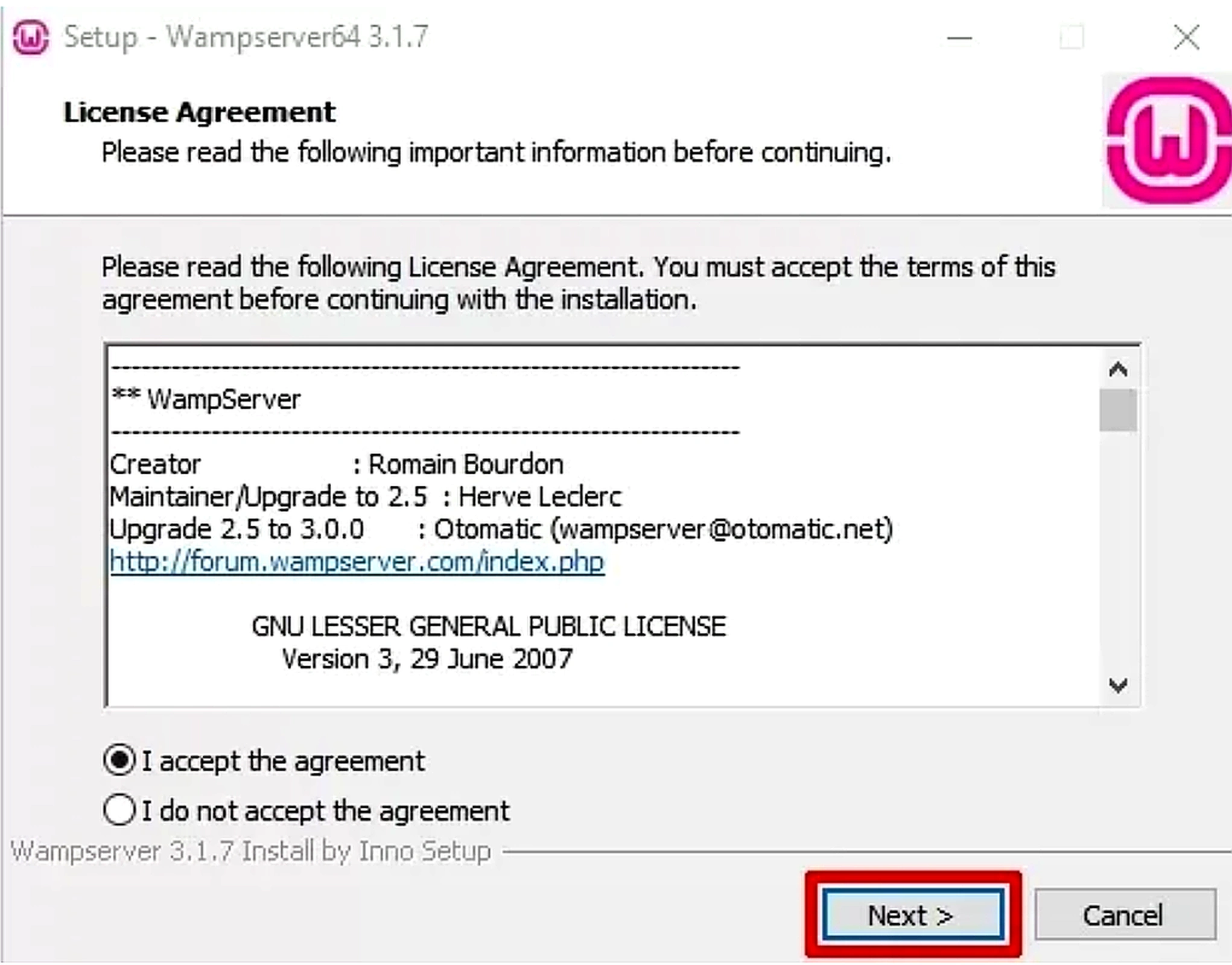
- Accept the license agreement and click Next.
- Read the WAMP information screen and click Next.
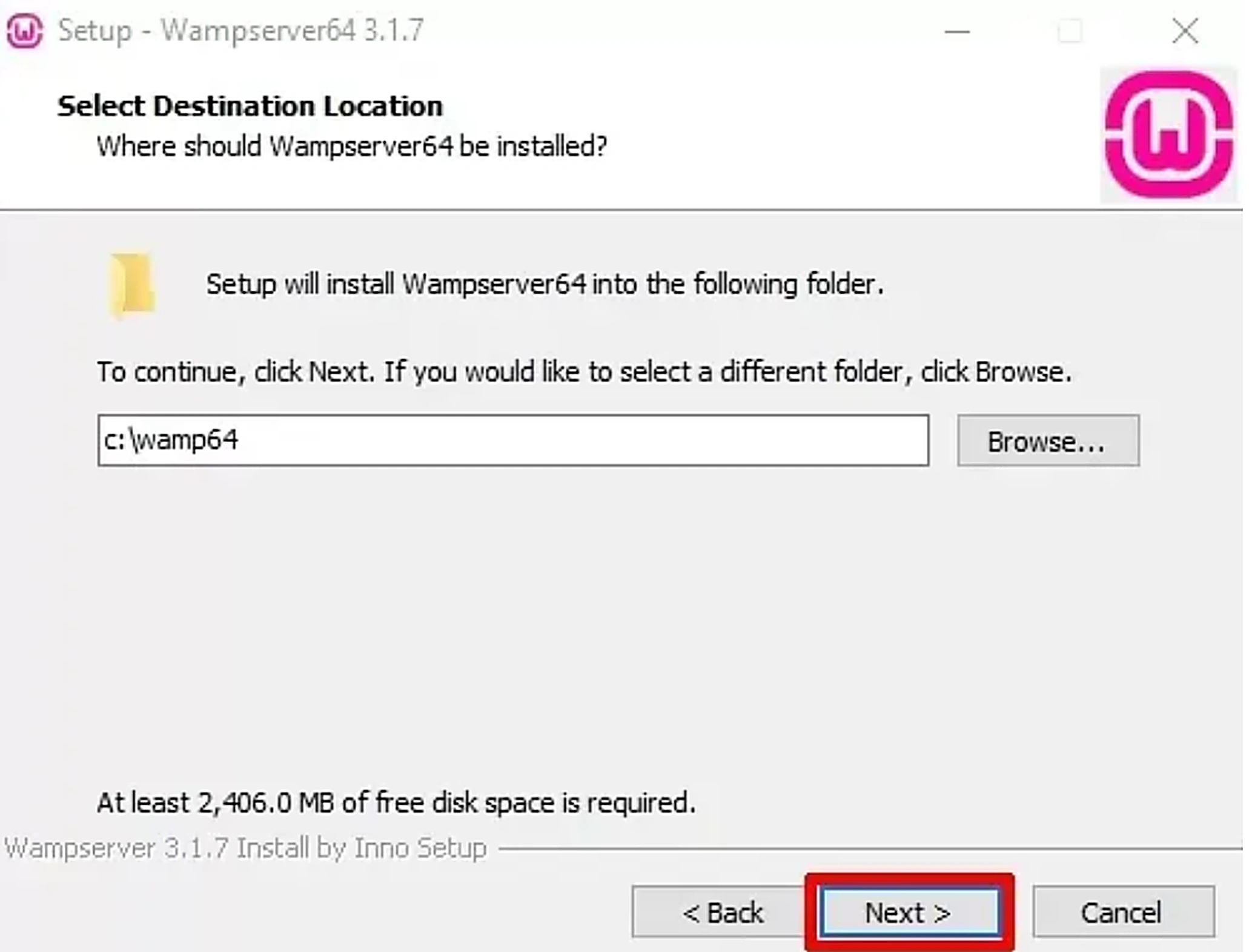
- Choose your installation folder. The default is C:\wamp64. Stick with this unless you have a specific reason to change it. Click Next.
- Select whether you want a desktop shortcut and a quick launch icon added to your taskbar. Make your selections and click Next.
- Select your default browser when prompted.
- Choose a default text editor for editing config files. Notepad works fine.
- Leave the PHP mail SMTP setting as localhost and click Next.
- Check Launch WampServer now and click Finish.
Step 3: Verify WAMP Is Running
Look for the WampServer icon in your system tray (bottom-right of the taskbar). The icon color tells you everything:
• Green – All services (Apache and MySQL) are running. You are good to go.
• Orange – One service started, but the other did not. Usually, a port conflict.
• Red – Neither Apache nor MySQL started. Check that your Visual C++ packages are installed correctly.
To test your installation, open a browser and go to http://localhost. You should see the WampServer homepage. If localhost does not load even when the icon is green, check that no other services like XAMPP, Skype, or WebDAV are running on port 80.
Step 4: Access phpMyAdmin.
Every WordPress site needs a database. phpMyAdmin helps you build, organize, and control databases directly from your local server through an easy web interface. You will come back to this every time you set up a new local site.
phpMyAdmin is WAMP’s browser-based database manager. Access it by going to http://localhost/phpmyadmin in your browser. If localhost does not resolve, try http://127.0.0.1/phpmyadmin directly; both point to the same place. The default username is root, and the password field is blank. Just click Go to log in.
| Security note: The default root account has no password, which is fine for local development. If you are running WordPress locally, create a dedicated MySQL user with a password via the phpMyAdmin User Accounts tab instead of using root directly. |
How to Install XAMPP on Windows (Step-by-Step)
Installing XAMPP on Windows takes about 5 minutes. Download the installer from apachefriends.org, run the setup wizard, and start Apache and MySQL from the control panel.
Step 1: Download XAMPP
1. Download the latest XAMPP version that matches your PHP requirements from the official Apache Friends website.
2. Choose the PHP version that matches your project requirements. Most modern WordPress sites need PHP 8.0 or higher.
| Tip: Temporarily disable your antivirus before running the installer. Some antivirus applications interfere with the XAMPP installation process and can cause it to fail silently. |
Step 2: Run the XAMPP Installer
- Double-click the downloaded installer (.exe file).
- If UAC (User Account Control) is active, a warning will appear; click OK to continue.
- The Setup Wizard will open. Click Next.
- Select the components you want to install. For WordPress development, Apache, MySQL, PHP, and phpMyAdmin are all you need. Leave the rest unchecked unless you specifically need them.
- Choose your installation folder. Avoid C:\Program Files if UAC is enabled, use C:\xampp instead to prevent permission issues.
- On the Bitnami for XAMPP screen, uncheck the Learn more about Bitnami box unless you want to use it for one-click app installs.
- Proceed to the next step and allow the setup process to finish completely.
- When prompted by Windows Firewall, click Allow Access to let XAMPP modules through. If you cancel this, Apache will not start correctly.
- Click Finish. The XAMPP Control Panel will open automatically.
| Autostart Tip: In the XAMPP Control Panel, click Config, tick the Apache and MySQL checkboxes under Autostart of modules, and click Save. This way, both services start automatically every time you open XAMPP. |
Step 3: Start Apache and MySQL
- In the XAMPP Control Panel, click the Start button next to Apache, then click the Start button next to MySQL. Both status indicators should turn green.
- Open your browser and go to http://localhost. You should see the XAMPP dashboard; your local server is up and running.
Step 4: Access phpMyAdmin on XAMPP.
phpMyAdmin is where you create the database that WordPress connects to. You need to do this before running the WordPress installer. Every local WordPress site gets its own database.
Navigate to http://localhost/phpmyadmin. Log in with the default username root and no password. From here, you can create and manage databases for your local projects.
Common WAMP Server Errors and How to Fix Them
While WAMP Server is easy to install on Windows, users may face a few common issues during setup or while running WordPress on localhost. Most WAMP errors are simple to fix if you know the right steps.
1. WAMP Server Not Turning Green
Issue: WAMP icon stays red or orange instead of green.
Cause: Apache or MySQL services are not running.
Fix steps:
• Close Skype, Zoom, or IIS (they often block ports)
• Right-click WAMP and select Restart All Services
• Run WAMP as administrator
2. Apache Port 80 or 443 Already in Use
Issue: Apache fails to start in WAMP.
Cause: Another application is using Port 80 or 443.
Fix steps:
• Open httpd.conf and change Listen 80 to Listen 8080, then restart WAMP services.
3. MySQL Not Starting in WAMP
Issue: MySQL service will not start.
Cause: Port conflict or corrupted MySQL files.
Fix steps:
• Check if another MySQL service is running
• Change MySQL port in my.ini
• Restart MySQL from the WAMP control panel
4. PHP Version Compatibility Issues
Issue: WordPress or plugins show errors.
Cause: Incorrect PHP version enabled.
Fix steps:
• Click WAMP icon > PHP > Version
• Select a PHP version compatible with WordPress
• Restart services
5. Localhost Not Opening in Browser
Issue: http://localhost is not loading.
Cause: Services stopped or browser cache issue.
Fix steps:
• Ensure the WAMP icon is green.
• Clear browser cache
• Try http://localhost:8080 if the port was changed
How to Install XAMPP on macOS (Step-by-Step)
XAMPP is the recommended local server for Mac users since WAMP does not run on macOS. Download the .dmg installer from apachefriends.org and follow the setup wizard to get Apache and MySQL running locally.
Step 1: Download XAMPP for Mac
Go to apachefriends.org and navigate to Other Downloads to download XAMPP for OS X. This is the native installer. Avoid the XAMPP-VM option unless you specifically need a virtual machine setup. which requires extra configuration and uses an IP address instead of localhost. Download the standard .dmg installer file instead.
Step 2: Run the Installer
- Open the downloaded .dmg file and double-click the installer to begin.
- If macOS blocks the file, go to System Settings > Privacy & Security, scroll down to find the blocked app, and click Open Anyway. This is normal for apps downloaded outside the App Store.
- The XAMPP Setup Wizard will open. Click Next.
- Choose your installation folder. The default is /Applications/XAMPP – keep this as-is.
- Select Next and allow the setup process to finish installing completely.
- Click Finish. The XAMPP Control Panel (manager-osx) will launch automatically.
Step 3: Start Apache and MySQL on Mac
Open the XAMPP Control Panel from Applications > XAMPP > manager-osx or find it via Launchpad. Click the Manage Servers tab. You will see three services: Apache Web Server, MySQL Database, and ProFTPD. Select Apache Web Server and MySQL Database, and then click Start All. Both should show a green running status. Open your browser and go to http://localhost. The XAMPP dashboard confirms your local server is running.
| Mac Tip: If Apache will not start, the macOS built-in Apache server is likely occupying port 80. Run this command in Terminal to stop it: sudo apachectl stop, then return to manager-osx and start Apache again. |
How to Install XAMPP on Linux (Step-by-Step)
On Linux, XAMPP installs via a .run file from apachefriends.org and is managed through the terminal or a GUI control panel.
Step 1: Download XAMPP for Linux
Go to apachefriends.org and scroll down to the Linux section. Download the latest Linux installer from apachefriends.org and choose the PHP version that matches your project. The downloaded file will be a .run installer, for example: xampp-linux-x64-8.2.12-installer.run.
Step 2: Make the Installer Executable
Open your terminal with Ctrl + Alt + T and navigate to your Downloads folder:
cd ~/Downloads
Then make the installer executable:
chmod +x xampp-linux-x64-8.2.12-installer. run
Step 3: Run the Installer
Run the installer with administrator privileges:
sudo ./xampp-linux-x64-8.2.12-installer. run
The Setup Wizard will open. Click Next through the screens. Keep the default installation path at/opt/lampp, then click Finish.
Step 4: Start XAMPP on Linux
Start all XAMPP services using this command:
sudo /opt/lampp/lampp start
You will see a confirmation in the terminal that Apache and MySQL have started. Open your browser and go to http://localhost to verify that the XAMPP dashboard loads. To verify phpMyAdmin is also running, go to http://localhost/phpmyadmin.
Step 5: Open the XAMPP dashboard from your Linux system.
If you prefer a GUI over the terminal, navigate to the XAMPP directory:
cd /opt/lampp
sudo ./manager-linux-x64.run
From the Manage Servers tab, click Select All and then Start All to launch Apache and MySQL together.
| Linux Tip: To stop XAMPP, run: sudo /opt/lampp/lampp stop. Always stop XAMPP before shutting down your machine to avoid database corruption. |
XAMPP Error Fixing: Common Issues and How to Resolve Them
XAMPP errors usually occur due to port conflicts, missing permissions, corrupted files, or system restrictions. To fix most XAMPP issues, check your Apache/MySQL error logs, change the default ports (80, 443, 3306), run XAMPP as an administrator, or reinstall missing components.
1. Why XAMPP Fails to Install
XAMPP may not install due to the following reasons:
• System requirements do not match
• Antivirus blocks the installation
• The installer file is corrupted
• UAC (User Account Control) restricts permissions
How to fix XAMPP installation issues:
• Run the installer as Administrator
• Disable antivirus temporarily
• Download a fresh installer from Apache Friends
• Avoid installing under C:\Program Files
2. Fixing Apache Port Conflict (Port 80 or 443 in Use)
This is the most common issue in XAMPP.
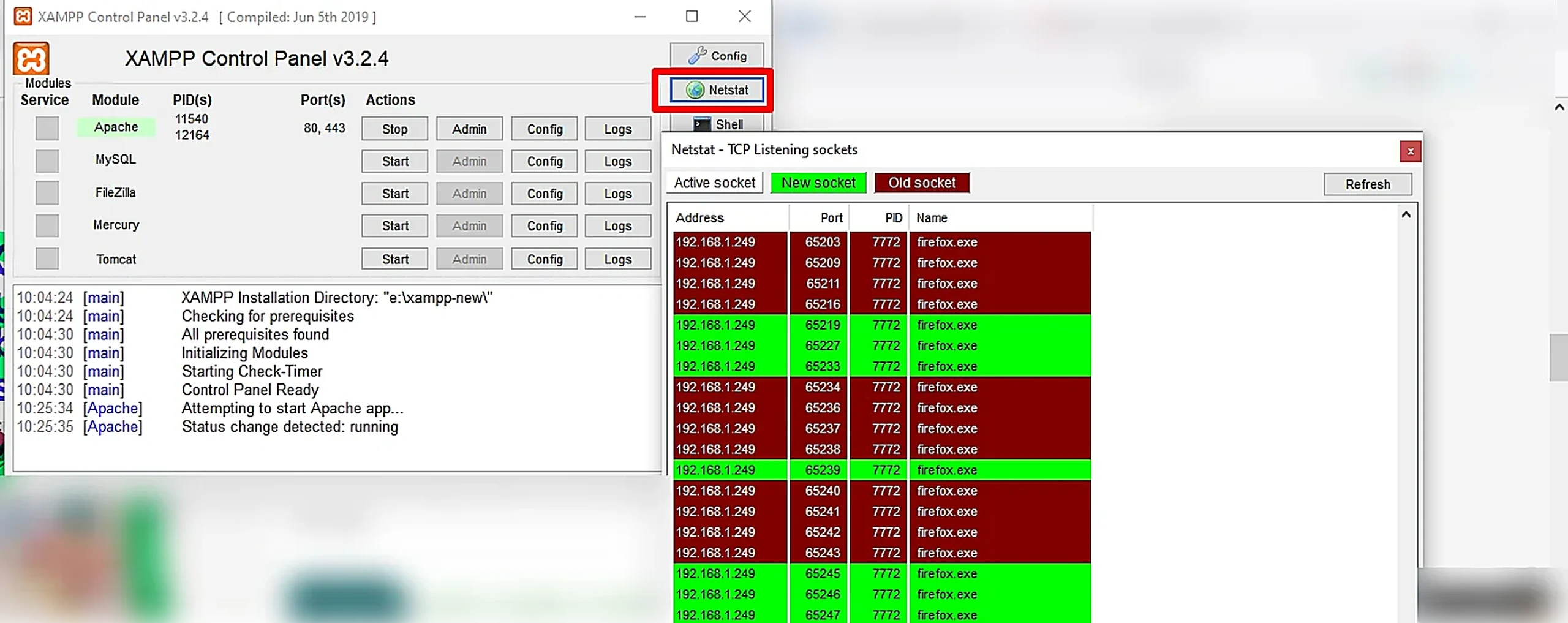
How to verify the port conflict:
• Open XAMPP Control Panel
• Click Netstat
• View which application is using Port 80 or Port 443
Method A: Stop the conflicting application. Common apps that use Port 80: Skype, IIS, VMware, and Windows Services (Web Deployment and W3SVC).
Method B: Change Apache Port to 8080
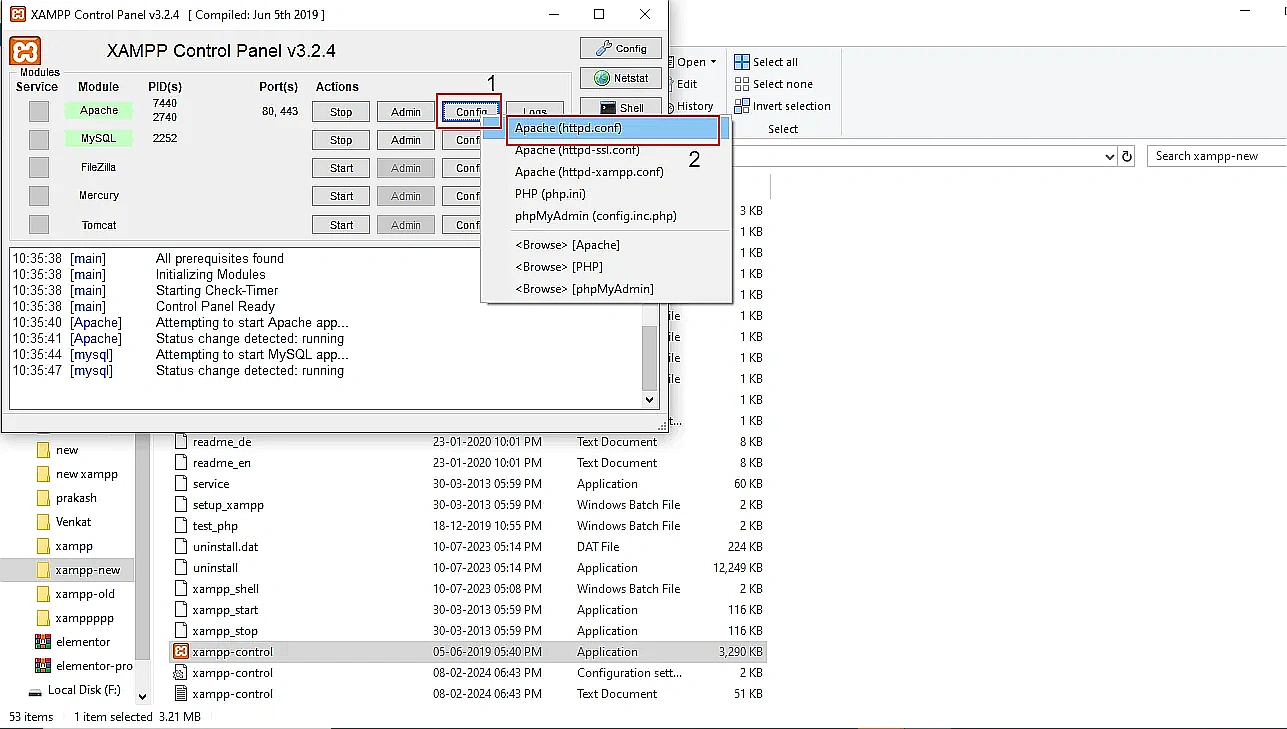
• Open XAMPP Control Panel
• Click Config (Apache) and open httpd.conf
• Find: Listen 80 and ServerName localhost:80.
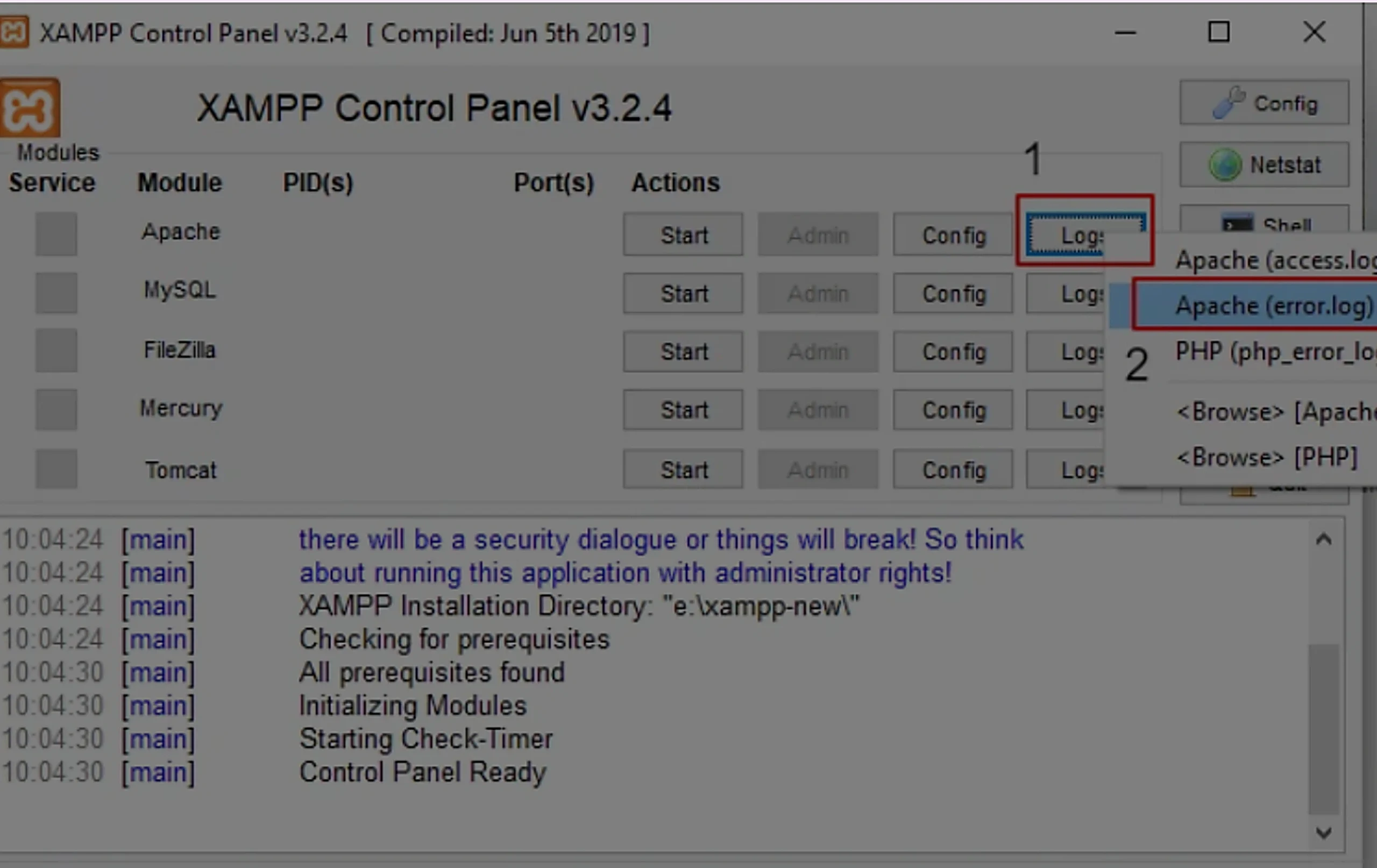
• Change to Listen 8080 and ServerName localhost:8080
• Save and restart Apache
Then open your WordPress site at http://localhost:8080/
| Mac Users: Open Finder > Applications > XAMPP > Apache folder > open httpd.conf. Make the same port updates as Windows. |
3. Fix MySQL Errors (Port 3306 Issues or MySQL Stopped Unexpectedly)
Reasons for MySQL failure:
• Port 3306 is already in use
• Corrupted MySQL files
• Permission issues
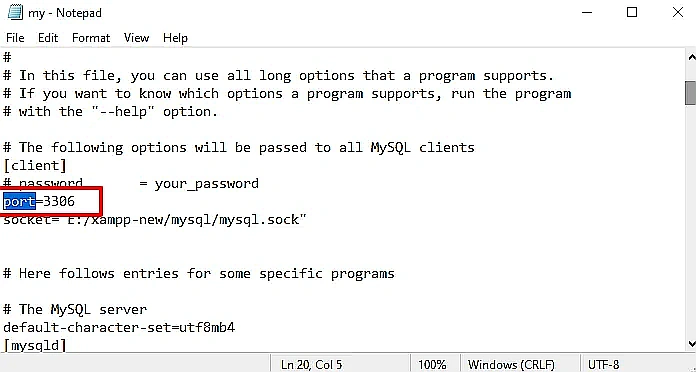
Fix 1: Change MySQL port to 3307
• Open the XAMPP control panel
• Stop all running modules – Apache and MySQL
• Go to Config > my.ini
• Replace Port=3306 with Port=3307
• Save and restart XAMPP
Fix 2: Run XAMPP as Administrator – Right-click XAMPP and select Run as administrator.
How to Install WordPress on Localhost (WAMP or XAMPP)
Once you know how to install WAMP and XAMPP, setting up WordPress on localhost takes about five minutes. The process is identical whether you are using WAMP or XAMPP – the only difference is the folder you paste WordPress into.
Step 1: Download WordPress
Go to wordpress.org and download the latest stable version of WordPress.
Step 2: Move WordPress to the Correct Folder
Extract the downloaded .zip file. You will get a folder named WordPress.
Copy that folder into the correct directory depending on your local server:
• WAMP: C:\wamp64\www\
• XAMPP (Windows): C:\xampp\htdocs\
• XAMPP (Mac): /Applications/XAMPP/htdocs/
• XAMPP (Linux): /opt/lampp/htdocs/
Rename the folder to whatever you want your local site URL to be – for example, rename it “mysite,” and your local URL will be http://localhost/mysite.
Step 3: Create a Database in phpMyAdmin
Open your browser and go to http://localhost/phpmyadmin. Log in with the username “root” and no password.
- Click the Databases tab at the top.
- In the “Create database” field, type a name, for example, “wordpress_local.”
- Leave the collation as-is and click Create.
Step 4: Run the WordPress installation wizard.
In your browser, go to http://localhost/mysite. WordPress will detect that it is not configured yet and launch the installation wizard automatically.
- Select your language and click Continue.
- On the Before We Get Started screen, click Let’s Go.
- Fill in your database details:
- Database Name (wordpress_local)
- Username (root),
- Password (leave blank),
- Database Host (localhost) and Table Prefix (wp_).
- Click Submit.
- WordPress will test the connection. If successful, click Run the installation.
Step 5: Set Up Your WordPress Site
Site Title: whatever you want to call your local site
Username: Create an admin username (avoid ‘admin’ – it is a security risk even locally)
Password: Create a strong password
Your Email: Enter your email address.
Click “Install WordPress.”
Step 6: Log In to Your WordPress Dashboard
Once installation completes, click Log In. Enter the username and password you just created. You will land on the WordPress admin dashboard at http://localhost/mysite/wp-admin.
Your local WordPress site is now fully set up and ready to use.
What to do next
Now that your local server is running and WordPress is installed, here are four things worth setting up next.
1. Enable HTTPS locally
Install mkcert on your machine. It creates a trusted local SSL certificate so your local site runs on https instead of http. This matters if you are testing payment pages, login forms, or any feature that behaves differently on SSL.
2. Connect to VS Code
Install the PHP Intelephense extension in VS Code. It gives you autocomplete, error detection, and function hints as you edit your WordPress theme or plugin files locally.
3. Push your local site to live
When your local build is ready to go live, export your database from phpMyAdmin using Export → Quick → Go, then transfer your files via SFTP. Alternatively, use a migration plugin to handle both the files and database in one step.
4. Back up your local database regularly
Go to phpMyAdmin, select your database, click Export → Quick → Go. Save the downloaded .sql file somewhere safe. Local environments can break during updates and having a backup saves hours of work.
Frequently Asked Questions
Q1. Can I run WAMP and XAMPP at the same time?
You can have both installed but cannot run them at the same time. Both use the same default ports, port 80 for Apache and port 3306 for MySQL. Running them at the same time will cause conflicts, and neither will work. You can have both installed and switch between them by stopping one before starting the other
Q2. How do I fix XAMPP Apache not starting on Windows?
The most common fix is changing Apache’s port from 80 to 8080 in httpd.conf. The most common reason XAMPP Apache fails to start on Windows is a port 80 conflict. Another application like Skype, IIS, or VMware is likely using port 80. To fix it, open the XAMPP Control Panel, click Config next to Apache, and open httpd.conf, find the line that says “Listen 80” and change it to “Listen 8080.” Also update ServerName localhost:80 to ServerName localhost:8080. Save the file and restart Apache. You can then access your site at http://localhost:8080.
Q3. Why is my WampServer not working?
WampServer usually fails due to a port conflict on port 80 or a missing Visual C++ package. It might not be working due to port conflicts, service failures, or misconfigurations. Check the WampServer error logs for specific error messages. For an Apache port conflict, change the Apache port from 80 to 8080 and update ServerName from localhost to localhost:8080 in the httpd.conf file. If port 8080 is also busy, try port 7080
Q4. Can I use WAMP or XAMPP for production hosting?
No – neither WAMP nor XAMPP is safe or suitable for live production hosting. They are not configured for production security. Default settings leave databases accessible without strong passwords. For live websites, use a proper hosting provider with a managed server environment.
Q5. Which local server platform works more effectively for WordPress projects: WAMP or XAMPP?
Both work equally well for WordPress on Windows. XAMPP is the better choice on Mac and Linux. WAMP has the edge if you need to switch PHP versions frequently; its tray menu makes it a one-click operation. XAMPP is better if you are on Mac or Linux or if you want to run your local environment from a USB drive.
Q6. Is XAMPP safe to use?
Yes, XAMPP is safe for local development use. However, it is not configured for public-facing production environments the default settings (no root password, open ports) are intentionally simple for developers. Never expose XAMPP directly to the internet without hardening your configuration first.
Q7. Is XAMPP free to use?
Yes, XAMPP is completely free. It is developed and maintained by Apache Friends and is fully open source. There are no paid tiers, license fees, or premium versions. You download it from apachefriends.org and use it without any cost.
Q8. Which is better, WAMP or XAMPP, for beginners?
XAMPP is better for beginners. It has a full visual control panel with clearly labeled Start and Stop buttons for Apache and MySQL, making it easier to understand what is running. WAMP uses a system tray icon, which is less intuitive for first-time users. XAMPP also runs on Windows, Mac, and Linux, so beginners do not need to worry about which operating system they are on.
Q9. How do I know if XAMPP is installed correctly?
Open the XAMPP Control Panel and click Start next to both Apache and MySQL. Then open your browser and go to http://localhos. If you see the XAMPP dashboard page load, the installation is working correctly. If Apache fails to start, a port conflict is the most likely cause – see the troubleshooting section above.
Q10. Does XAMPP work on Windows 11 in 2026?
Yes, XAMPP works on Windows 11. Download the latest version from apachefriends.org, which as of 2026 ships with PHP 8.2 and MariaDB 10.4. Run the installer as administrator and avoid installing it under C:\Program Files to prevent permission issues.
Q11. What is the difference between LAMP and XAMPP?
LAMP stands for Linux, Apache, MySQL, and PHP. It is a server stack that runs natively on Linux servers and is commonly used in production hosting environments. XAMPP is a local development tool that bundles the same components – Apache, MariaDB, and PHP – and adds a control panel so you can run them on your own Windows, Mac, or Linux machine for local testing. LAMP is for live servers; XAMPP is for local development.
Conclusion
Now that you know how to install WAMP and XAMPP, your local server is ready to use. Your local server is now ready to use, giving you a safe environment to build and test WordPress websites without affecting your live site. You can experiment with themes, test plugin updates, practice migrations, and streamline your development workflow with confidence.
To simplify WordPress migrations and data imports, tools from Smackcoders offer reliable solutions designed specifically for WordPress users and developers.
With your local setup complete, the next step is installing WordPress locally and starting your project. If you face any issues or need assistance, you can reach the Smackcoders support team at [email protected].
